Every tool, for every team.
All these features for takeoff, markup, estimating and documents, in one Windows app. One plan covers your whole company, bought once or by subscription, never per seat.
From the first sheet to the bid.
Each clip is the real app on a sample drawing. Pick a row to see its clip, or let it play through.
Takeoff and measurement
Count every copy of a symbol with Visual Search, measure Length, Area and Volume in real units, and fill a room’s area in one click, totalled live.
See all takeoff tools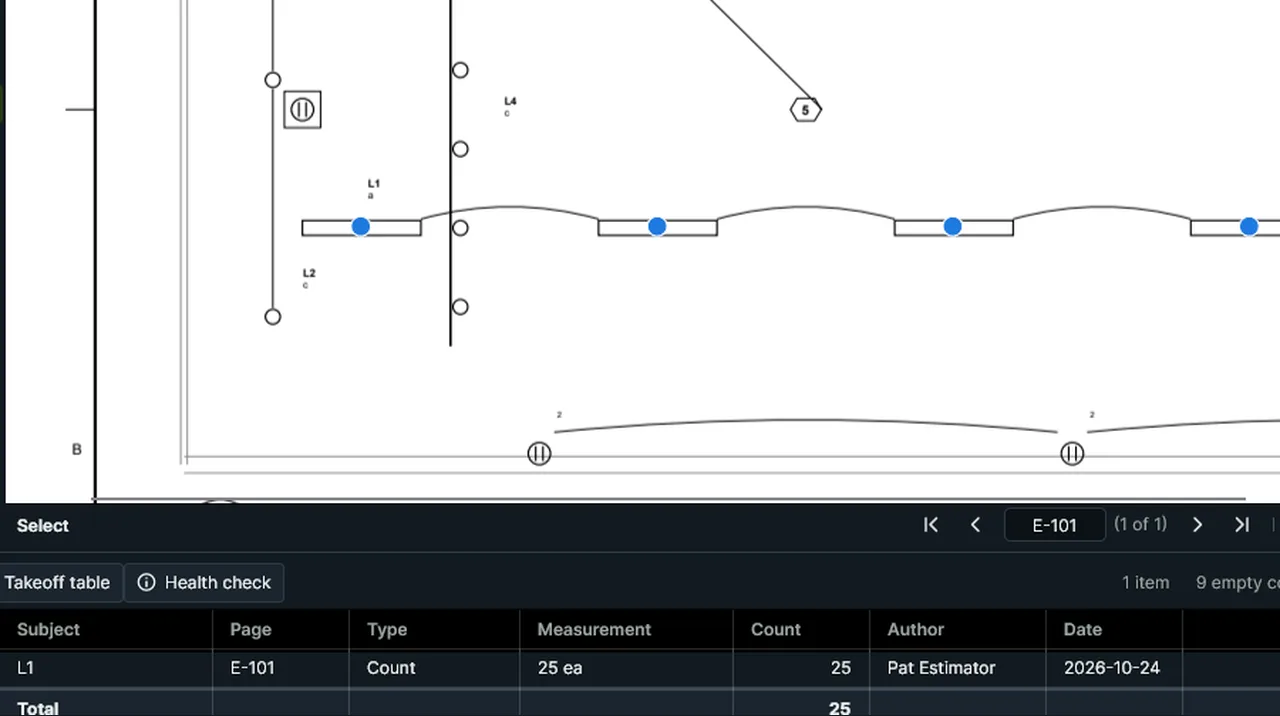
PDF markup
Clouds, callouts, review stamps, highlights and pen, with statuses and replies on any markup.
See all markup tools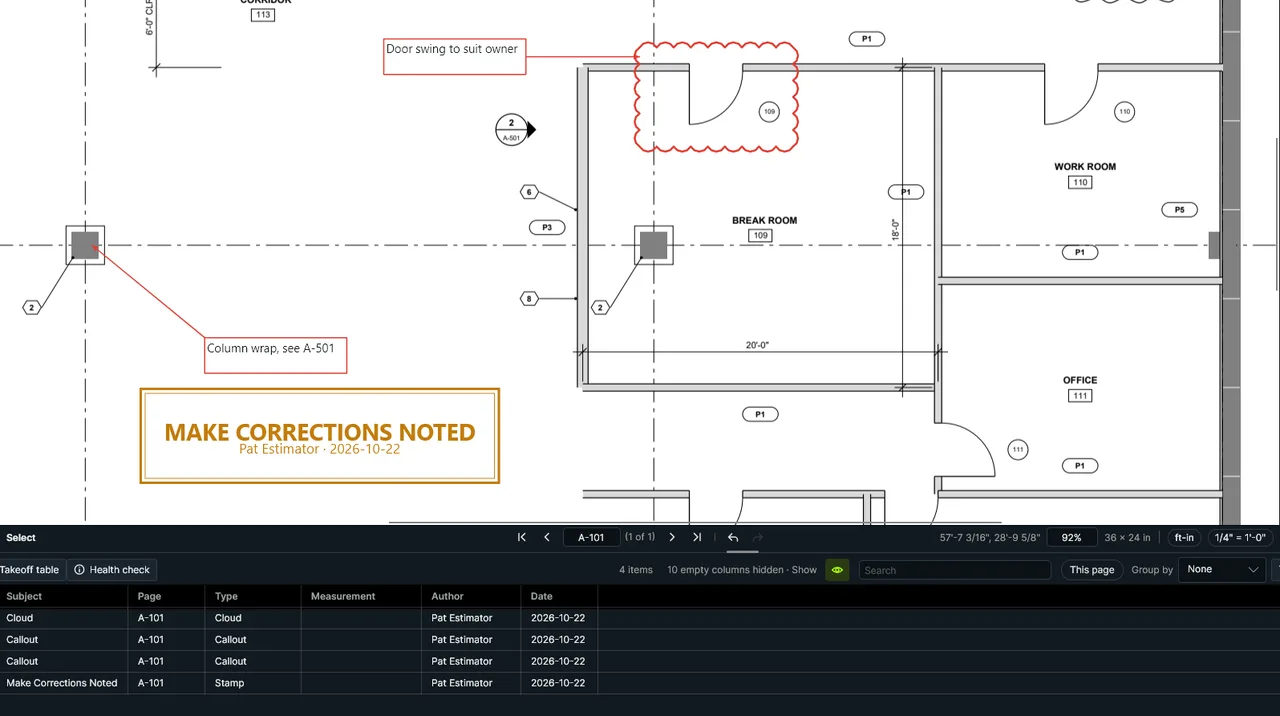
Estimating
The Takeoff table works like a spreadsheet: unit costs, your own columns and formulas such as [Area] * [Unit Cost], subtotals, and Excel export.
See all estimating tools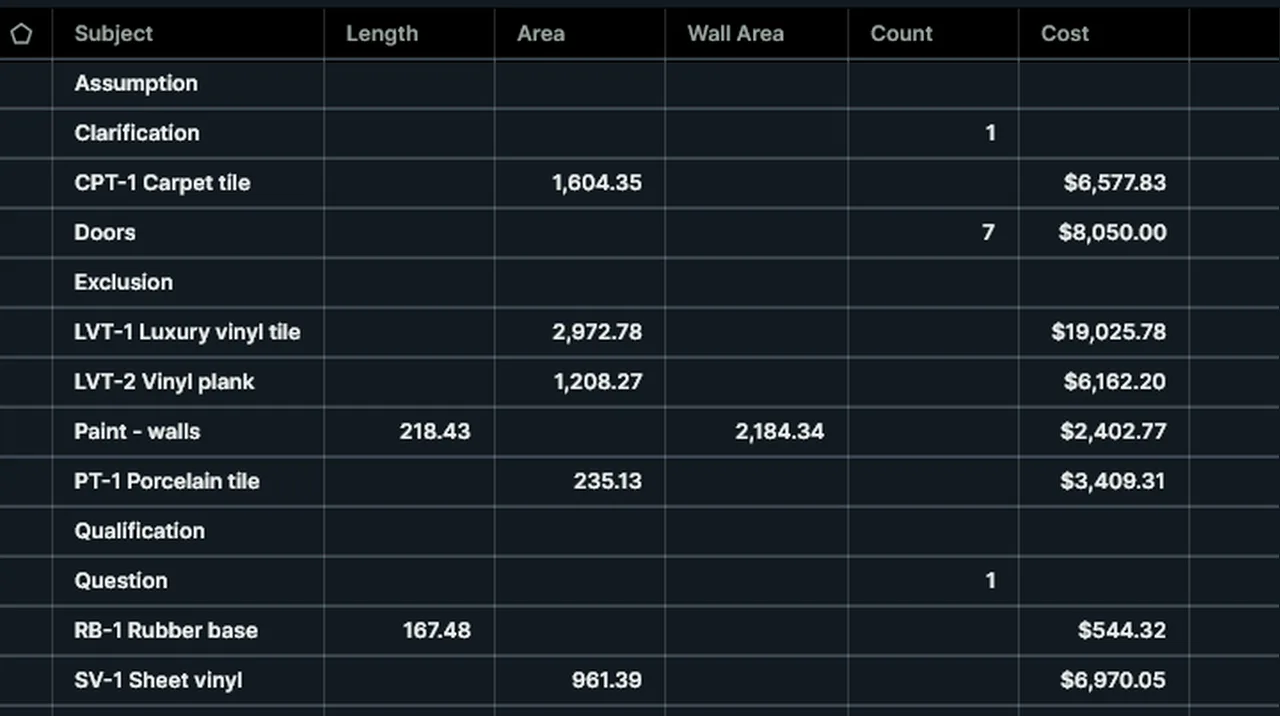
Bid day
Set the bid up, check the takeoff, handle addenda and write the bid letter, all from the Bid menu.
See all bid day tools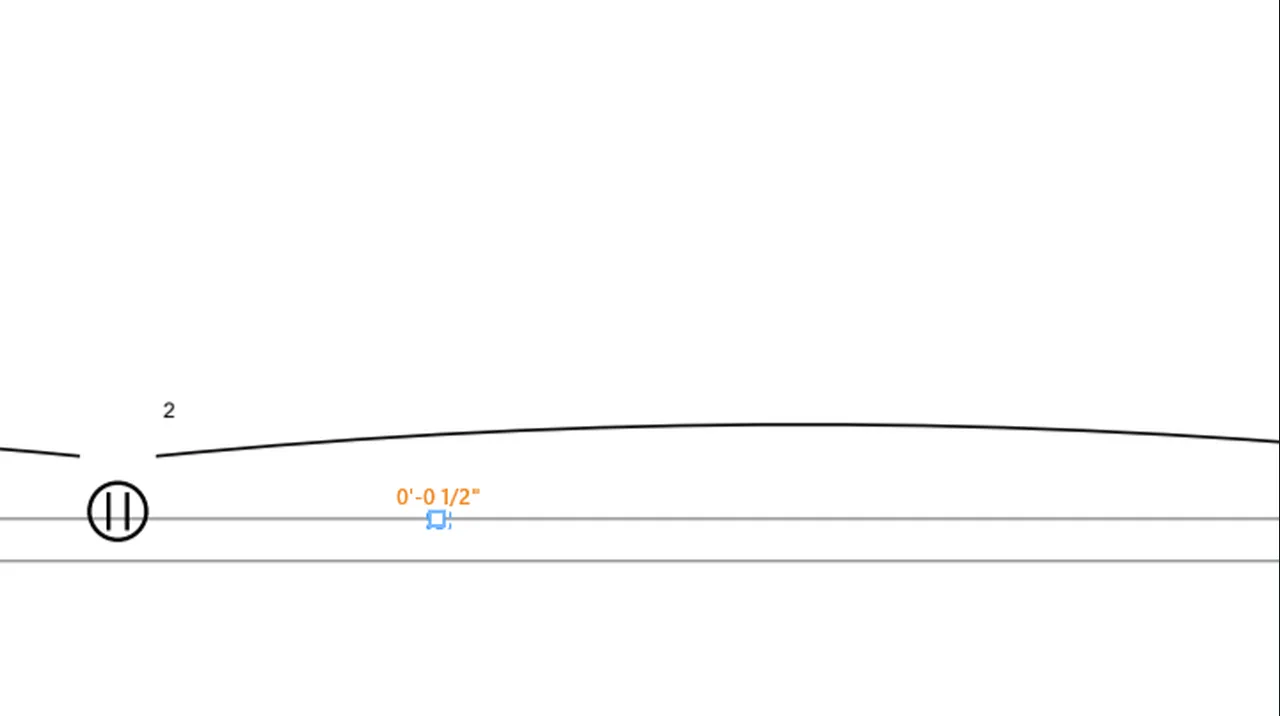
Documents and revisions
Compare and overlay revisions, organize plan sets, and use page tools, OCR, redaction, forms and signatures.
See all document tools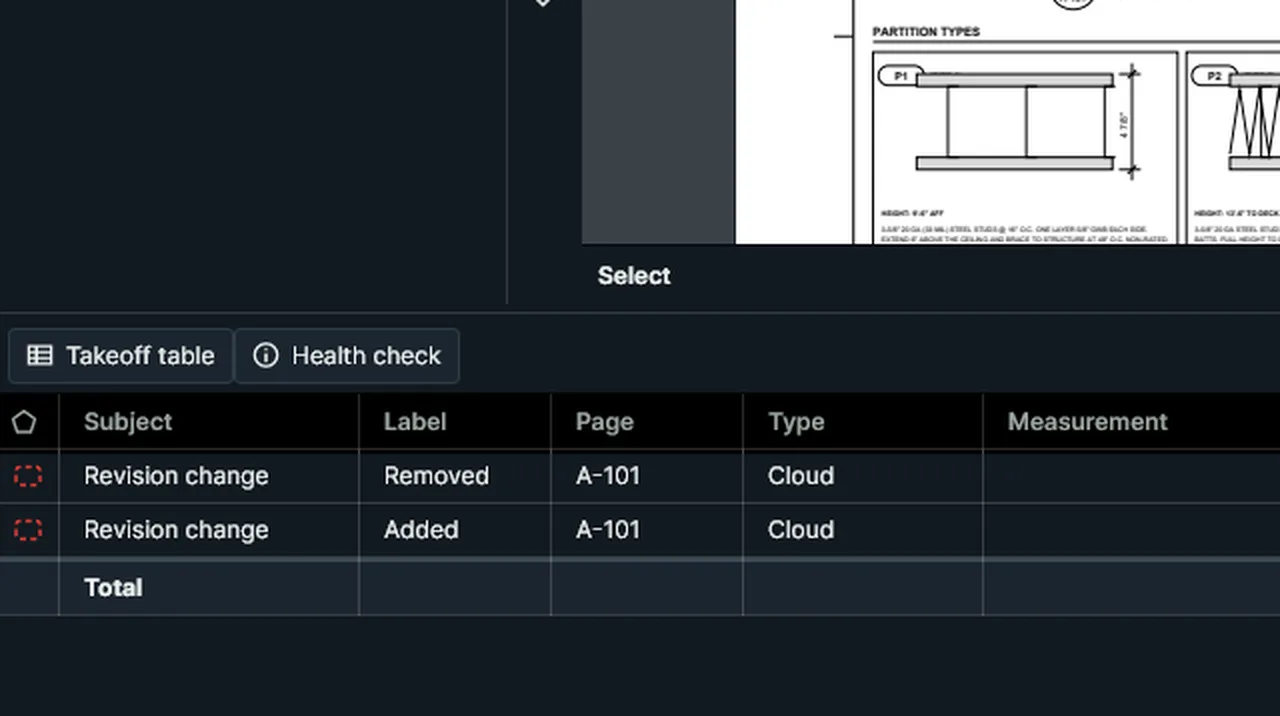
Batch and automation
Run a job on a whole folder, or chain jobs into a flow you can read. Rule-based, not AI.
See batch and Script Flows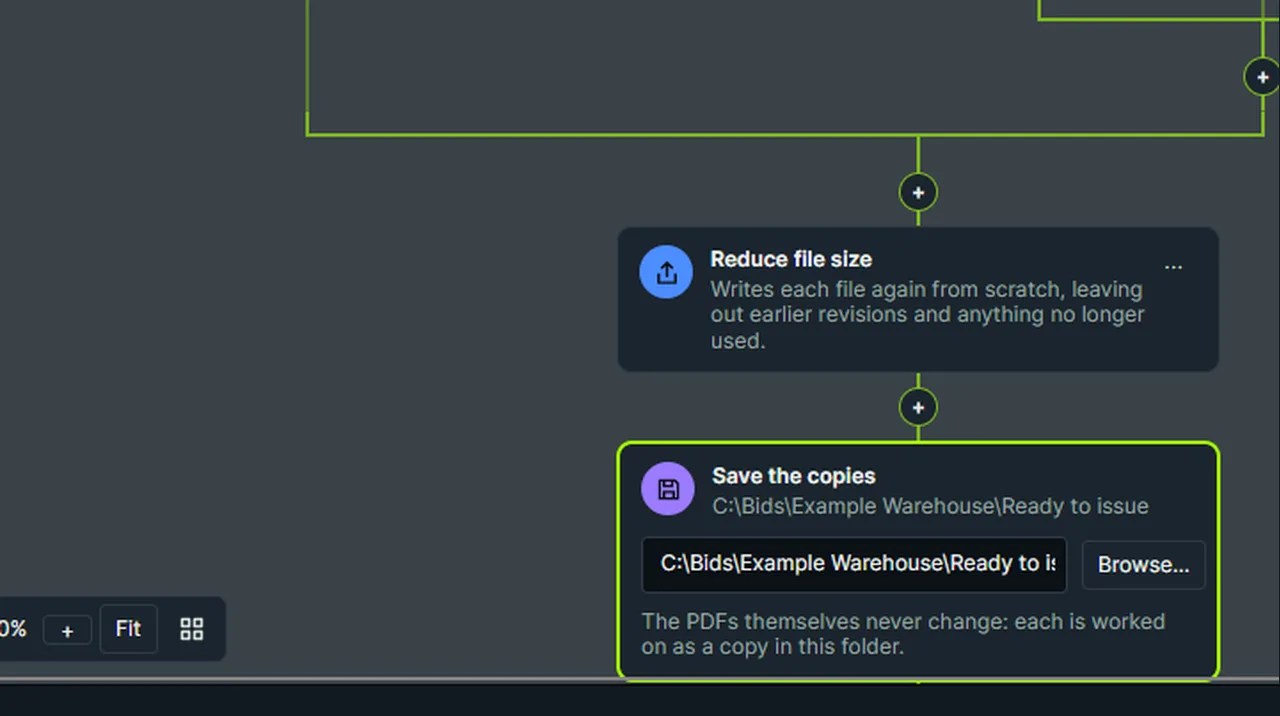
Collaboration
Sheet check-out, replies and statuses, and shared stamps, through the network folder you already use. No server.
See plan sets and check-out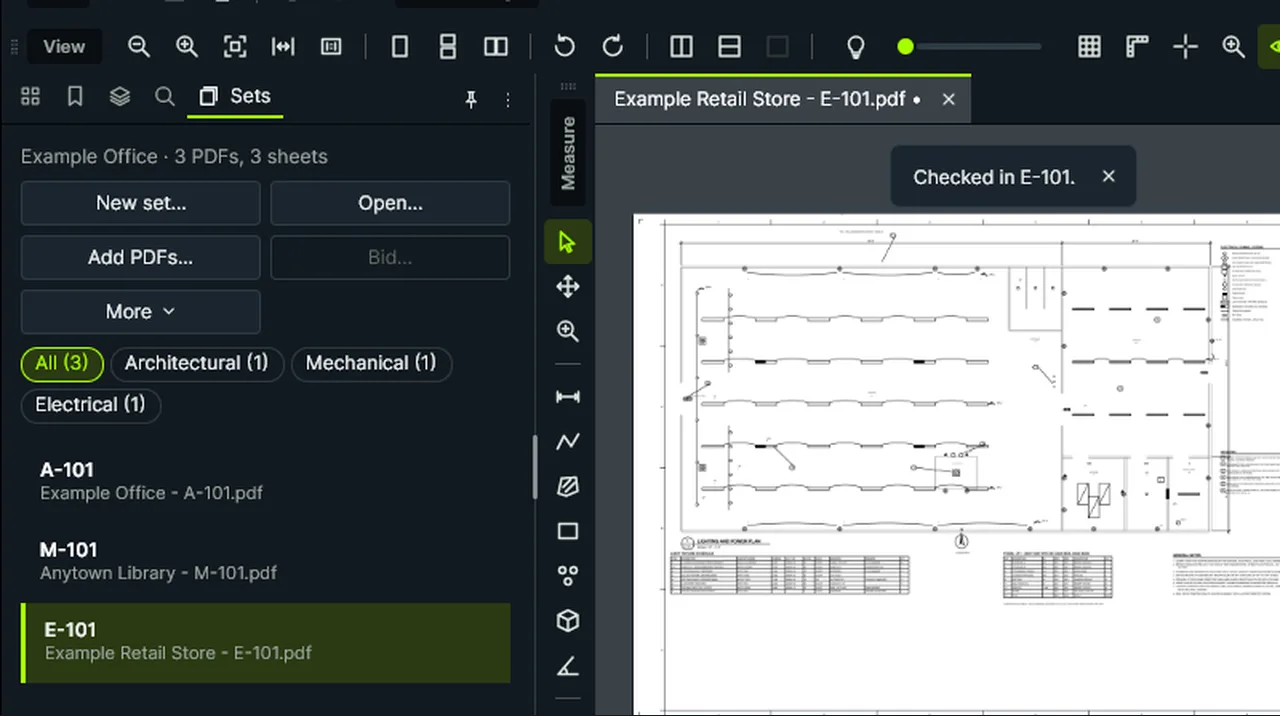
Workspace and customization
Workspaces for estimating, review and viewing, or your own; tool sets, themes and remappable keys.
See Workspaces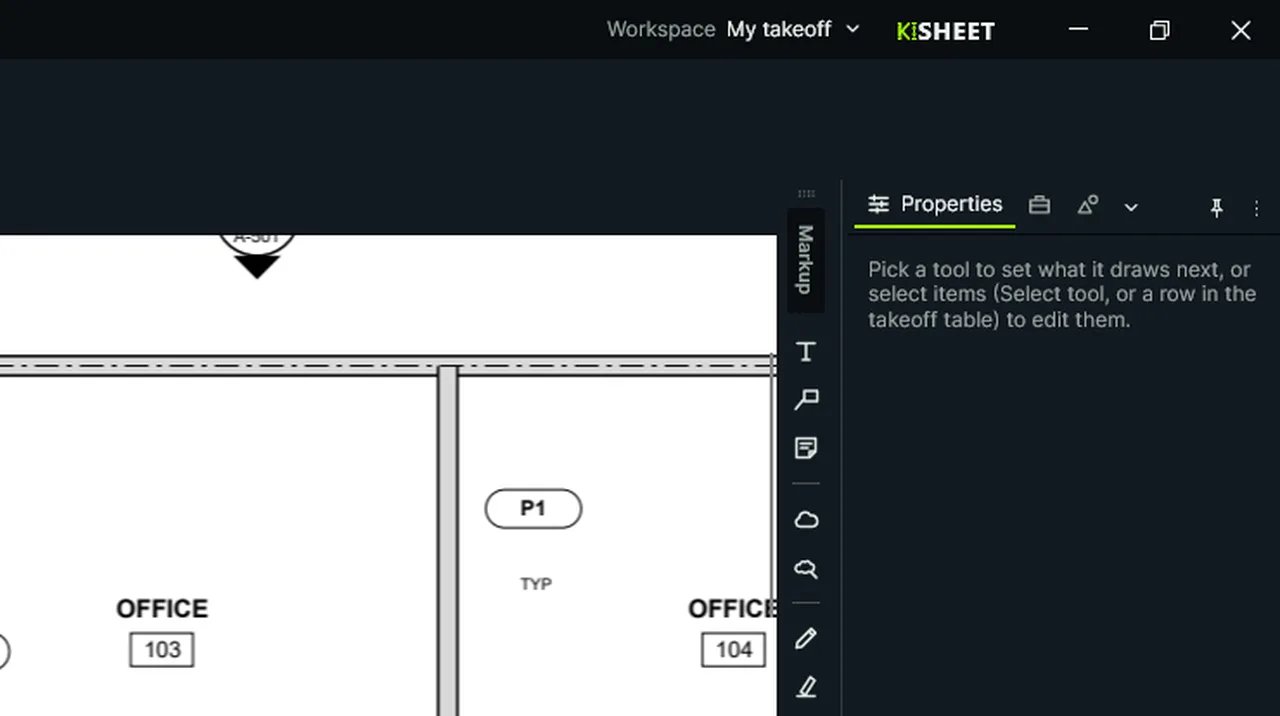
Every feature, A to Z.
Every feature here is in Kisheet today. Search it or pick a group, then open a row to see where to find it. What’s coming next is on the roadmap.
219 features
About KisheetShows Kisheet's version, the license state and the open-source notices.Video
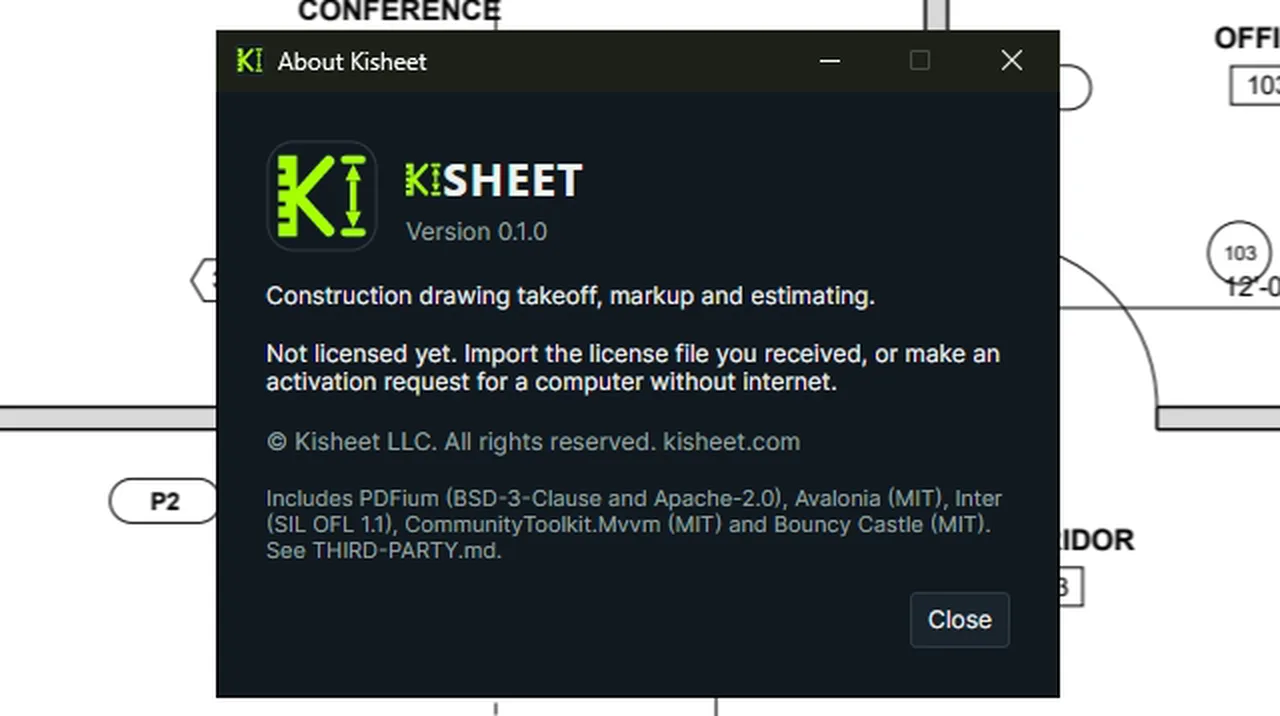
About Kisheet, from the Kisheet menu or the Help menu: the version, the license state and the open-source notices. Screen recording of Kisheet, October 2026. Where to find it. Open it from the Kisheet menu or Help > About Kisheet.
Kisheet menu
Add, rename, calculate and delete fieldsDraw text, check box and dropdown fields, rename them, and make a field calculated with a formula.Video
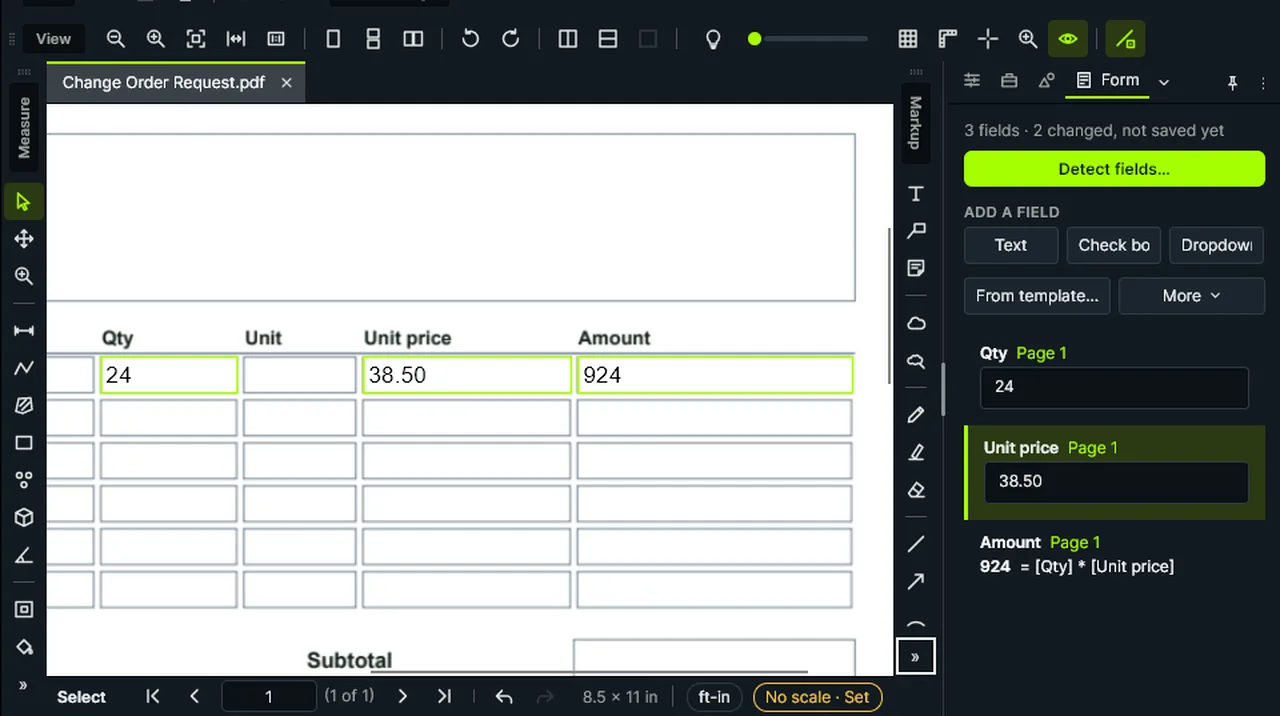
Text Field: drag a box and name it; Calculate Field with [Qty] * [Unit price] makes Amount work itself out. Screen recording of Kisheet, October 2026. Where to find it. Document > Form > Text Field, Check Box Field or Dropdown Field, then drag the field's box (it asks the name, and a dropdown's choices). Rename Field; Calculate Field takes a formula like [Qty] * [Unit price] (empty makes it plain again); Delete Field.
Document menu
AddendaAdd an addendum's PDFs to the bid: its sheets replace the sheets with the same numbers with the takeoff kept, changes are clouded, takeoff in changed areas is flagged to re-check, reissued spec sections are compared word by word, and the addendum log records it.Video
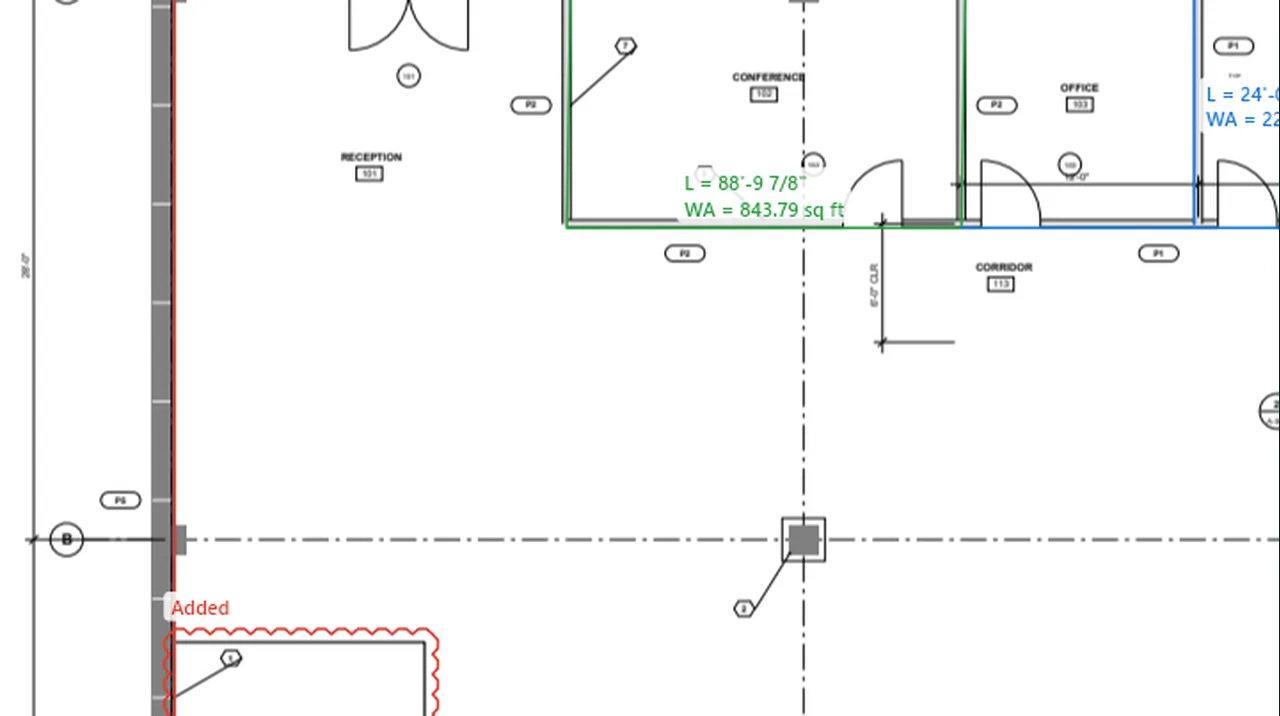
Add Addendum: its sheet replaces the sheet with the same number, the takeoff is kept, and the changes are clouded. Screen recording of Kisheet, October 2026. Where to find it. Bid > Addenda > Add Addendum (or drop PDFs on the Bid window's Addenda tab), name it and type its narrative. The old pages are kept in the bid folder. Addendum Acknowledged in the Bid ticks it off; Export Addendum Log saves the log.
Bid menu
AngleMeasures the angle between two lines.Video
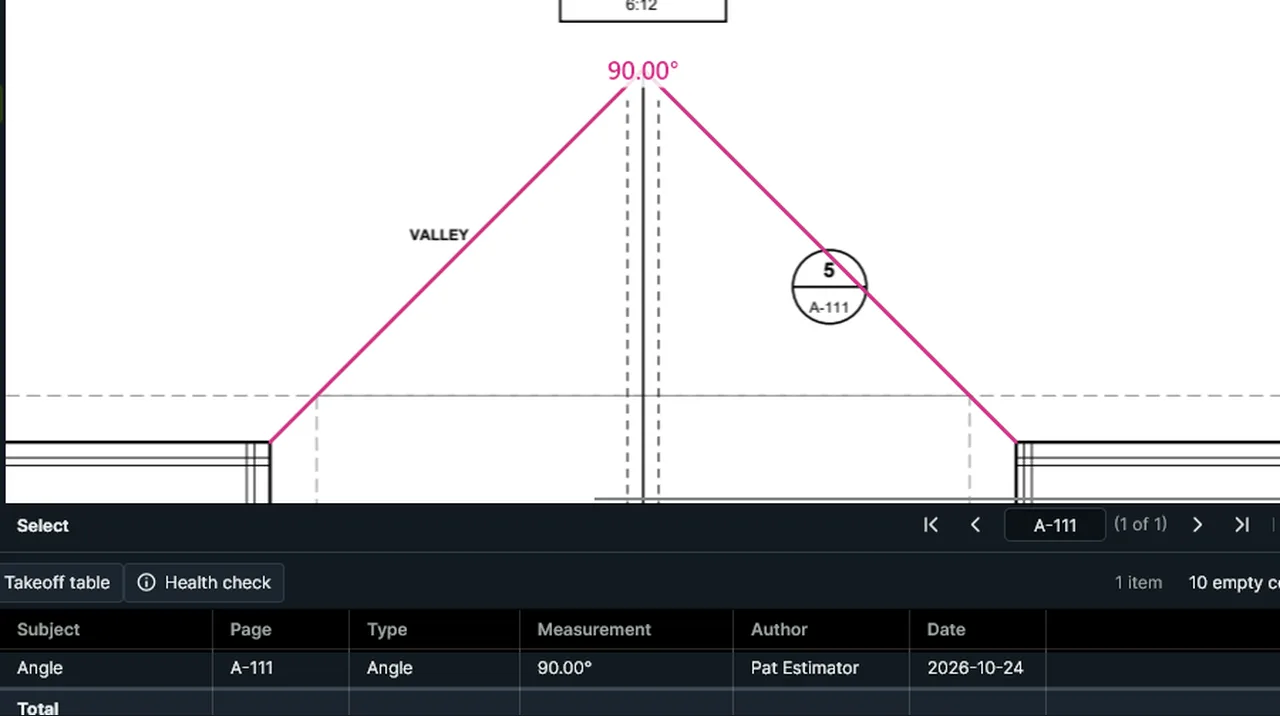
Angle: click a point on one arm, the vertex, then the other arm. Screen recording of Kisheet, October 2026. Where to find it. Angle (Shift+Alt+G): click a point on one arm, the corner, then a point on the other arm.
Tools > Measure
Apply redactionsTakes the text, pictures and drawing under the marks out of the file for good, and covers them in black.Video
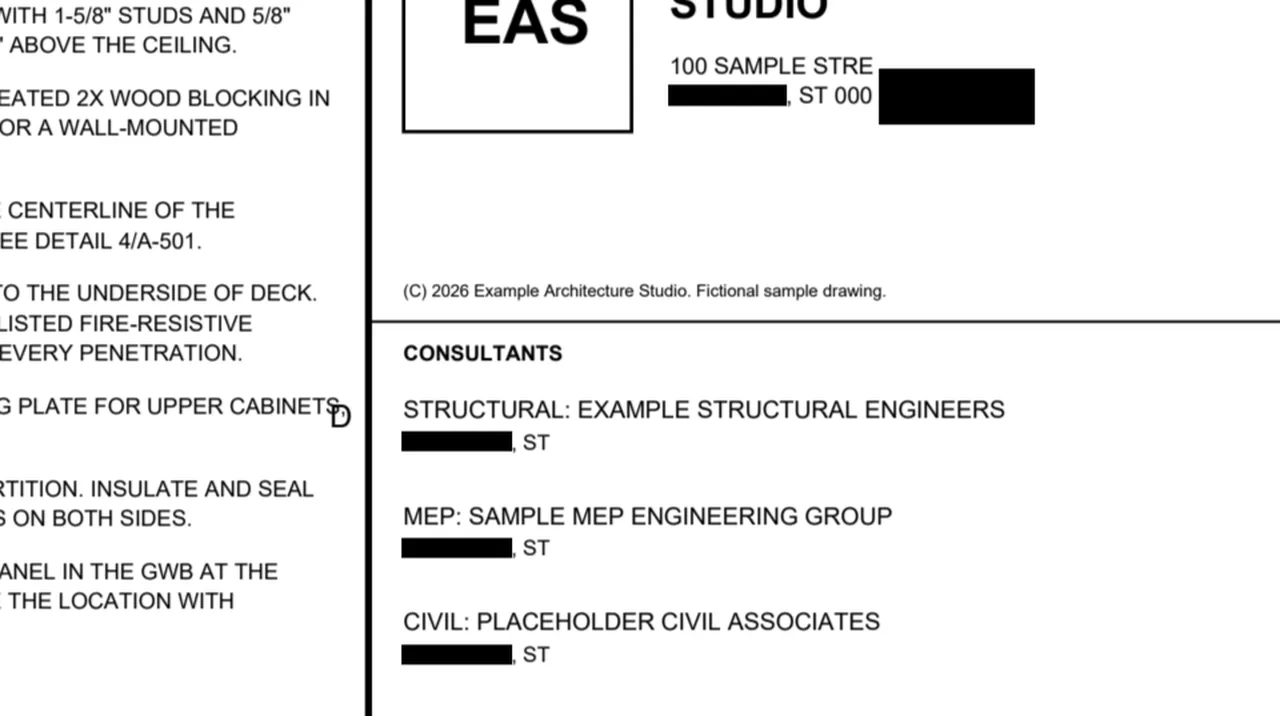
Apply Redactions asks first, then takes the marked text out of the file for good and covers it in black. Screen recording of Kisheet, October 2026. Where to find it. Document > Redaction > Apply Redactions asks first. It can't be undone, but a backup copy is kept.
Document menu
Arc length, radius and diameterCurved runs and circles: the length along an arc, a radius from its center, a radius from three points on a curve, or a diameter.Video
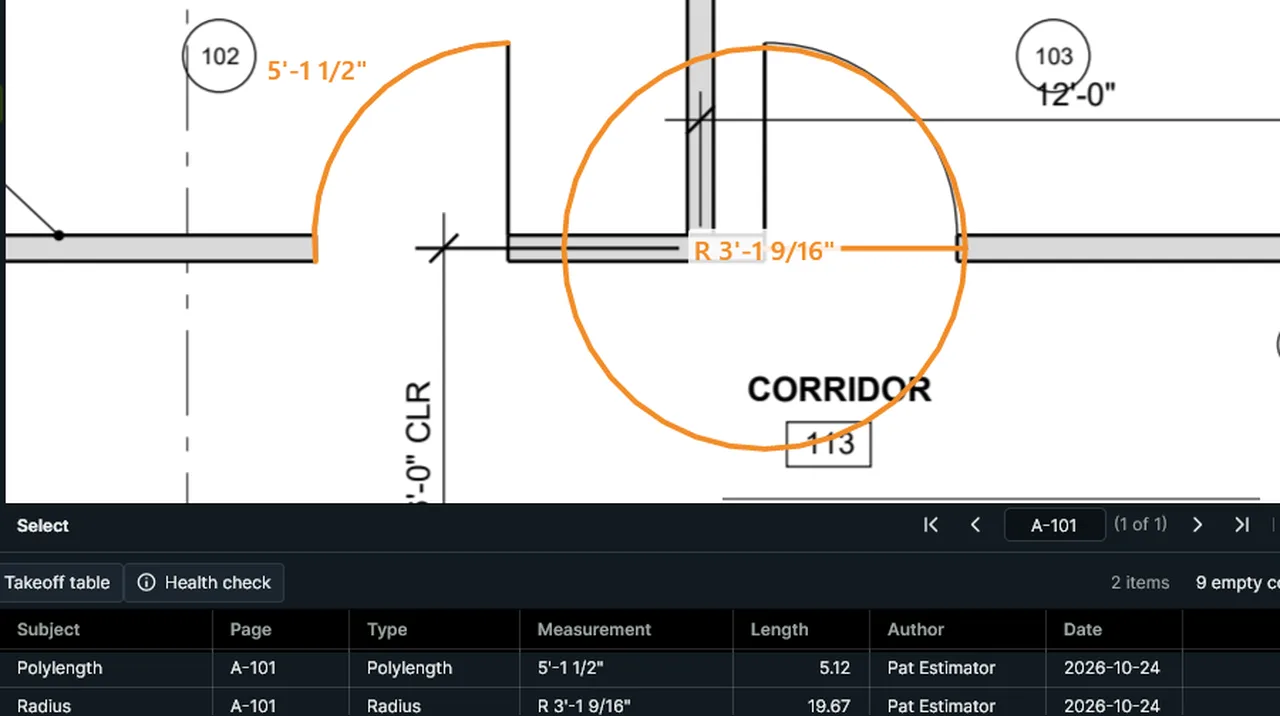
Arc Length: click the start, the end, then a point on the arc. Radius: the center, then a point on it. Screen recording of Kisheet, October 2026. Where to find it. Arc Length: the start, the end, then a point on the arc. Radius: the center, then a point on the circle. 3-Point Radius: three points on a curve such as a curb or a round wall. Diameter: one side, then the other. Make a Perimeter from the Area (Tools > Measure, or right-click a selected area) puts a dashed perimeter run around each selected area or volume, for base, wall angle or edge forms.
Tools > Measure
ArcsA circular arc through three clicks.Video
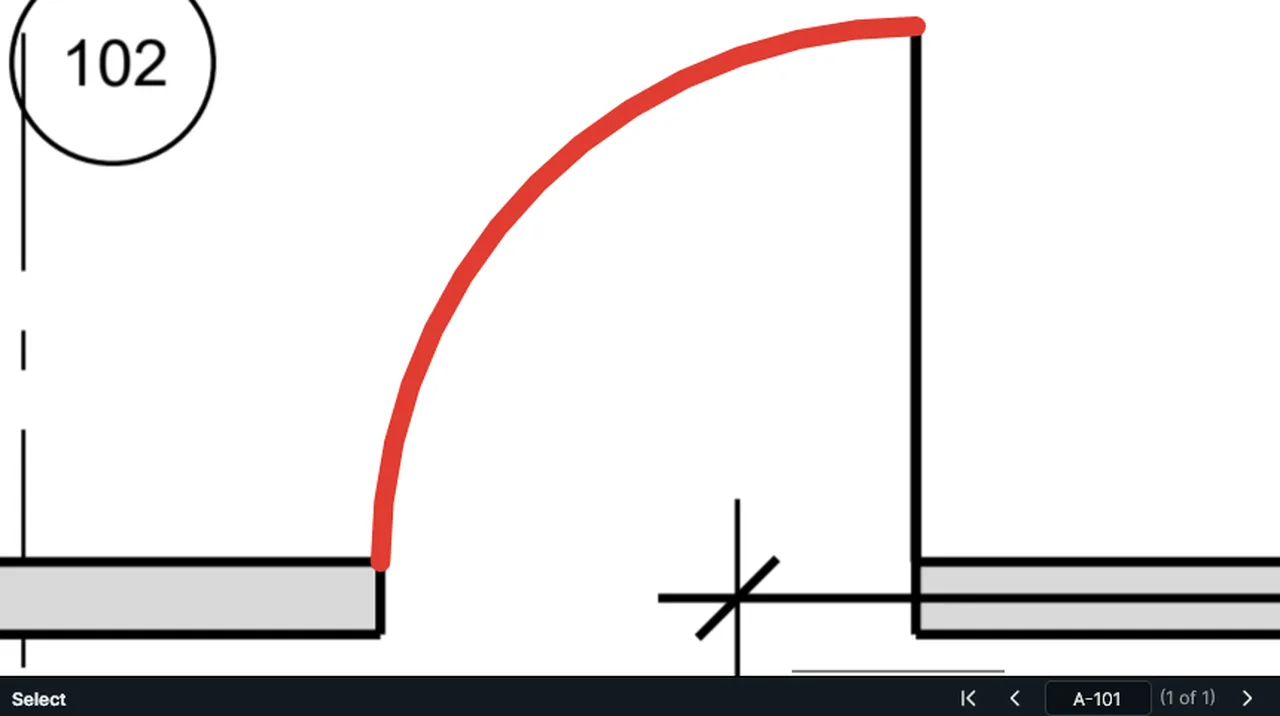
Arc: click where it starts, where it ends, then a point it passes through. Screen recording of Kisheet, October 2026. Where to find it. Tools > Markup > Arc: click the start, the end, then a point the arc passes through.
Tools > Markup
Area, volume and cutoutsArea takeoff by clicking corners or dragging a rectangle, volume from an area and a depth, and holes cut out of areas.Video
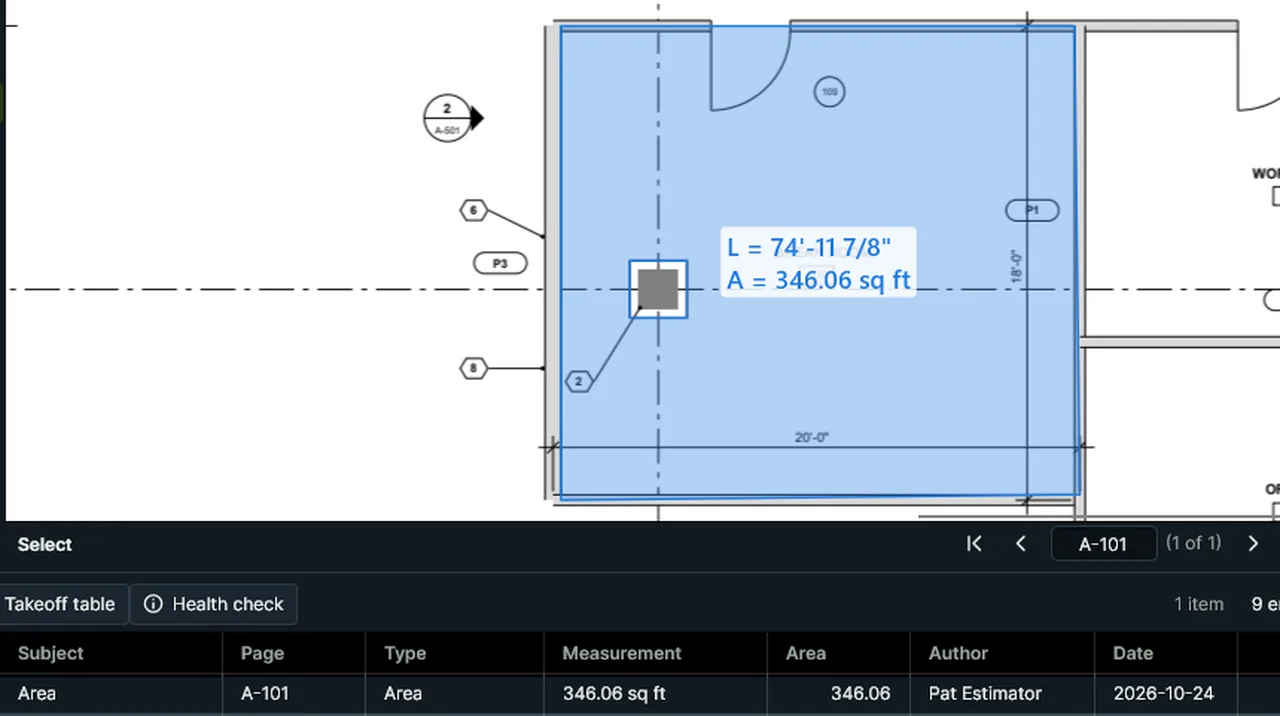
Area: click the room's corners. Cutout: click around the column, and it comes off the area. Screen recording of Kisheet, October 2026. Where to find it. Area (Shift+Alt+A) and Volume (Shift+Alt+V): click the corners (close on the first point, press Enter or double-click) or drag a rectangle. Volume uses the default depth (4 inches, set in Preferences) until you change it in Properties. Cutout (Shift+Alt+X) draws a hole in the selected area, or else the area it falls in.
Tools > Measure
As-builts and the closeout copyMark what was built differently on the drawings, and hand over a closeout set with the as-built marks drawn in and a deviation log.Video
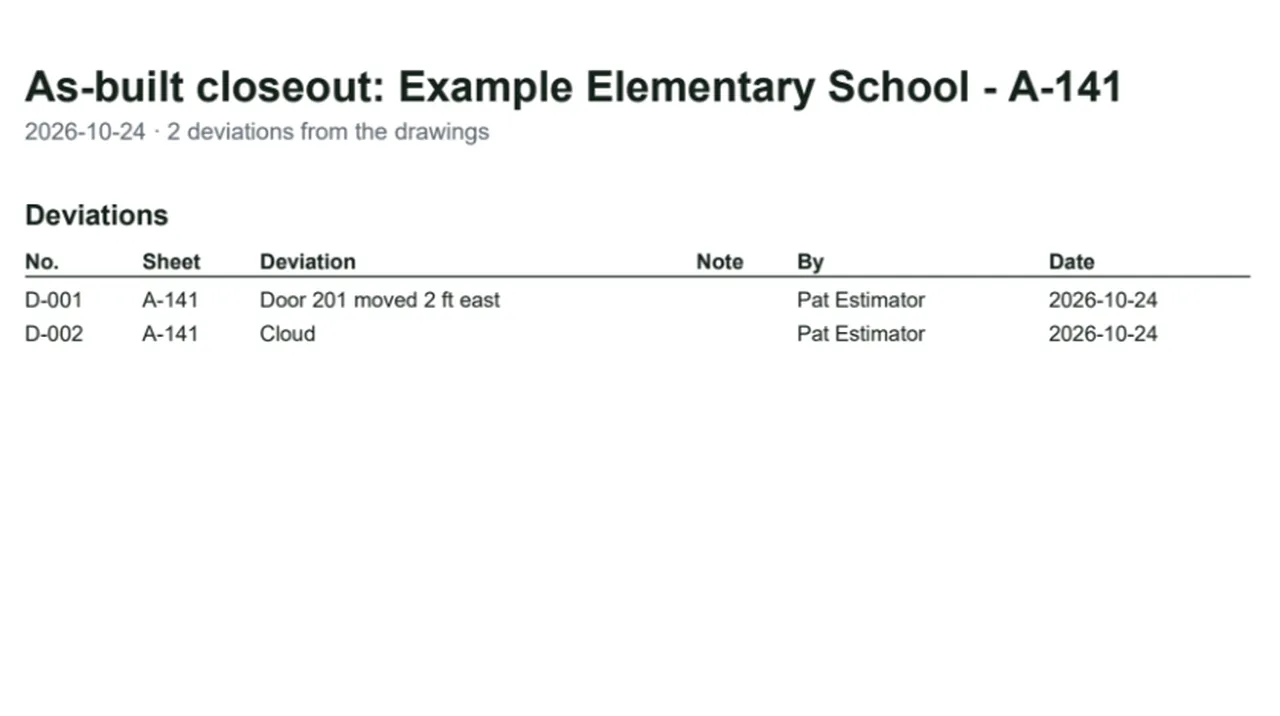
Mark as a Deviation puts the selected markups on the As-built layer; Closeout Copy draws it in, then the deviation log. Screen recording of Kisheet, October 2026. Where to find it. Select markups, then Bid > After Award > Closeout > Mark as Built or Mark as a Deviation. Closeout Copy writes every sheet with the as-built marks drawn in, then the deviation log.
Bid menu
Autosave and crash recoveryUnsaved work is kept every minute outside the PDF and offered back after a crash.
Where to find it. Nothing is written beside your PDF until you save. If Kisheet closes without saving, the next start offers your work back; a PDF that changed since isn't restored. Restored work still has to be saved, and Undo takes it back.
File formats and what's saved where
Batch jobsRuns one job over many PDFs at once (rotate, crop, split, shrink, repair, headers and watermarks, stamps, flatten, sheet links, revision clouds, overlays, slip-sheets, OCR, images, one takeoff table, one summary report, print, sign or password-protect) without touching the originals.Video
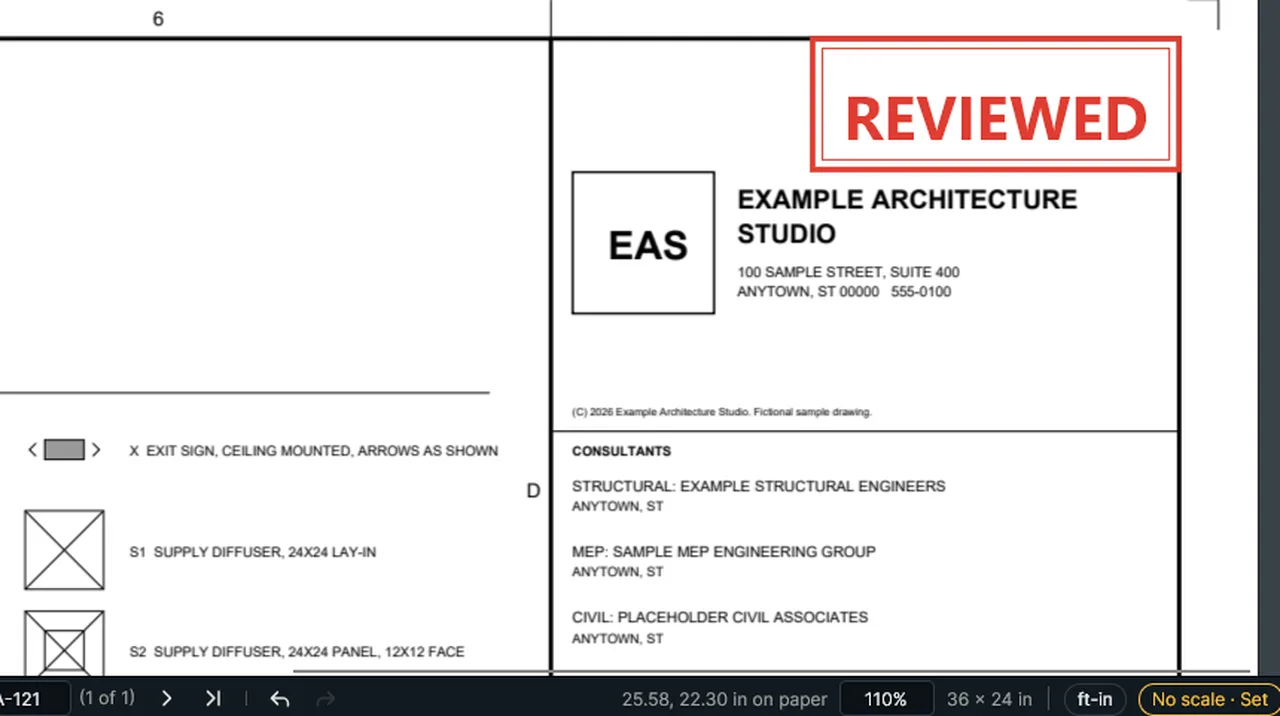
Batch Jobs: pick a job such as Stamp every sheet and a results folder, then Run; the copies get the stamp. Screen recording of Kisheet, October 2026. Where to find it. Tools > Batch Jobs: add PDFs (the open documents are listed to start), pick a job, set its options, pick a results folder, then Run. The originals are never changed. To chain several jobs, use Script Flows.
Batch menu
Bid letterA bid letter filled from a template with the job's sheets, trades, total and terms, as a PDF.Video
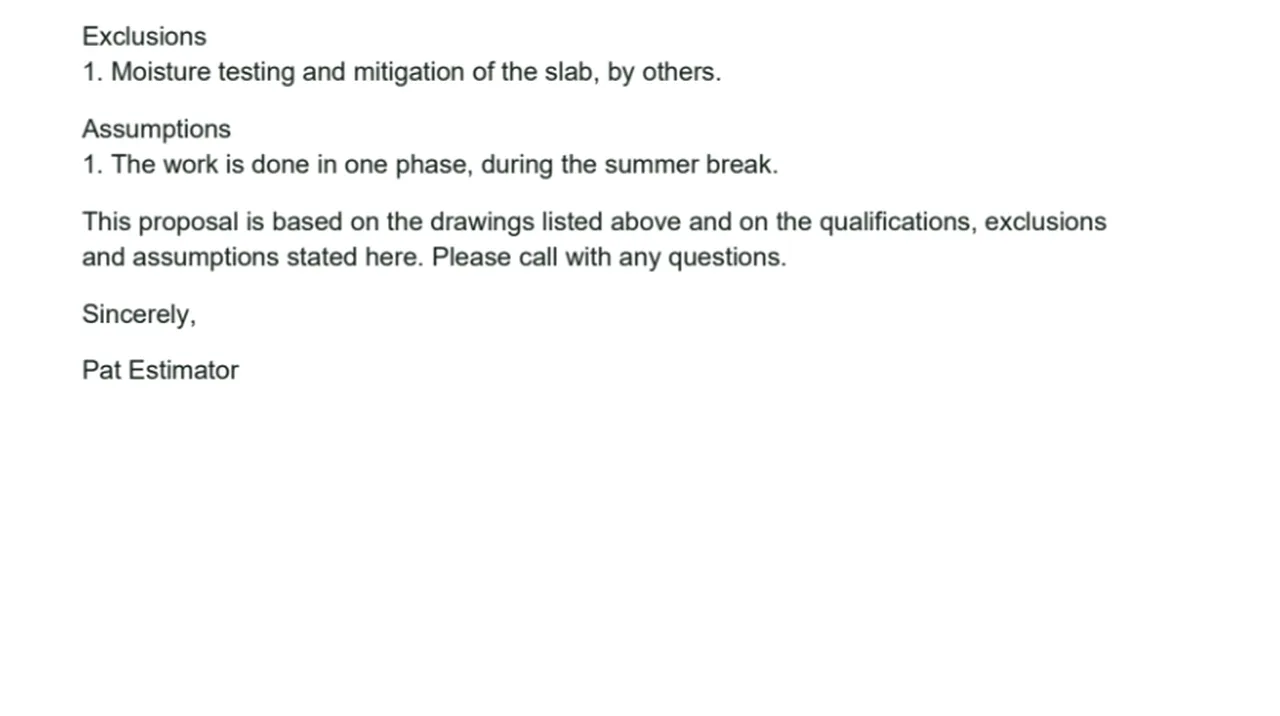
Bid Letter: the job's sheets, trades, total and terms written into a letter from the takeoff, as a PDF. Screen recording of Kisheet, October 2026. Where to find it. Bid > Outputs > Bid Letter. Bid Letter Template picks your own text template; canceling goes back to the built-in one.
Bid menu
Bid summary by space or by floorEach subject's quantity in each room or on each typical floor, with costs, as a PDF with the marked-up sheets and an Excel workbook.Video
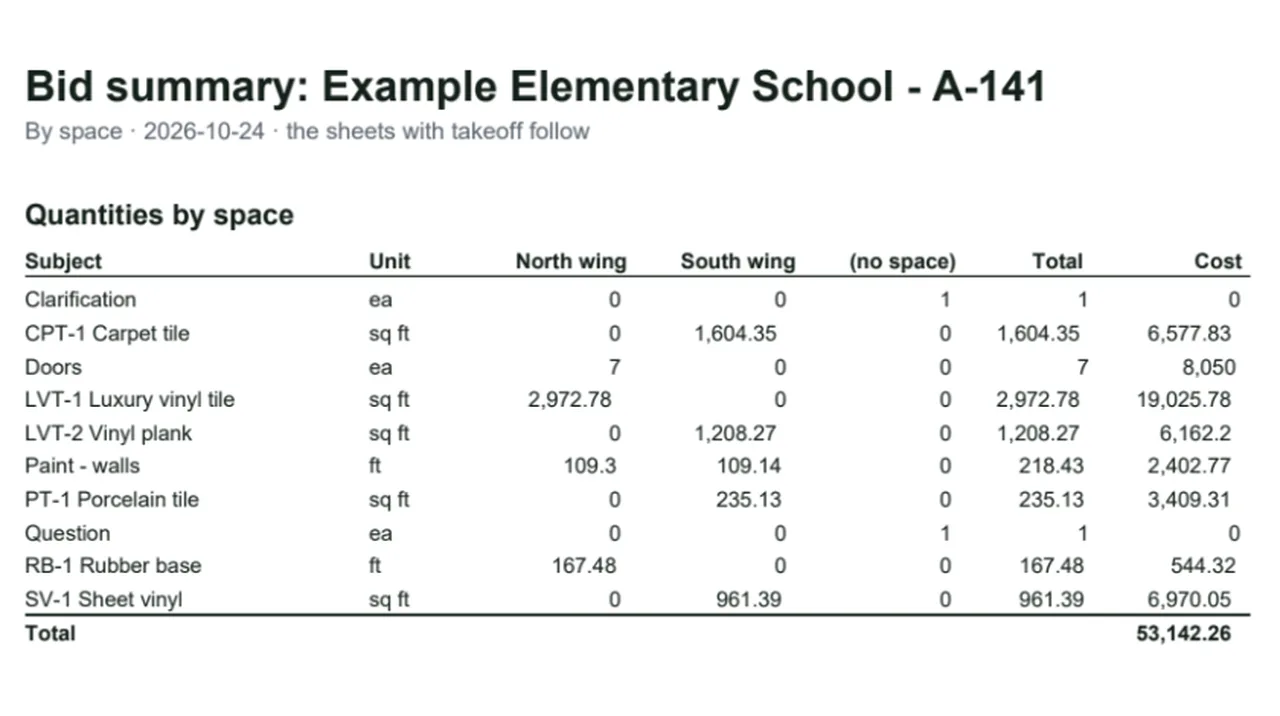
Bid Summary by Space: each subject's quantity in each space, with costs, as a PDF and an Excel workbook. Screen recording of Kisheet, October 2026. Where to find it. Bid > Outputs > Bid Summary by Space or Bid Summary by Floor or Unit, then choose the PDF's name; the workbook is saved beside it.
Bid menu
Bid takeoff export and bid templatesOne click writes the whole set's table and summary reports into the bid's Outputs folder; a company bid template starts every bid with the same tool sets, columns, statuses, export formats, scope words and file naming.Video
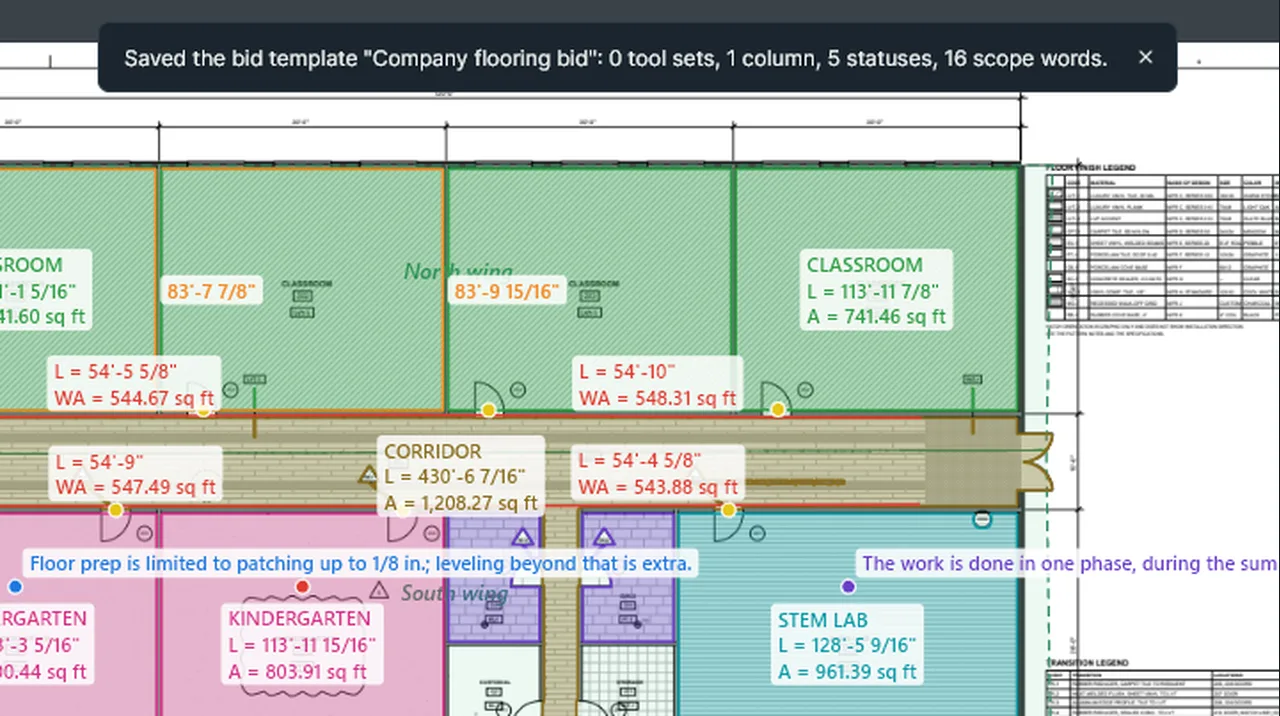
Export Bid Takeoff writes the set's table and summary to the bid's Outputs; Save Bid Template keeps your setup. Screen recording of Kisheet, October 2026. Where to find it. Bid > Outputs > Export Bid Takeoff. Bid > Save Bid Template saves your setup as a template file; Apply Bid Template adds its tool sets, columns and statuses to the bid and shapes the next bid you set up.
Bid menu
Bookmarks panelThe PDF's own outline; click a bookmark to go there.Video
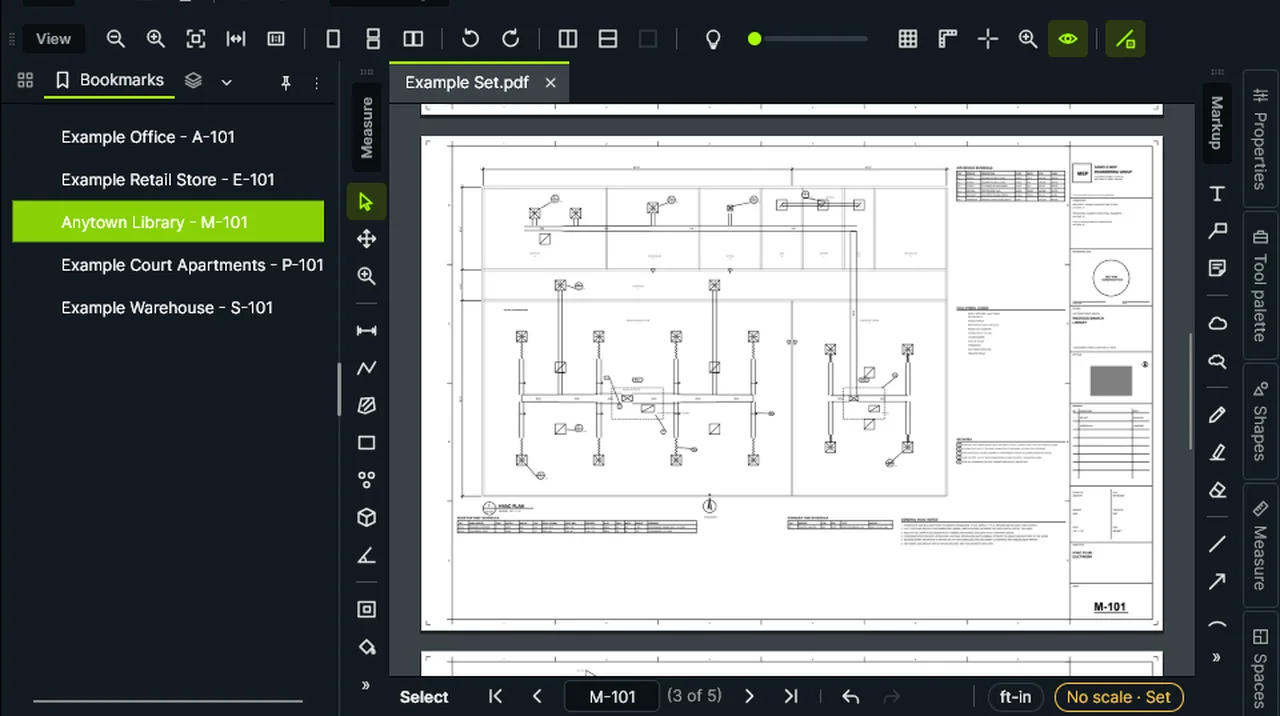
Bookmarks panel: the PDF's own outline; click a bookmark and Kisheet goes to that sheet. Screen recording of Kisheet, October 2026. Where to find it. Open it from Window > Panels. Kisheet shows the PDF's bookmarks as they are; Bid > Specifications > Bookmark Spec Books by Section adds bookmarks to spec books, and Split at Bookmarks uses them.
Panels
CalibrateSets the scale by clicking two points a known distance apart; distorted scans can be calibrated in X and Y separately.Video
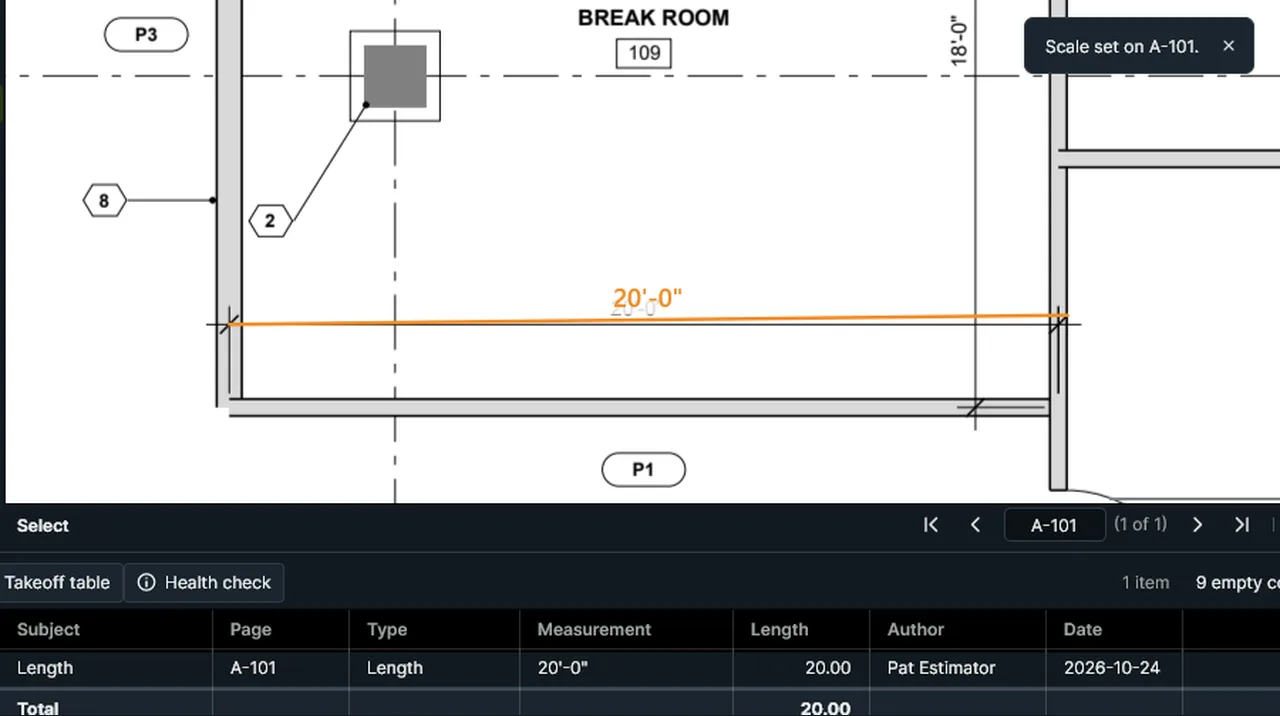
Calibrate: click both ends of a dimension, type its real length, and the scale is set; a length along it reads 20'-0". Screen recording of Kisheet, October 2026. Where to find it. Tools > Scale > Calibrate (Shift+Alt+K): click two points, type the real distance between them, and choose this page or all pages. Calibrate X and Y Separately asks for a known horizontal dimension, then a vertical one, and reports how they compare ("Y is 1.02× X").
Tools > Measure
Check counts against a scheduleBox a door, fixture or equipment schedule on the drawing; Kisheet reads it and reports every type whose counted quantity differs.Video
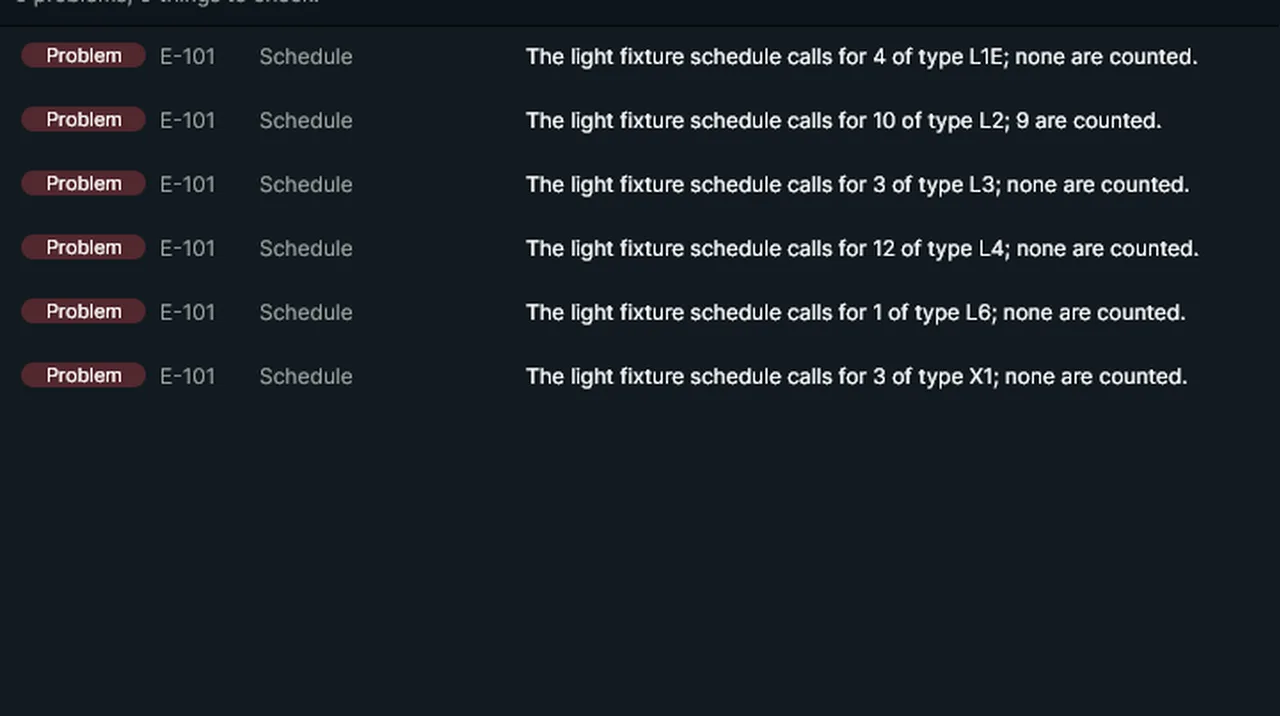
Check Counts Against a Schedule: box the fixture schedule, and every type whose count differs is listed. Screen recording of Kisheet, October 2026. Where to find it. Bid > Check Counts Against a Schedule, then drag a box around the schedule. The results appear in the Health Check panel and are saved with the takeoff; Forget the Schedules clears them.
Bid menu
Check out and check in sheetsA team sharing a set in a network folder can check sheets out, so two people don't save over each other's takeoff, with no server.Video
Check-out: a teammate's checked-out sheet shows who has it, saving is refused, and Check In Sheet asks first. Screen recording of Kisheet, October 2026. Where to find it. File > Plan Set > Check Out Sheet and Check In Sheet, or the Sets panel's More menu. A checked-out sheet shows who has it and on which computer, and saving that PDF is refused for everyone else. Releasing someone else's check-out asks first. Only Kisheet honors it, and opening and viewing are never blocked.
File menu
Check signatures and trust a signerChecks every signature: whether it's intact, whether it covers the whole file, who signed, and whether you trust them.Video
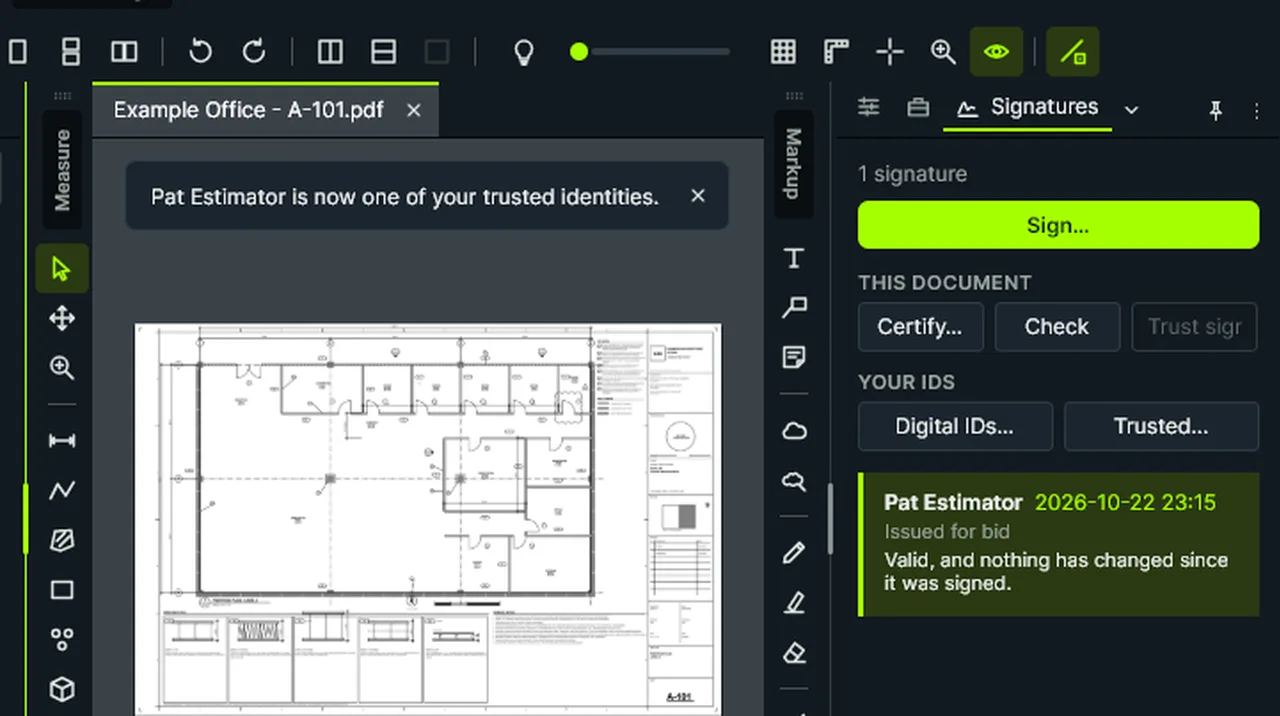
Check Signatures: each signature is checked for who signed and whether it's intact, and you can trust the signer. Screen recording of Kisheet, October 2026. Where to find it. Document > Signatures > Check Signatures (also done when a file opens); Trust This Signer for the signature picked in the Signatures panel.
Document menu
Close and Close AllCloses the active document or every document, asking about unsaved work.Video
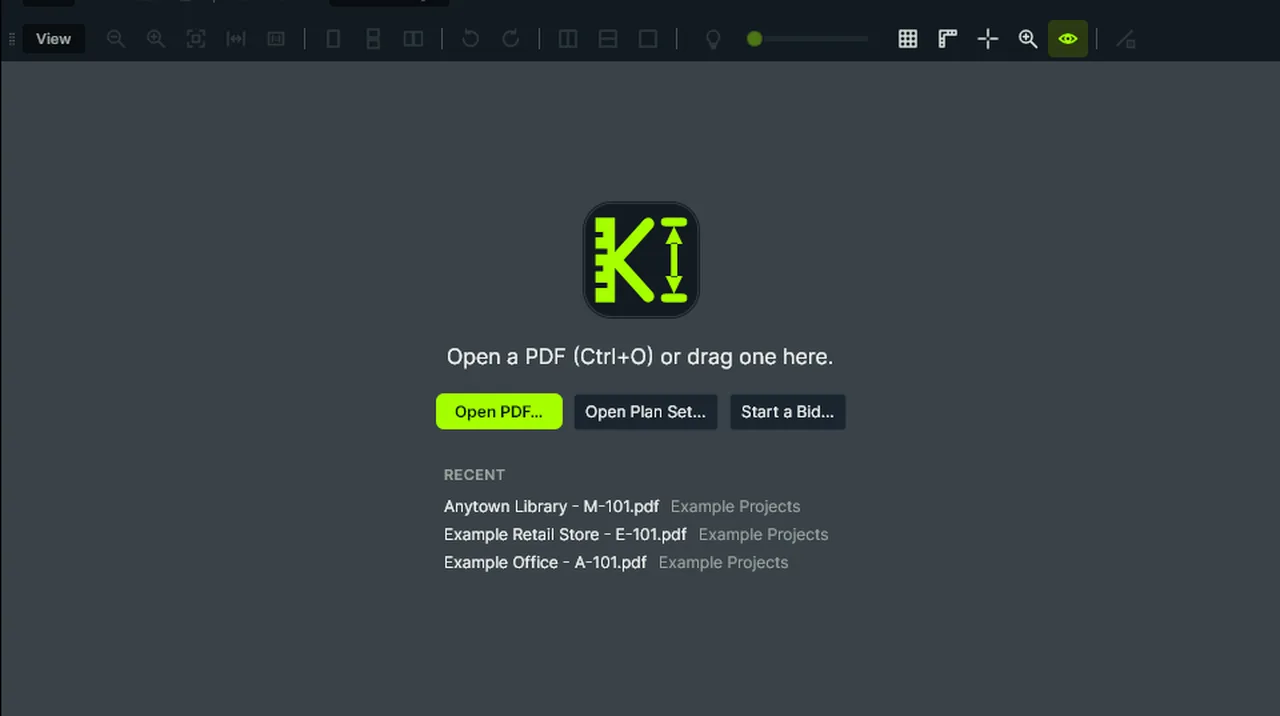
Close All closes every open PDF; one with unsaved work asks Save, Don't Save or Cancel first. Screen recording of Kisheet, October 2026. Where to find it. File > Close (Ctrl+W), Close All (Ctrl+Shift+W), the × on a document tab, or the tab's right-click menu. Unsaved work asks Save, Don't Save or Cancel; Close All stops at the first Cancel.
File menu
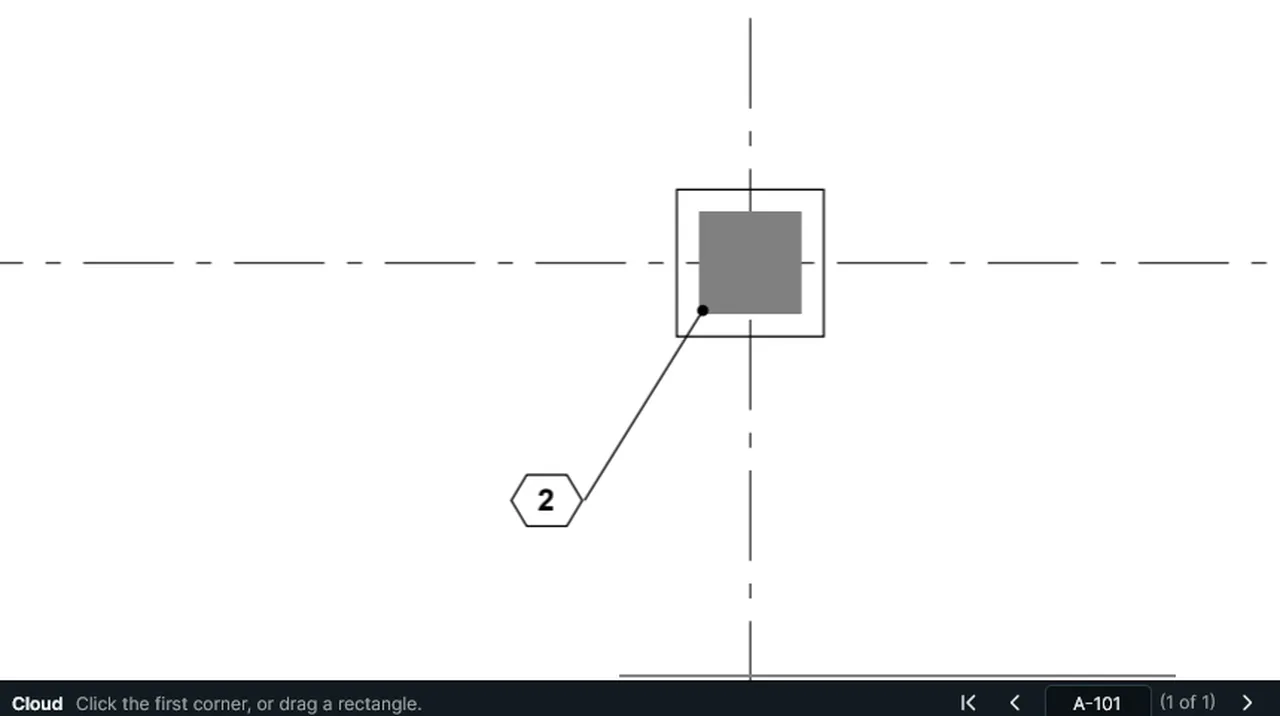
CloudsRevision clouds, alone or with a callout whose leader touches the cloud.Video
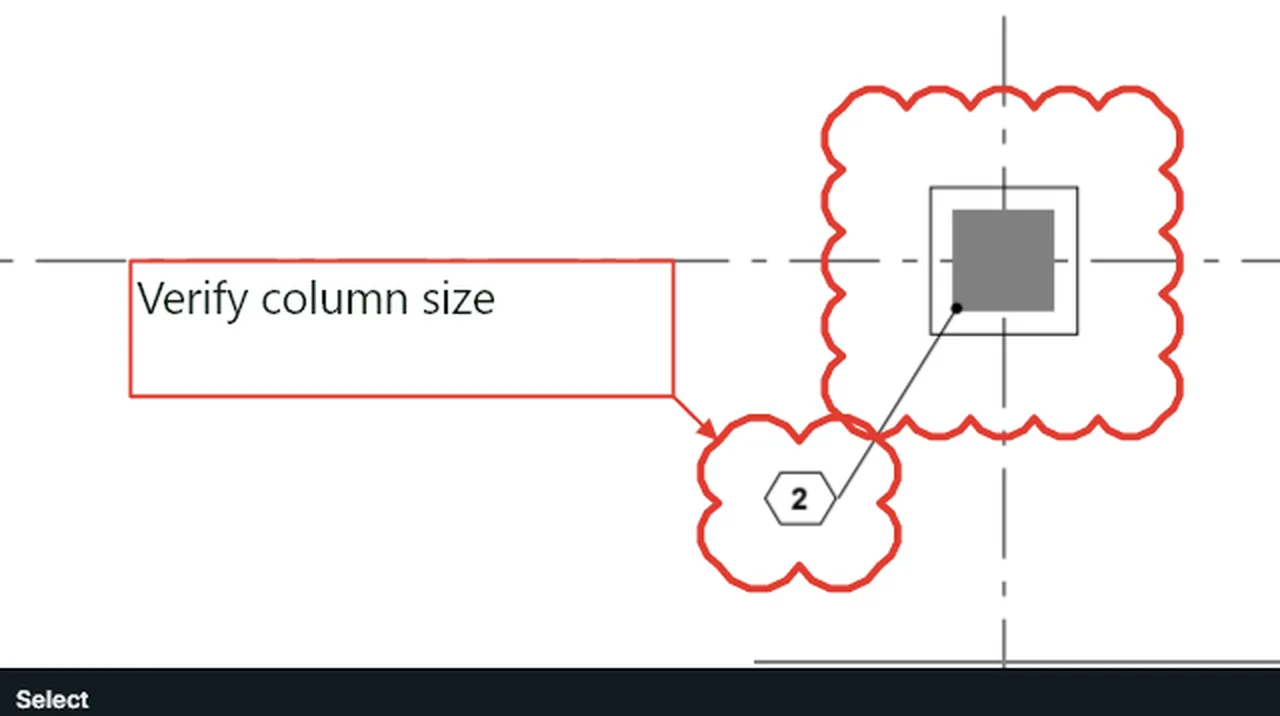
Cloud: click the corners, double-click the last. Cloud with Leader: two corners, then where the text goes. Screen recording of Kisheet, October 2026. Where to find it. Tools > Markup > Cloud (Shift+Alt+U): click the corners or drag a rectangle. Cloud with Leader: drag the cloud, then click where the text goes.
Tools > Markup
Color standardYour company's standard colors for each subject (drywall blue, ceiling green and so on), taken from a tool set: new items take them, the health check lists items that don't, and one command puts them all back.Video
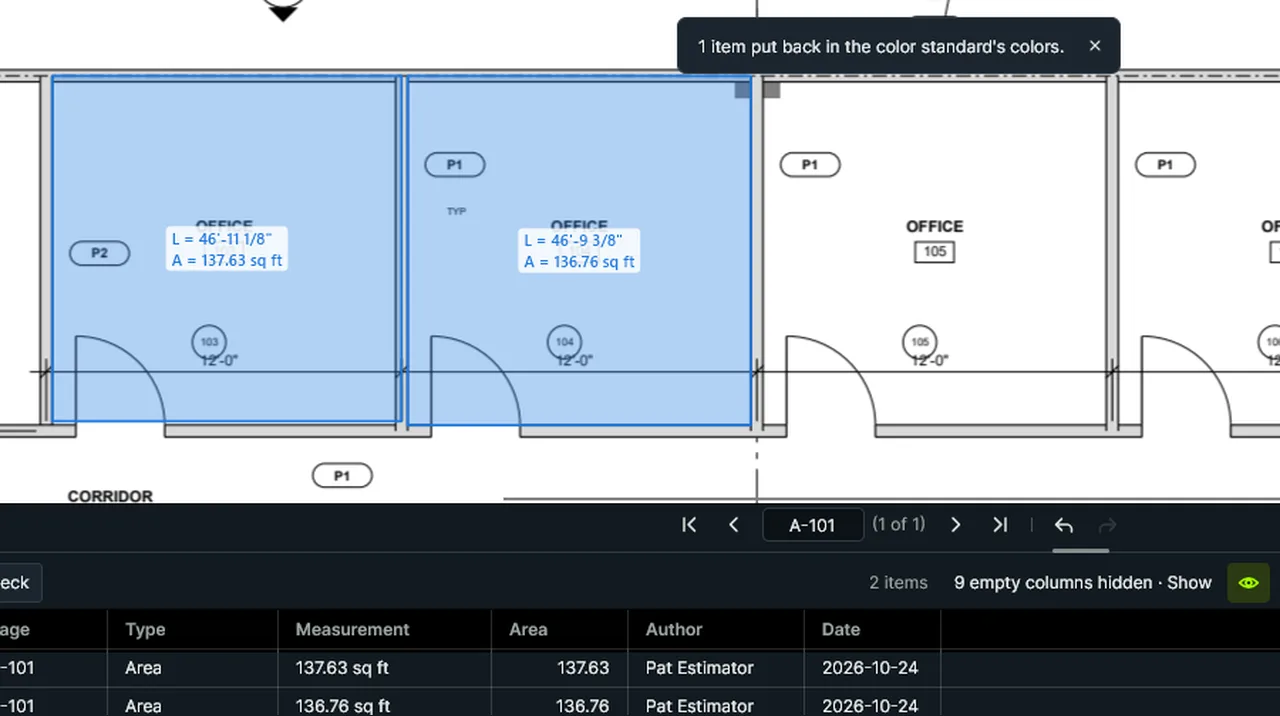
Color Standard: tick the tool set with the company's colors; Apply the Color Standard puts off-color items back. Screen recording of Kisheet, October 2026. Where to find it. Tools > Trade Tools > Color Standard: tick the tool set whose tools' subjects and colors are the standard (none turns it off). Apply the Color Standard puts every item of a standard subject back to its colors, in one undo step. Apply Color-Blind-Safe Colors (Tools > Trade Tools) gives each subject its own colour from a set people with colour-blindness can tell apart; from the seventh subject on, lines are dashed and then dotted, so colour is never the only cue. One undo puts the old colours back.
Tools > Spaces, Trade Tools, Tool Sets, Custom Columns
Command shortcutsKeyboard shortcuts for the everyday commands, all of which you can change.Video
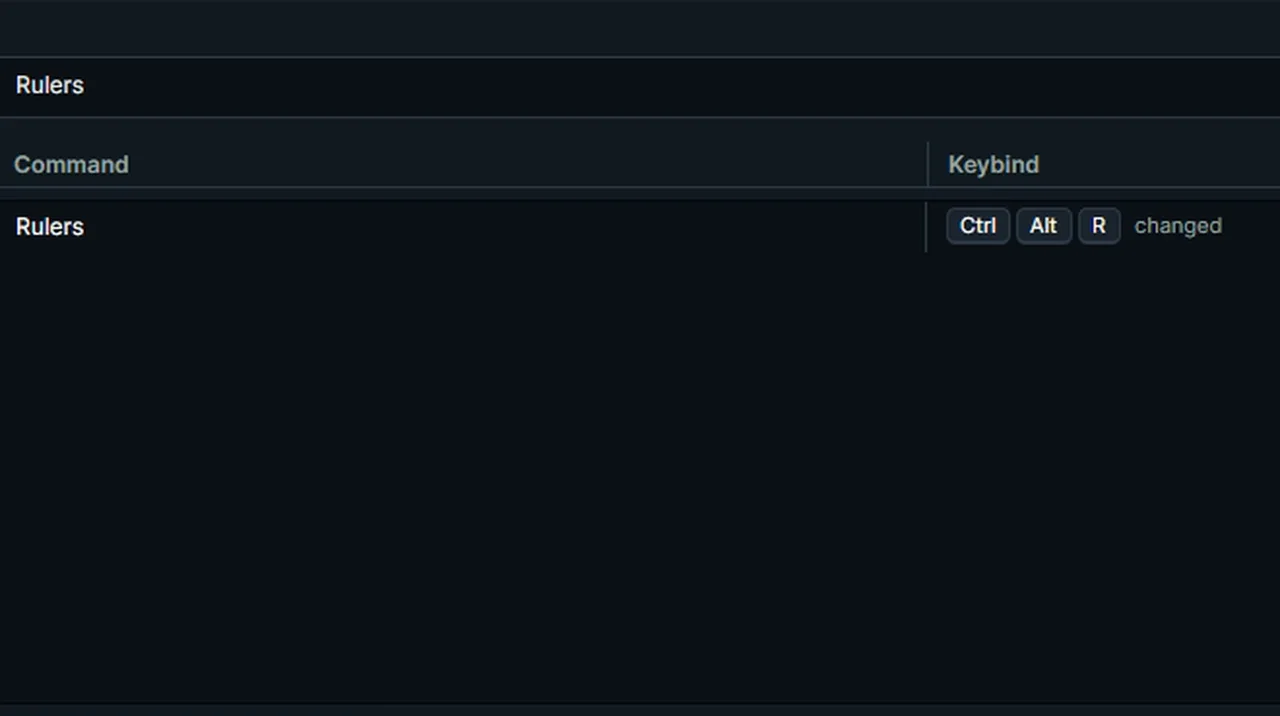
Keybinds lists every command's keys; after a change the list shows the new keys and marks them changed. Screen recording of Kisheet, October 2026. Where to find it. Help > Keybinds… lists every command with its keys. Change them in Preferences > Keybinds or from any button's right-click menu (Add Keybind); import and export them to share.
Keyboard shortcuts
Company window: Documents and Bid BoardYour company's Documents and Bid Board in a window of their own, beside the drawing. It needs a company sign-in and the add-on; Kisheet works fully without it.
Where to find it. Click Company in the title bar, Window > Company…, or press Ctrl+Shift+B. Documents: pick All files, a project or one of its bids, pick a file to see its first page, and Open in Kisheet (or double-click) to open it as a tab. Upload… sends files to the place showing. Bid Board: the stages in columns with each bid's due line and Late or At risk; click a bid to see and tick its tasks. Change stages and details with On the Website. Refresh with F5; Ctrl+1 and Ctrl+2 switch tabs. Nothing goes online until the window is open.
Help menu
Compare text with an older revisionMarks the words that changed in specs and notes: added words in green, changed words in amber with what they were, removed words as red notes.Video
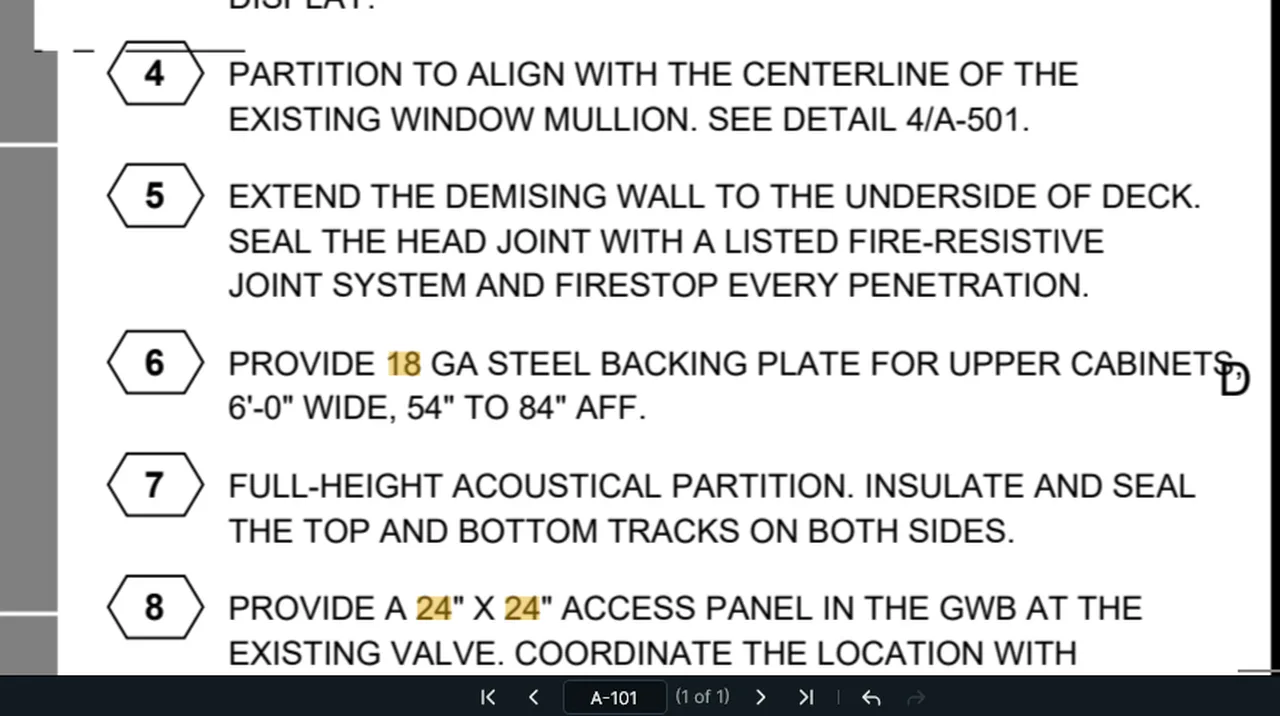
Compare Text with Older Revision: changed words are highlighted in amber, and removed words are left as a red note. Screen recording of Kisheet, October 2026. Where to find it. Document > Compare > Compare Text with Older Revision. One undo step. Pages with no text are reported; run OCR on scans first.
Document menu
Compare with an older revisionFinds what changed between two revisions of a sheet and clouds each change.Video
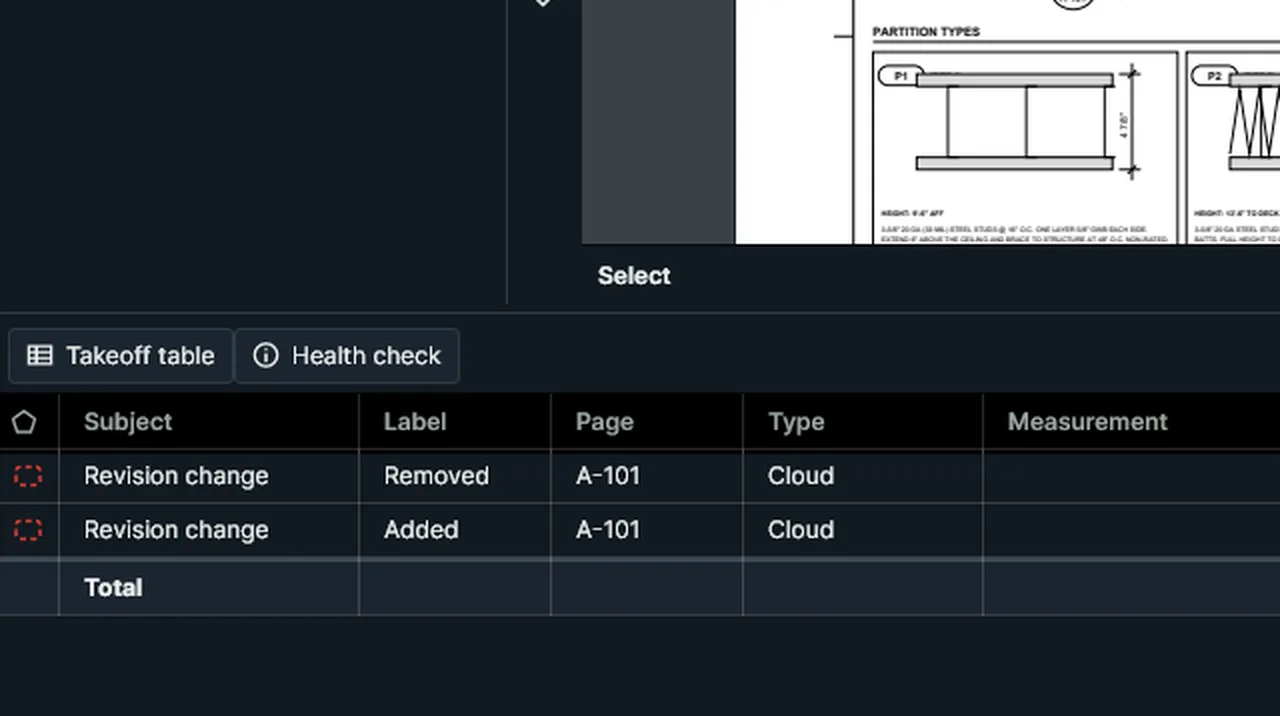
Compare with Older Revision: each change between two issues is clouded and listed in the table as Added or Removed. Screen recording of Kisheet, October 2026. Where to find it. Document > Compare > Compare with Older Revision, then pick the older PDF. Clouds labeled Added, Removed or Changed are added to the current page as one undo step.
Document menu
Compare with past jobsChecks each subject's quantity and cost per square foot against your company's past jobs of the same type.Video
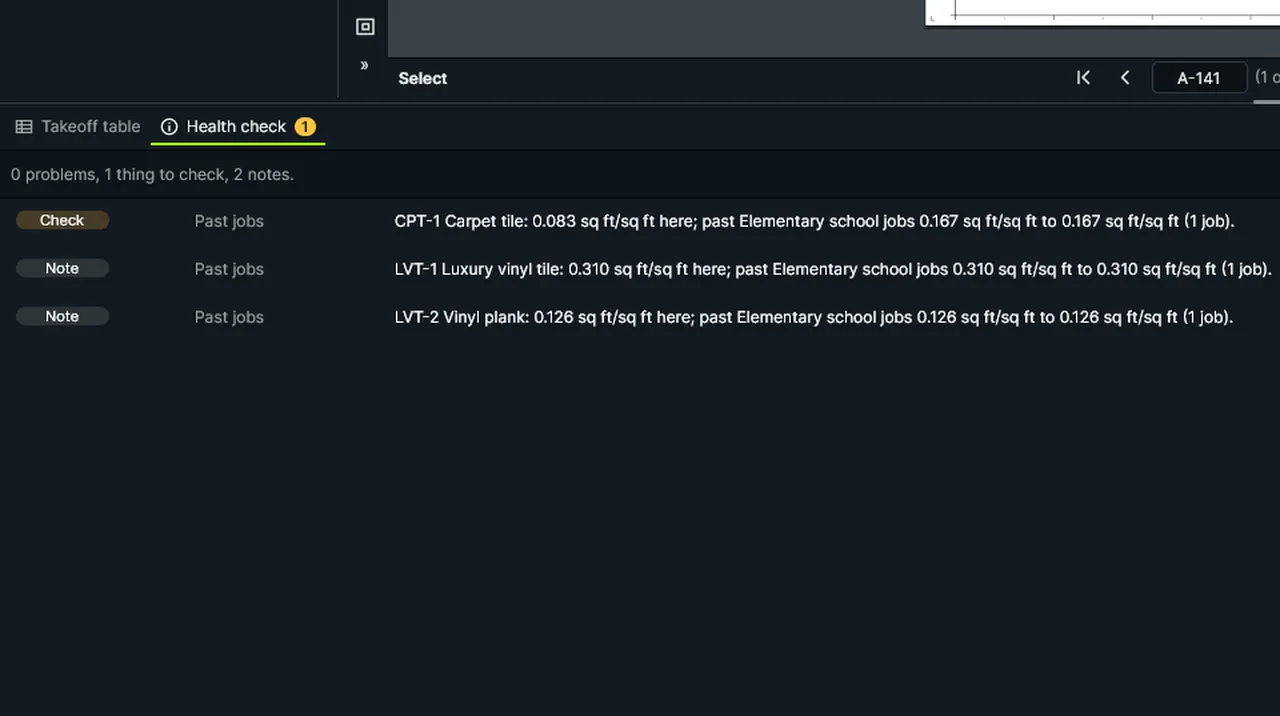
Keep This Job for Comparison saves a job's quantities; Compare With Past Jobs flags subjects outside their range. Screen recording of Kisheet, October 2026. Where to find it. Bid > Past Jobs > Keep This Job for Comparison asks the job type (such as "Medical office") and the gross floor area. Compare With Past Jobs sets each subject's quantity and cost per square foot against past jobs of the same type (average, lowest and highest) and flags the unusual ones in the Health Check panel.
Bid menu
Corner depths and average depthVolumes of sloped slabs and footings from a depth at each corner, or one depth averaged from spot depths.Video
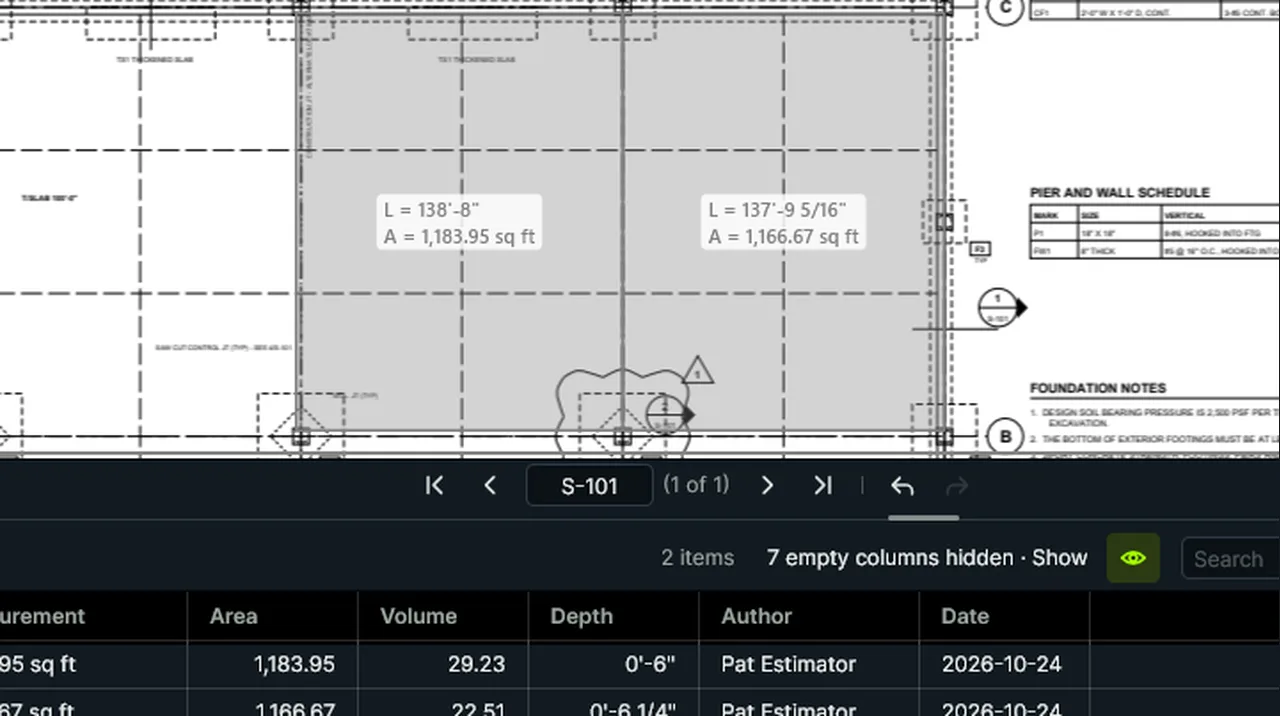
Depth at Each Corner: a depth per corner and the slab's volume tapers. Average Depth from Spot Depths: their mean. Screen recording of Kisheet, October 2026. Where to find it. Select an area or volume. Tools > Measure > Depth at Each Corner takes one depth per corner (empty clears them); Average Depth from Spot Depths takes any number of depths and uses their average. One undo step.
Tools > Measure
CountClick each item to count it; marks come in 13 symbol shapes.Video
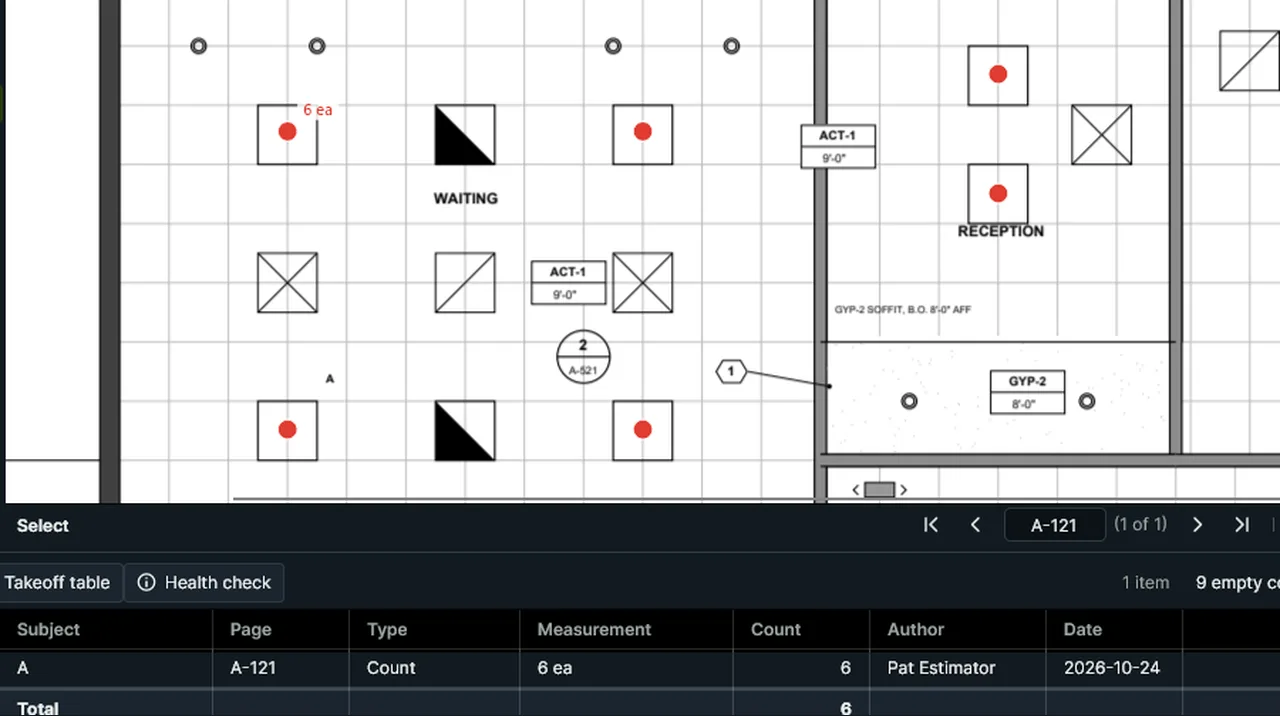
Count: pick the type A 2×2 LED panel and click each one; the count shows on the drawing and in the table. Screen recording of Kisheet, October 2026. Where to find it. Count (Shift+Alt+C): each click places a mark; Enter, Esc or a double-click finishes. Change the symbol and size in Properties or on the palette tool.
Tools > Measure
Count tagsFinds every tag in the drawing text (wall types like W3, door types like D1, fixture marks like P-2) and counts the ones you tick, with a mark on every copy on every sheet.Video
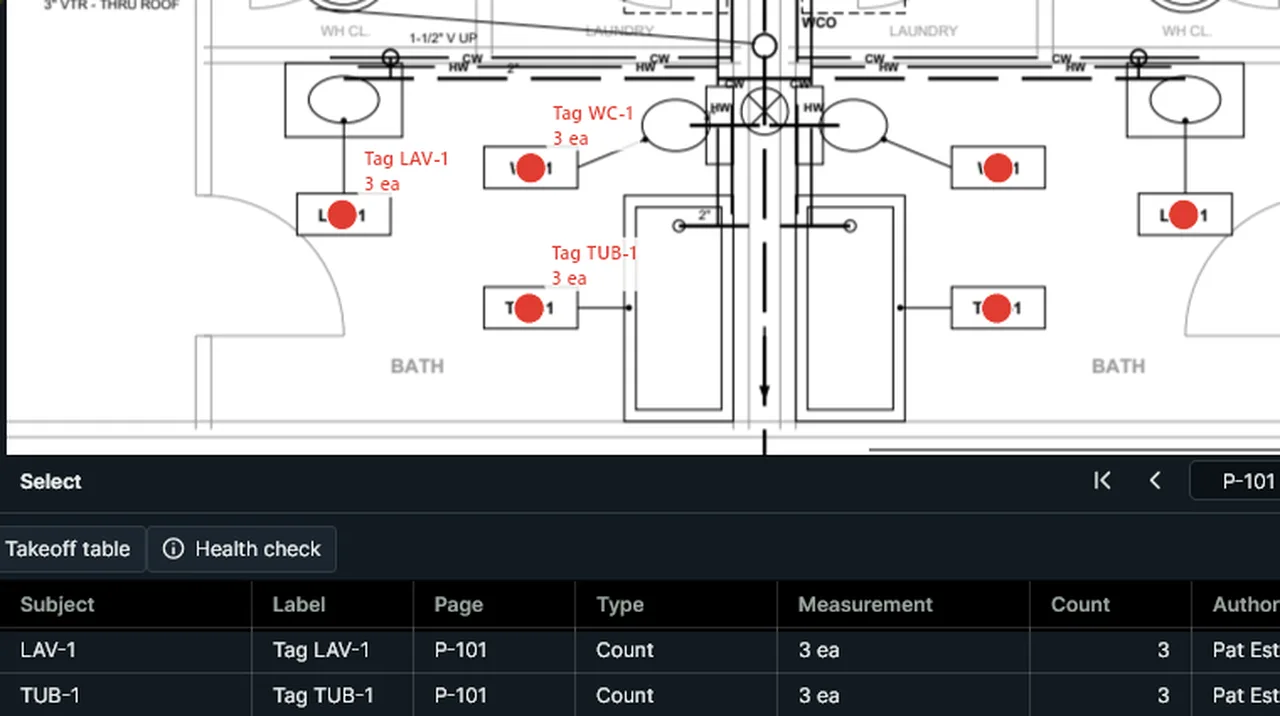
Count Tags: tick the tags it found, and every copy gets a mark and a count in the table. Screen recording of Kisheet, October 2026. Where to find it. Tools > Trade Tools > Count Tags shows a checklist of the tags found ("W3: 24 on 5 sheets"); tick the ones to count. One undo step. Scanned sheets need OCR first.
Tools > Spaces, Trade Tools, Tool Sets, Custom Columns
Crop a pageTrims the current page to the area you drag.Video
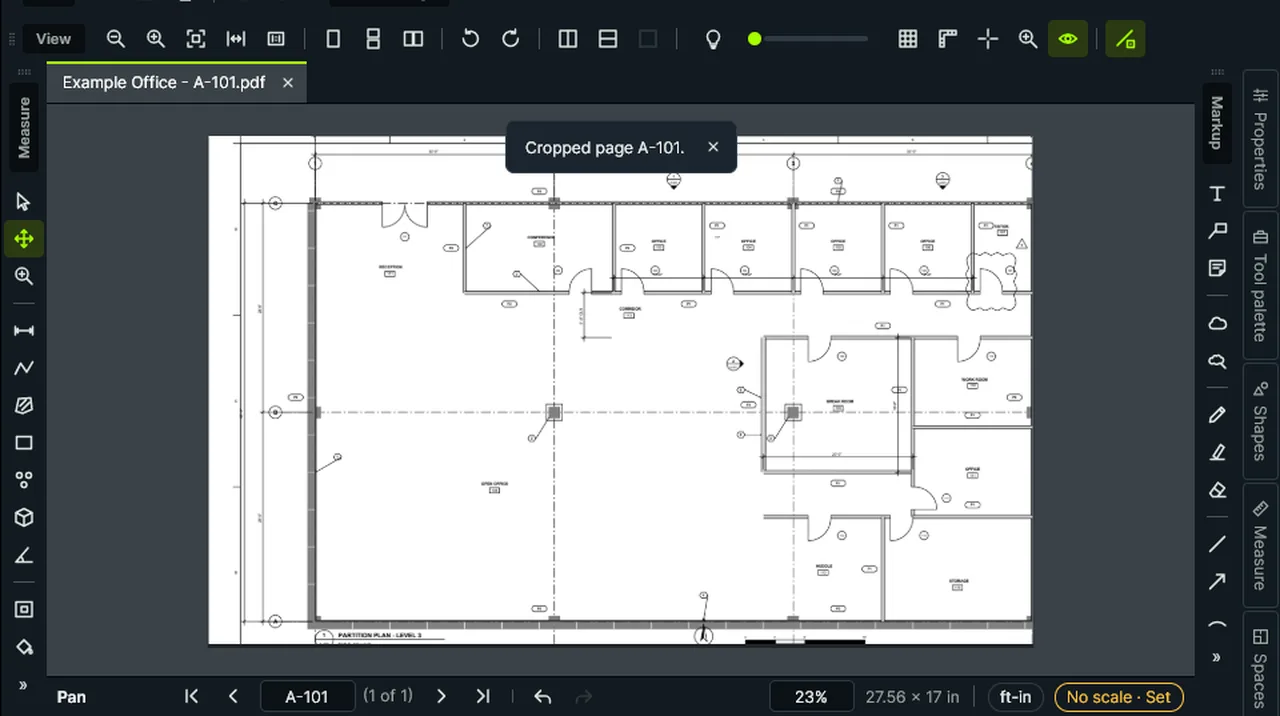
Crop Page: drag the part of the sheet to keep, and the rest is trimmed off the page. Screen recording of Kisheet, October 2026. Where to find it. Document > Pages > Crop This Page, then drag the area to keep.
Document menu
Custom columns and formulasAdd your own takeoff columns (cost codes, unit prices, choices, check boxes, dates) and formula columns that work out costs from quantities, like a spreadsheet.Video
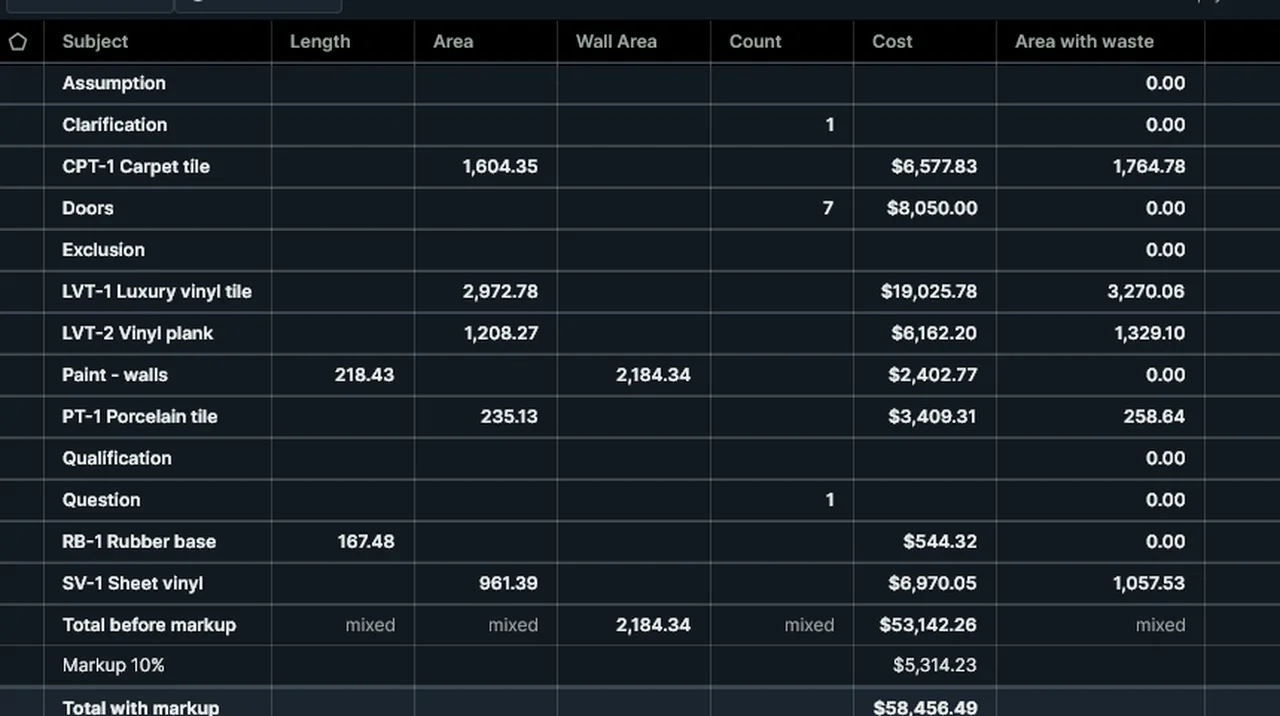
Custom Columns: a formula column such as [Area] * 1.1 works out every row that has an area, with a total. Screen recording of Kisheet, October 2026. Where to find it. Tools > Custom Columns (also on the table): name, type (Text, Number, Currency, Choice, Checkbox, Date or Formula), formula, choices, default value and Include in Totals; for numbers, the lowest and highest allowed and the decimals shown. Formulas use column names in brackets, such as ROUND([Area] * [Unit Cost], 2). A value outside a column's limits is refused with the reason. Applied as one undo step.
Tools > Spaces, Trade Tools, Tool Sets, Custom Columns
Cut, Copy, Paste, Paste in Place and DuplicateCopy markups and measurements within a page, to other pages and into other PDFs, keeping their groups and custom values.Video
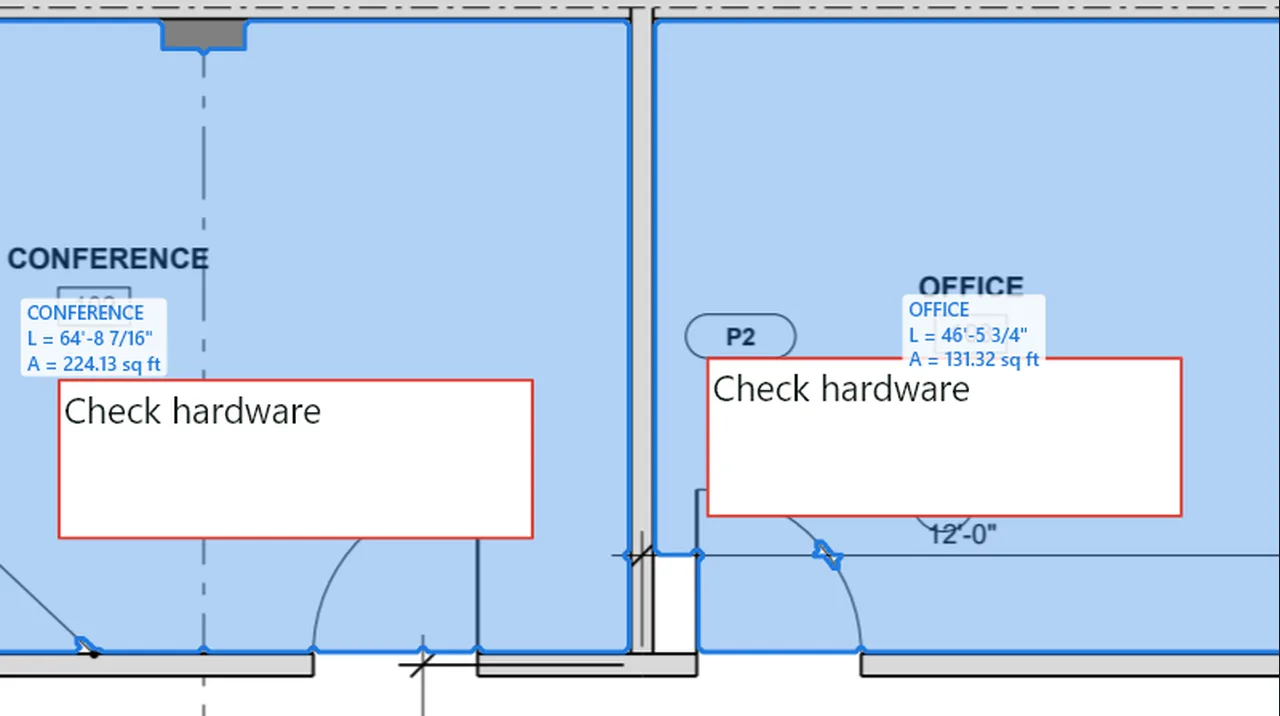
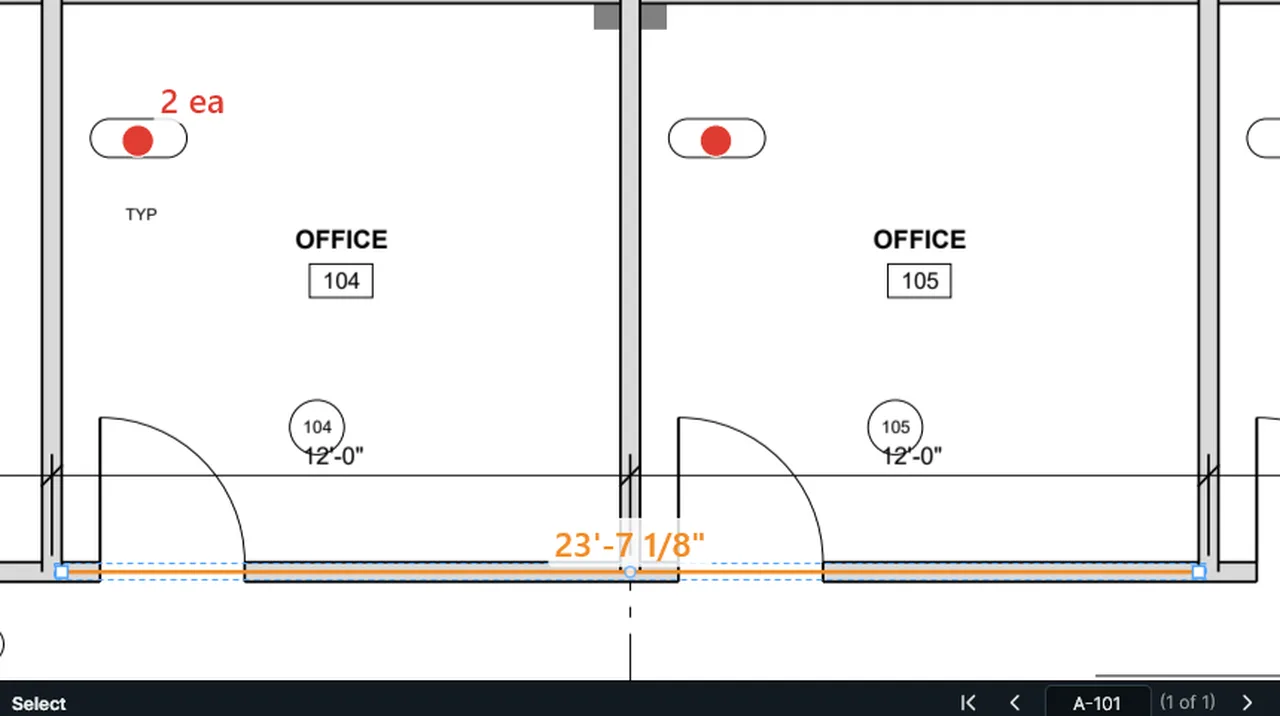
Copy the note, Paste it, and drag the copy into the next office. Screen recording of Kisheet, October 2026. Where to find it. Edit > Cut (Ctrl+X), Copy (Ctrl+C), Paste (Ctrl+V), Paste in Place (Ctrl+Shift+V) and Duplicate (Ctrl+D), also on the drawing's right-click menu. With page text selected, Copy copies the text instead. Copied items stay inside this Kisheet window.
Edit menu
Delete and DeselectRemoves the selected items; locked items are left alone.Video
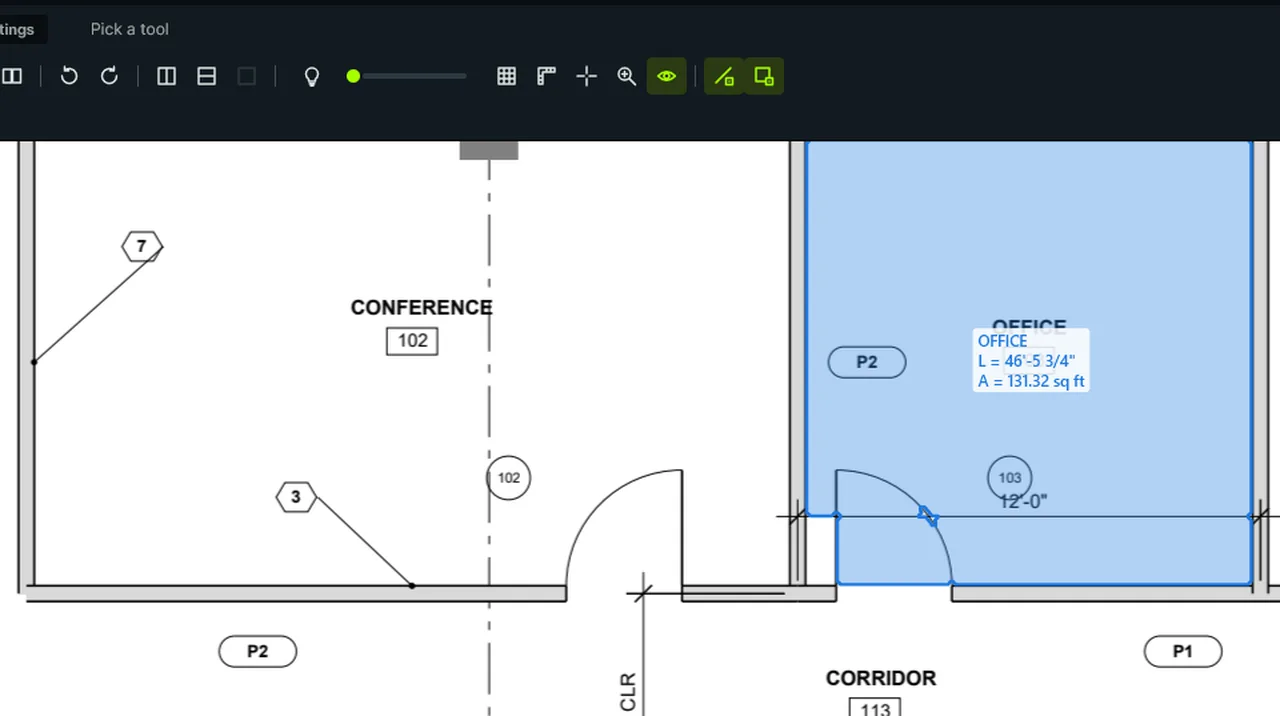
Delete removes the selected room; Deselect lets go of a selection without changing anything. Screen recording of Kisheet, October 2026. Where to find it. Edit > Delete (the Delete key), Edit > Deselect, or Esc when nothing is being drawn. One undo step.
Edit menu
Delete and move pagesRemoves the current page with its takeoff, or moves it one place earlier or later.Video
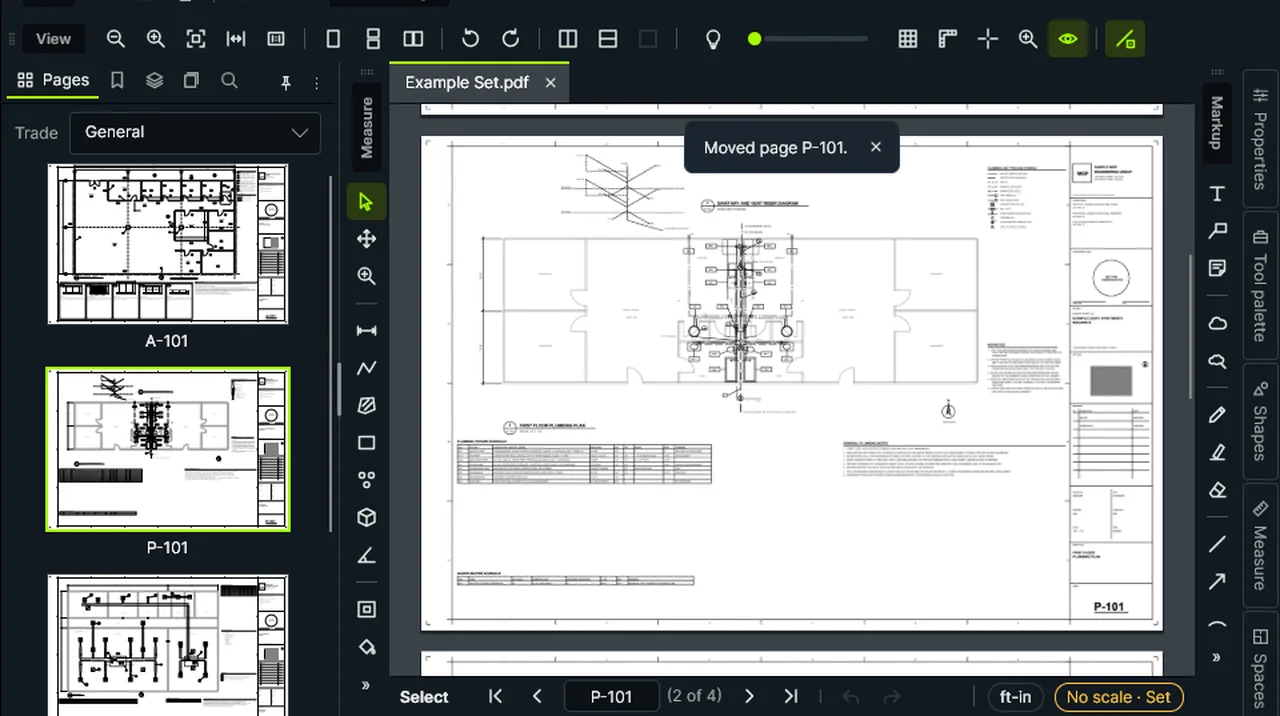
Delete Page asks first and keeps a backup; Move Page Earlier moves the current sheet one place back. Screen recording of Kisheet, October 2026. Where to find it. Document > Pages > Delete This Page (asks first; the only page can't go), Move Page Earlier and Move Page Later. A backup is kept.
Document menu
Deskew scanned pagesStraightens crooked scans automatically; drawings made on a computer are never turned.Video
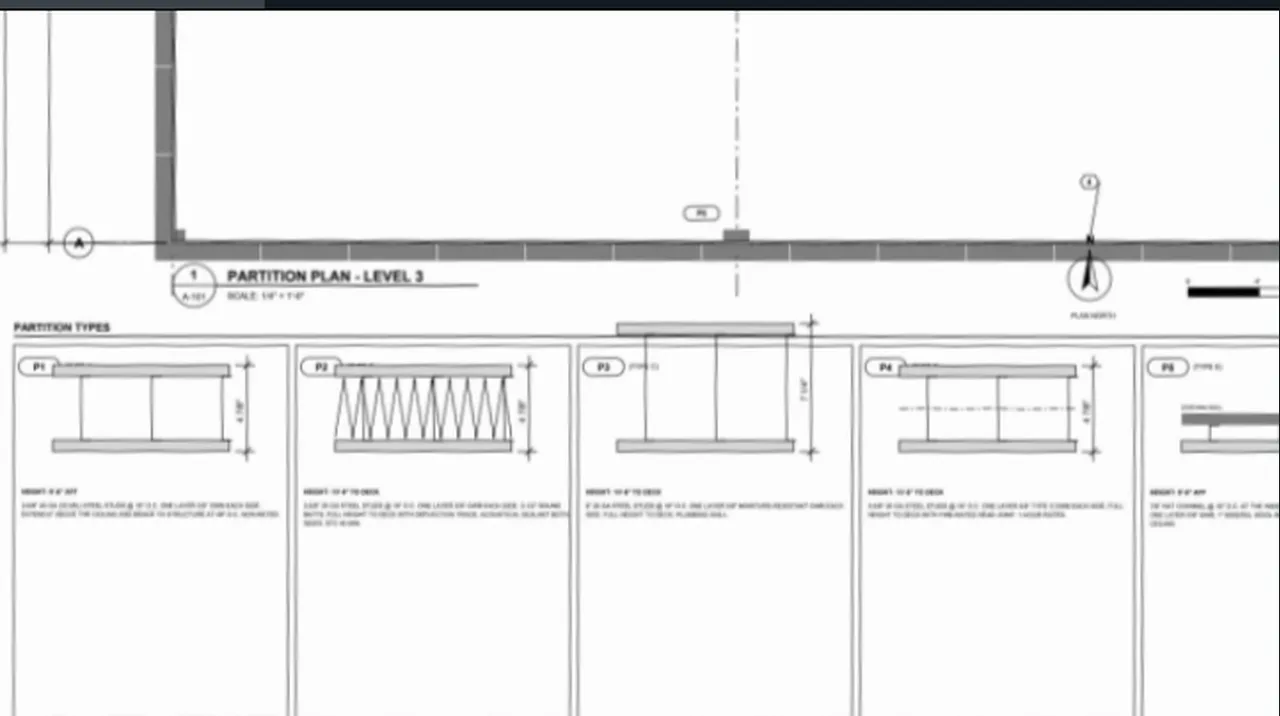
Deskew Scanned Pages finds a crooked scan and straightens it, and says by how much. Screen recording of Kisheet, October 2026. Where to find it. Document > Pages > Deskew Scanned Pages.
Document menu
Detect form fieldsProposes form fields from a page's own boxes, table cells, underlines and runs of underscores, for you to review.Video
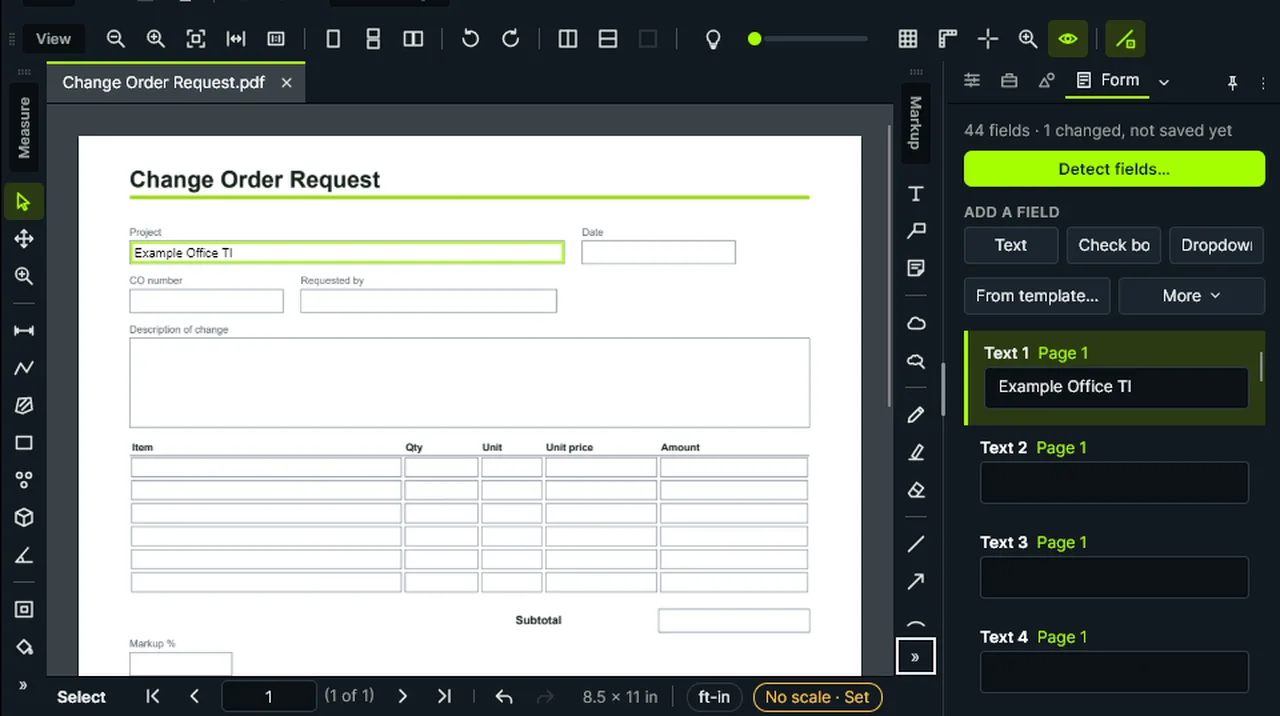
Detect Fields finds the form's empty boxes and table cells, says how many, and adds them as fields ready to fill. Screen recording of Kisheet, October 2026. Where to find it. Document > Form > Detect Fields shows how many it found and adds them when you say yes. Fields get plain names in reading order ("Text 1", "Check 1") to rename.
Document menu
Digital IDs and trusted identitiesMake your own Digital ID in seconds, import one, or use one from Windows, and share your certificate so others trust your signatures.Video
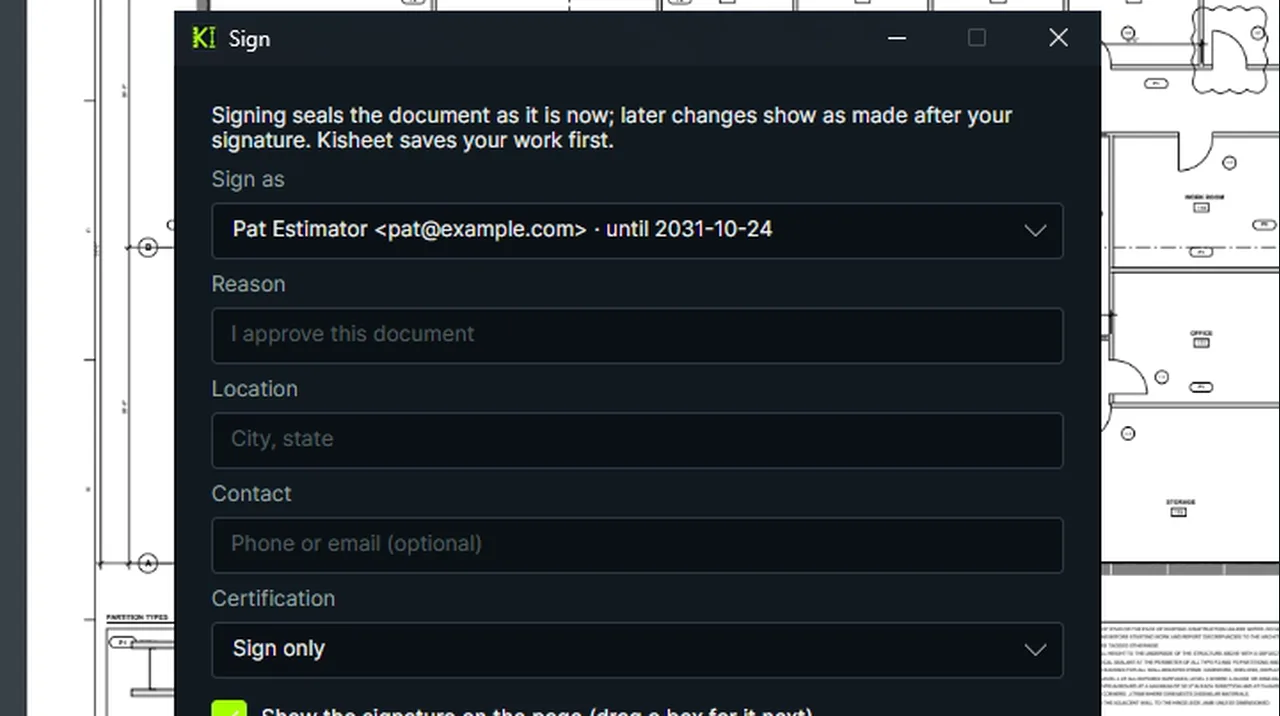
Digital IDs: make your own ID with a name, company, email and password, and it's ready to sign with. Screen recording of Kisheet, October 2026. Where to find it. Document > Signatures > Digital IDs: New (name, company, email and a password of 6 or more characters), Import, Export Certificate and Delete. Trusted Identities: Add Certificate and Remove.
Document menu
DimensionsA dimension line with arrowheads at both ends that also counts as a length in the takeoff.Video
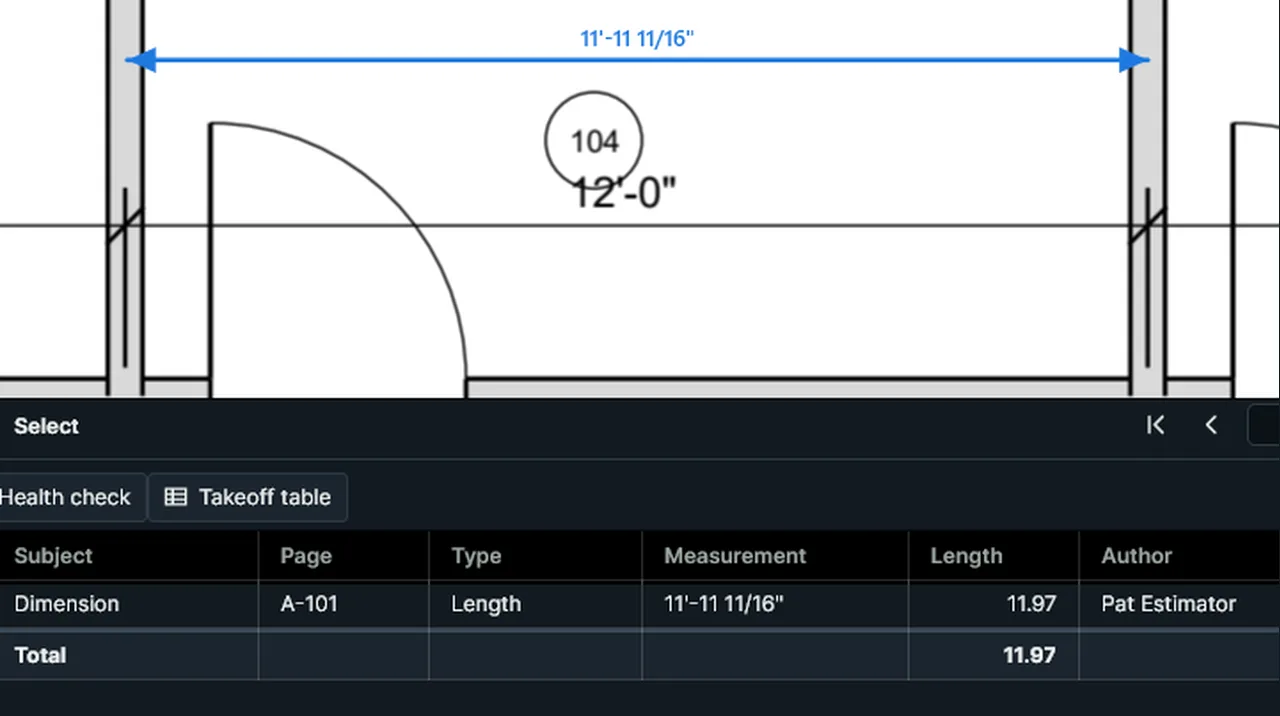
Dimension: click the two ends; the length shows beside the line and in the takeoff table. Screen recording of Kisheet, October 2026. Where to find it. Tools > Markup > Dimension, also on the Measure toolbar. Click the two ends; the caption shows the length beside the line.
Tools > Markup
DimmerFades the drawing so your markups and measurements stand out.Video
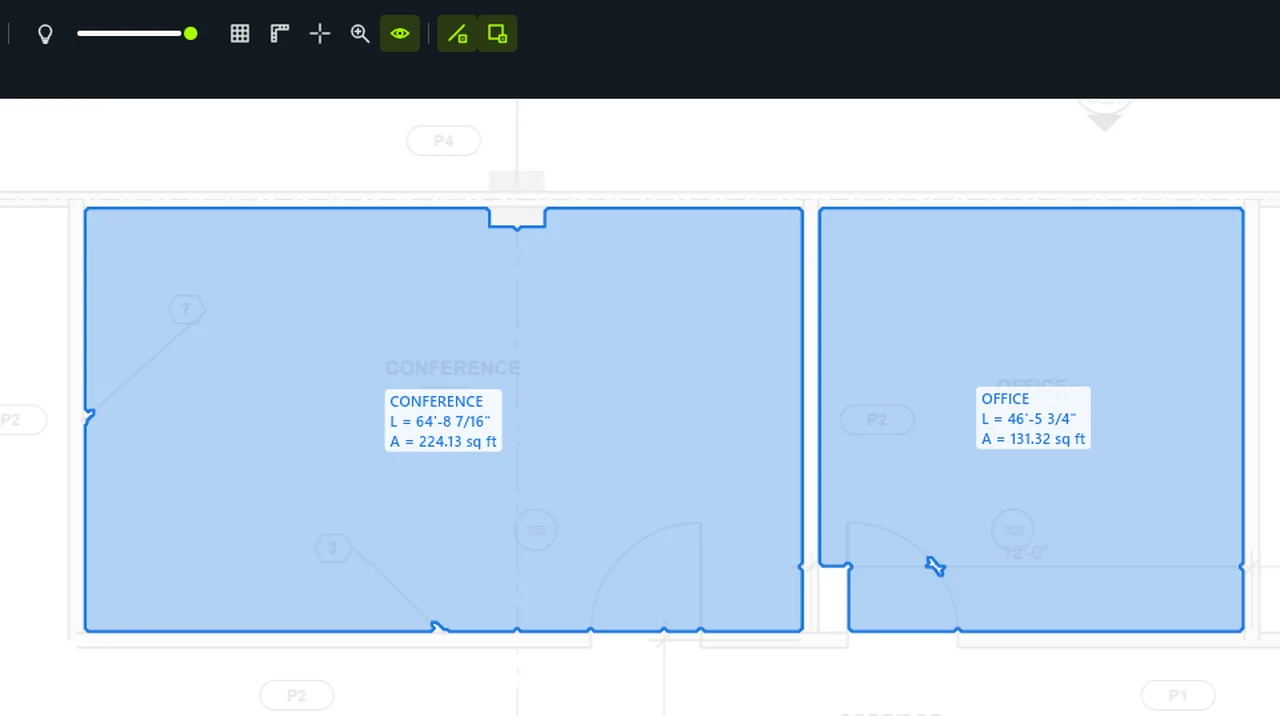
Dimmer: Dim the Drawing fades the plan, then fades it further, so the measured rooms stand out. Screen recording of Kisheet, October 2026. Where to find it. View > Dimmer > Dim the Drawing (Ctrl+F5) turns it on and off; pick Off, 25%, 50%, 75% or 90%, or use the slider on the View toolbar. The level is remembered for each PDF.
View menu
Document tabs and the status barTabs for the open documents, which can fold away, and a status bar that can be hidden.Video
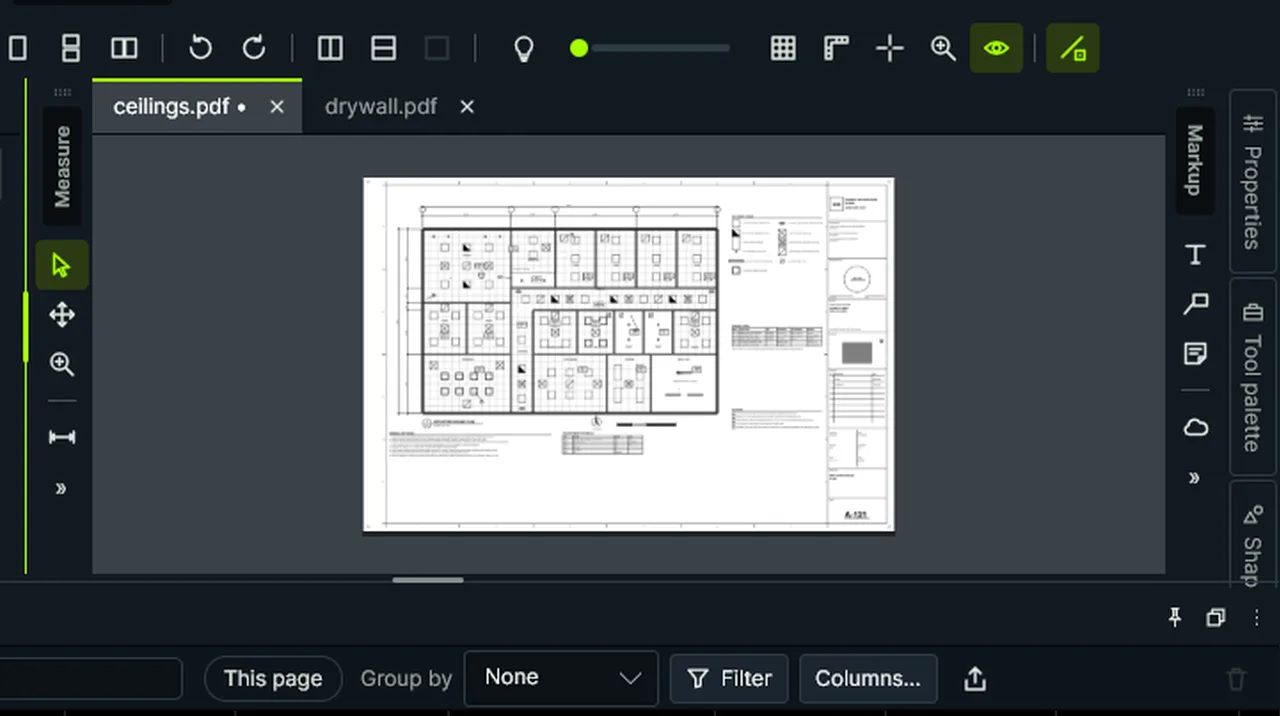
Document tabs: Next Tab switches PDFs, a dot marks unsaved changes, and Status Bar hides the bar below. Screen recording of Kisheet, October 2026. Where to find it. Window > Document Tabs; Auto-Hide Document Tabs folds them to a thin line until the pointer is over them. Status Bar (F8). Next Tab (Ctrl+Tab) and Previous Tab (Ctrl+Shift+Tab). A tab shows a dot while it has unsaved changes; its right-click menu has Move to New Window, Save, Close and Close All.
Window menu
Drawing index check, sheet links and discipline filtersFinds sheets listed on the cover's drawing index but missing from the set, links every sheet number mentioned anywhere in the set to its sheet, and filters the sheet list by discipline.Video
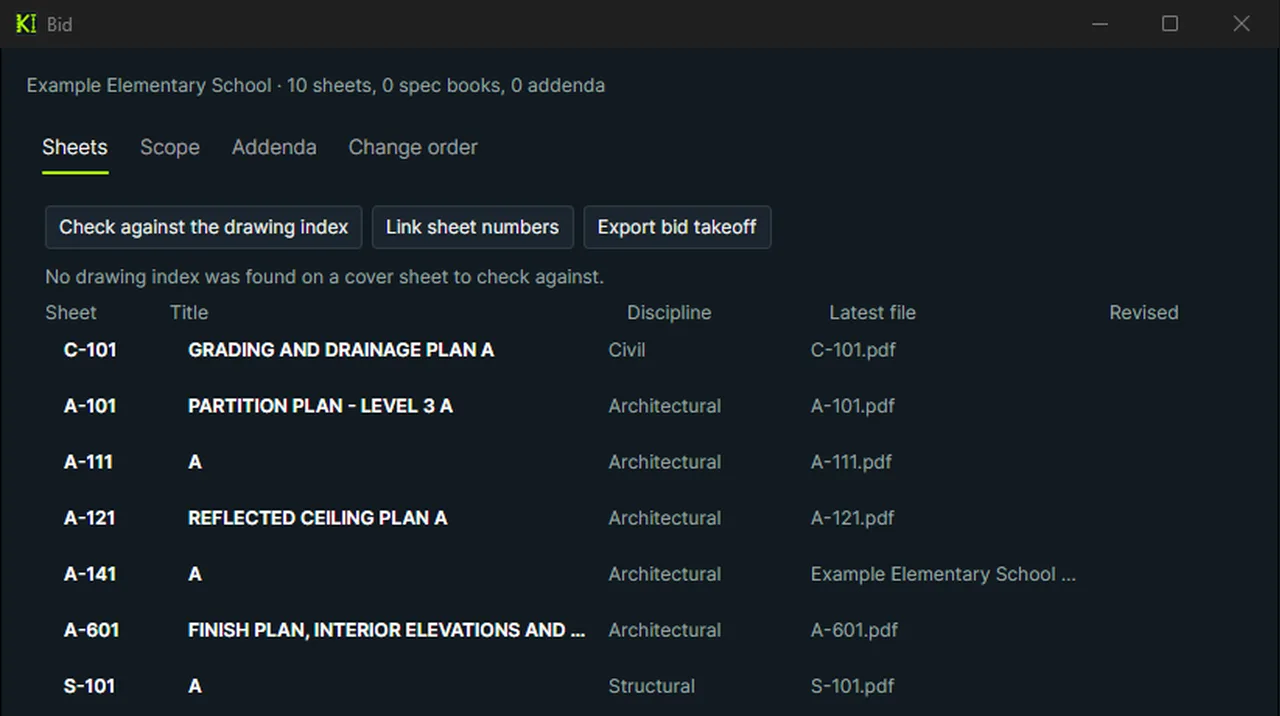
Discipline buttons above the Sets list show one discipline; Link Sheet Numbers Across the Set links sheet references. Screen recording of Kisheet, October 2026. Where to find it. Bid > Sheets > Check Sheets Against the Drawing Index and Link Sheet Numbers Across the Set. The discipline buttons above the Sets list show one discipline at a time. The Bid window's Sheets tab is the sheet index: number, title, discipline, latest file and date last revised.
Bid menu
Drops and wireA conduit or cable run's drops and conductors: drop length and wire length in the table.Video
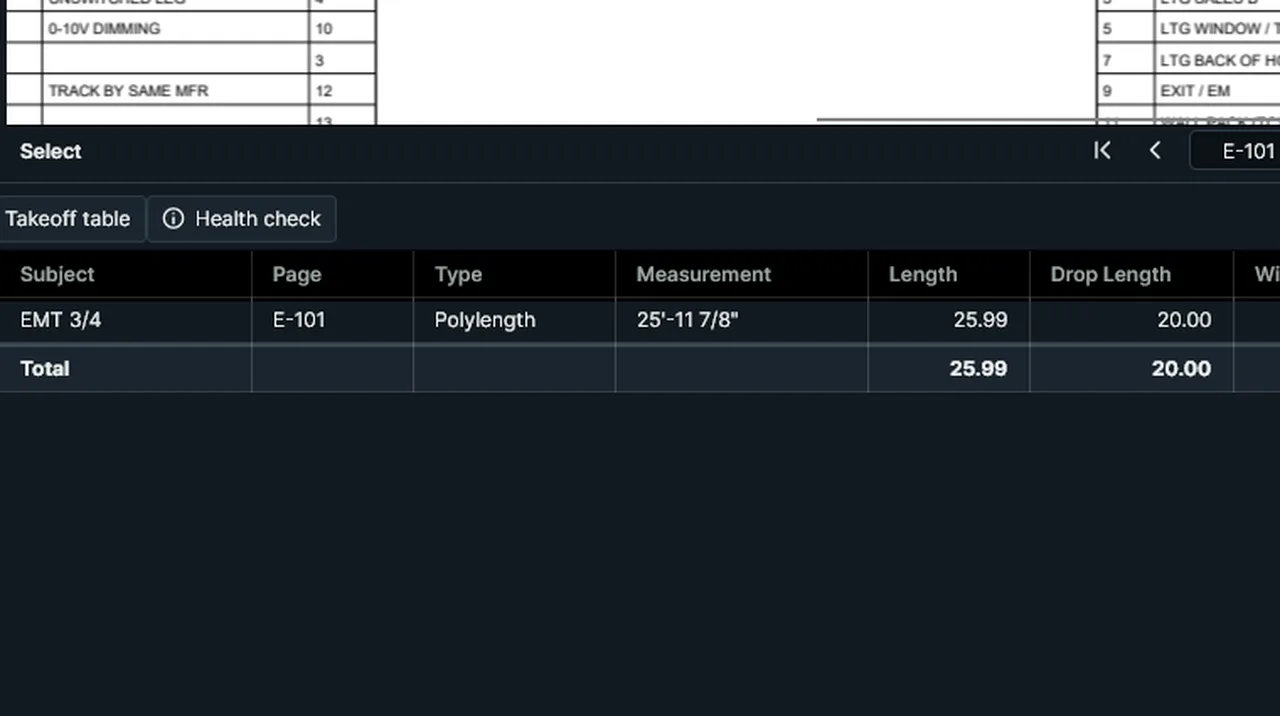
Drops and wire: say how many drops the run feeds, each drop's length and the conductors, and wire is worked out. Screen recording of Kisheet, October 2026. Where to find it. Select a length or polylength. In Properties > Drops and wire, type how many drops it feeds, each drop's length (9'-0" for a ceiling device, 5'-0" for a wall device, or your own) and the conductors. Wire is the run plus its drops, times the conductors.
Panels
Duct size and weightA duct run's sheet-metal area and weight from its size, gauge and a fittings allowance.Video
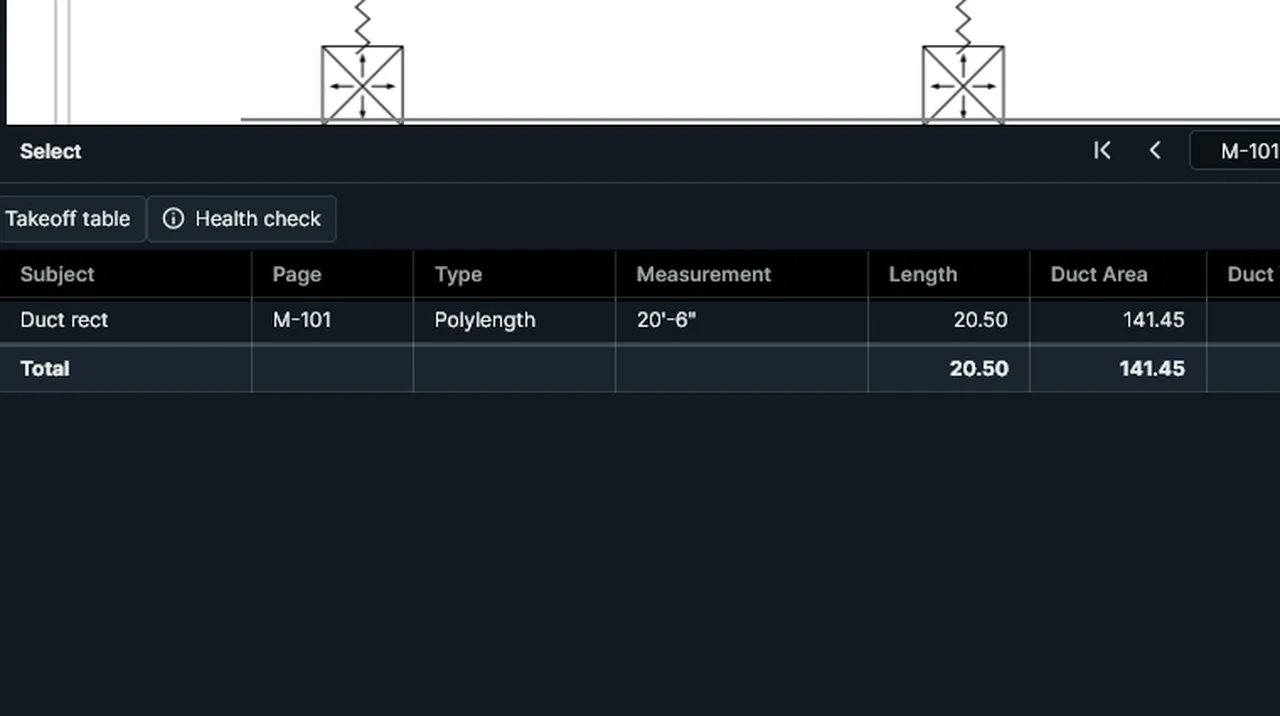
Duct: pick Rectangular, its size, gauge and fittings allowance, and the sheet area and weight are worked out. Screen recording of Kisheet, October 2026. Where to find it. Select a length or polylength. In Properties > Duct pick Rectangular (width by height) or Round (diameter), a gauge from 26 to 16 ga or your own pounds per square foot, and a fittings allowance in percent. The table shows the sheet area and the weight.
Panels
Earthwork cross sectionsCut and fill areas traced on cross-section sheets, by station: average-end-area volumes between stations.Video
Earthwork: click the existing and proposed spot elevations, select the grading area, and Cut and Fill gives the yards. Screen recording of Kisheet, October 2026. Where to find it. Calibrate the section sheet (X and Y separately if it is drawn with a vertical exaggeration). Trace each cut or fill area, then in Properties > Earthwork cross section pick Cut or Fill and type the station (12+50) and the alignment. The volume between two stations is the mean of their areas times the distance.
Panels
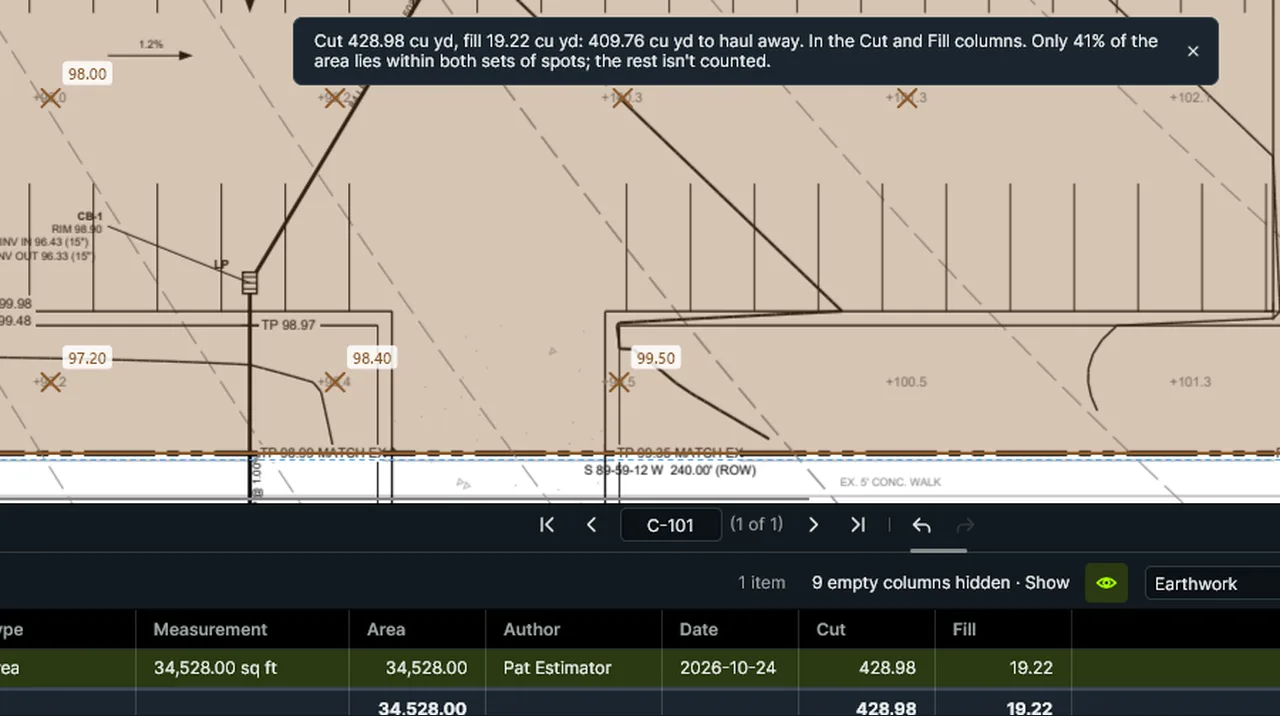
Earthwork cut and fillPlace existing and proposed grade spots, read from the plan's printed numbers or typed, and get the cut and fill for any area.Video
Earthwork: click the existing and proposed spot elevations, select the grading area, and Cut and Fill gives the yards. Screen recording of Kisheet, October 2026. Where to find it. Tools > Measure > Earthwork > Existing Grade Spots or Proposed Grade Spots, then click each spot elevation on the plan (type it if no number is printed there). Select an area, then Cut and Fill for the Selected Area: the results go into Cut and Fill columns in cubic yards or cubic meters.
Tools > Measure
EraserErases just the parts of pen and highlighter strokes it passes over, splitting strokes where needed.Video
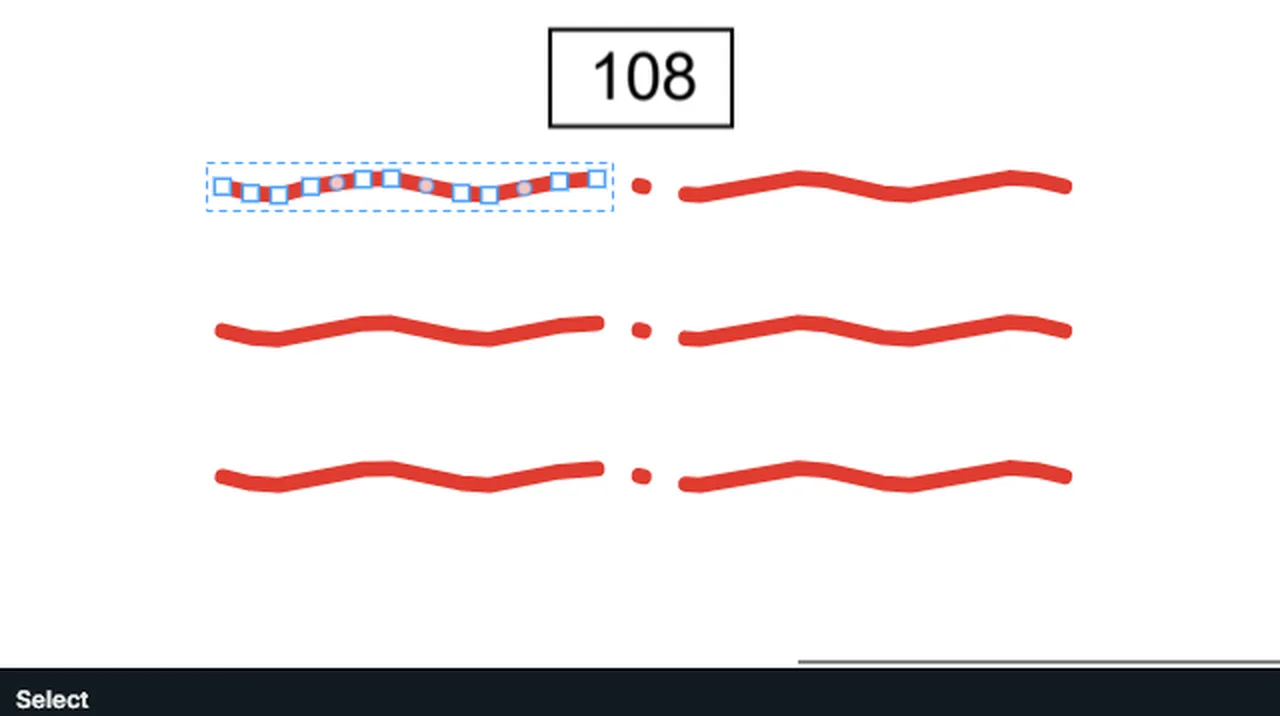
Eraser: drag over pen strokes; only what it crosses goes, and each stroke splits into its own pieces. Screen recording of Kisheet, October 2026. Where to find it. Tools > Markup > Eraser, then drag over the strokes. One undo step.
Tools > Markup
Exiting and closing the windowClosing asks about each document with unsaved work, remembers your session and the window's place, and leaves no recovery files behind.Video
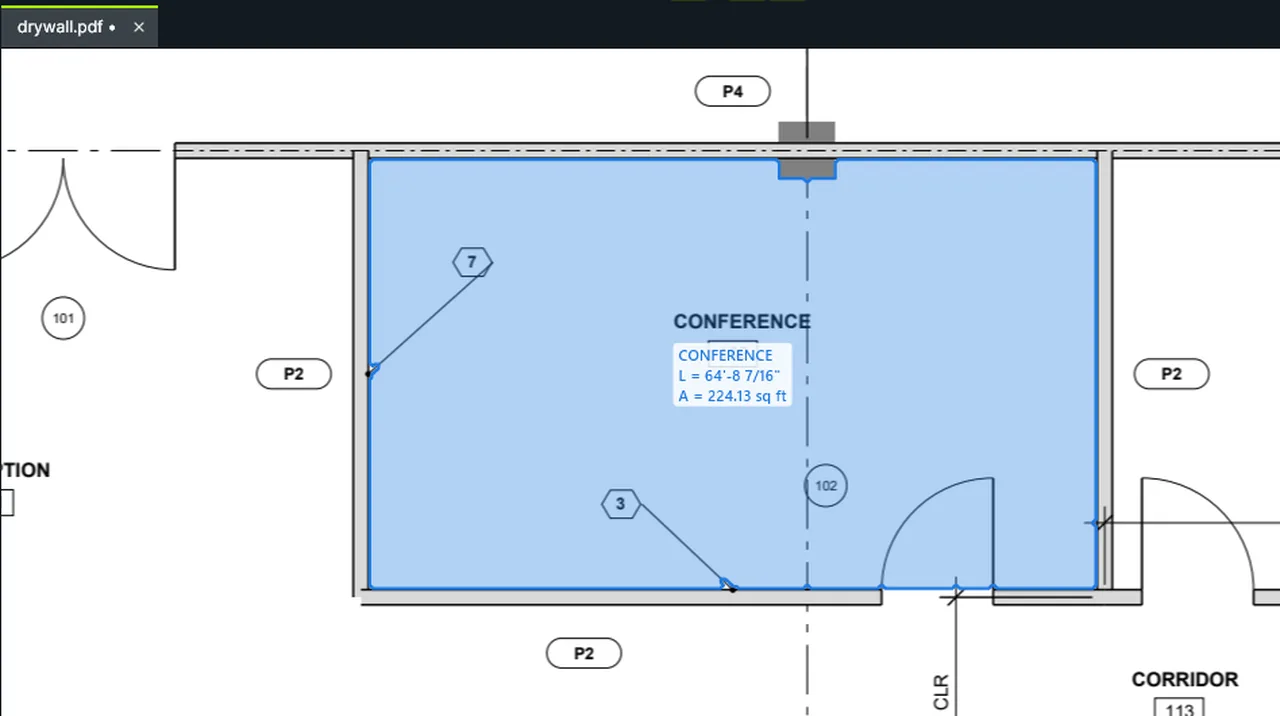
Exit asks about a PDF with unsaved changes: Save, Don't Save or Cancel. Cancel keeps Kisheet open. Screen recording of Kisheet, October 2026. Where to find it. Kisheet menu > Exit (Alt+F4) or the window's close button. Each document with unsaved changes asks Save, Don't Save or Cancel. The open documents, their pages and zoom, floating panels and the window's size are remembered for next time.
Kisheet menu
Export markups (XFDF)Exports markups in the standard XFDF format that other PDF apps read, without losing anything when read back into Kisheet.Video
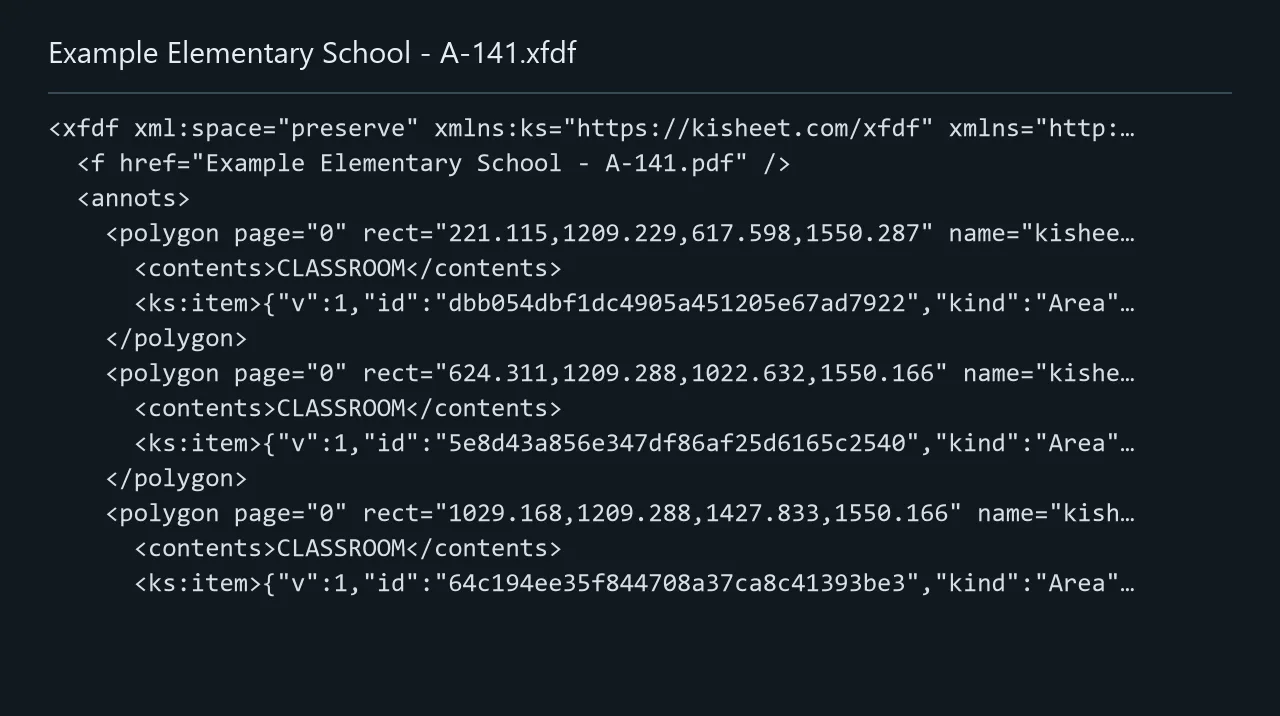
Export Markups (XFDF): every markup written to a file in XFDF, the standard markup format. Screen recording of Kisheet, October 2026. Where to find it. File > Export > Markups (XFDF), or the table's export menu, when the document has items.
File menu
Export pages as imagesSaves pages as PNG or JPEG pictures at 72 to 300 dpi, with or without markups.Video
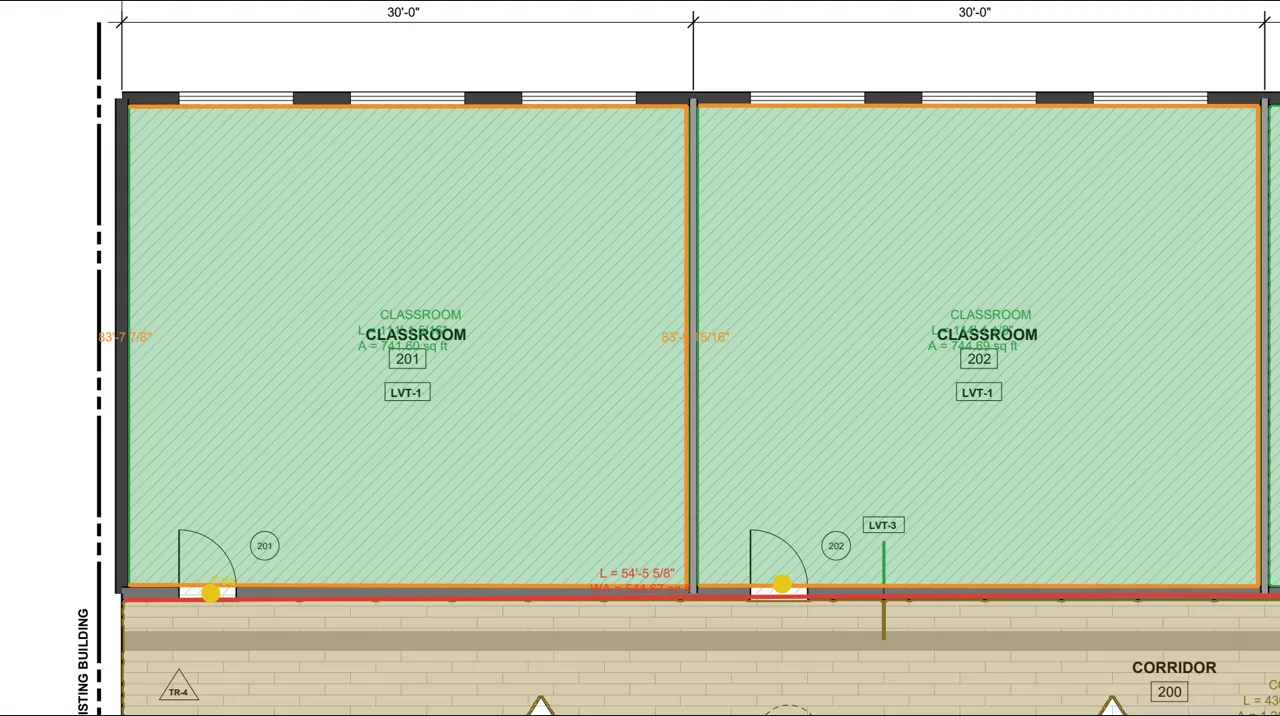
Export Images: pick the pages, PNG or JPEG and the resolution, and each page is saved as a picture. Screen recording of Kisheet, October 2026. Where to find it. File > Export > Images, or as a batch job (Tools > Batch Jobs). Choose this page, all pages or a range ("1-3, 5"), PNG for sharp lines or JPEG for smaller files, and the resolution (150 dpi by default). Several pages save side by side, named by their page labels.
File menu
Export to Excel and CSVExports the takeoff table as an Excel workbook or a CSV file that you can edit and bring back in.Video
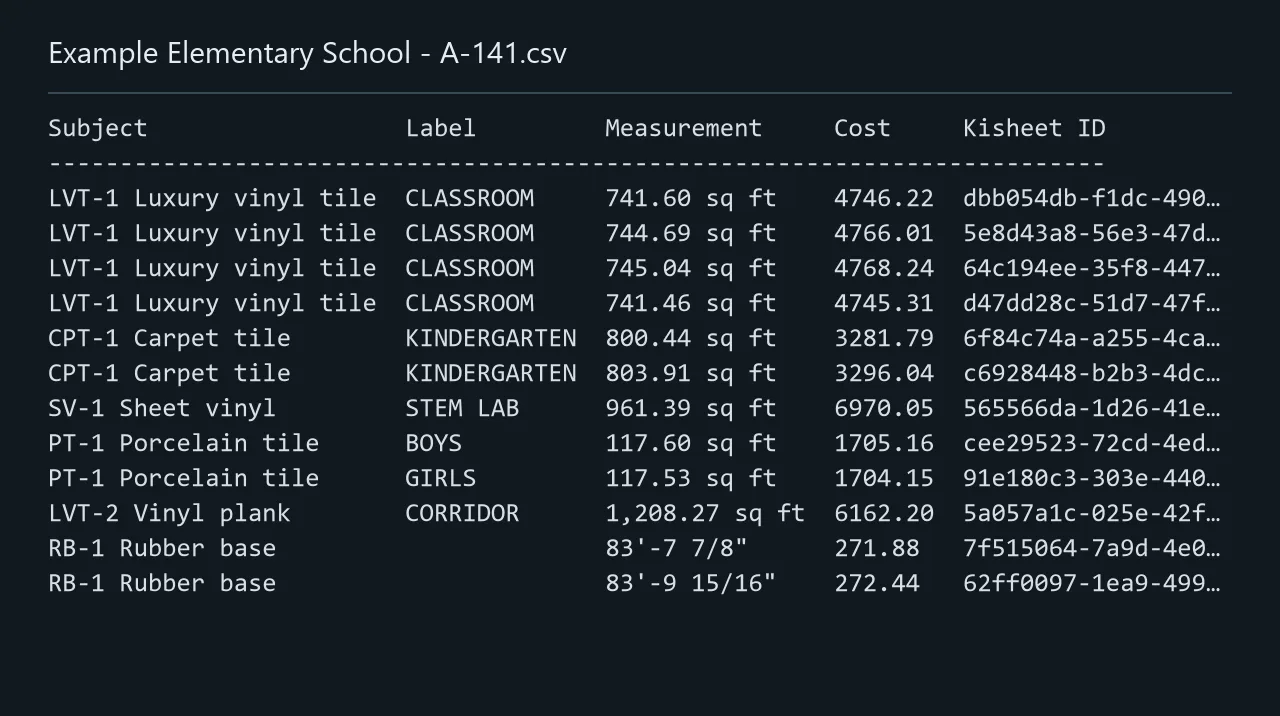
Export to CSV: the takeoff table as a file, each row keeping its Kisheet ID for Import Changes. Screen recording of Kisheet, October 2026. Where to find it. File > Export > Excel or CSV, also on the takeoff table's export menu. Each row keeps the item's Kisheet ID, so Import Changes can match your edits back to the right items.
File menu
Extract a pageSaves the current page as a new PDF, with its takeoff.Video
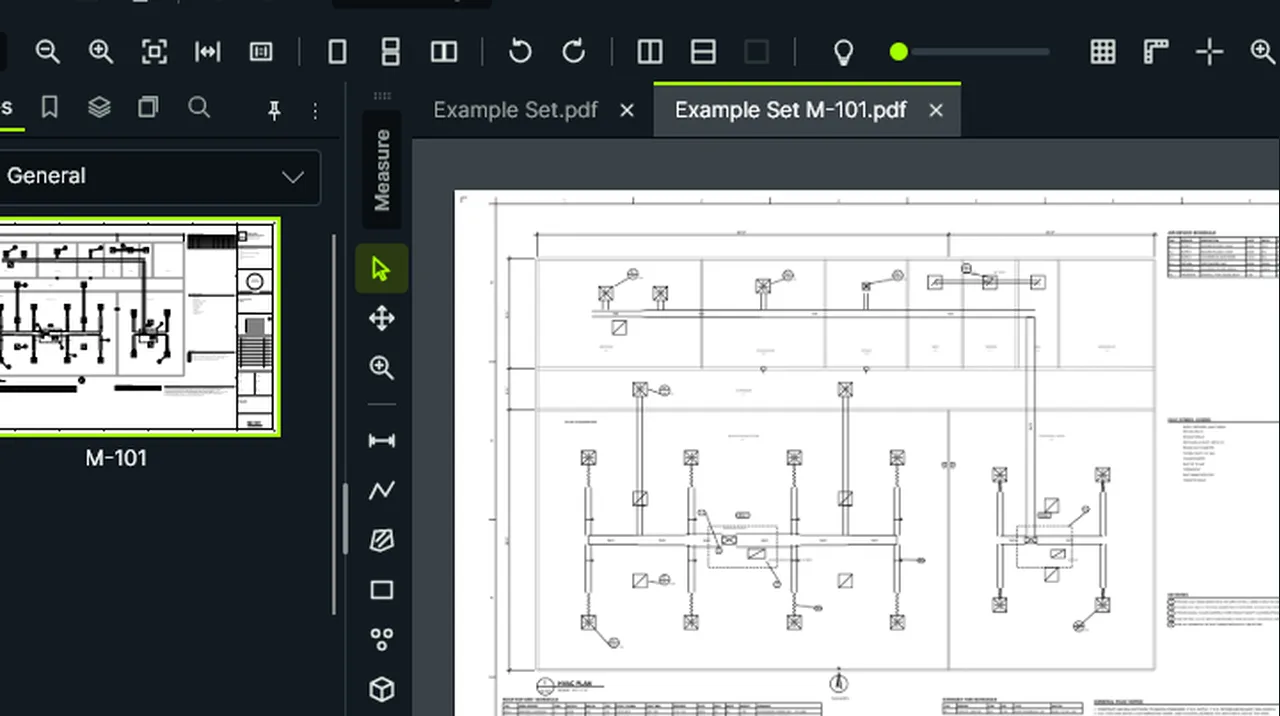
Extract Page: the current sheet is saved as a new PDF of its own, which opens in its own tab. Screen recording of Kisheet, October 2026. Where to find it. Document > Pages > Extract This Page; the suggested name is the file's name and the sheet's label.
Document menu
Favorites and keybindsRight-click any button, menu item or palette tool to add it to a Favorites toolbar or give it a keyboard shortcut.Video
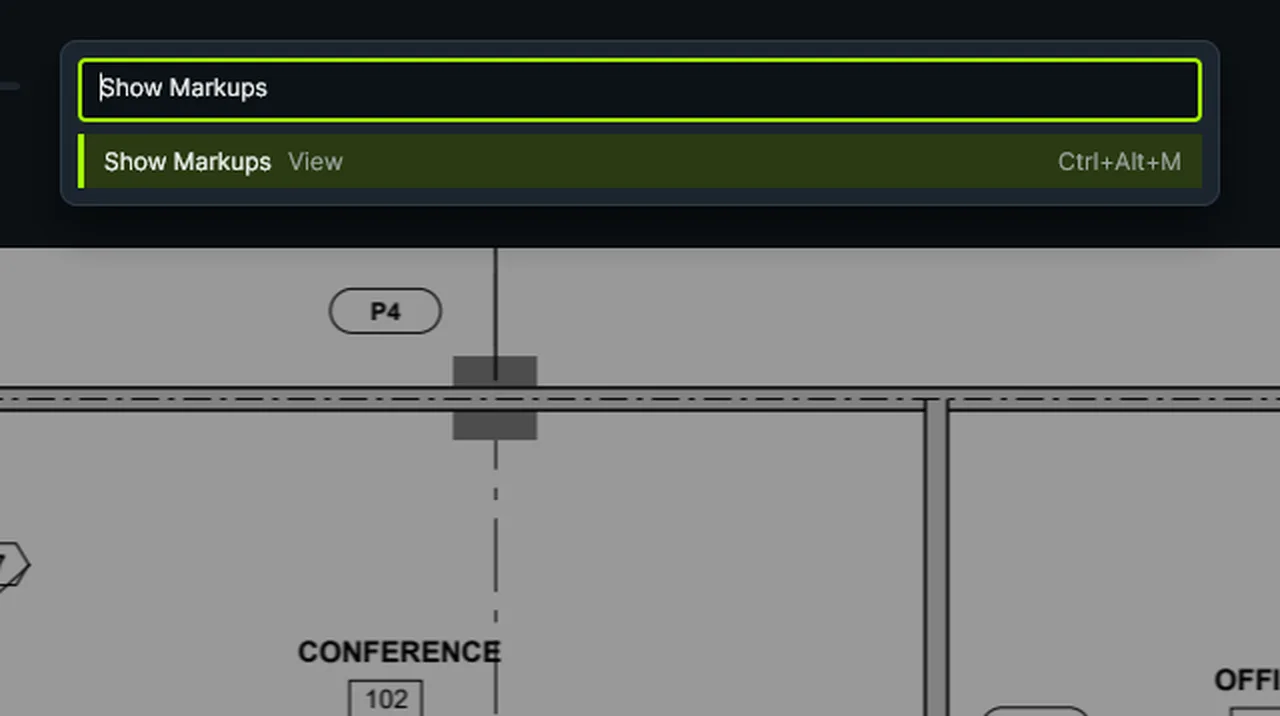
Right-click a button: Favorite puts it on the Favorites toolbar; Add Keybind takes the next keys you press. Screen recording of Kisheet, October 2026. Where to find it. Right-click > Favorite (again takes it off); the Favorites toolbar appears while you have favorites, and Window > Favorites lists them. Right-click > Add Keybind, then press the keys; if another command has them, it asks before taking them away.
Window menu
Field handoff packOne folder for the field crew with what was bid: the as-bid drawings, each trade's scope sheets, the qualifications and exclusions, and the quantities by floor and by space.Video
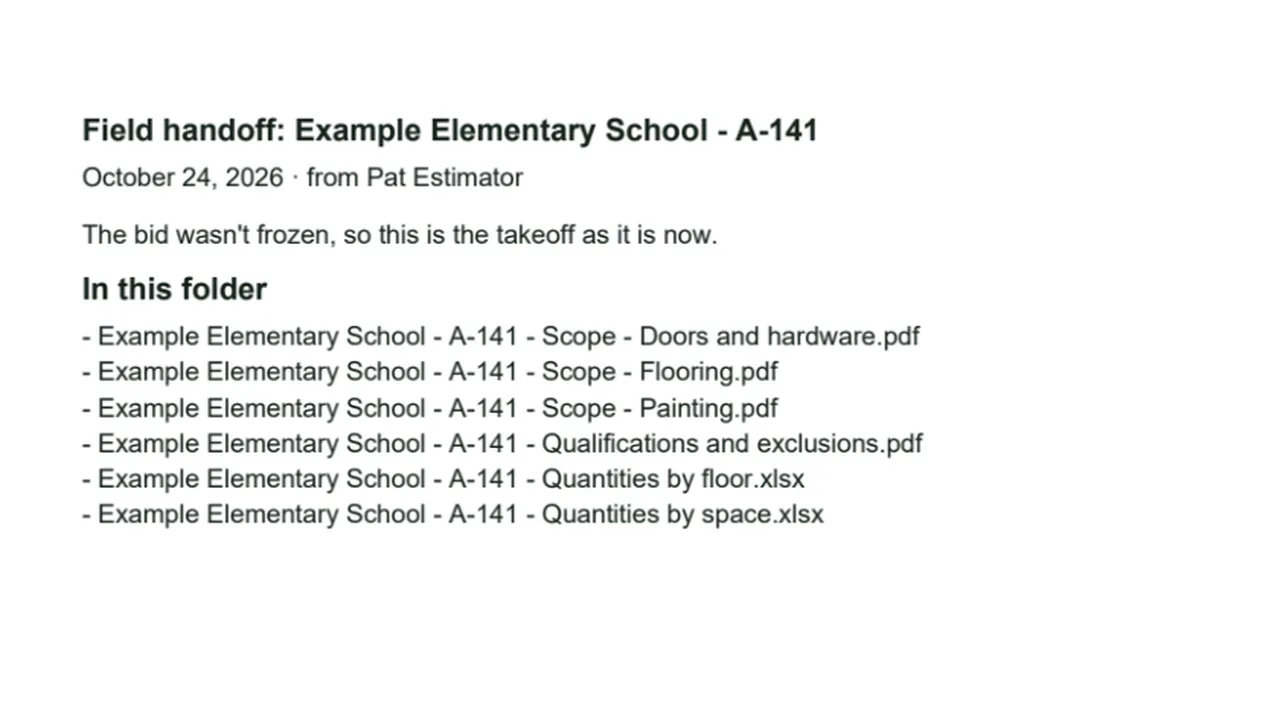
Field Handoff Pack: one folder for the field with the scope sheets, qualifications and quantities, listed on a cover. Screen recording of Kisheet, October 2026. Where to find it. Bid > After Award > Field Handoff Pack, then a folder. It uses the frozen as-bid copy when the bid was frozen, so takeoff added later stays out; the cover page says which it used.
Bid menu
File attachmentsAttaches any file (a photo, a quote, a spec) to a spot on the drawing.Video
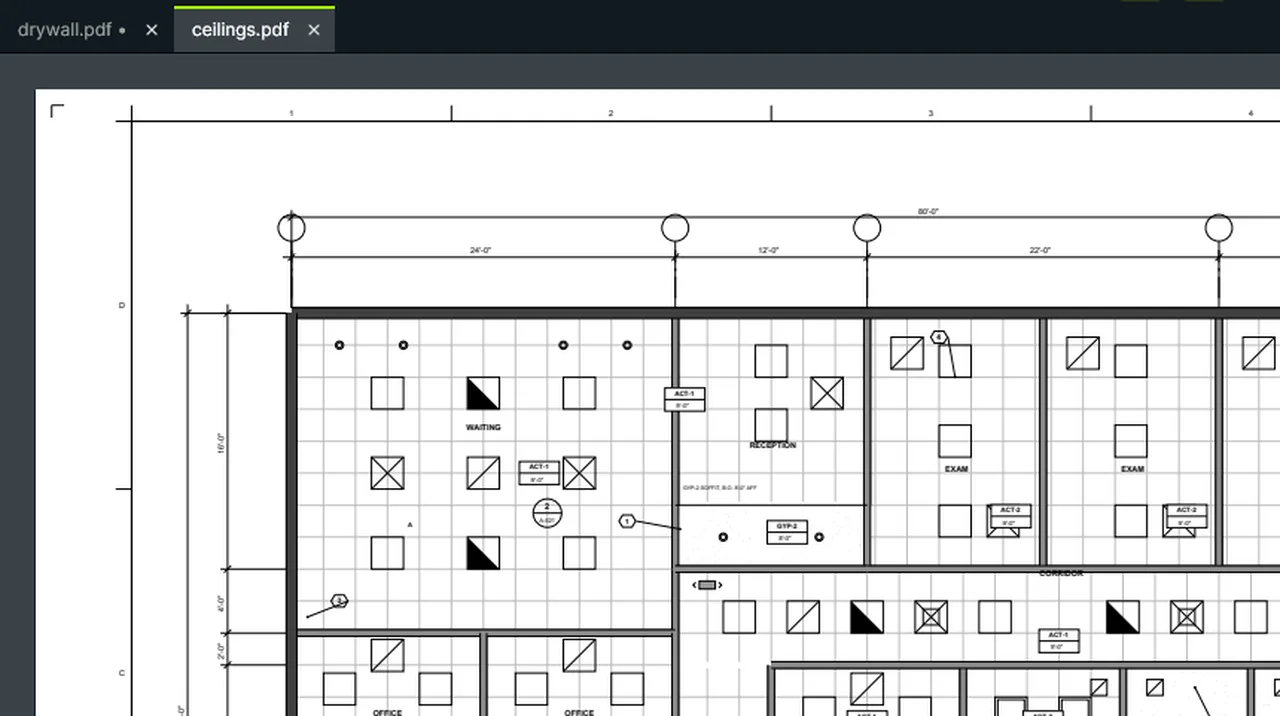
File Attachment: click a spot and pick the file. A double-click opens it, here a PDF in Kisheet. Screen recording of Kisheet, October 2026. Where to find it. Tools > Markup > File Attachment: click a spot and pick the file. Open Attachment, or a double-click, opens it in its own app.
Tools > Markup
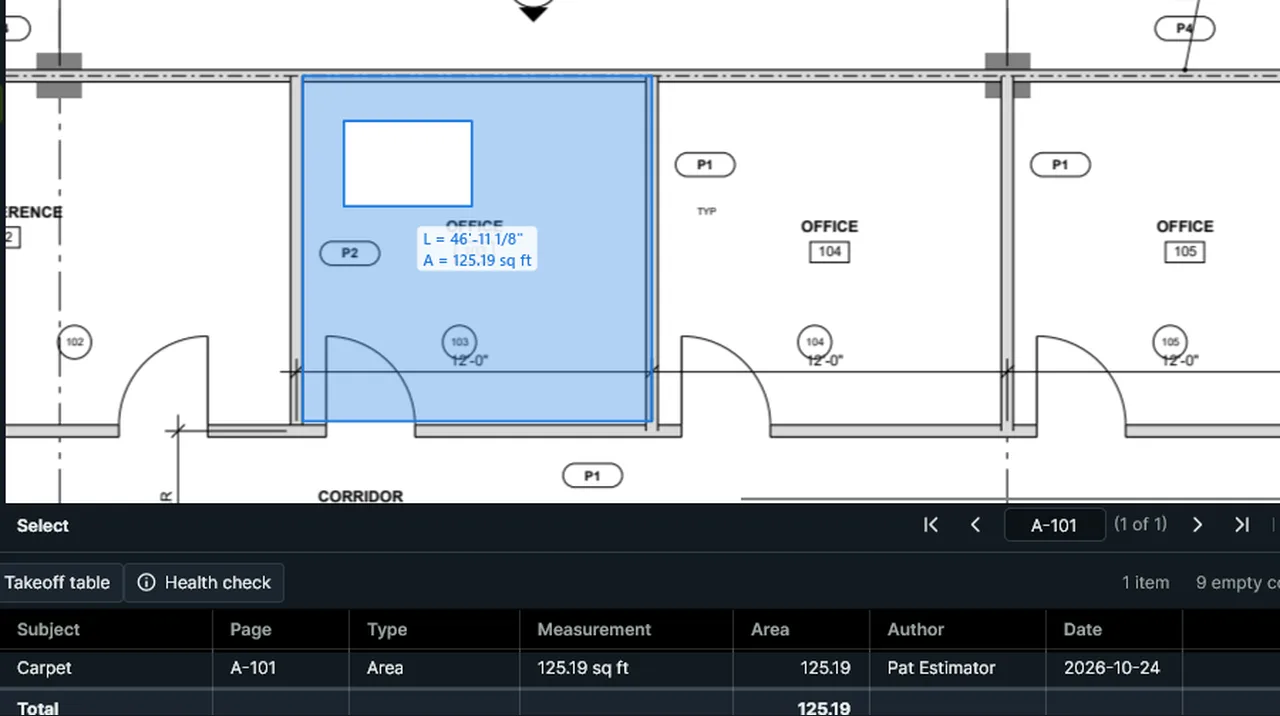
Fill AreaOne click inside a room measures it, to the inside face, the wall centerlines or the outside face, with columns cut out and the room's printed name as the label.Video
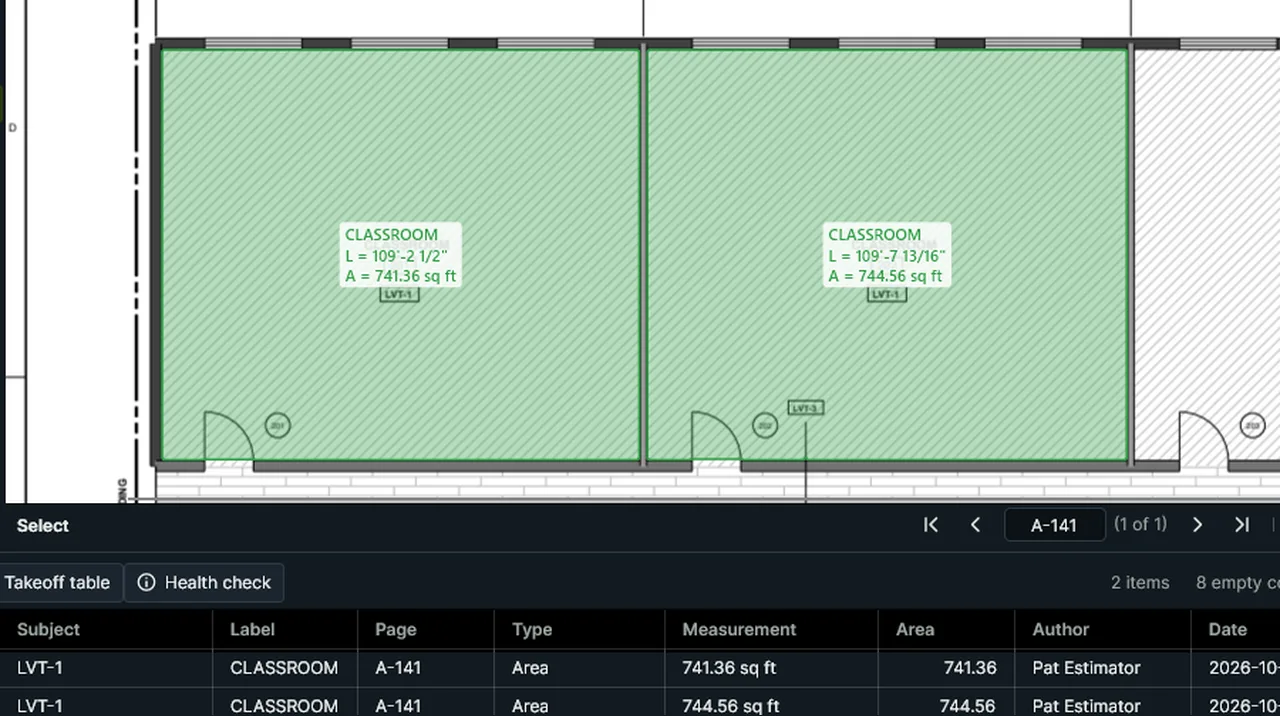
Fill Area, looking past door swings (the default): pick a finish, click inside each room, and it's measured to the walls, the floor under the door swing included. Screen recording of Kisheet, October 2026. Where to find it. Tools > Measure > Fill Area (also on the Measure toolbar), then click inside each room; it stays on until Esc or another tool. Fill Area Options choose the face (inside by default), whether columns are cut out, and what to look past. It works on line drawings; a room that isn't closed by lines can't be filled.
Tools > Measure
Fill your bid spreadsheetFills a copy of your company's own estimate workbook: a cell holding {{Carpet}} gets that subject's total, {{Carpet $}} its cost and {{total $}} the bid total.Video
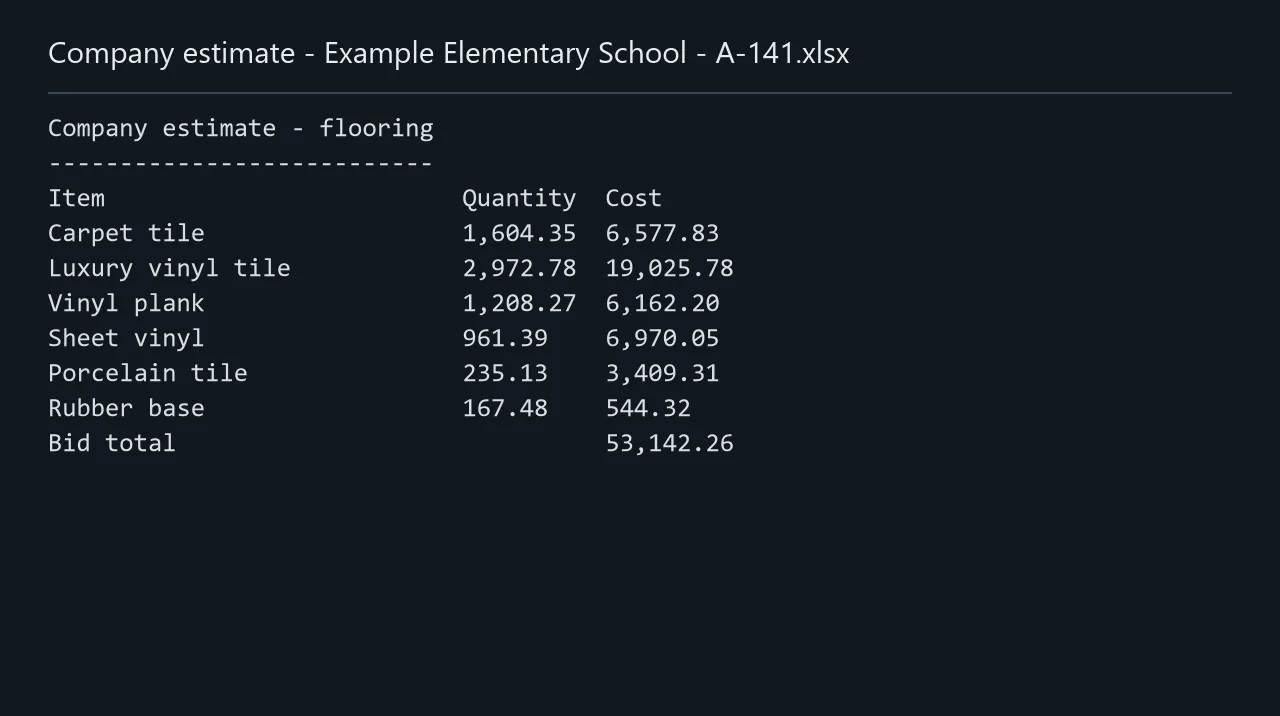
Fill Bid Spreadsheet: your own workbook's {{placeholders}} filled with this takeoff's totals and costs, in a copy. Screen recording of Kisheet, October 2026. Where to find it. Bid > Outputs > Fill Bid Spreadsheet: pick your workbook, then where to save the copy. The message lists placeholders that aren't in this takeoff.
Bid menu
Filling in formsFill in standard PDF forms; calculated fields update as you type, and values show on the page before you save.Video
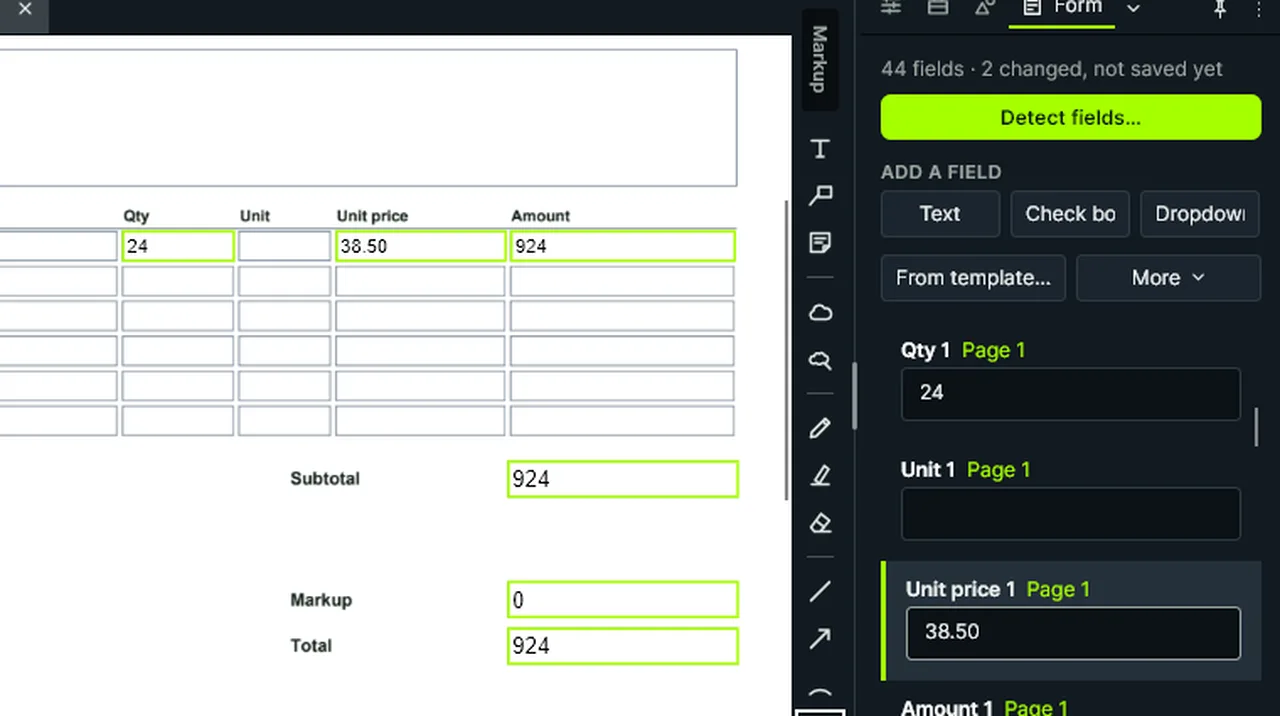
Filling in forms: click a field to pick it in the Form panel and type; calculated fields like Amount update as you go. Screen recording of Kisheet, October 2026. Where to find it. The Form panel lists the fields; click a field on the page to pick it. Save writes the values. Document > Form > Discard Form Changes forgets unsaved values.
Document menu
Find and Replace in markupsFinds and replaces words in markups' text and labels, on this page or every page, one at a time or all at once as one undo step.Video
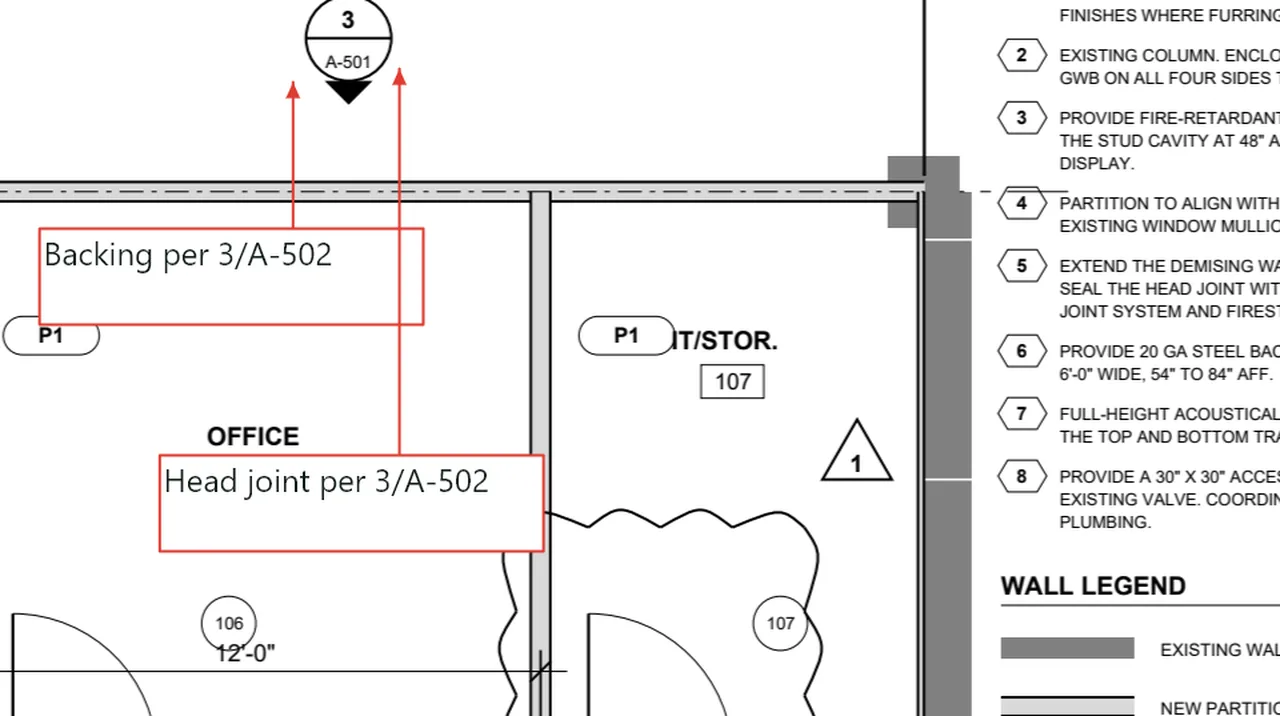
Find and Replace: type the words and their replacement, then Replace All changes every place at once. Screen recording of Kisheet, October 2026. Where to find it. Edit > Find and Replace (Ctrl+H). Set Match Case, Whole Word and This Page or All Pages. Find Next shows each place in turn, Replace changes the one shown, and Replace All changes every place and says how many. The PDF's own page text isn't changed.
Edit menu
Fittings on a runElbows and tees counted on the runs as you drew them.Video
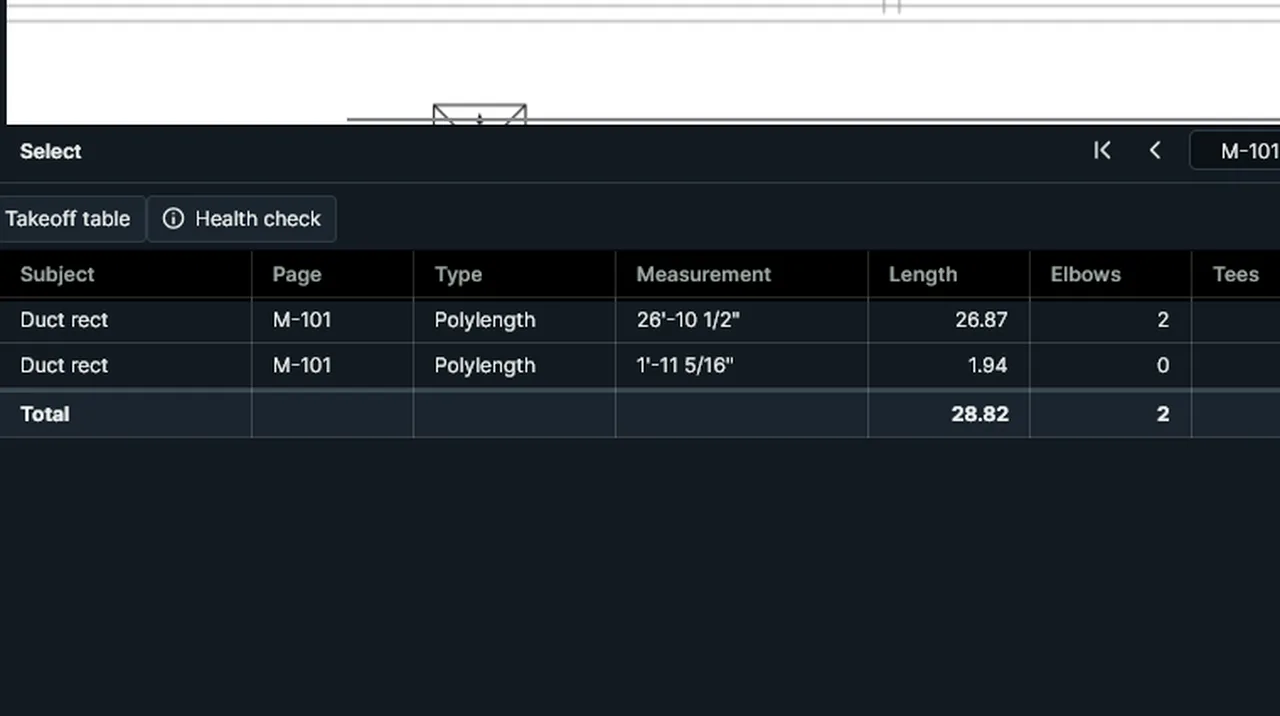
Count fittings: tick it on each run; elbows are counted where a run turns, a tee where a run ends on another. Screen recording of Kisheet, October 2026. Where to find it. Select a polylength and tick Count fittings in Properties. Elbows are counted where the run turns by more than the angle (30 degrees unless you change it), and a tee where the run's end lands on another run of the same subject (or any, with Tees with any run ticked).
Panels
Flatten, unflatten and publish a flattened copyBurns markups into the pages for issuing, can bring them back, or publishes a flattened copy while your file stays editable.Video
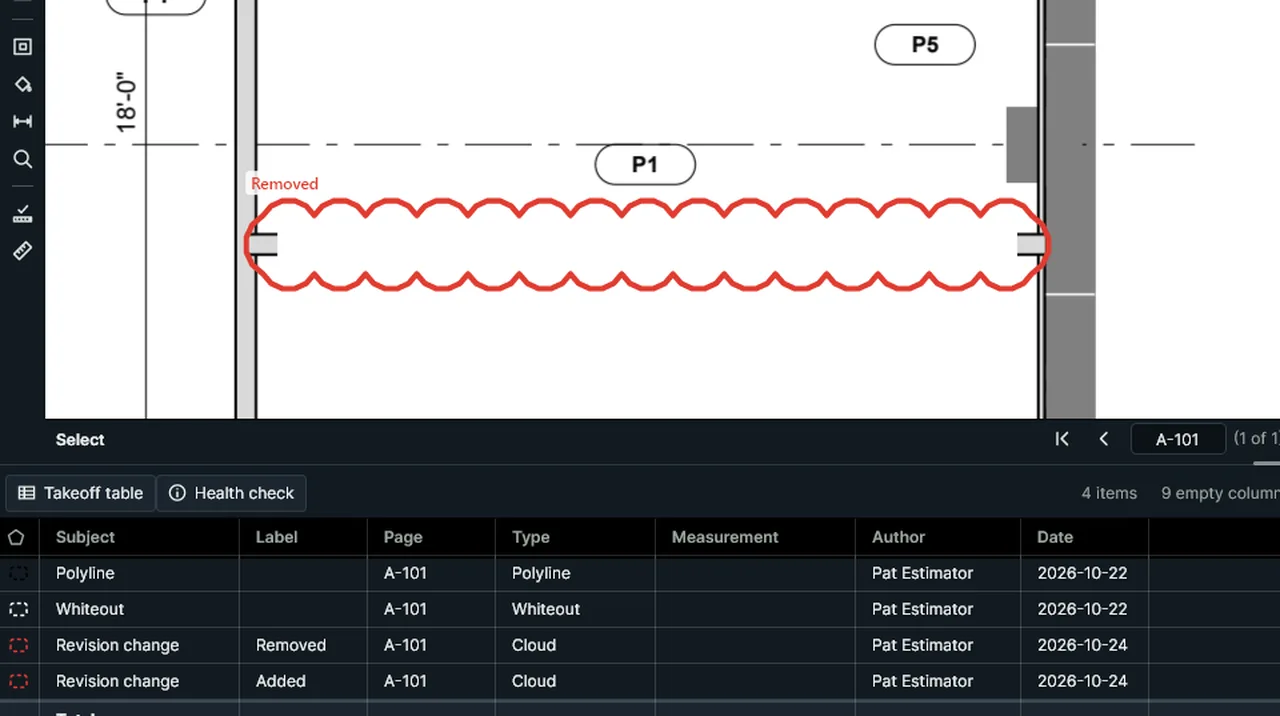
Flatten Markups asks, then draws markups into the page for good; Unflatten Markups brings back every flattened one. Screen recording of Kisheet, October 2026. Where to find it. Document > Flatten Markups (the selected markups or all of them; asks first, saves, and keeps a backup); Unflatten Markups; Publish Flattened Copy saves a separate flattened copy. Measurements aren't flattened; they stay as takeoff.
Document menu
Flooring by the rollSheet flooring and carpet by the roll: drops, linear yards, seams and waste for an area.Video
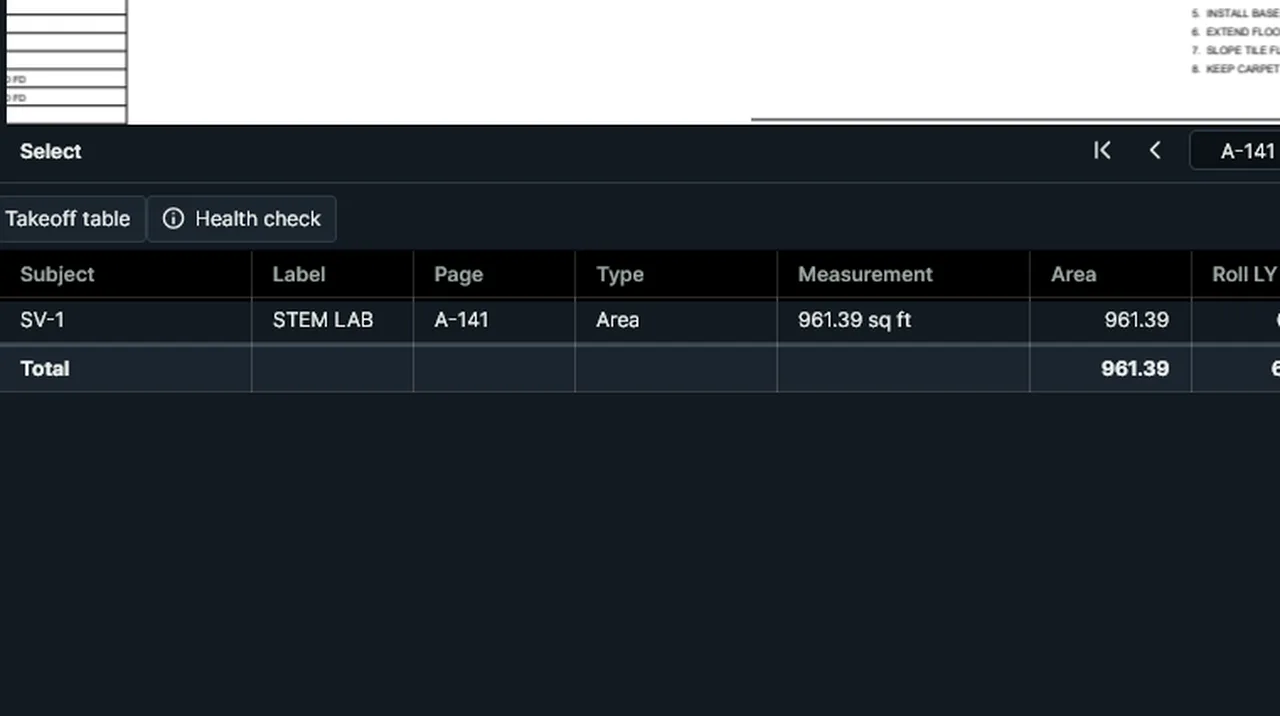
Flooring by the roll: give the sheet vinyl's roll width, and the drops, linear yards and seams are worked out. Screen recording of Kisheet, October 2026. Where to find it. In Properties: the roll width, whether drops run down the page or across, the pattern repeat and the trim at each end. The results show in the table.
Panels
Form data in and outMove form values in and out as XFDF or CSV, and fill one copy of a form for each row of a spreadsheet.Video
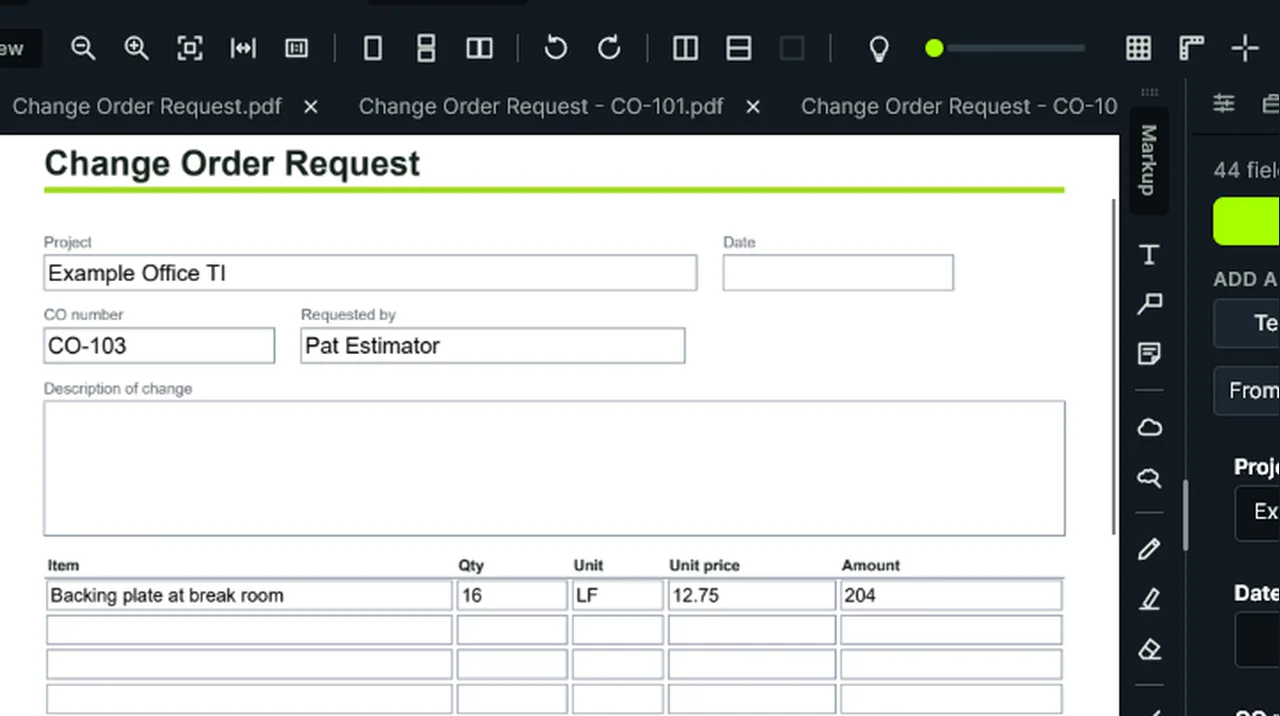
Import Form Data fills the form from a CSV; Fill Copies from a Spreadsheet saves one filled copy per row. Screen recording of Kisheet, October 2026. Where to find it. Document > Form > Import or Export Form Data (XFDF or CSV); Fill Copies from a Spreadsheet takes a CSV with field names in the first row, names the files from a column or numbers them, and saves them in a folder.
Document menu
Form panelEvery field of a PDF form, filled in place, with the form tools.Video
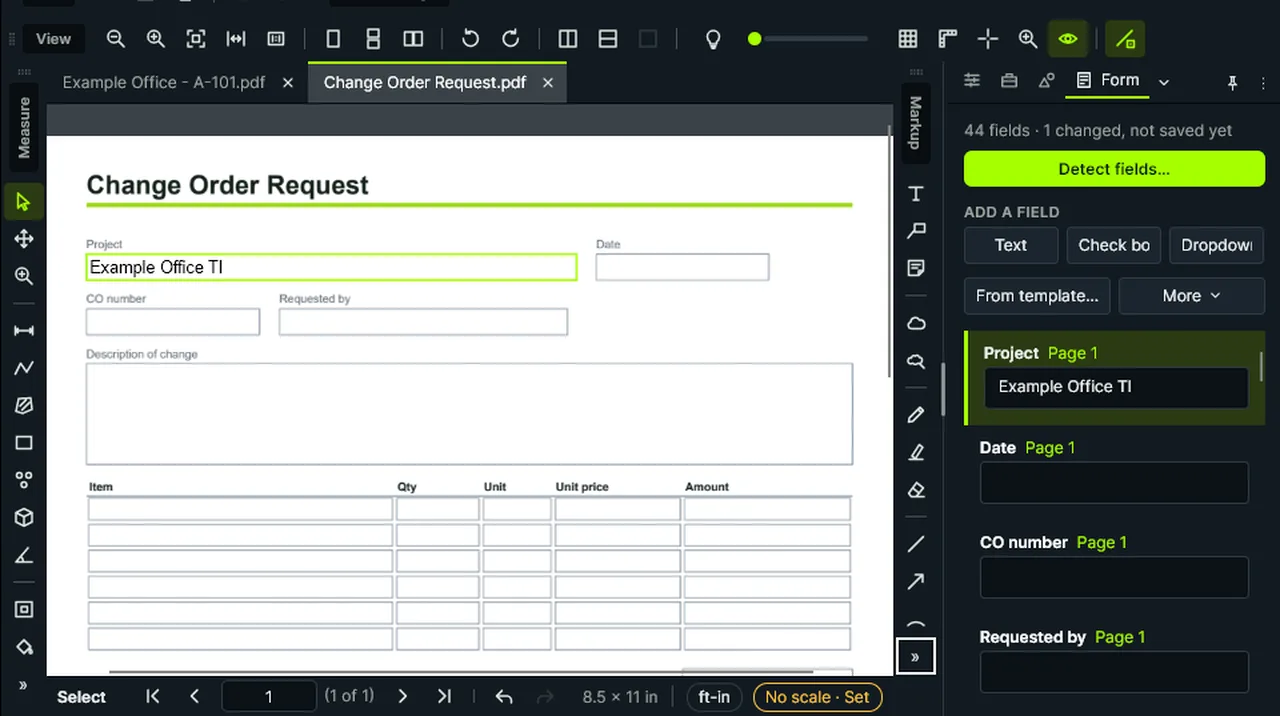
Form panel: the form tools at the top, then every field of the PDF with its value, ready to fill in place. Screen recording of Kisheet, October 2026. Where to find it. Buttons for making a form: New from Template, Detect Fields, Text Field, Check Box and Dropdown; renaming, calculating, deleting, discarding and data in and out are under More. Each field shows its value to edit.
Panels
Format PainterCopies one item's look (colors, line width, opacity, dashes, hatch, font, count symbol, cloud and arrowheads) onto another.Video
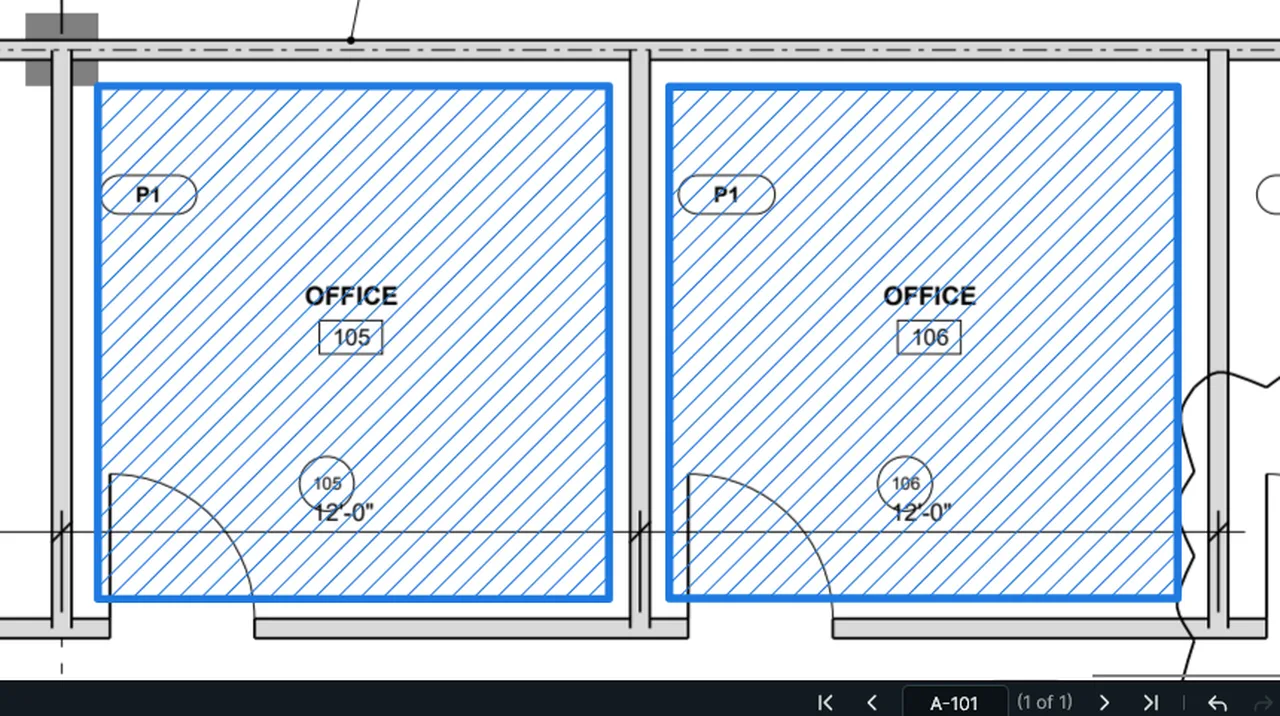
Format Painter: select the item whose look you want, choose Format Painter, then click the item to change. Screen recording of Kisheet, October 2026. Where to find it. Select the item whose look you want, choose Edit > Format Painter (Ctrl+Shift+C) or the brush on the toolbar, then click the item to change. One undo step.
Edit menu
Freeze every PDF and price the change orderFreezes every sheet of the bid at once, then prices each change since the bid at the bid's own unit costs.Video
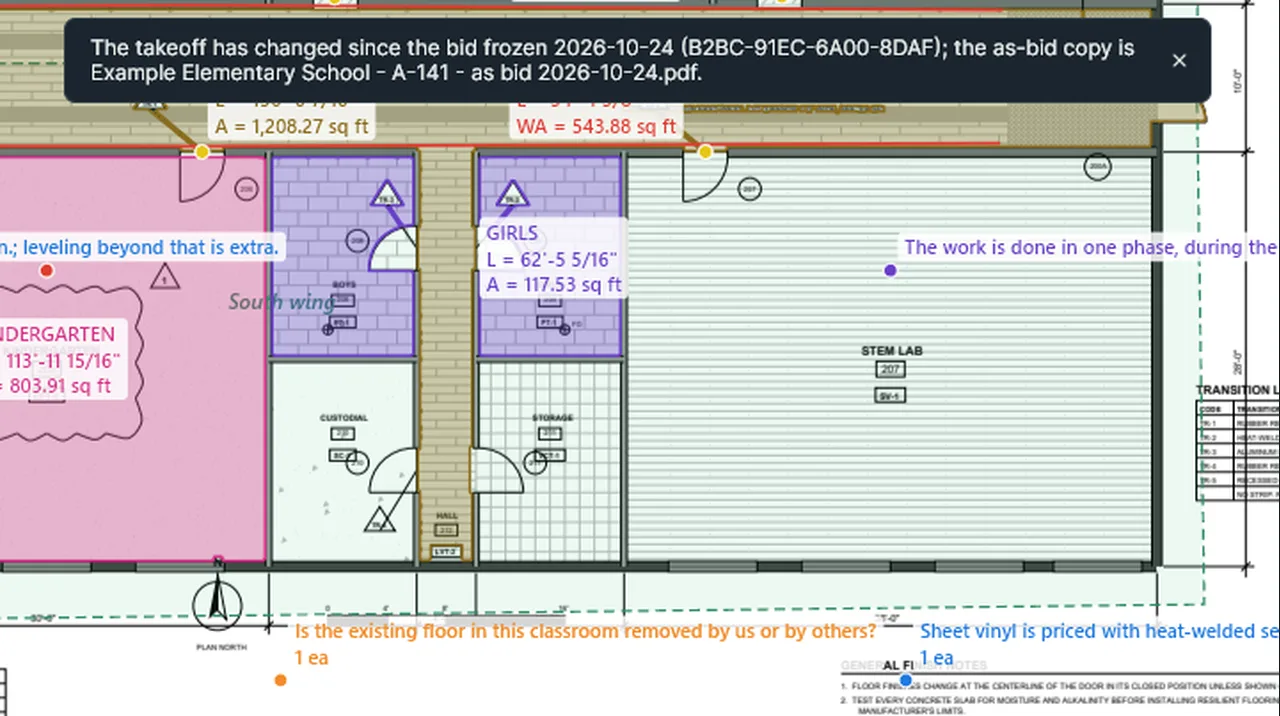
Freeze the Bid: a locked as-bid copy with its fingerprint; after a change, Compare With the Bid says so. Screen recording of Kisheet, October 2026. Where to find it. Bid > Freeze Every PDF of the Bid makes a locked as-bid copy of each PDF. Later, Price the Change Order from the Frozen Bid values each changed item at the unit costs it was bid at and shows the result on the Bid window's Change Order tab; Export the Change Order saves it, listing the items that have no unit cost.
Bid menu
Freeze the bidSaves a locked "as bid" copy of the takeoff with a fingerprint, and later tells you whether the takeoff has changed since the bid.Video
Freeze the Bid: a locked as-bid copy with its fingerprint; after a change, Compare With the Bid says so. Screen recording of Kisheet, October 2026. Where to find it. Bid > Freeze the Bid (asks first and saves the working file), then Compare With the Bid at any time. The as-bid copy opens locked; every change to it is refused.
Bid menu
Full screen and clean screenThe drawing as large as it gets: full screen, or every toolbar and panel out of the way.Video
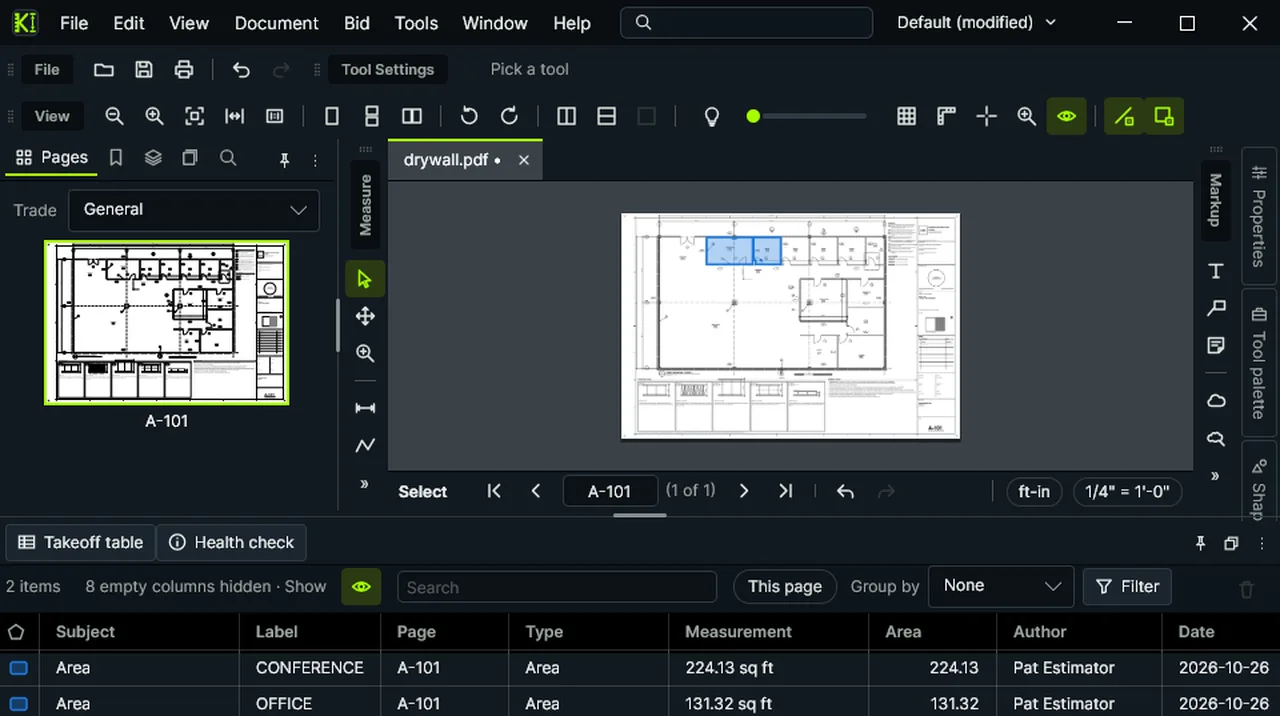
Clean Screen hides every toolbar and docked panel; again brings them all back. Screen recording of Kisheet, October 2026. Where to find it. View > Full Screen (F11). Clean Screen (Ctrl+Shift+F) hides every toolbar and docked panel; again brings them all back as they were.
Window menu
Go to Sheet and page navigationType a sheet number like "E2.1" to jump there, in this PDF, another open one or the plan set, and step back through where you've been.Video
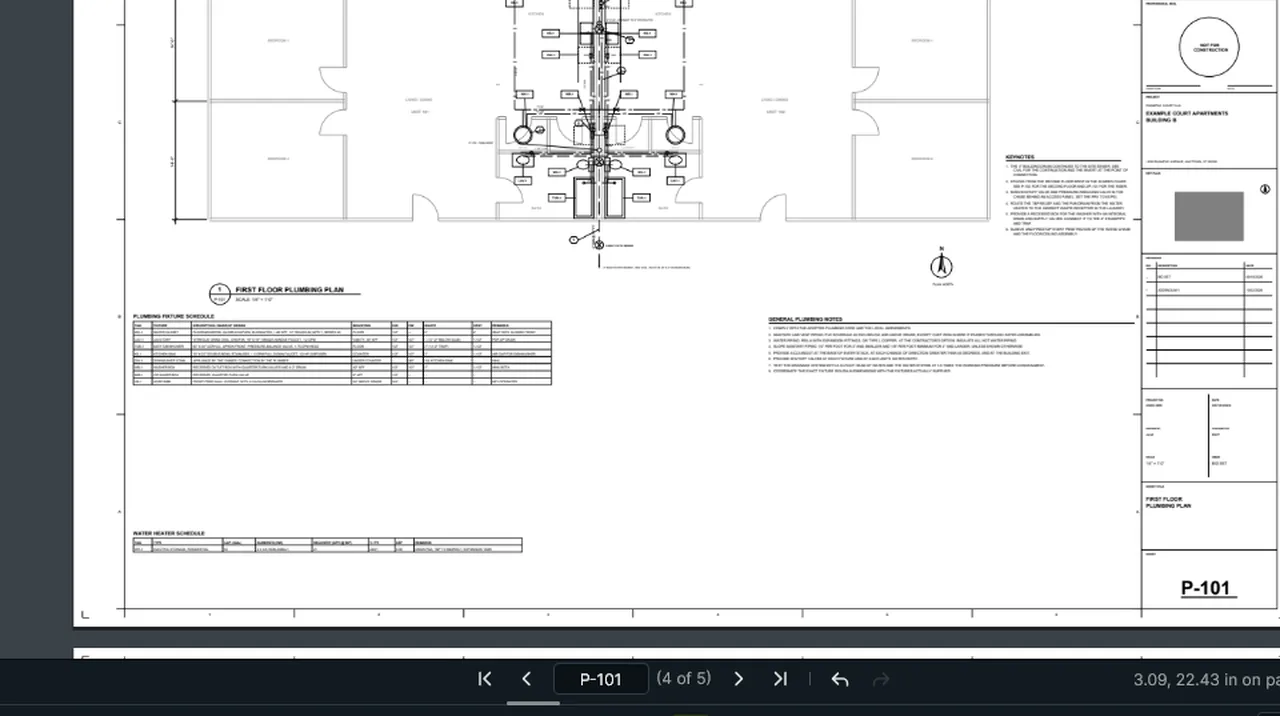
Go to Sheet: type a sheet number like P-101 and Kisheet jumps straight there. Screen recording of Kisheet, October 2026. Where to find it. View > Go To > Go to Sheet (Ctrl+G when there's nothing to group). An exact sheet number wins over one that only starts the same way. First (Home), Previous (Page Up), Next (Page Down) and Last (End) page; Previous View (Alt+Left) and Next View (Alt+Right) step back and forward like a browser. Also the Navigate toolbar and the status bar's page box.
View menu
Group and UngroupGroups items so they select and move together.Video
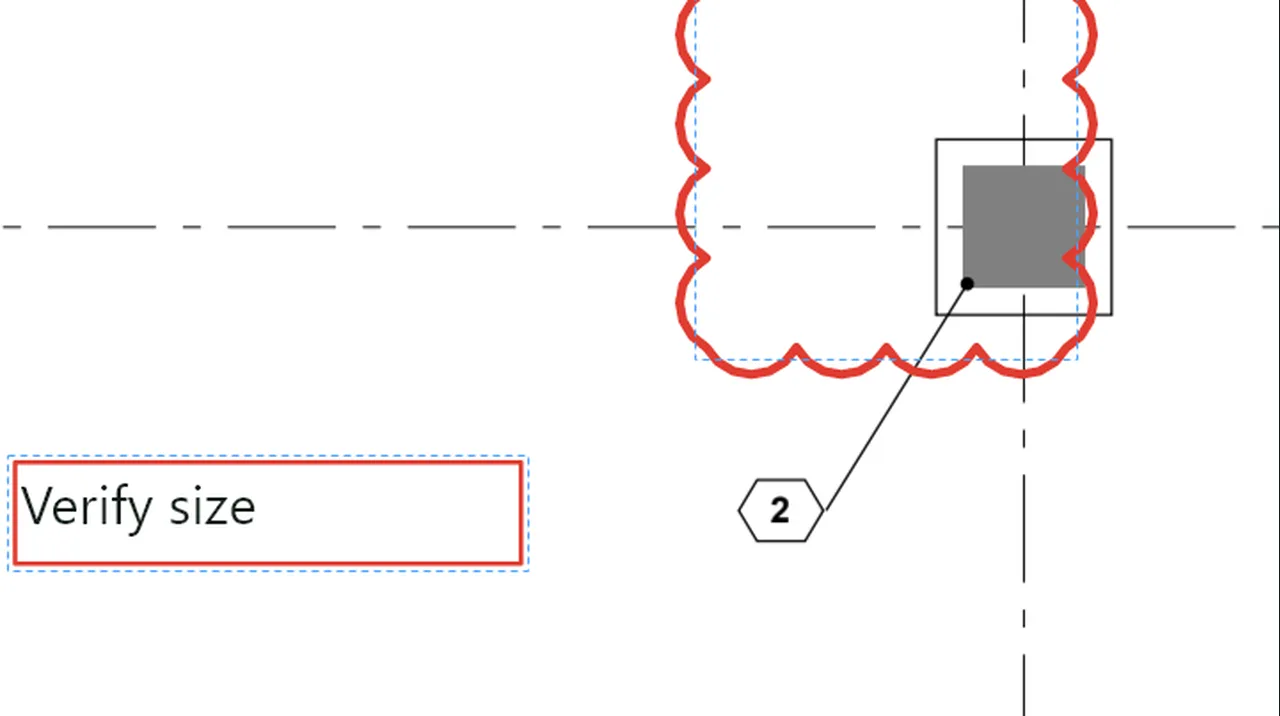
Group: select two items and choose Group; they then move as one, and a click on either selects both. Screen recording of Kisheet, October 2026. Where to find it. Edit > Arrange > Group (Ctrl+G) and Ungroup (Ctrl+Shift+G). With fewer than two items selected, Ctrl+G opens Go to Sheet instead.
Edit menu
Hatch patternsBrings in hatch patterns from the standard CAD pattern file format (.pat) for area and shape fills.Video
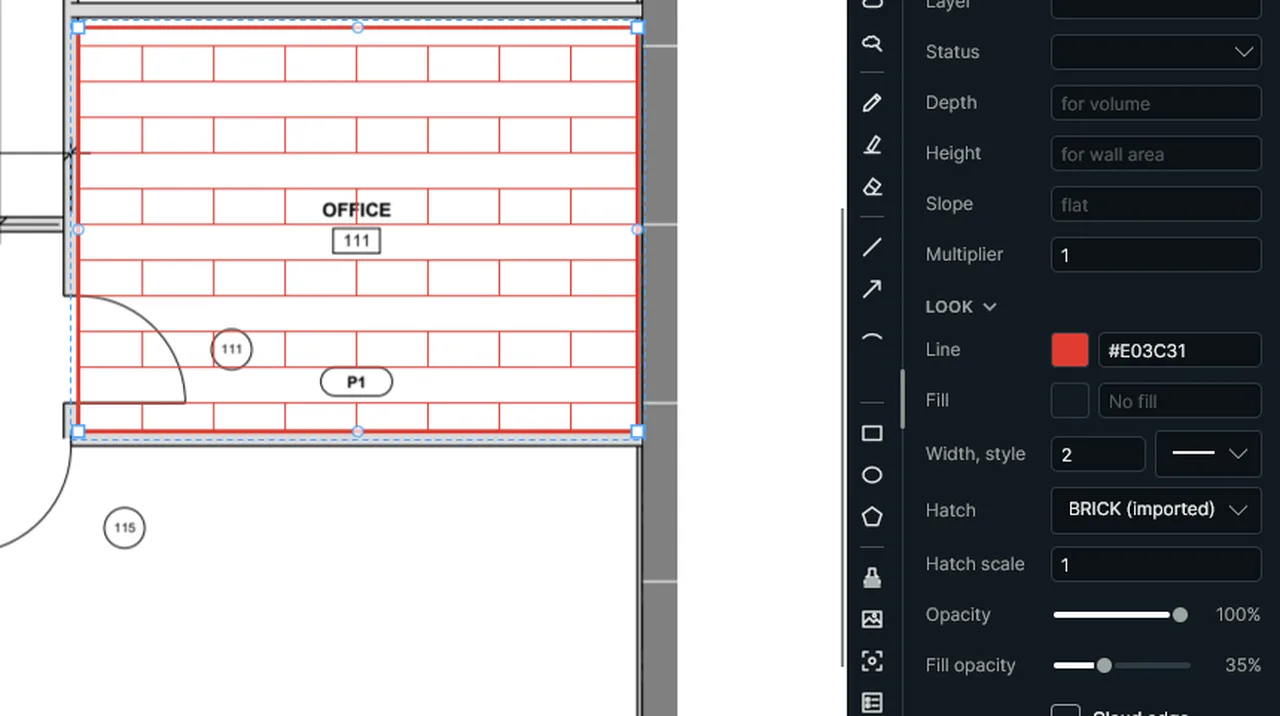
Import Hatch Patterns: pick a .pat file; its patterns join the Hatch list in Properties, ready for any shape. Screen recording of Kisheet, October 2026. Where to find it. Tools > Tool Sets > Import Hatch Patterns and Export Hatch Patterns. Imported patterns appear in Properties' hatch list.
Tools > Markup
Health Check panelThe takeoff's likely mistakes before the bid, each linked to its items.Video
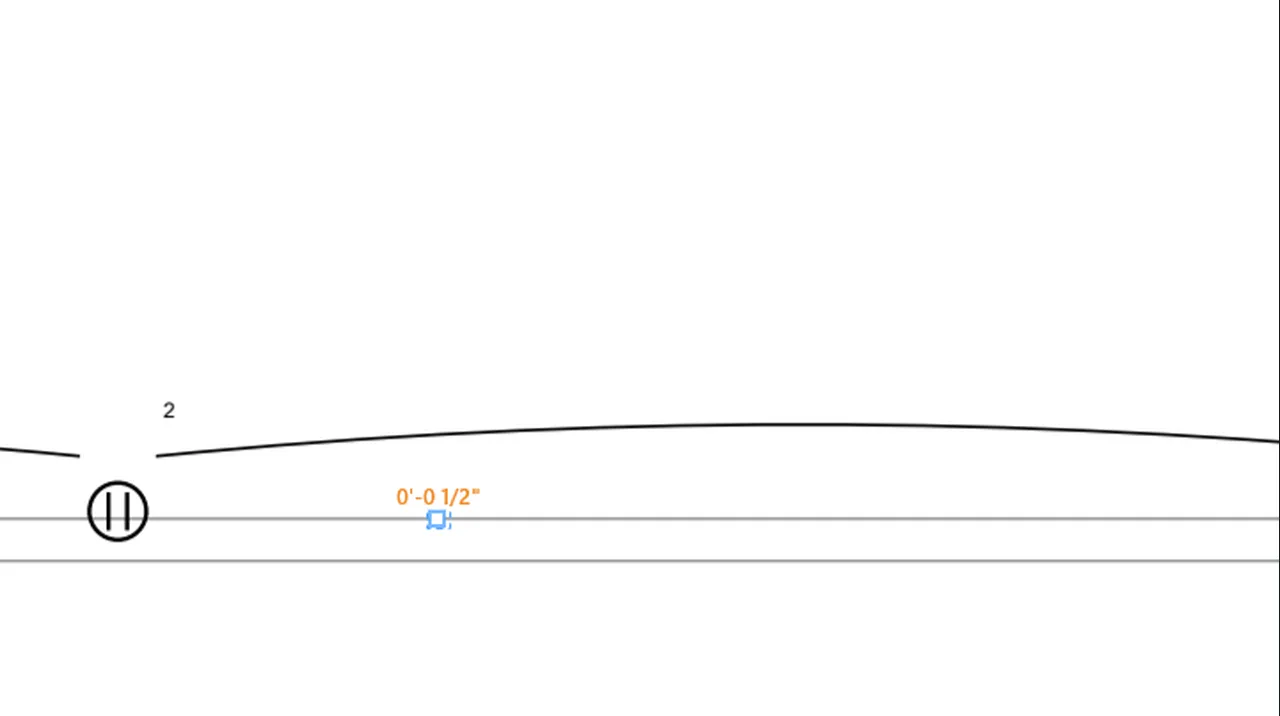
Takeoff Health Check lists likely mistakes; click one to go to its sheet with its items selected. Screen recording of Kisheet, October 2026. Where to find it. Click a finding to go to its sheet with its items selected. Show Notes adds sheets without takeoff; Check a Schedule; Review Next; Check Again.
Panels
Highlight, underline and strike out textMarks the PDF's own text the way readers expect, following the words exactly.Video
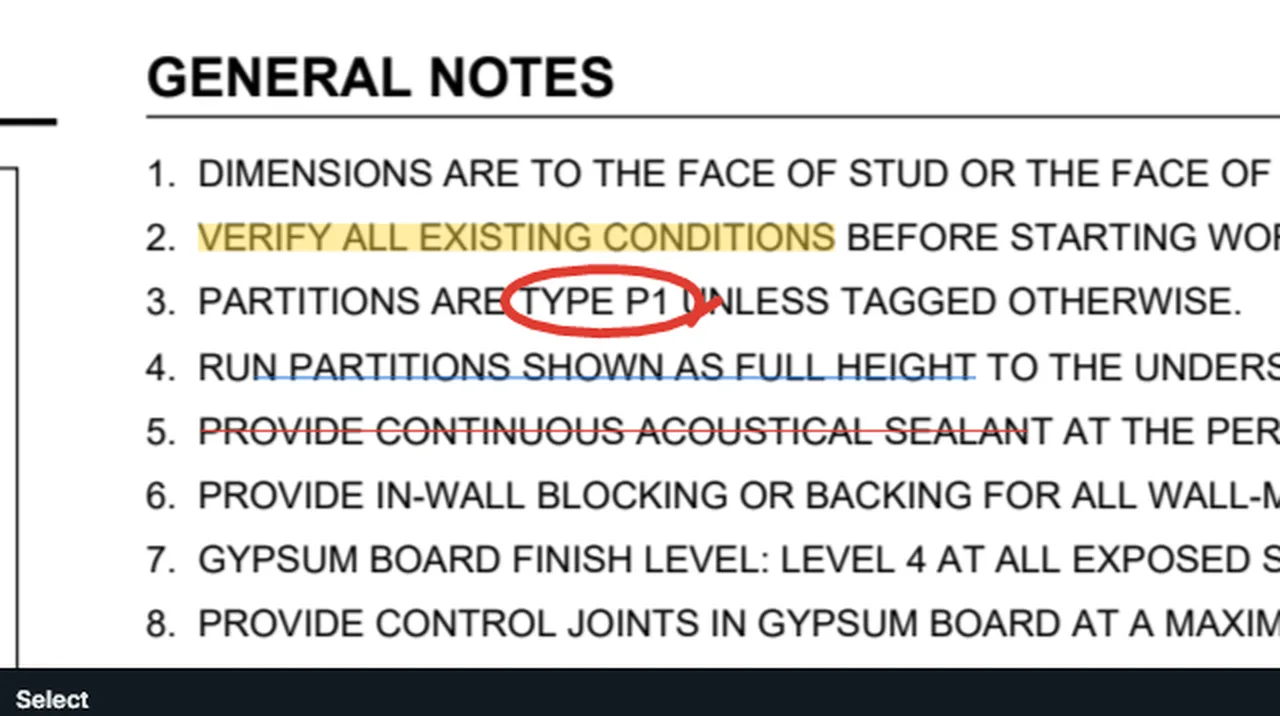
Text markup: highlight, underline and strike out the PDF's own words; circle a phrase in pen. Screen recording of Kisheet, October 2026. Where to find it. Tools > Markup > Highlight Text, Underline Text or Strike Out Text (also on the Text Markup toolbar), then drag across the words. Scans need OCR first.
Tools > Markup
How items look on the page and their captionsMarkups and measurements draw in their own colors over the drawing, with live captions showing their quantities.Video
Captions: a length shows its value by its middle, a count by its first mark; a selected item gets an outline and grips. Screen recording of Kisheet, October 2026. Where to find it. A caption shows the item's label and the values you chose for it. A length's caption sits beside the middle of its line like a dimension; a count's sits by its first mark. Drag a caption to move it, and Edit > Arrange > Reset Caption Position puts it back. Selected items show a dashed outline and grips.
Foundations
How quantities are worked outLengths, areas, perimeters, volumes, wall areas, counts, angles, radii and roof-edge lengths are worked out live from what you drew and the sheet's scale.Video
Quantities are worked out from the drawing and the scale: no scale says No scale; with it, the area, less its cutout. Screen recording of Kisheet, October 2026. Where to find it. The scale used is the one where the item sits: a viewport's scale inside a viewport, otherwise the page's. Areas subtract their cutouts; volume is area times depth; wall area is length times height. Slope and a multiplier scale lengths and areas, and typical floors and units multiply the Total columns. An item on a sheet with no scale says "No scale" instead of a wrong number.
Foundations
How To and the glossaryHelp for every function and feature, built in and offline: search it, browse it A to Z, look up a term, and run a function from its page. F1 over a button opens that button's page.Video
How To: browse A to Z or the Glossary, search for a function, and Do It runs it, here the Cloud tool. Screen recording of Kisheet, October 2026. Where to find it. Help > How To (F1). Type in the search box; A–Z lists every function and feature with a letter bar to jump; Glossary lists estimating, drawing and Kisheet terms. A function's page shows where it is in the menus, its shortcut, how it works, related functions, the features it's part of, and Do It, which runs it. A feature's page links to its functions and its glossary terms.
Help menu
HyperlinksA clickable box that jumps to another sheet, a web address or a file.Video
Hyperlink: drag a box, then type where it goes: a sheet number, a web address or a file. Screen recording of Kisheet, October 2026. Where to find it. Tools > Markup > Hyperlink: drag a box and type where it goes (a sheet number, a web address or a file). Click it with the Pan tool, or select it and use Tools > Markup > Follow Link.
Tools > Markup
Import changes from Excel or CSVEdit subjects, labels, statuses, layers, bids and custom values in a spreadsheet and bring them back into the takeoff in one step.Video
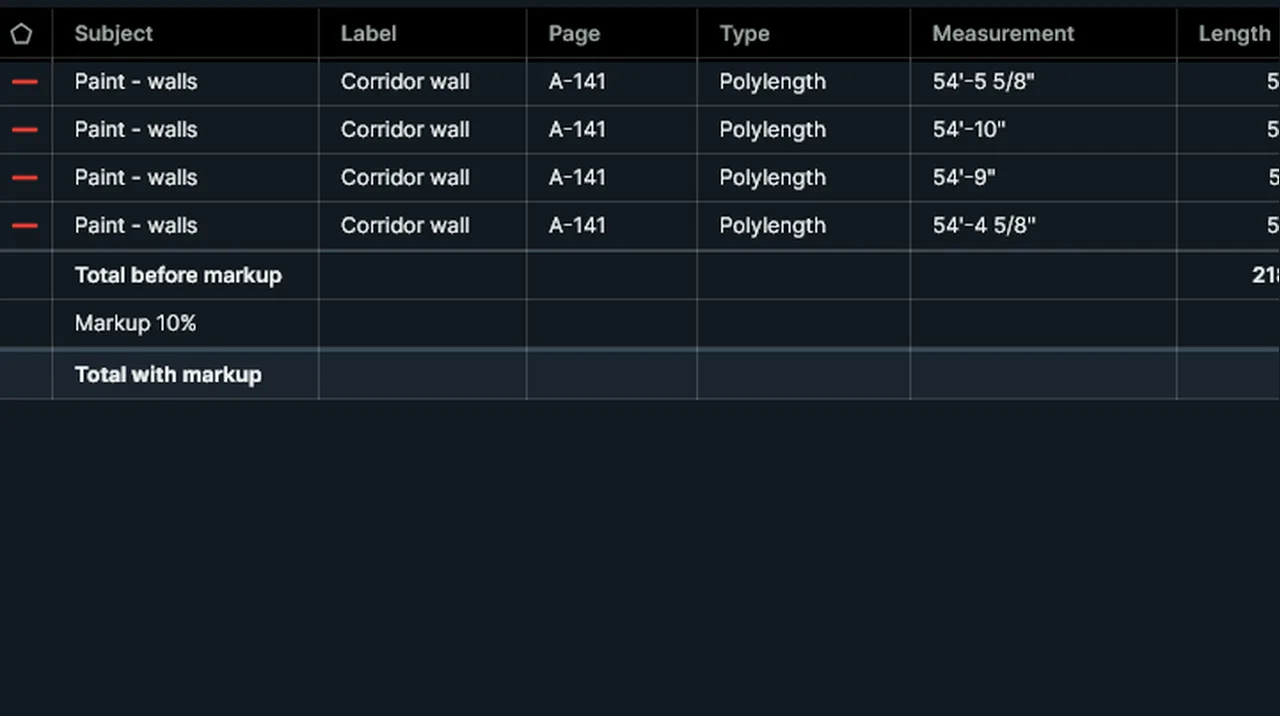
Import Changes from Excel or CSV: Kisheet lists what would change and asks, then updates the takeoff in one step. Screen recording of Kisheet, October 2026. Where to find it. File > Import > Changes from Excel or CSV. Kisheet shows what would change and asks before updating; the update is one undo step. Values are checked against their columns (a number within its limits, one of a column's choices). Rows without a Kisheet ID are skipped, so new items can't be made this way. Close the file in Excel first.
File menu
Import markups (XFDF)Brings in markups from an XFDF file made by Kisheet or another app.Video
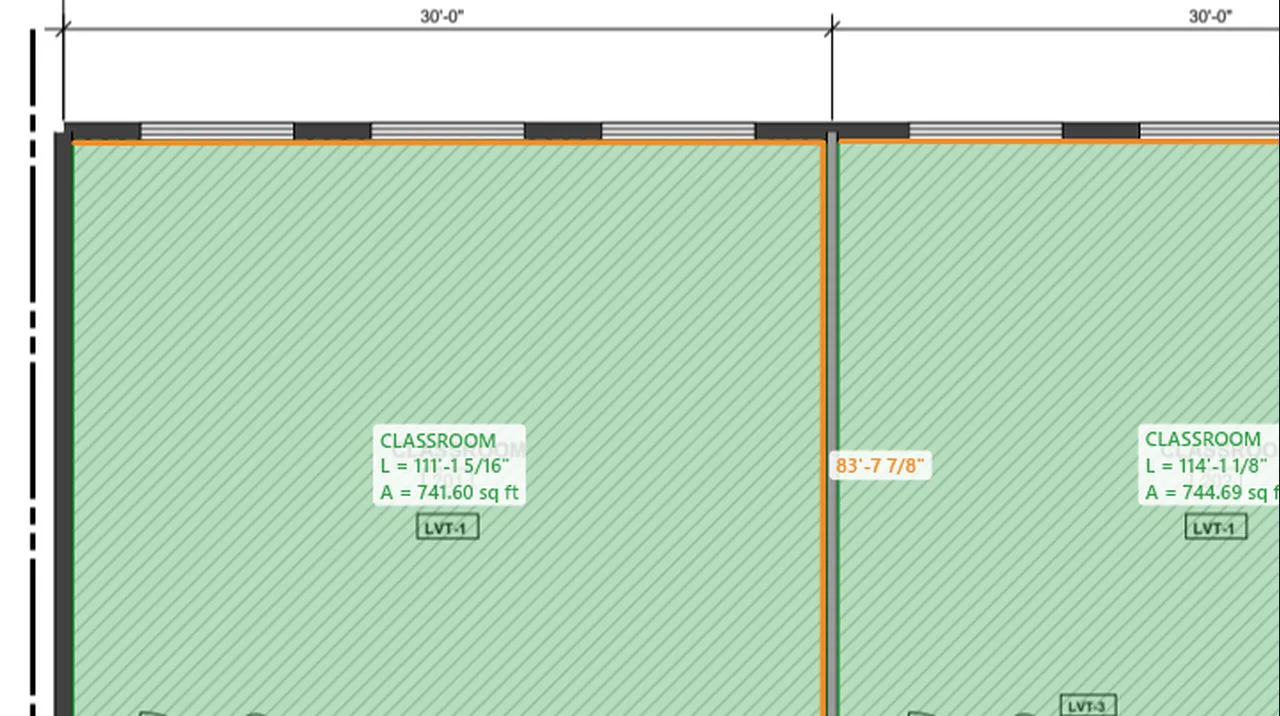
Import Markups (XFDF): markups from another PDF app, or from Kisheet, brought onto a clean copy of the sheet. Screen recording of Kisheet, October 2026. Where to find it. File > Import > Markups (XFDF). The import is one undo step, and the message counts what came in and what was skipped. Another app's ink markups come in with every stroke, grouped; its measurements arrive as plain shapes.
File menu
Insert pagesInserts all the pages of one or more PDFs after the current page, with any takeoff they carry.Video
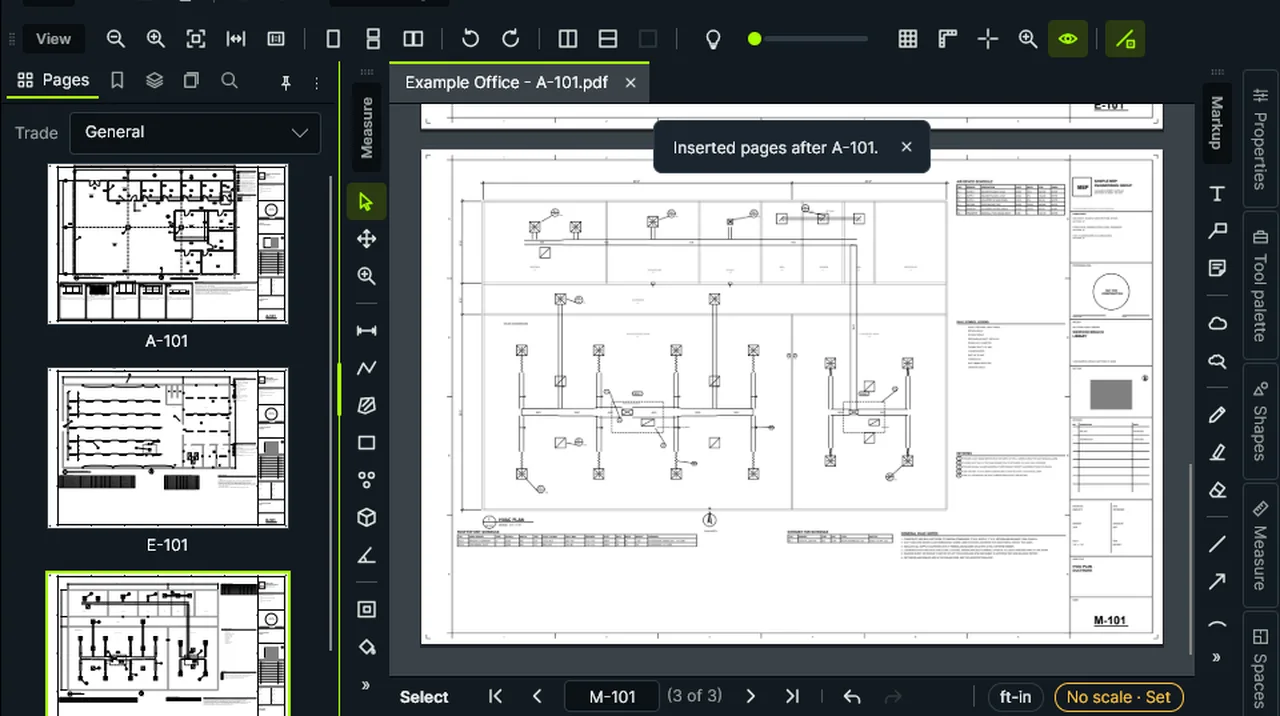
Insert Pages: the chosen PDFs' pages go in after the current sheet; the view goes to the first one, and the rest follow in order. Screen recording of Kisheet, October 2026. Where to find it. Document > Pages > Insert Pages, then pick the PDFs in order. The view goes to the first inserted page.
Document menu
Installing Kisheet and updatesKisheet installs for your Windows user with no admin rights and keeps itself up to date; nothing restarts until you say so.
Where to find it. Run the installer from kisheet.com's download page: Kisheet goes into your user's AppData, into Start and into Open with for PDFs, and never becomes the default PDF app. When a new version has downloaded in the background, Update ready appears left of Sign in: click it, then Restart to Update, or Later. Help > Check for Updates checks at once. Help > About shows the version and its update channel. Uninstall from Windows Settings > Apps.
Kisheet menu
Keep the tool onKeeps measuring with the same tool, or goes back to Select after each item.Video
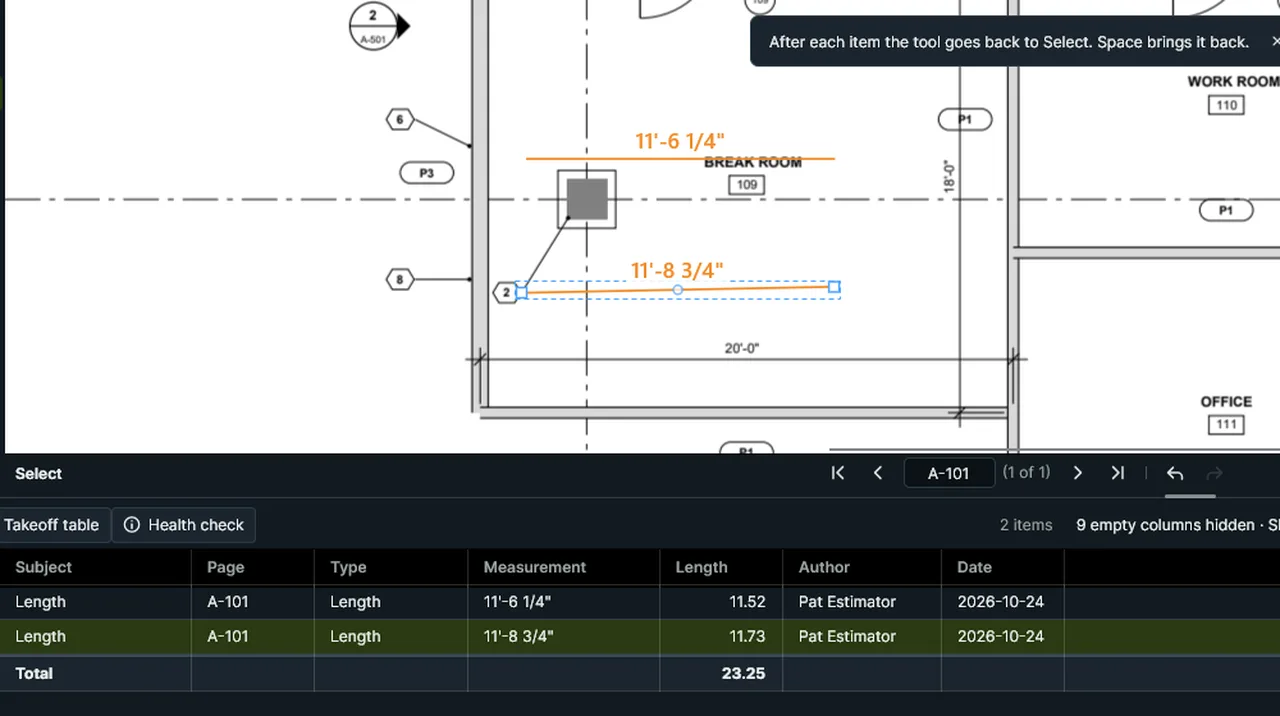
Keep the Tool On After Each Item: on, Length waits for the next run; turned off, it goes back to Select. Screen recording of Kisheet, October 2026. Where to find it. Tools > Keep the Tool On After Each Item (on by default).
Tools > Measure
Keybinds and Find a CommandA searchable list of every command with its shortcut; pick one to run it.Video
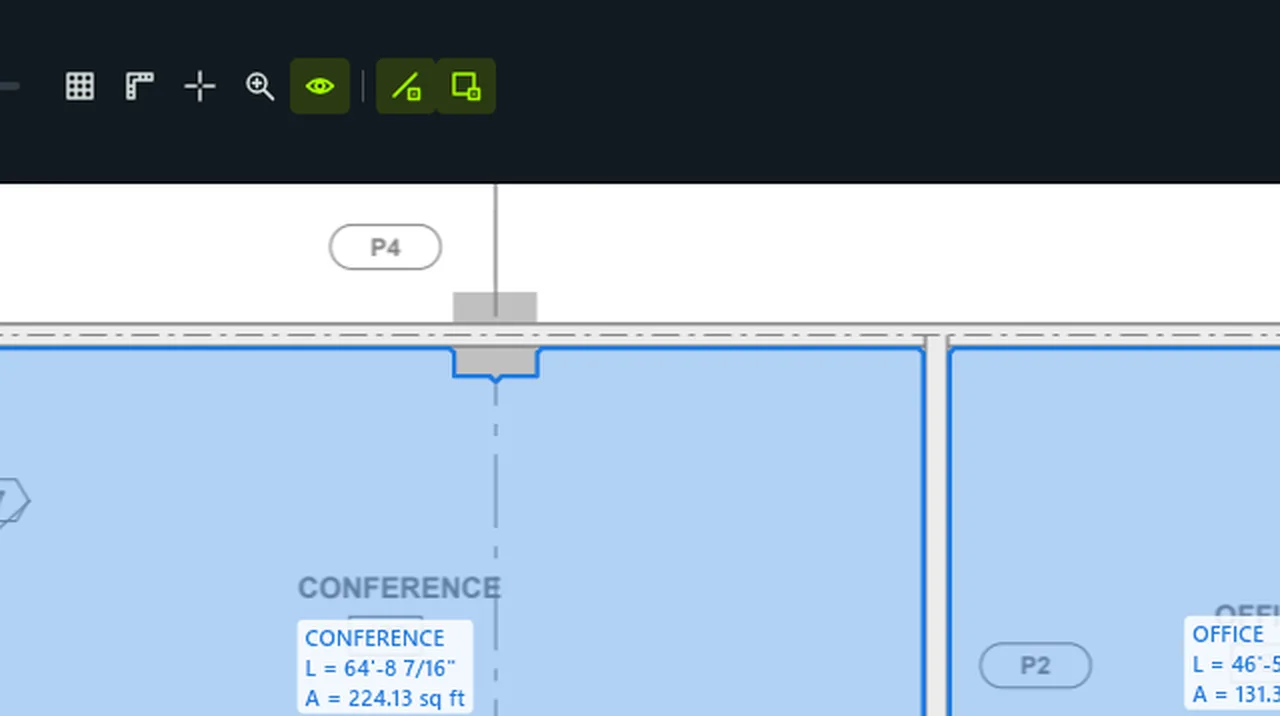
Find a Command: type a few words, move down to the one you want, and Enter runs it. Screen recording of Kisheet, October 2026. Where to find it. Help > Find a Command (Ctrl+Shift+P); Help > Keybinds… lists every key. Type a few words to filter, move with Up and Down, and press Enter to run. Commands that can't run right now are dimmed. To change a shortcut, right-click a button or menu item and choose Add Keybind, or use Preferences > Keybinds.
Kisheet menu
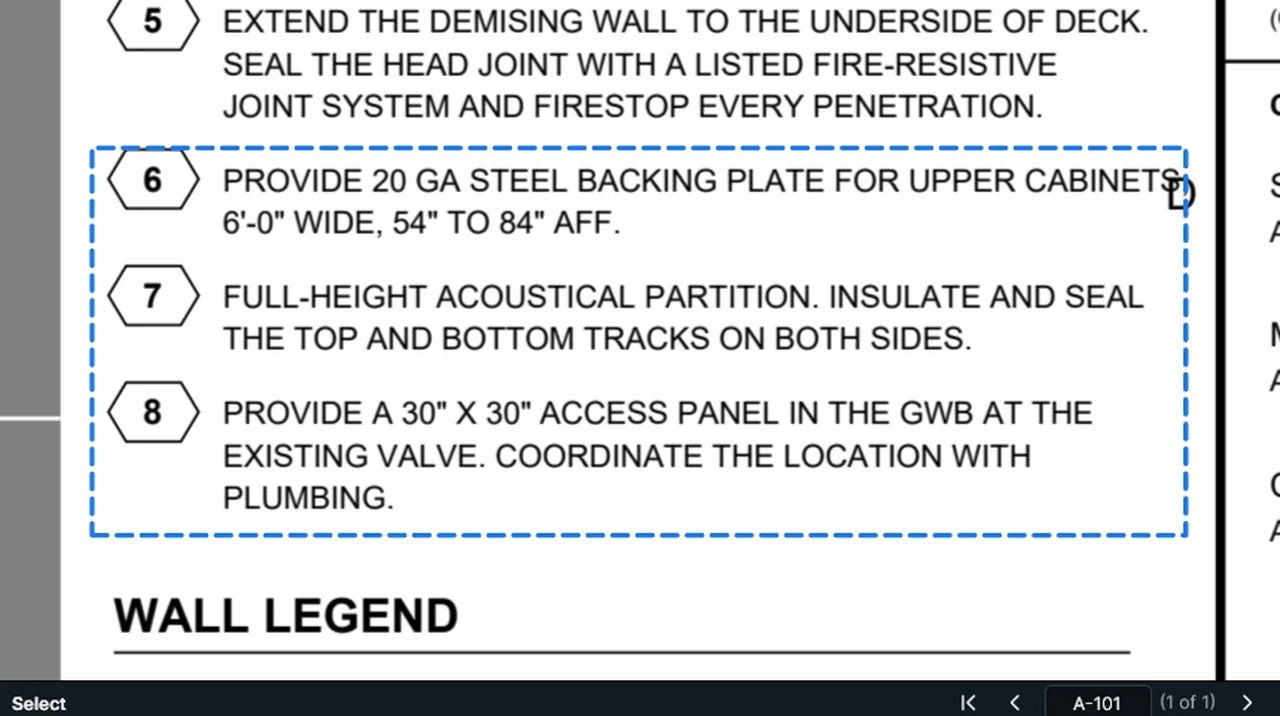
Keynote and abbreviation meaningsRest the pointer on a keynote number or abbreviation on any sheet to see what it means, read from the drawing's own keynote and abbreviation tables.Video
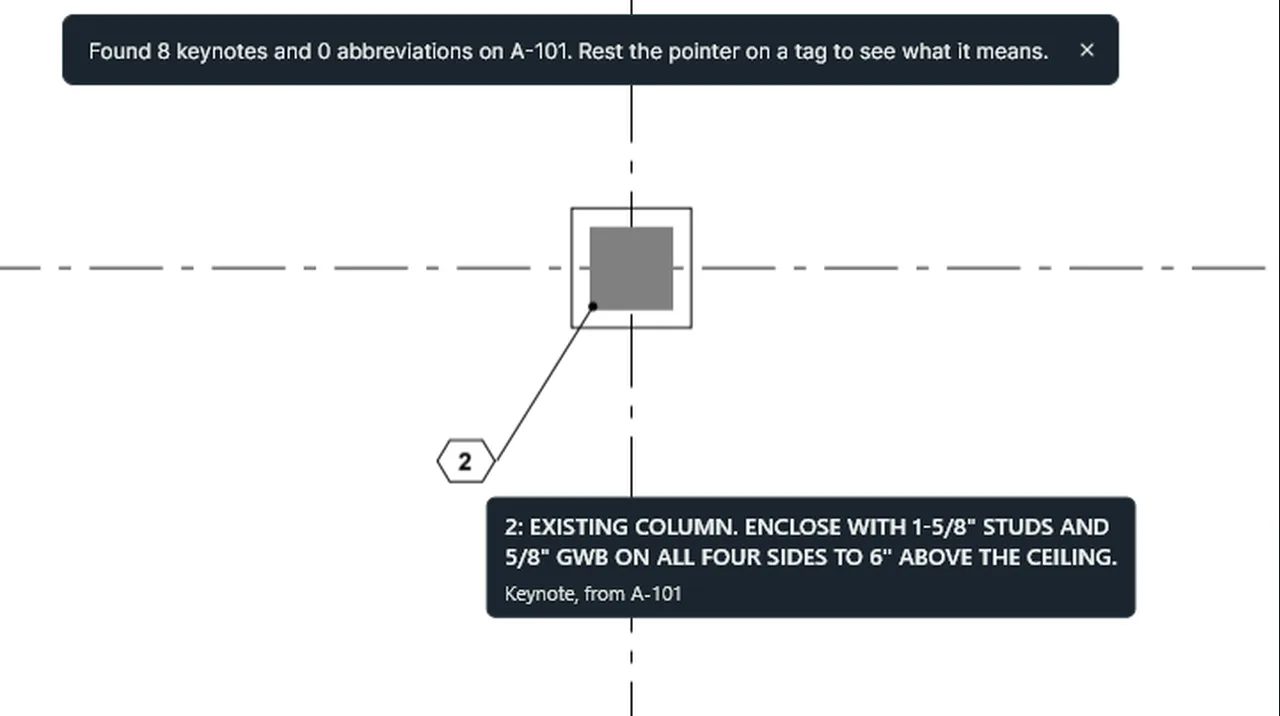
Find Keynote and Abbreviation Tables reads the sheet's keynotes; rest the pointer on a tag to see what it means. Screen recording of Kisheet, October 2026. Where to find it. View > Keynotes and Abbreviations > Find the Tables on This Sheet reads the tables it can find; Read a Keynote or Abbreviation Table lets you box one by clicking two opposite corners. View > Keynotes and Abbreviations > Show Their Meanings turns the tips on or off. Scanned sheets need OCR first.
Edit menu
Keys that aren't commandsKeys and mouse moves for drawing and moving around: number keys for tools, Space to pan, Shift for 45 degree steps, typed lengths to sketch to scale, and more.Video
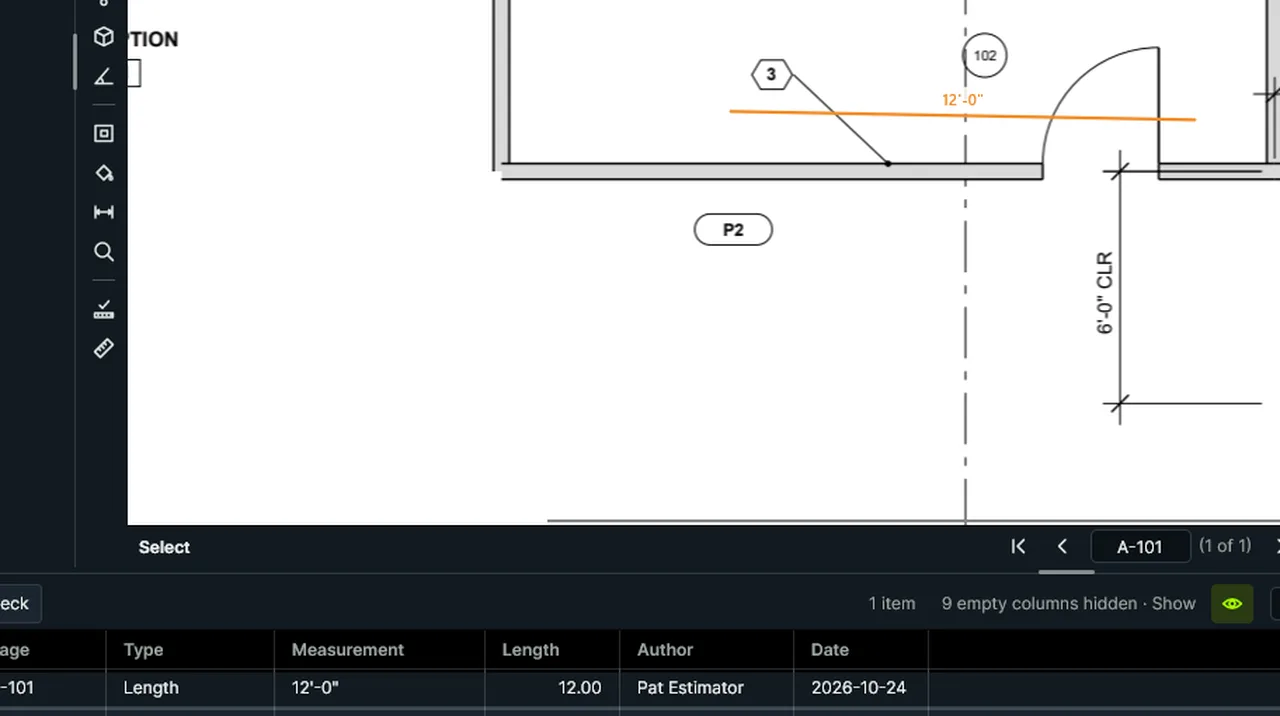
While drawing, type a length and press Enter: the next point goes exactly that far toward the pointer. Screen recording of Kisheet, October 2026. Where to find it. 1 to 9 pick tools; hold Space or use the middle button to pan; arrow keys pan or nudge; Shift locks the next segment to 45 degrees; type a length while drawing to place the next point at that distance; Enter finishes; Backspace removes the last point; Esc cancels the item, a second Esc goes back to Select, and a third clears the selection; Ctrl-drag a segment's middle to bend it into an arc; Shift-click a corner to remove it.
Keyboard shortcuts
Kisheet's own filesSmall files of Kisheet's own for plan sets, bids, bid templates, tool sets, workspaces, themes, shortcuts, script flows, licenses and versions.
Where to find it. Plan sets (.ksset) and bids (.ksbid) sit in the job folder; tool sets, workspaces, themes and flows can be exported and shared; versions stay on your computer.
File formats and what's saved where
Layers panelTurns the PDF's drawing layers on and off in the view, never changing the file.Video
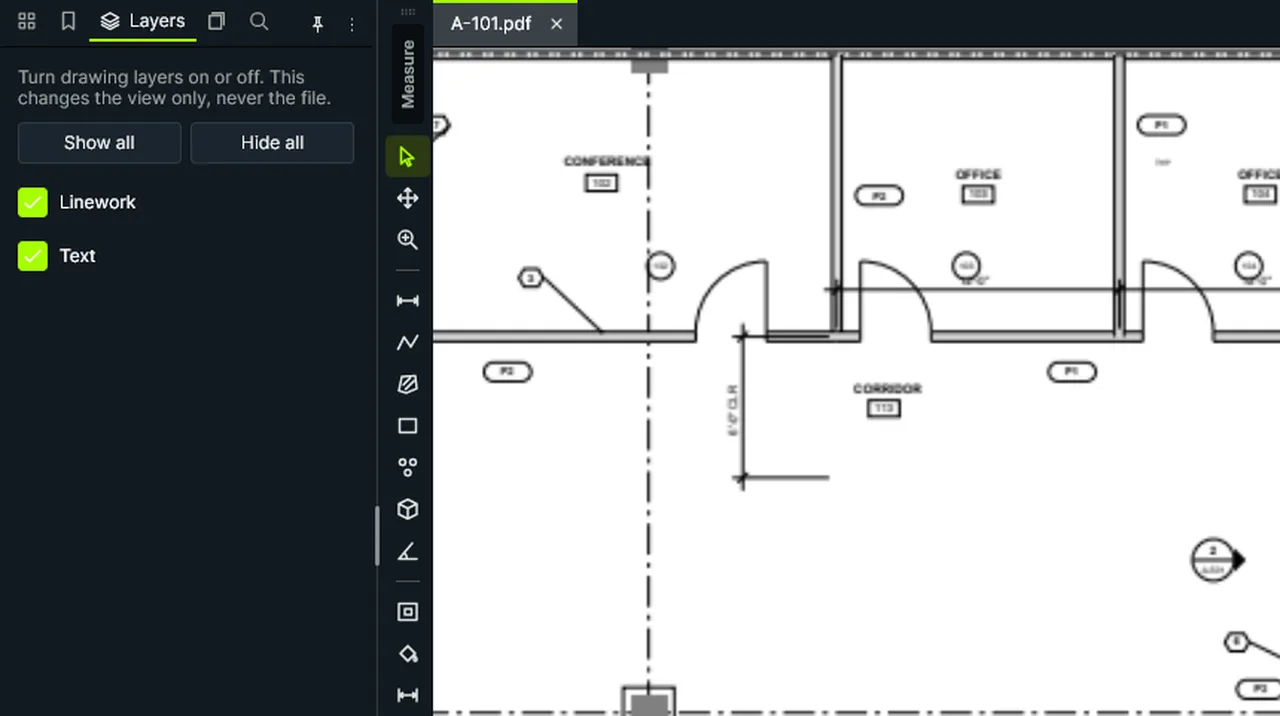
Layers: turn the PDF's own layers off and on one at a time, or hide and show them all; the file never changes. Screen recording of Kisheet, October 2026. Where to find it. Tick or untick layers, or use Show All and Hide All.
Panels
LegendsA live legend on the sheet: each subject's color, how many items, and their total, updating as the takeoff changes.Video
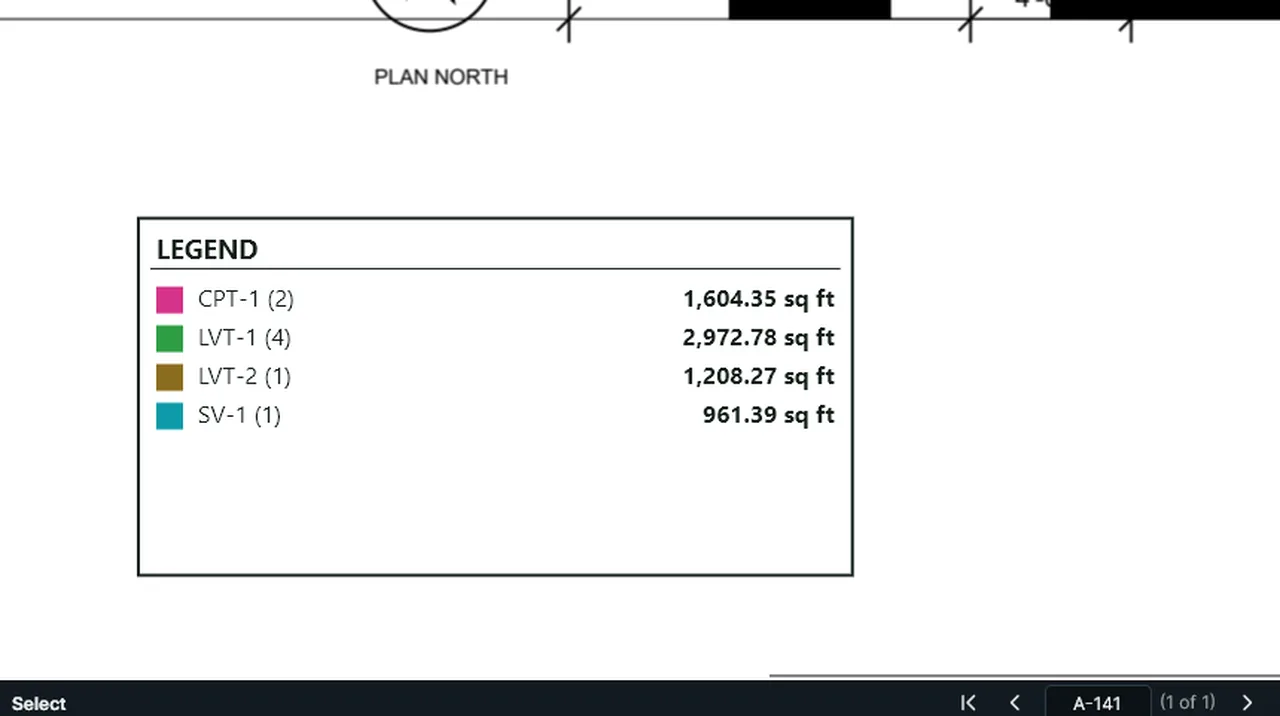
Legend: click to place a live key of each finish, its count and total; a newly measured finish gets its own row. Screen recording of Kisheet, October 2026. Where to find it. Tools > Markup > Legend, then drag a box. Its totals count every typical floor and unit, like the table's Total columns.
Tools > Markup
Length, polylength and perimeterLinear takeoff: a straight run, a run of segments, or a closed outline's perimeter.Video
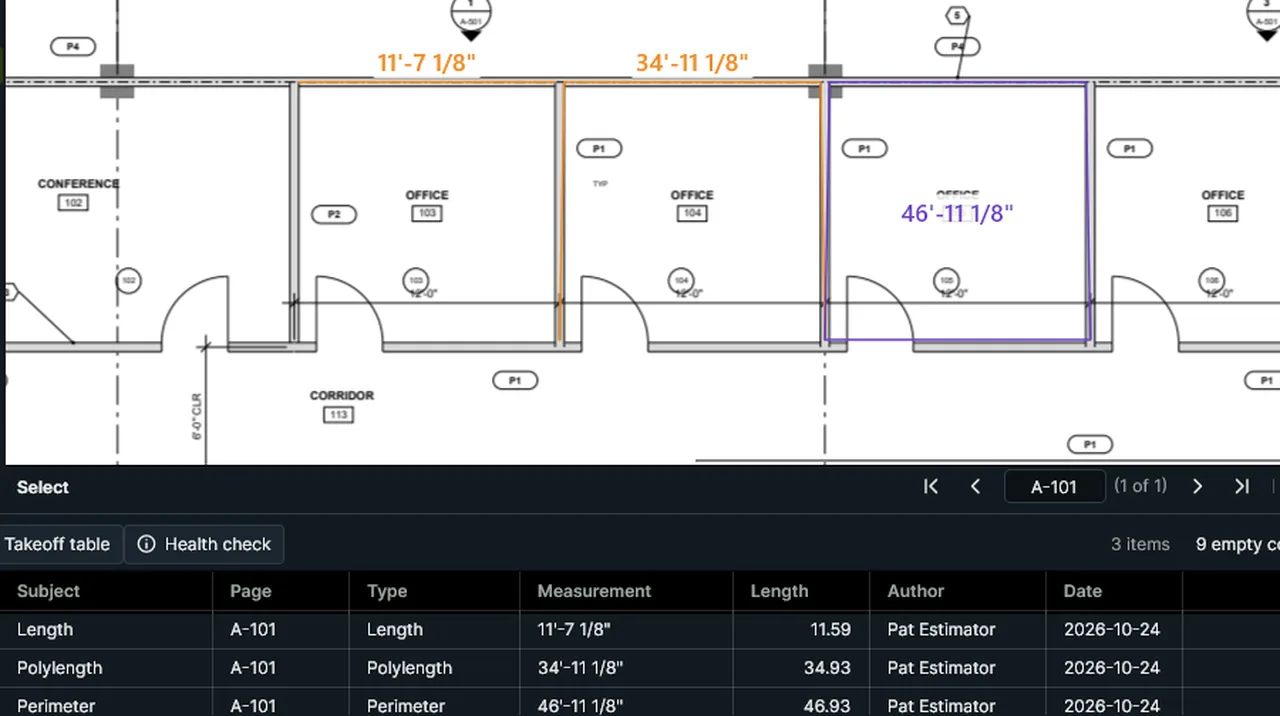
Length, Polylength and Perimeter: click along the walls; each length shows on the drawing and in the table. Screen recording of Kisheet, October 2026. Where to find it. Tools > Measure > Length (Shift+Alt+L): two clicks or a drag. Polylength (Shift+Alt+Q): click points, then Enter or double-click to finish. Perimeter (Shift+Alt+P): click the corners and close on the first point. The readout shows the length as you go, and you can type a length to sketch to scale.
Tools > Measure
Lines, arrows, polylines and arrowheadsStraight lines, arrows and multi-segment lines, with built-in arrowheads or ones you draw yourself.Video
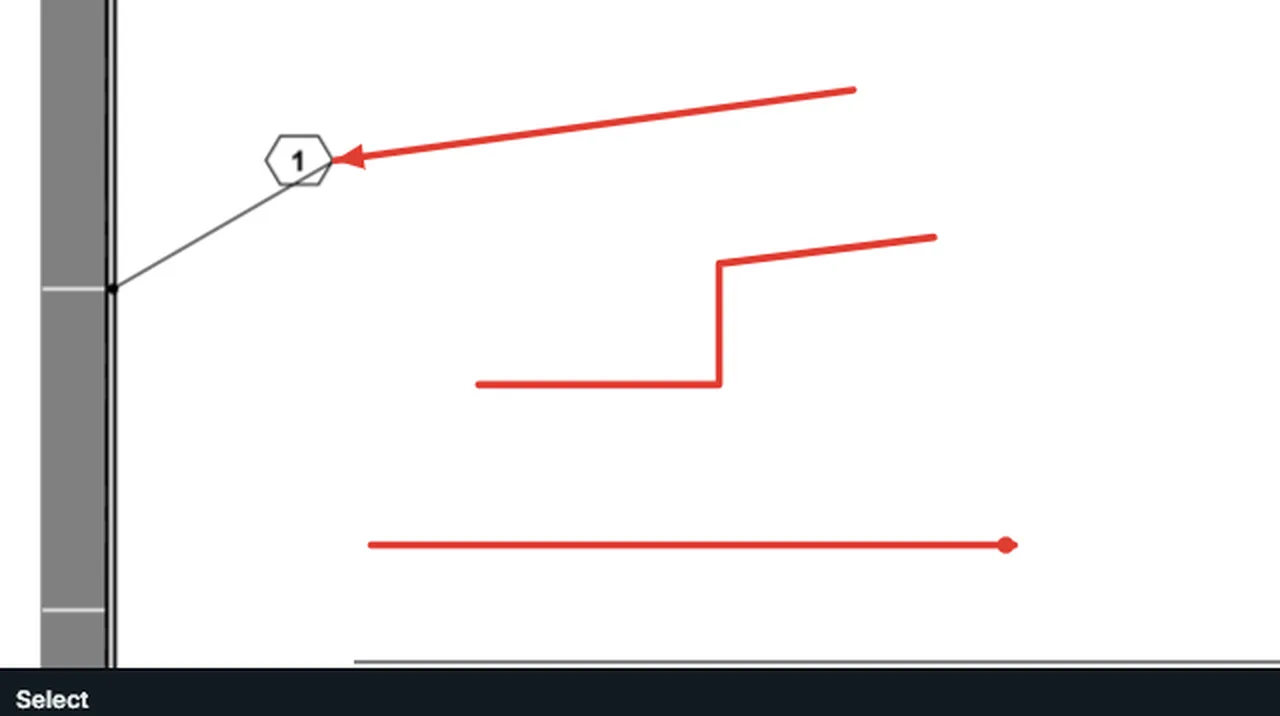
Line, Arrow and Polyline: click the points. Arrowheads: pick a head, such as Dot, for the selected line. Screen recording of Kisheet, October 2026. Where to find it. Tools > Markup > Line, Arrow (Shift+Alt+W) or Polyline. Arrowheads lets you pick a head (closed, open, dot, tick, diamond, square) or draw your own on a grid, and puts it on the selected lines.
Tools > Markup
Link quantities to ExcelKeeps an estimate workbook up to date with the takeoff: Kisheet rewrites a small quantities workbook every time you save, and your estimate reads its named totals with ordinary Excel formulas, with no add-in.Video
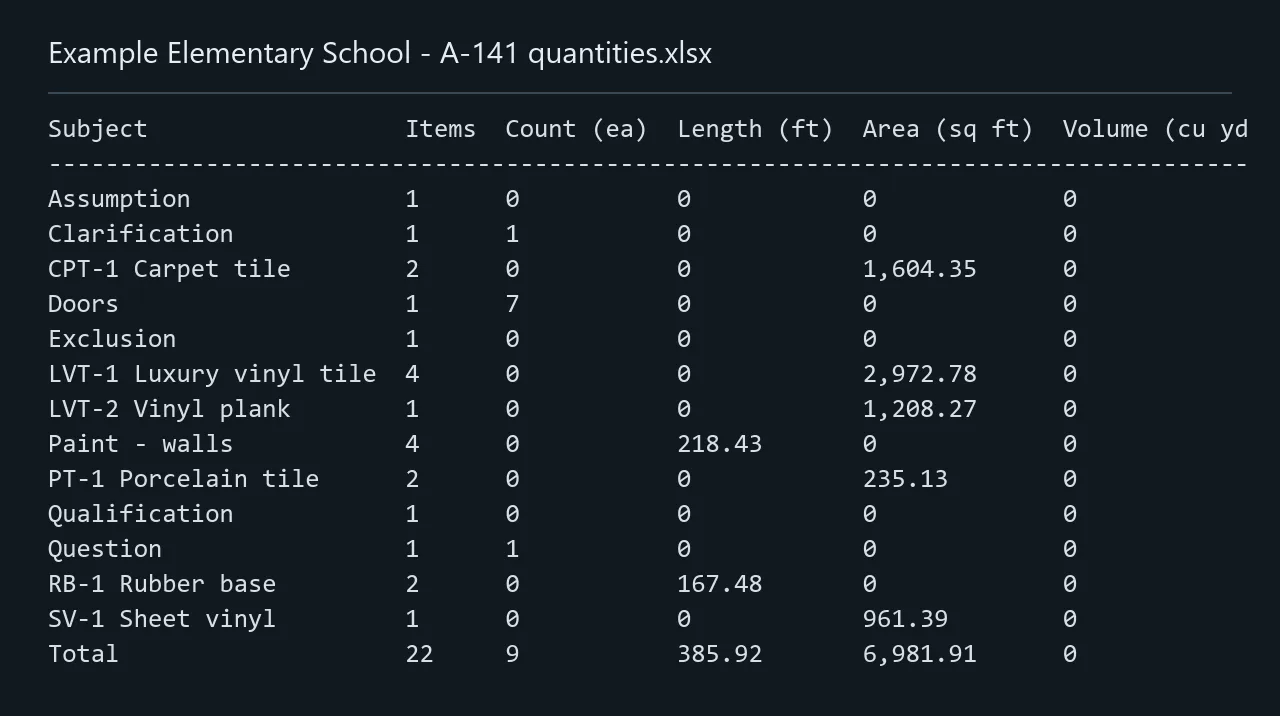
Link Quantities to Excel: a small quantities workbook, rewritten every time you save, for your estimate to read. Screen recording of Kisheet, October 2026. Where to find it. File > Excel Link > Link Quantities to Excel and choose the workbook. Select a measurement and use Copy Excel Reference to put a formula such as ='C:\jobs\A101 quantities.xlsx'!Q_Carpet_Area on the clipboard, then paste it into your estimate. Totals include typical floors and units. Stop Updating the Excel Link leaves the workbook as it is.
File menu
MagnifierA round magnifier at the pointer that shows fine detail at its own zoom, from 200% to 1,600%.Video
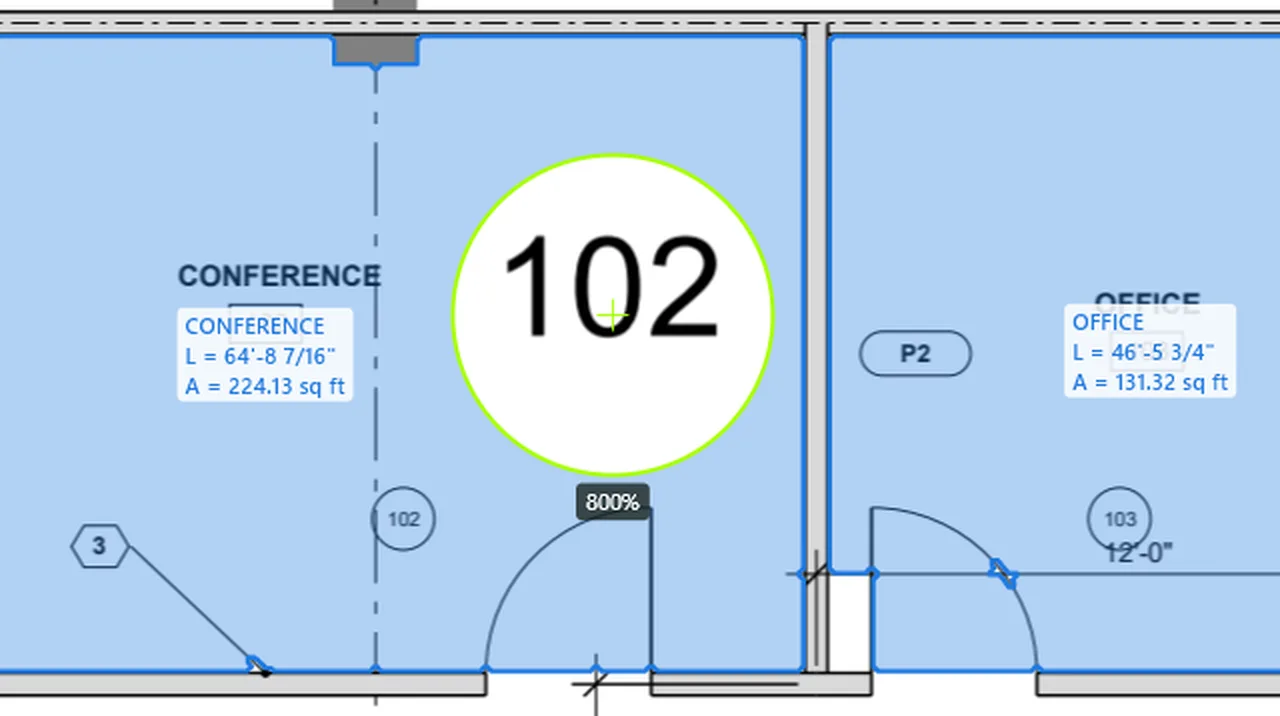
Magnifier: a lens by the pointer shows the plan at 400%; Magnifier at 800% doubles it. Screen recording of Kisheet, October 2026. Where to find it. View > Magnifier (Ctrl+Shift+M); View > Magnifier picks 200, 400 (the default), 800 or 1,600%.
View menu
Make tools from tagsMakes a drawing tool for each tag, such as a wall type, so runs drawn with it are that tag's.Video
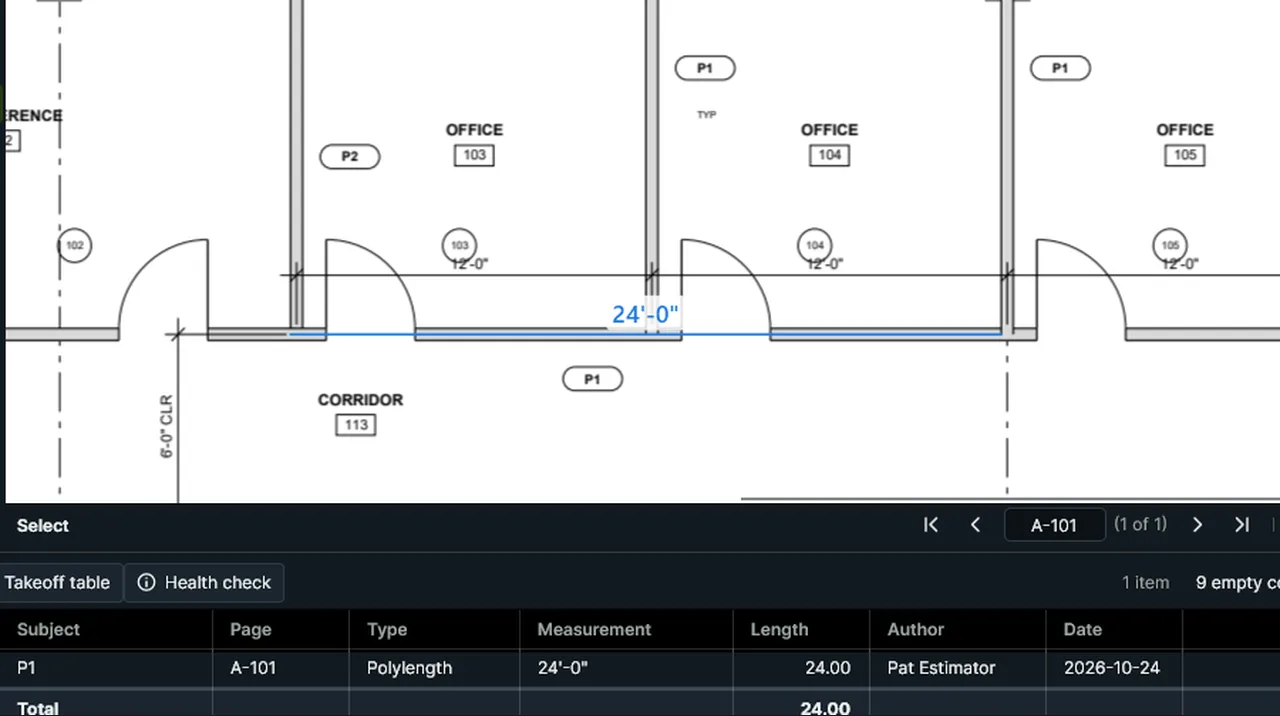
Make Tools From Tags: tick the wall types it read off the plan; each becomes a tool, and a run drawn with P1 is P1. Screen recording of Kisheet, October 2026. Where to find it. Tools > Trade Tools > Make Tools from Tags: tick the tags; each becomes a Polylength tool in a "Tags" tool set with the tag as its subject.
Tools > Spaces, Trade Tools, Tool Sets, Custom Columns
Mark for redactionMark areas to black out by dragging, or every place a word appears.Video
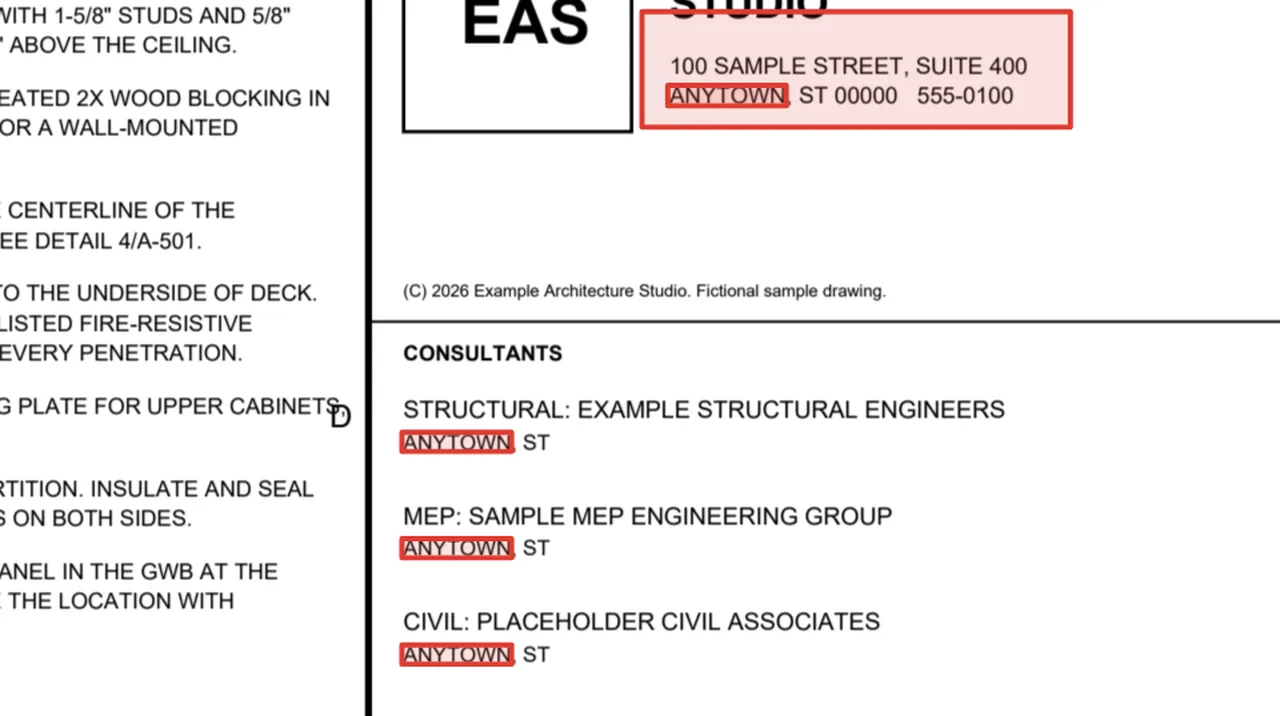
Mark for Redaction: drag a box over what must go; Mark Text for Redaction marks every place a word appears. Screen recording of Kisheet, October 2026. Where to find it. Document > Redaction > Mark for Redaction, then drag boxes; Mark Text for Redaction marks every place the text appears on every page. Marks are ordinary items, so delete any that shouldn't go. One undo step.
Document menu
Merge and split countsCombine several counts into one, or move some of a count's marks into a new count.Video
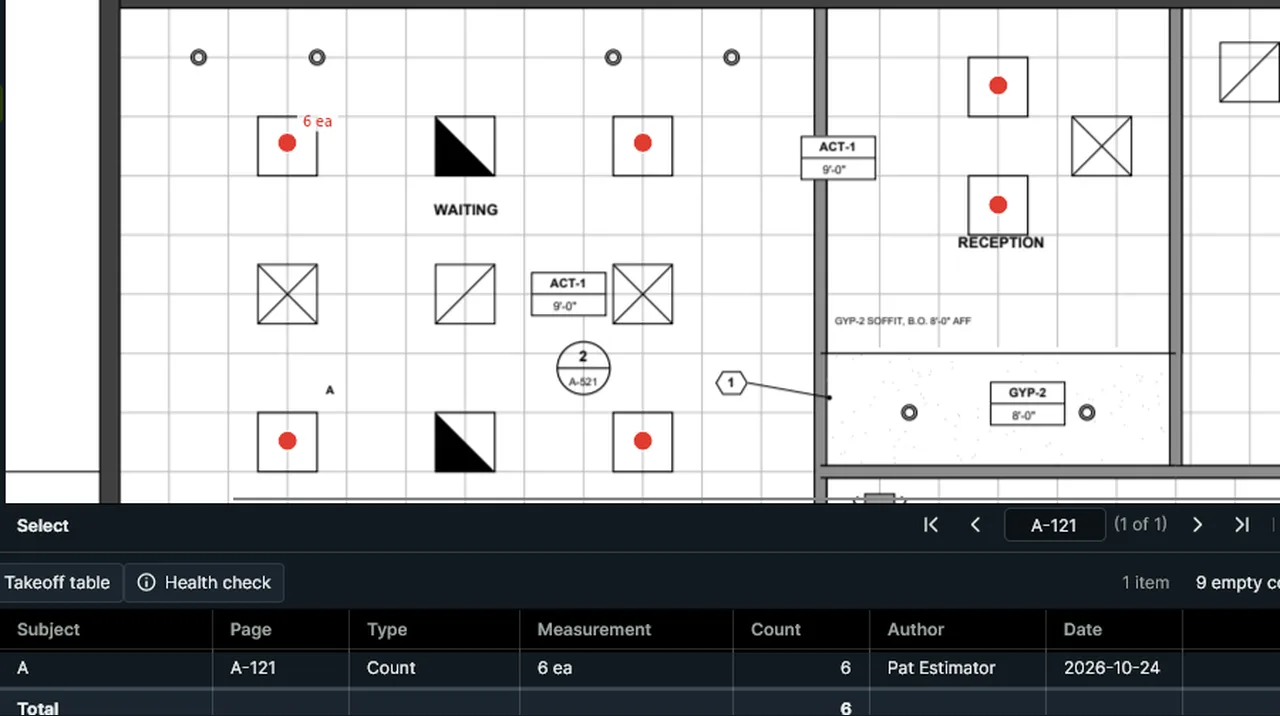
Merge Counts makes the two selected counts one; Split Count moves the marks you box into a new count. Screen recording of Kisheet, October 2026. Where to find it. Tools > Measure > Merge Counts with two or more counts on one sheet selected. Tools > Measure > Split Count with one count selected, then drag a box around the marks to move. One undo step each.
Edit menu
Merge PDFsJoins two or more PDFs into a new PDF, keeping each page's takeoff, scale and page label.Video
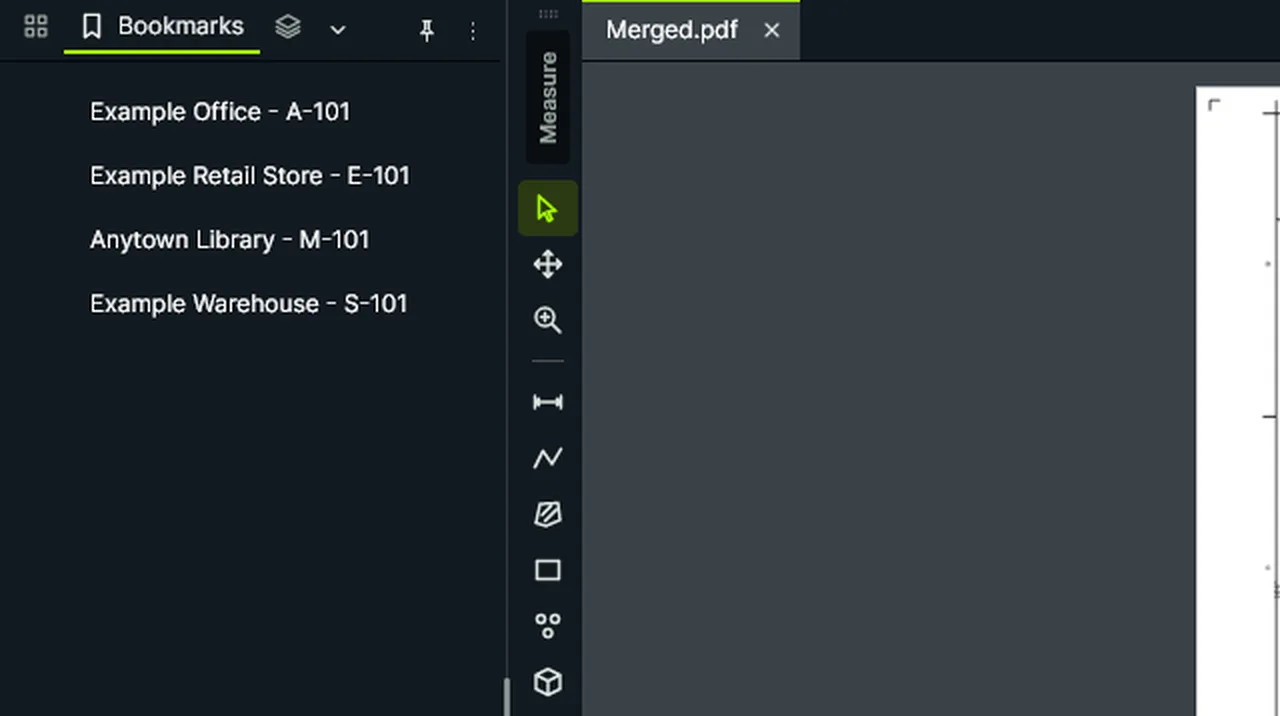
Merge PDFs: the chosen PDFs become one new PDF, Merged.pdf, with a bookmark for each file. Screen recording of Kisheet, October 2026. Where to find it. File > Merge PDFs, or as a batch job (Tools > Batch Jobs). Pick the PDFs in the order to join them, then where to save; the result opens. Each file's bookmarks come along under a bookmark named after the file, and its form fields too (a name another file already used becomes "Name (2)"). Password-protected sources need their passwords.
File menu
Message barOne line under the drawing says what just happened, what went wrong and how to fix it; some messages carry a button such as Review Scale, Keep or Clear.Video
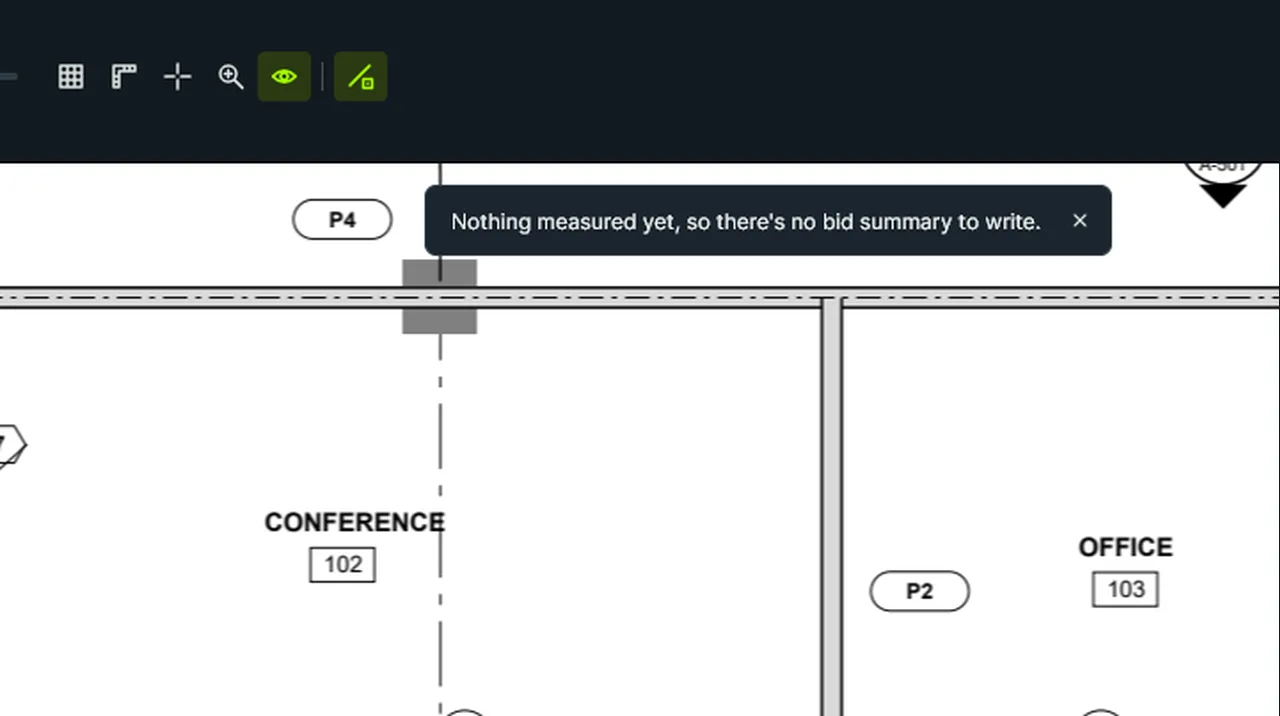
The message bar: Use Printed Scale reports the scale it set; Bid Summary by Space with nothing measured replaces it with why not. Screen recording of Kisheet, October 2026. Where to find it. It appears by itself. Errors show in the warning color, and a newer message on the same subject replaces the older one. Tool hints show in the status bar instead.
Toolbars, status bar and right-click menus
Metric and length unitsSwitches a document between imperial and metric, or steps lengths between feet-inches, decimal feet and meters.Video
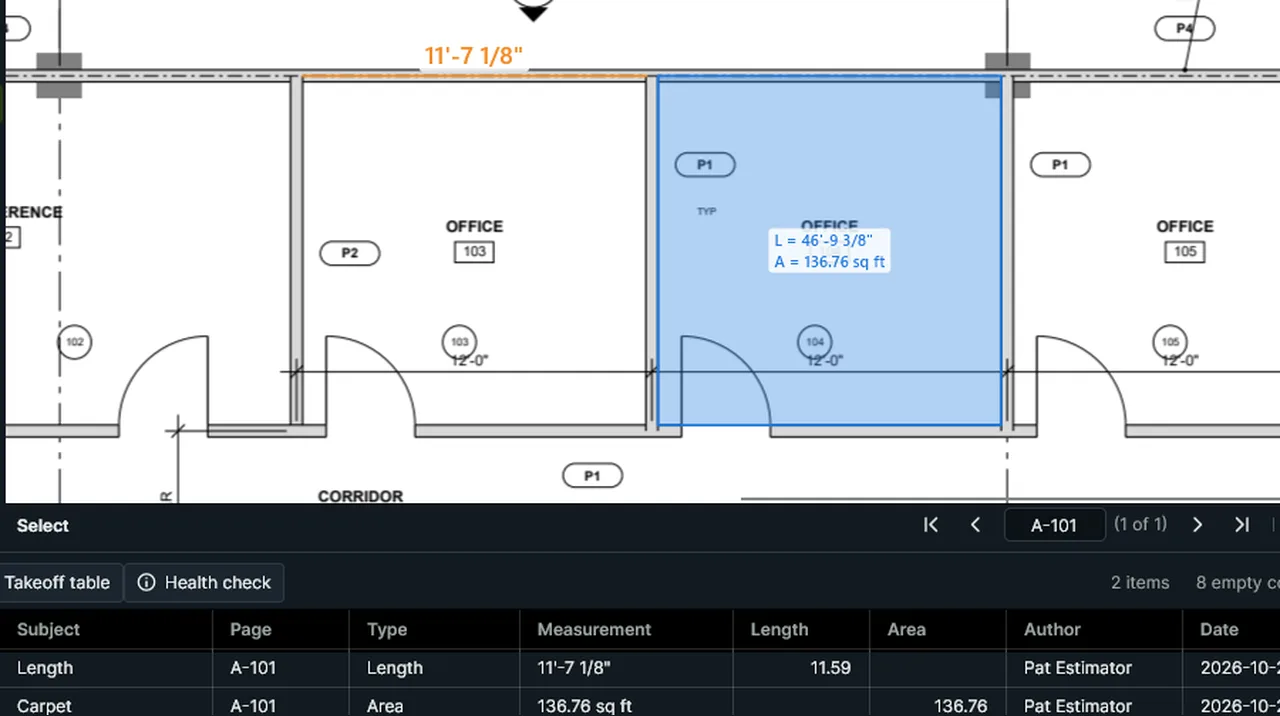
Metric Units switches the document to meters and square meters; Next Length Units steps the length format. Screen recording of Kisheet, October 2026. Where to find it. Tools > Scale > Metric Units; Tools > Scale > Next Length Units, or click the units chip on the status bar.
Tools > Measure
Moving and resetting captionsMove a measurement's caption out of the way, and put it back in its natural place later.Video
Captions: a length shows its value by its middle, a count by its first mark; a selected item gets an outline and grips. Screen recording of Kisheet, October 2026. Where to find it. Alt-drag a selected item's caption to move it; a leader line follows it. Edit > Arrange > Reset Caption Position puts it back.
Edit menu
MultiplyCopies the selection in rows and columns at a spacing you type as a real length, such as 12' or 3.5 m.Video
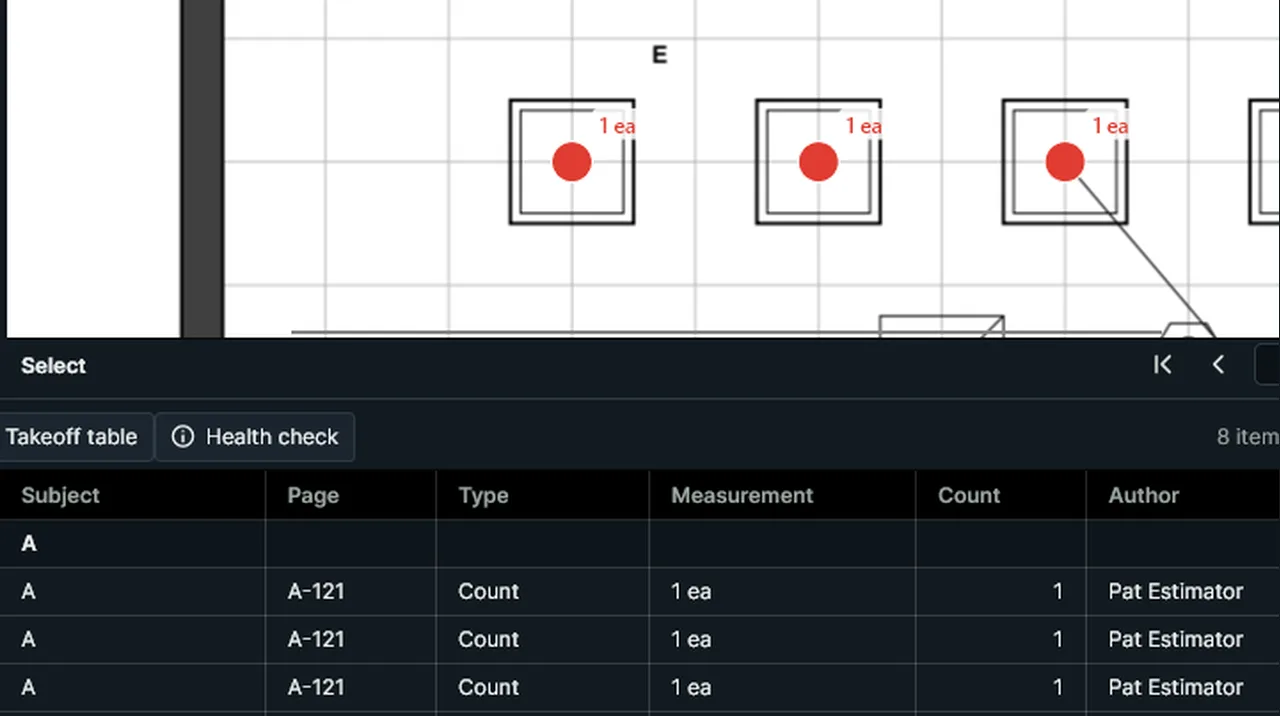
Multiply: select a light, type rows, columns and the spacing as real lengths, and the copies land on the grid. Screen recording of Kisheet, October 2026. Where to find it. Edit > Multiply (or right-click): rows, columns, spacing across and spacing down. The last values are remembered. One undo step.
Edit menu
New form from a templateTen ready-made fillable construction forms whose totals work themselves out.Video
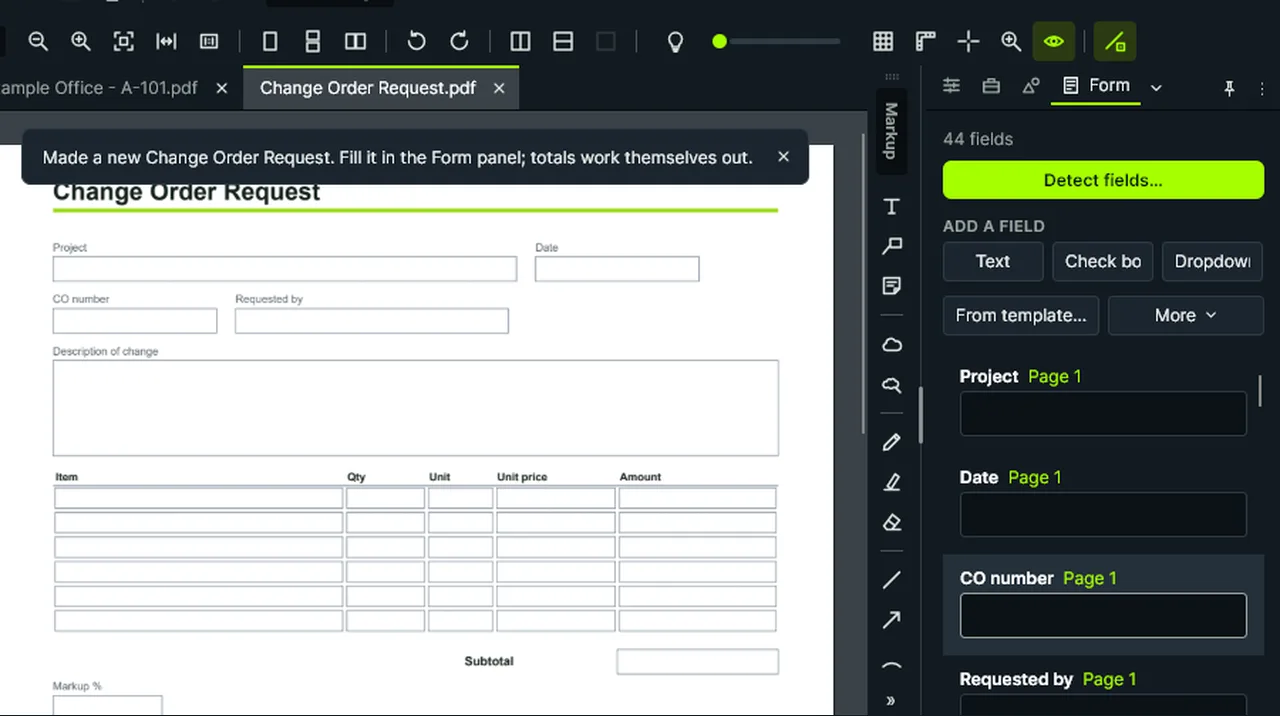
New Form from Template: pick a ready-made construction form and it opens with the Form panel, ready to fill. Screen recording of Kisheet, October 2026. Where to find it. Document > Form > New Form from Template: pick one and save it; it opens with the Form panel.
Document menu
Notes and flagsA sticky-note icon or a flag pinned to a spot, with its text shown when you want it.Video
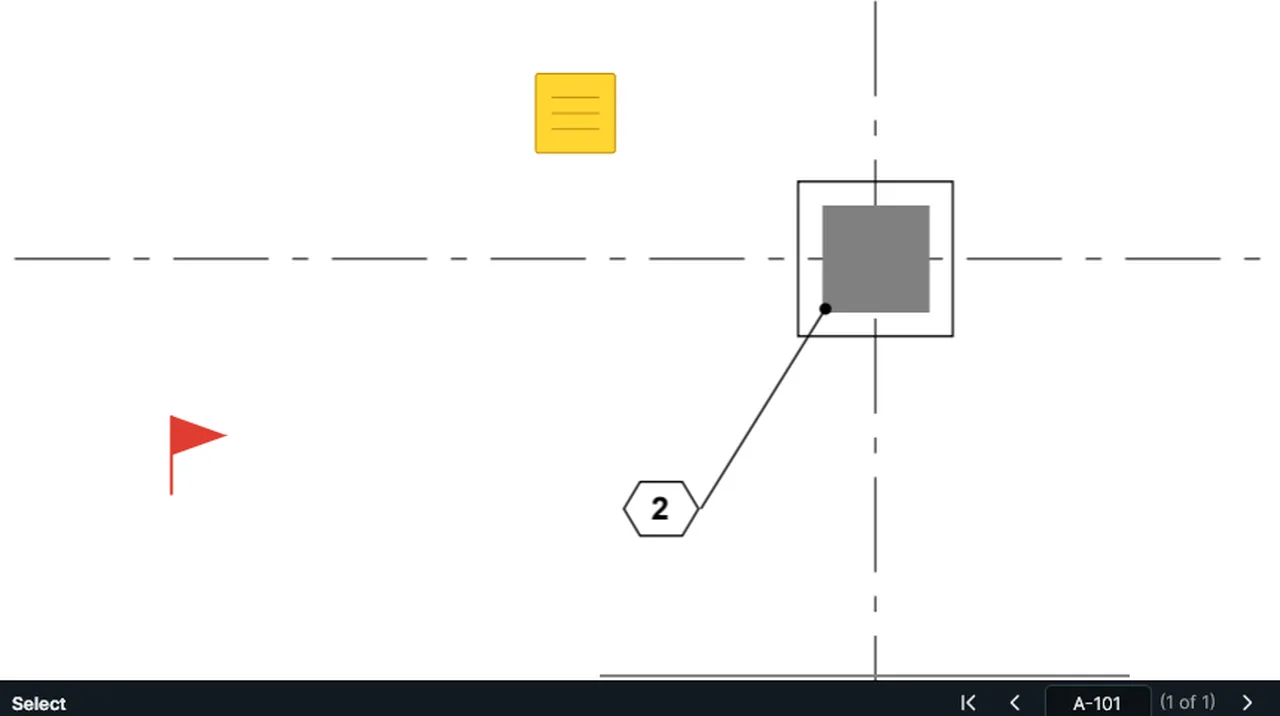
Note: click and type; it closes to an icon. Flag: click to pin one to a spot and type. Screen recording of Kisheet, October 2026. Where to find it. Tools > Markup > Note or Flag: click to drop one, then type.
Tools > Markup
Open in Kisheet from the websiteOn the website's Documents, Open in Kisheet opens the file (or up to 25 ticked PDFs) as tabs in the Kisheet already open, on the page you were looking at.
Where to find it. On the Dashboard > Documents, open a PDF and click Open in Kisheet, or tick several and click Open 3 in Kisheet. Your browser may ask once whether to open Kisheet. Kisheet comes to the front and opens each file as a tab, the first one showing; a file already open switches to its tab. If you aren't signed in to that company, Sign in opens first and says why; once you're signed in the files open by themselves. The copies are saved where the Company window saves them.
Help menu
Open in New Window and Move to New WindowOpens PDFs in a separate Kisheet window, each with its own tabs and undo, for working across two monitors.Video
Move to New Window: the drawing leaves this window's tabs and opens in a Kisheet window of its own, with its own tabs and undo, for a second monitor. Screen recording of Kisheet, October 2026. Where to find it. File > Open in New Window picks PDFs to open in a window of their own. Window > Move to New Window (or right-click a document tab) moves the active document into a new window. The windows share only the files: each has its own undo and panels.
File menu
Opening PDFs and how pages are drawnKisheet opens ordinary PDF drawings, from single sheets to large plan sets and password-protected files, and keeps them sharp at any zoom from 1% to 6,400%.Video
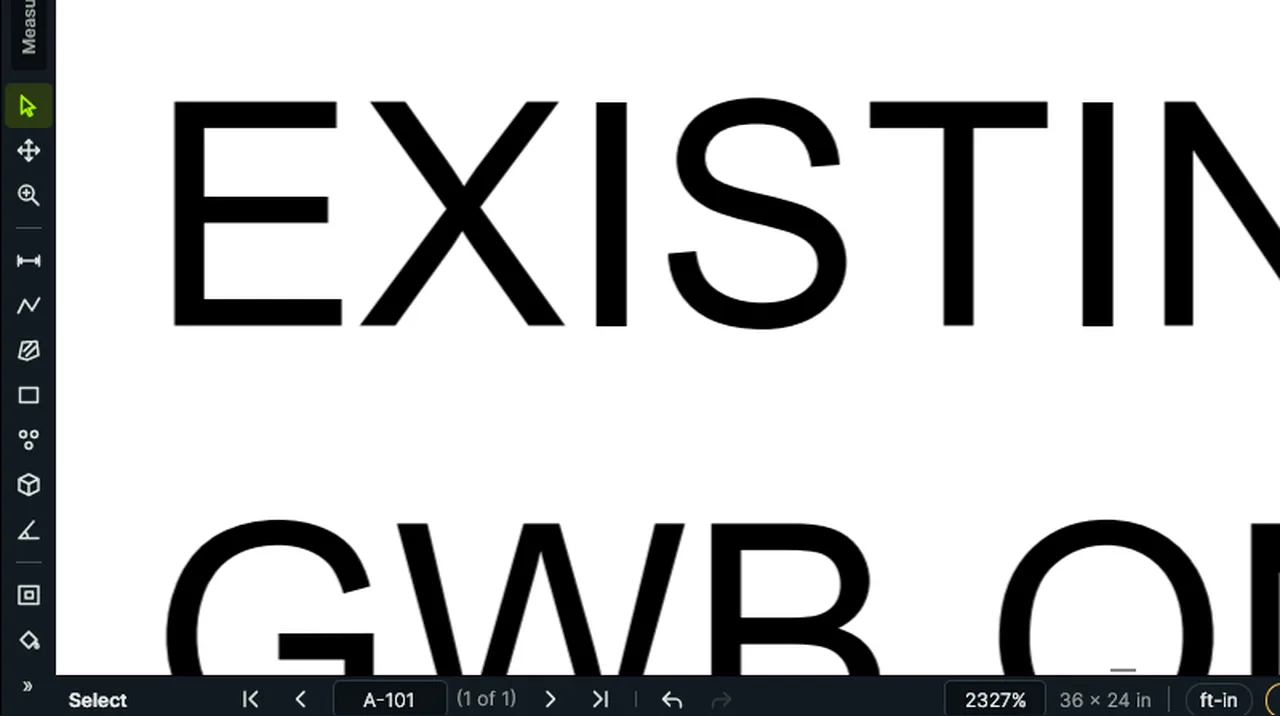
Pages stay sharp from the whole sheet at 17% down to a few letters of one keynote at over 2,000%. Screen recording of Kisheet, October 2026. Where to find it. Open a PDF with File > Open (Ctrl+O), the recent list, or by dragging it onto the window; a file that's already open is switched to rather than opened twice. Pages are drawn on your own computer, a page at a time as you need them, so big sets open quickly and scrolling stays smooth. Kisheet's own markups are drawn live over the page so they stay editable, and markups made in other PDF apps show as part of the page.
Foundations
Opening PDFs, recent files and drag and dropOpens one or more PDFs as tabs, from the file picker, the recent list, the command line or by dragging them onto the window.Video
Open PDF: each PDF opens as its own tab, and the start screen's Recent list keeps them. Screen recording of Kisheet, October 2026. Where to find it. File > Open (Ctrl+O) or File > Open Recent (the last 12 files). Drag PDFs from Explorer onto the window. A password-protected file asks for its password, which is remembered only until you close Kisheet. A file already open is switched to. Each new document takes your defaults: your name, units, snapping and the dimmer level you used on it last time.
File menu
Openings off the wall areaDoors and windows taken off a wall run's area: Net Wall Area.Video
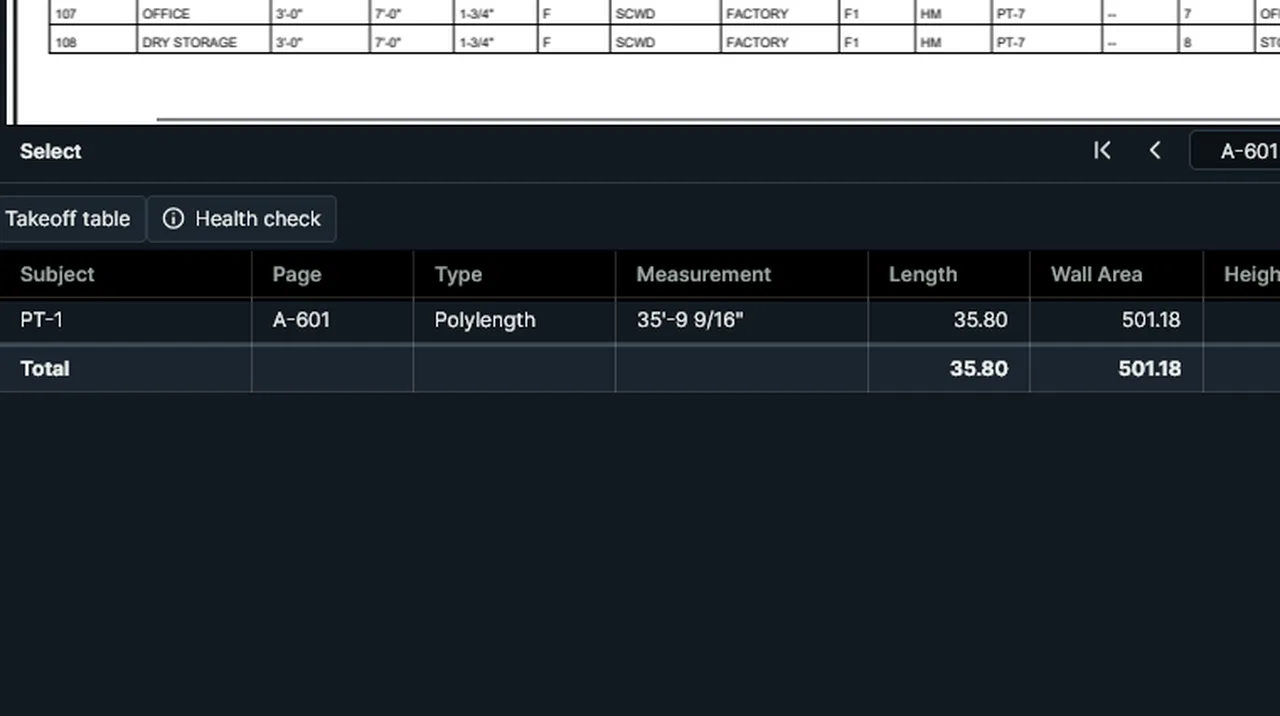
Openings: give the wall run its height, type each door and window as count × width × height, and Net Wall Area takes them off. Screen recording of Kisheet, October 2026. Where to find it. Select a length or polylength with a height. In Properties > Openings type them as count by width by height, separated by semicolons, such as 3 × 3' × 7'; 4' × 4'. Wall Area stays gross; Net Wall Area takes the openings off.
Panels
Overlay an older revisionShows an older revision over the current sheet in contrasting colors, lined up automatically.Video
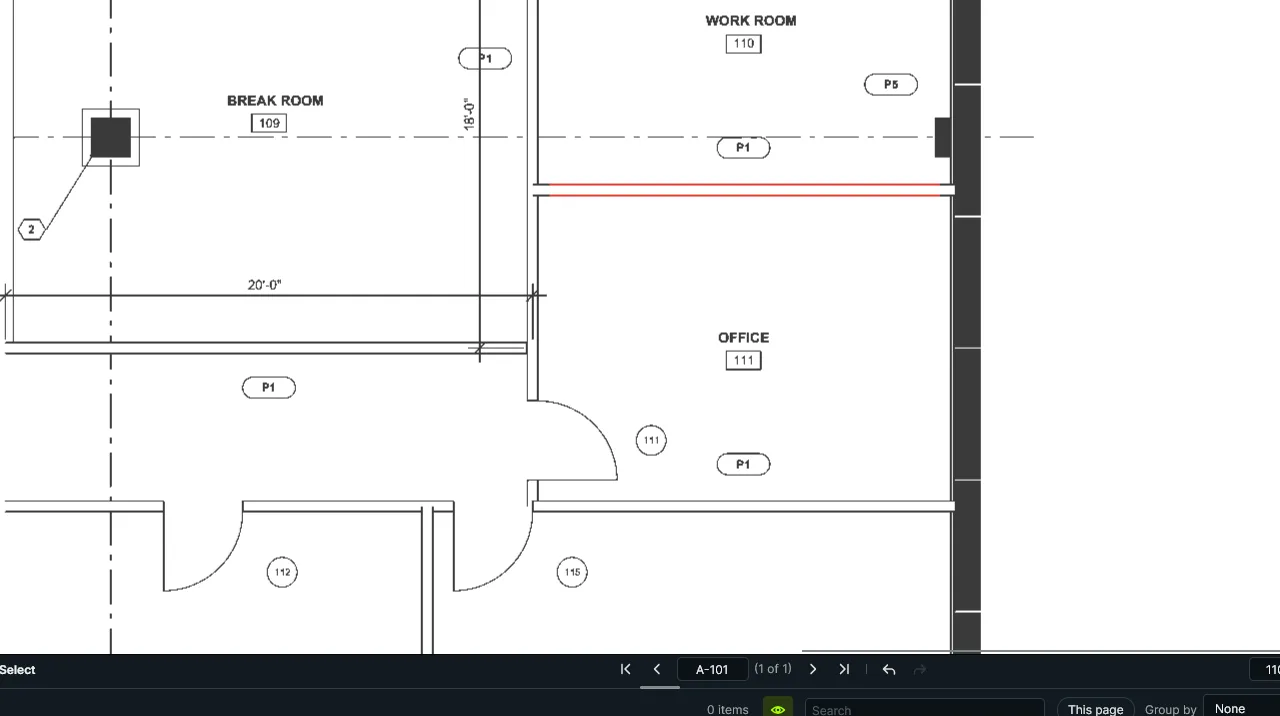
Overlay Older Revision: the older issue is laid over this one; the wall that moved between the work room and the office shows in red where it used to be. Screen recording of Kisheet, October 2026. Where to find it. Document > Compare > Overlay Older Revision; Line Up Revisions Automatically is on by default (turn it off for a sheet whose layout really moved); Close Overlay.
Document menu
Page labelsGives pages their sheet numbers (A101, A102…) or roman numerals as PDF page labels, which every viewer shows.Video
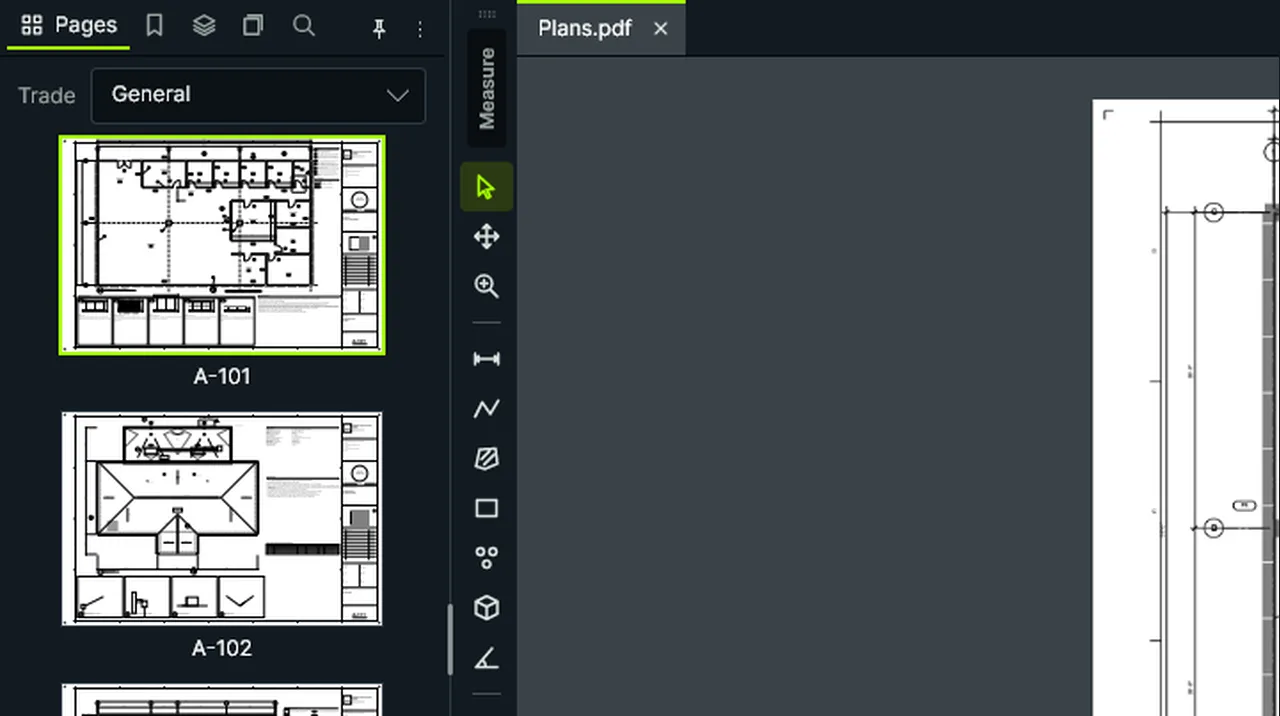
Page Labels: give the pages a prefix and a start number, and every sheet shows A-101, A-102 and on. Screen recording of Kisheet, October 2026. Where to find it. Document > Pages > Page Labels: ranges starting at a page, each with a style (1 2 3, I II III, A B C or none), a prefix and a start number.
Document menu
Page layoutsShow one sheet at a time, all pages in a scrolling column, or two side by side.Video
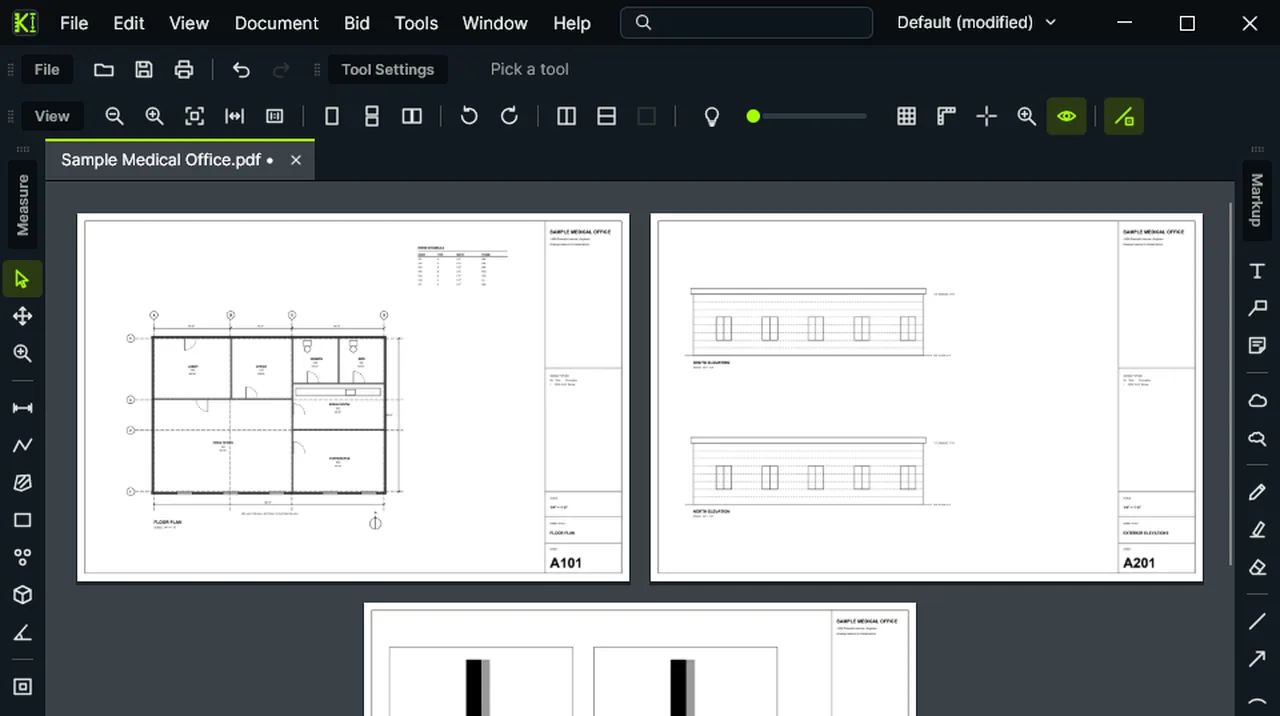
Page layouts: One Page, then Scrolling Pages, then Two Pages Side by Side, each from Find a Command. Screen recording of Kisheet, October 2026. Where to find it. View > One Page, Scrolling Pages or Two Pages Side by Side, also on the View toolbar.
View menu
Page numbers, headers, footers and watermarksAdds page numbers, headers, footers and a watermark such as DRAFT to pages, and takes them off again.Video
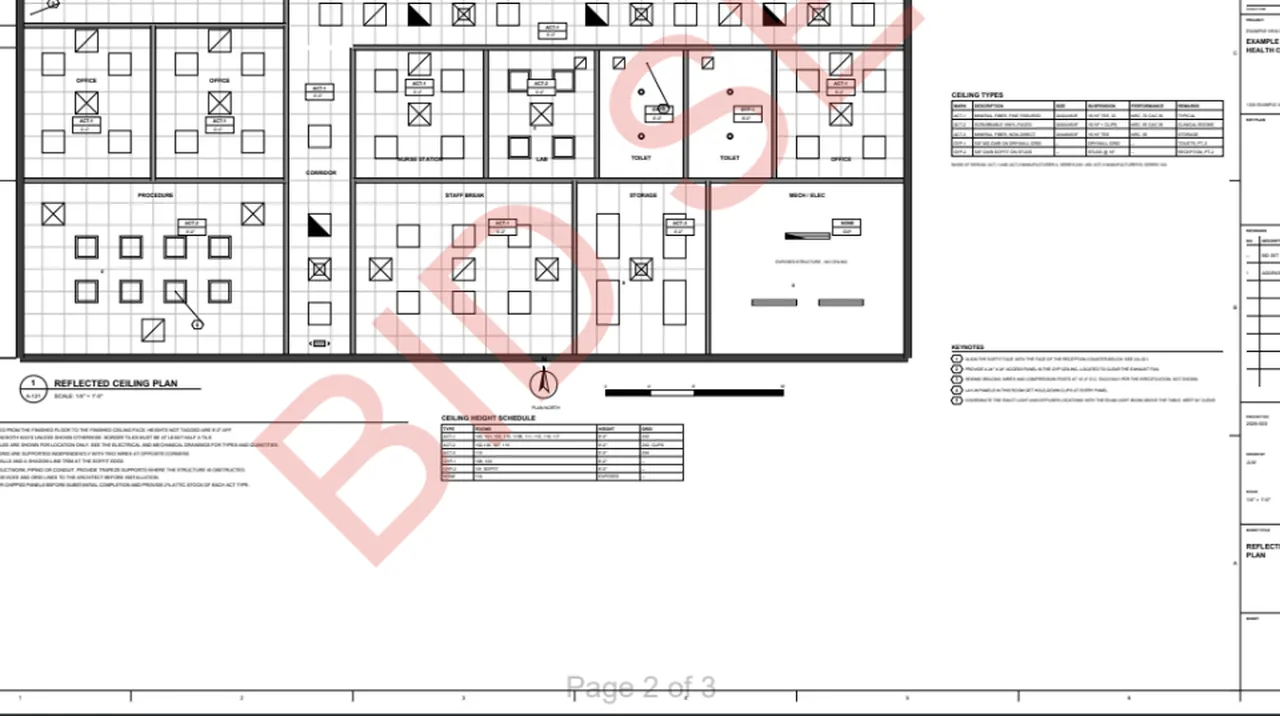
Headers, Footers and Watermark: a page number at the bottom and BID SET across every sheet. Screen recording of Kisheet, October 2026. Where to find it. Document > Pages > Number Pages opens the dialog with "Page {page} of {pages}" at the bottom center. Document > Headers and Footers > Headers, Footers and Watermark sets six places (top and bottom; left, center, right), text size and color, a watermark with its size, color, opacity and angle, and which pages. Fields such as {page}, {pages}, {date} and {file} fill themselves in. Remove takes them all off again.
Document menu
Pages panelA thumbnail of every page with its sheet number, the current trade's check-off, how many measurements it has, and its typical-floor count.Video
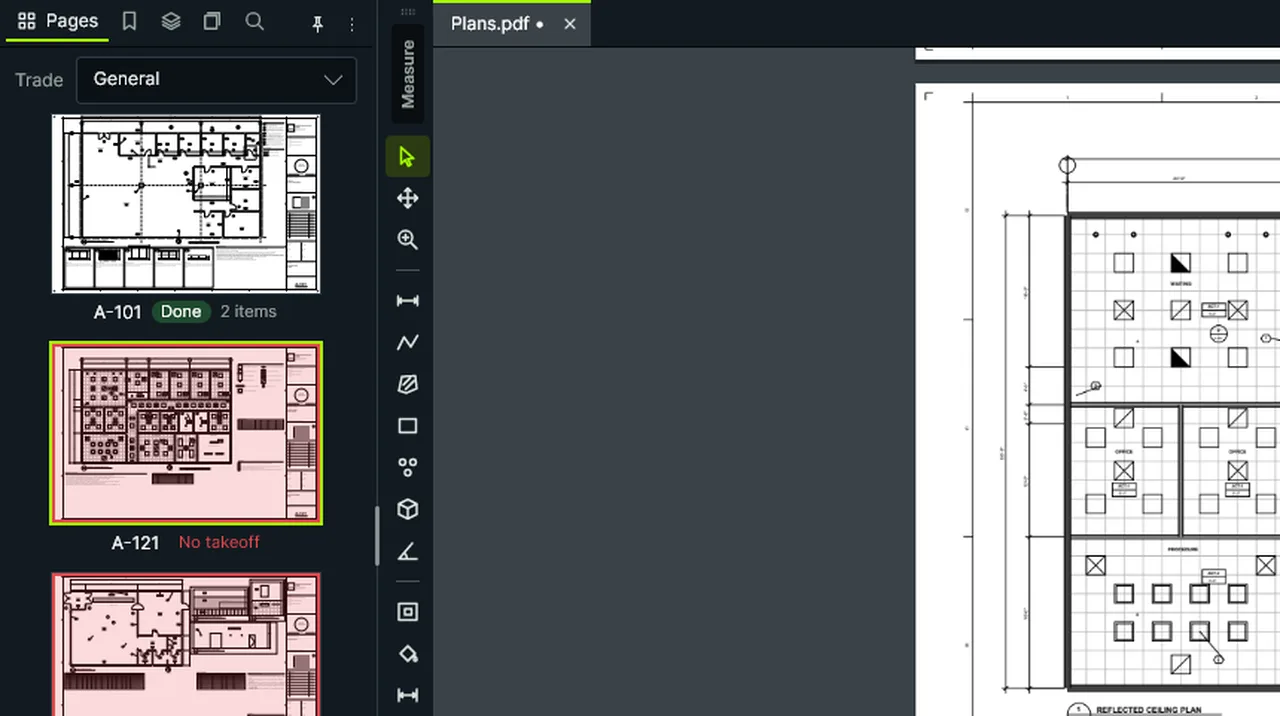
Pages panel: each sheet's number, check-off and takeoff count; click one to go there, or tint the ones with no takeoff. Screen recording of Kisheet, October 2026. Where to find it. Click a thumbnail to go there. The Trade box picks which trade's check-off shows. Right-click a thumbnail for the sheet menu. With Show Sheets With No Takeoff on, sheets with none are tinted.
Panels
PanelsPanels sit in tabbed groups that dock on the left, right or bottom, fold to tabs along the edge, or float in their own windows, for example on a second monitor.Video
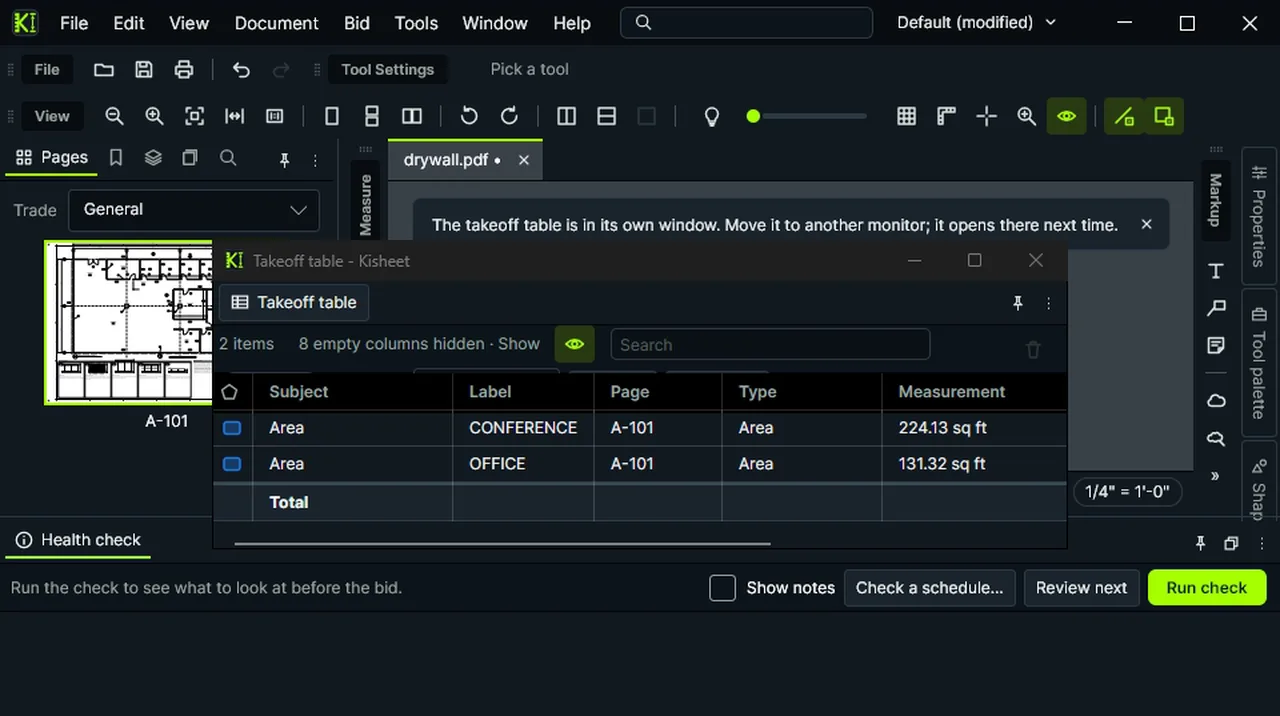
Hide Panels clears every docked panel and brings them back; Takeoff Table in Its Own Window gives the table its own window. Screen recording of Kisheet, October 2026. Where to find it. Window > Panels lists every panel. Hide Panels (Shift+F4) hides all docked groups and brings them back; Left Panels (F4); Panels > Takeoff Table (Alt+L); Takeoff Table in Its Own Window. To keep two groups in sight on one side, such as the takeoff table over the health check, right-click a tab and choose Show Below (or Above); drag the bar between them to share the space, and Join the Group Beside It to put them back together. Drag a panel's tab to another group, an edge, or away to float it. A folded group shows its panels' names up the edge: click one to slide it out over the drawing, click it again or the drawing to slide it back, or drag it off to move or float it. The right-hand panels ship folded this way. Tabs that don't fit are listed under the ⌄ beside them.
Window menu
Passwords and permissionsProtects a PDF with AES-256 passwords and permissions, or removes them, and opens older protected files too.Video
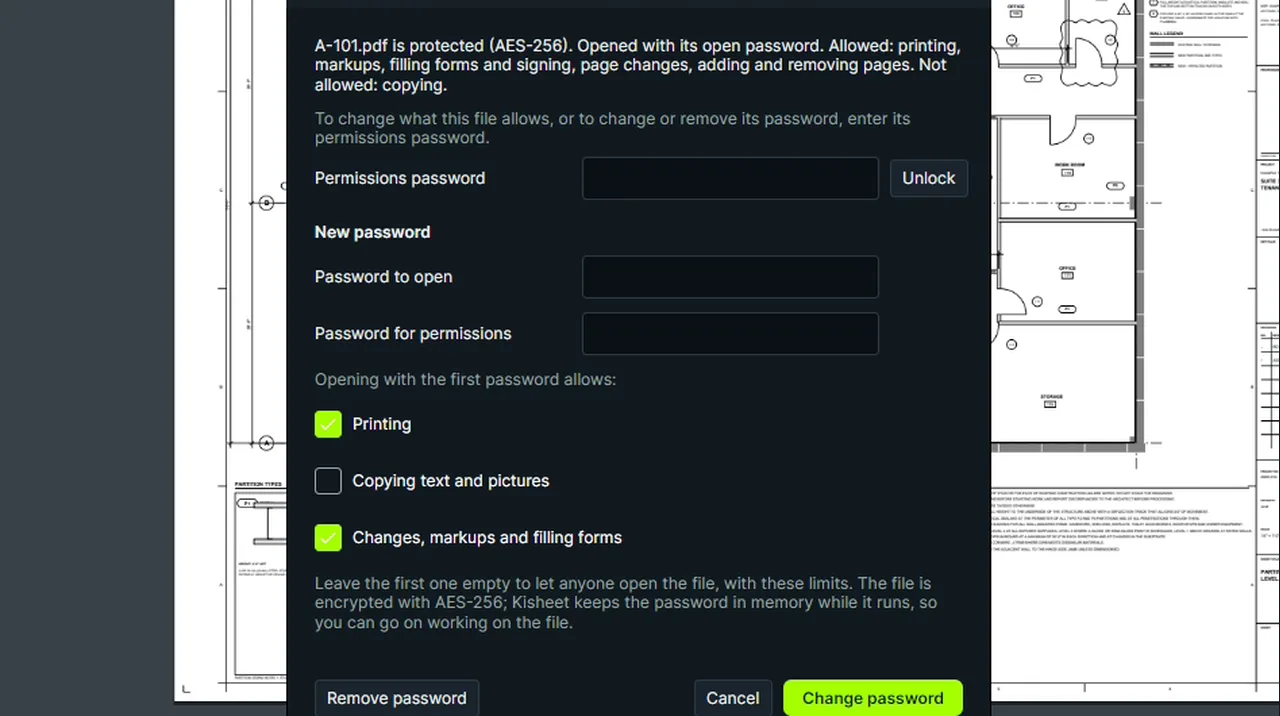
Security: an open password and what it allows; the PDF is encrypted (AES-256) and asks for it when opened again. Screen recording of Kisheet, October 2026. Where to find it. Document > Security > Security: an open password, a permissions password, and whether printing, copying, and changes, markups and form filling are allowed. Remove Password takes it off; Unlock (with the permissions password) allows every change while Kisheet is open.
Document menu
PDF layersTurns the PDF's own layers (from CAD exports) on and off.Video
Layers: turn the PDF's own layers off and on one at a time, or hide and show them all; the file never changes. Screen recording of Kisheet, October 2026. Where to find it. View > Layers > Show All Layers or Hide All Layers; single layers in the Layers panel. The file on disk never changes.
View menu
Pen and highlighterFreehand ink and a wide see-through highlighter, with optional smoothing of each pen stroke once it's finished.Video
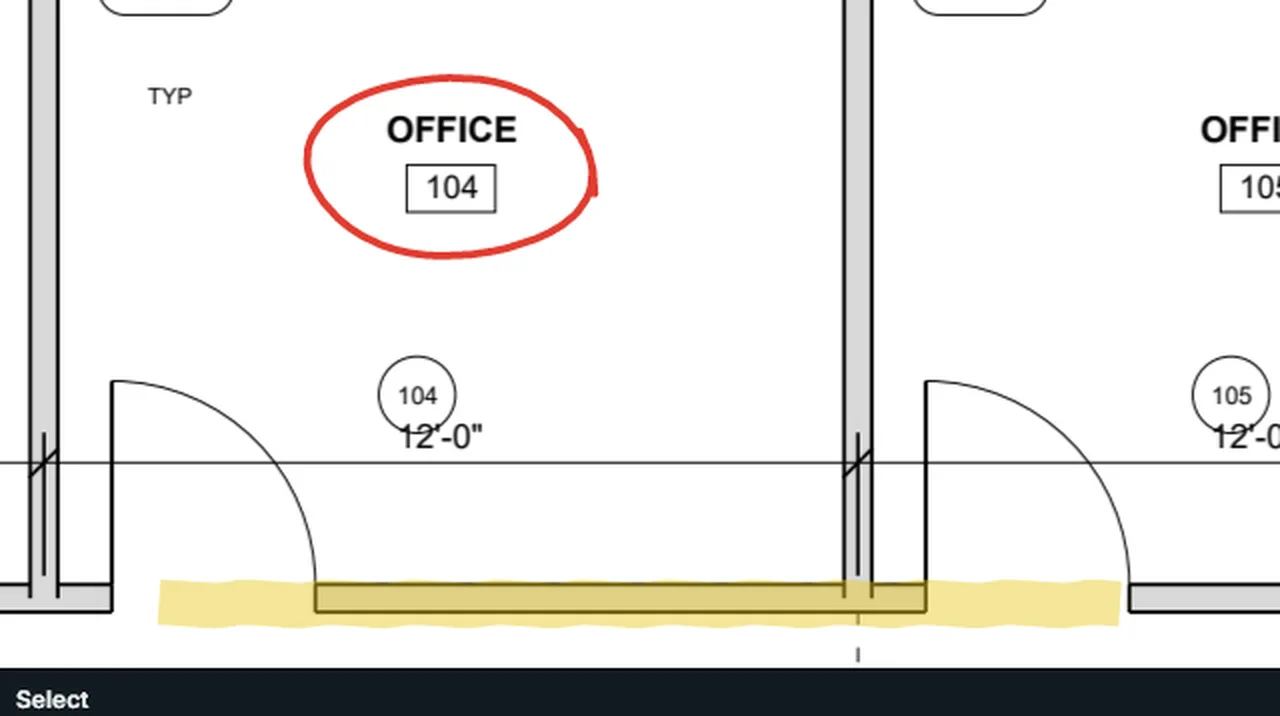
Pen: press and draw, smoothed when you lift. Highlighter: a wide see-through stroke, here along a wall. Screen recording of Kisheet, October 2026. Where to find it. Tools > Markup > Pen (Shift+Alt+E) or Highlighter (Shift+Alt+H): press and draw. Smooth Pen Strokes turns smoothing on or off.
Tools > Markup
Photos from the cameraTake a photo with the tablet's or laptop's camera and pin it to the drawing, or attach it to a punch item, at full quality and without the site's location.
Where to find it. Tools > Markup > Photo, then tap where it goes. In the Take Photo window, press the round shutter, then Use Photo or Retake; Switch camera shows when there are two; From File picks a photo file instead. With no camera Kisheet asks for a file. If Windows blocks the camera, the message has Open Camera Settings and Choose a File Instead. Punch items: Take Before Photo and Take After Photo.
Tools > Markup
Pick a slope from the drawingReads a roof or ramp slope off a section by clicking its bottom and top, and applies it to the selected items.Video
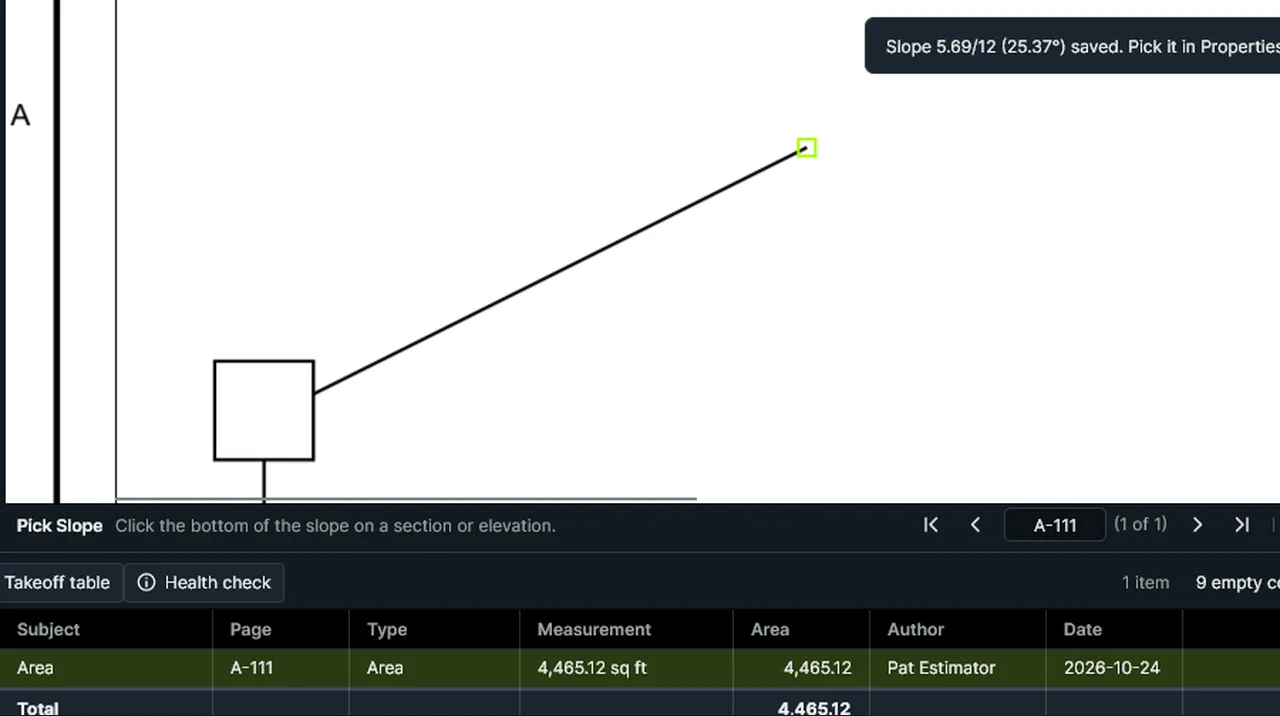
Pick Slope from Drawing: with the roof area selected, click the bottom and top of the slope on a section. Screen recording of Kisheet, October 2026. Where to find it. Tools > Measure > Pick Slope from Drawing, then click the bottom and the top of the slope. It's set on the selected items and kept in the list of recent slopes in Properties.
Tools > Measure
PicturesPlaces a picture (a logo, photo or sketch) on the page.Video
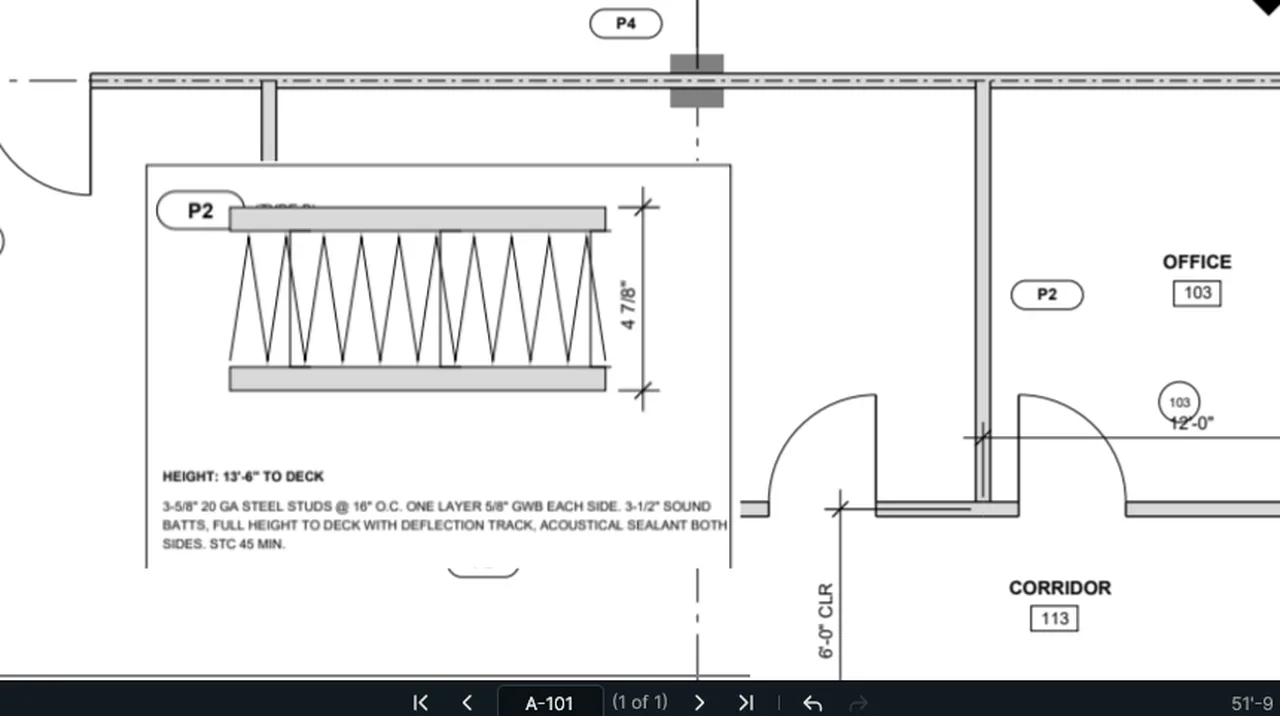
Picture: choose Picture and pick an image; it lands in the middle of the view, then drag it into place. Screen recording of Kisheet, October 2026. Where to find it. Tools > Markup > Picture: PNG, JPEG, BMP or GIF. It appears in the middle of the view; drag to place and resize it.
Tools > Markup
Plan setsTreat many PDFs as one drawing set: one sorted sheet list across the files, one takeoff table across the whole set, and quick jumps to any sheet.Video
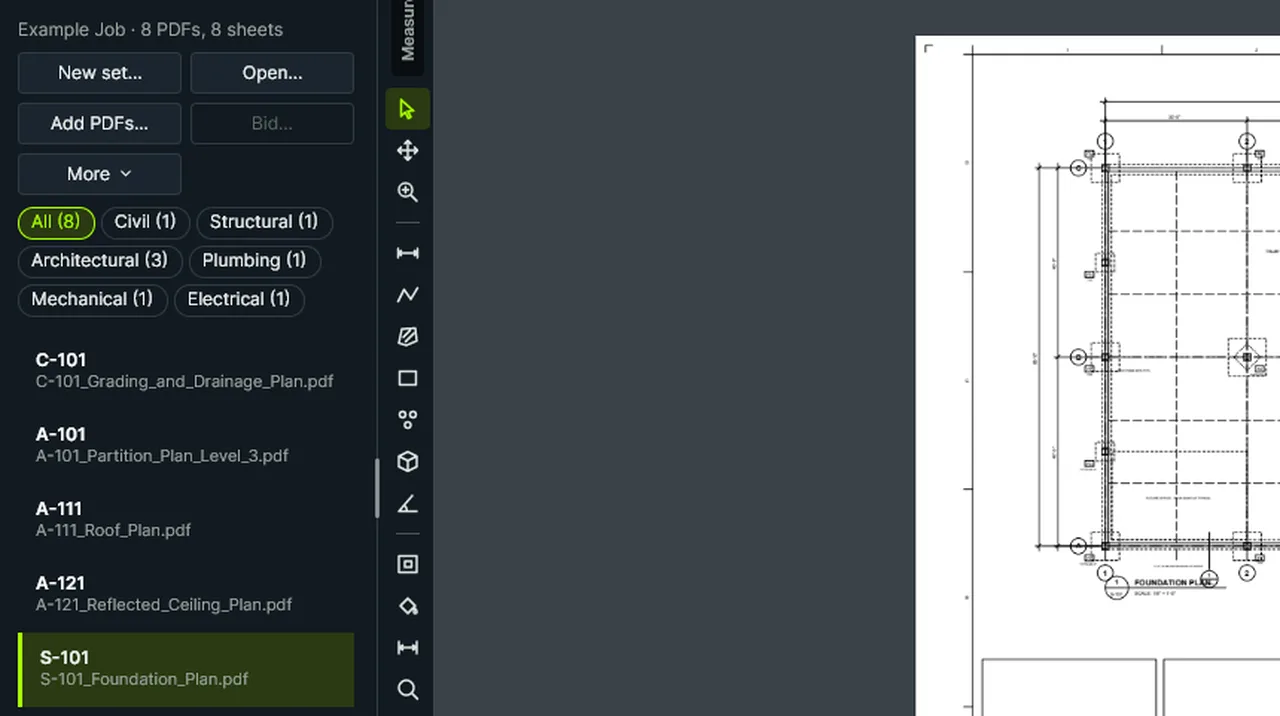
New Plan Set: pick the PDFs, name the set, and the Sets panel lists every sheet in binding order; click one to open it. Screen recording of Kisheet, October 2026. Where to find it. File > Plan Set > New Plan Set (pick PDFs, name it, save the set file), Open Plan Set, Add PDFs to Set, Remove PDF from Set and Close Plan Set. The Sets panel lists the sheets in binding order (General, Civil, Landscape, Architectural, Structural, Mechanical, Plumbing, Electrical and so on); click one to go there. The table's Whole Set option shows every PDF's takeoff, saved or not. The set file stores paths relative to itself, so the folder can be moved or shared.
File menu
PreferencesOne window for your name, startup, theme, keyboard shortcuts, units and defaults, status sets, stamps, backups and privacy. Changes apply as you make them.Video
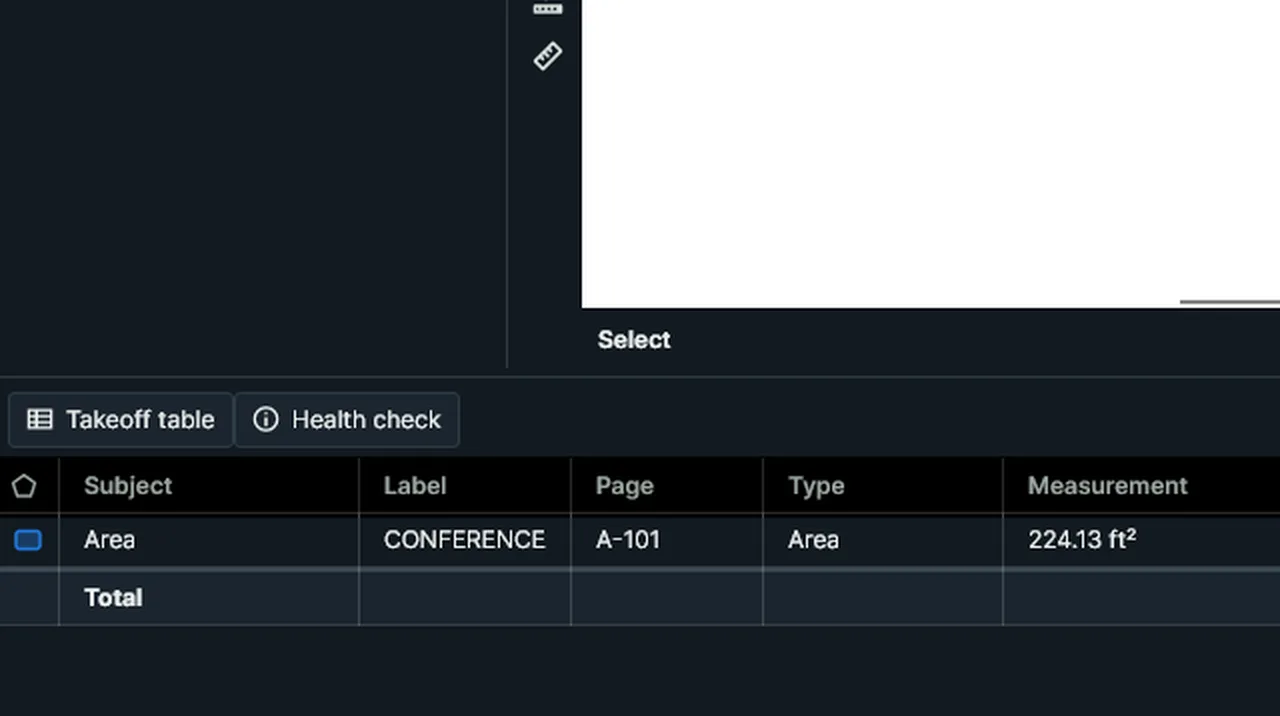
Preferences, Units and defaults: write areas as ft² instead of sq ft, and the takeoff table follows. Screen recording of Kisheet, October 2026. Where to find it. Kisheet menu > Preferences (Ctrl+K). The eight tabs are General, Interface, Keybinds, Units and defaults, Statuses, Stamps, Backups and Privacy. Your name goes on new markups. Keyboard shortcuts can be changed, imported and exported. Crash reports are on unless you turn them off; usage statistics are off unless you tick them on the welcome. Neither ever contains drawings, file names or typed text; Send Waiting Reports emails them from your own mail app.
Kisheet menu
PrintPrints pages fitted to the paper, at half size, at true scale, or at true scale tiled across sheets of office paper, with or without markups.Video
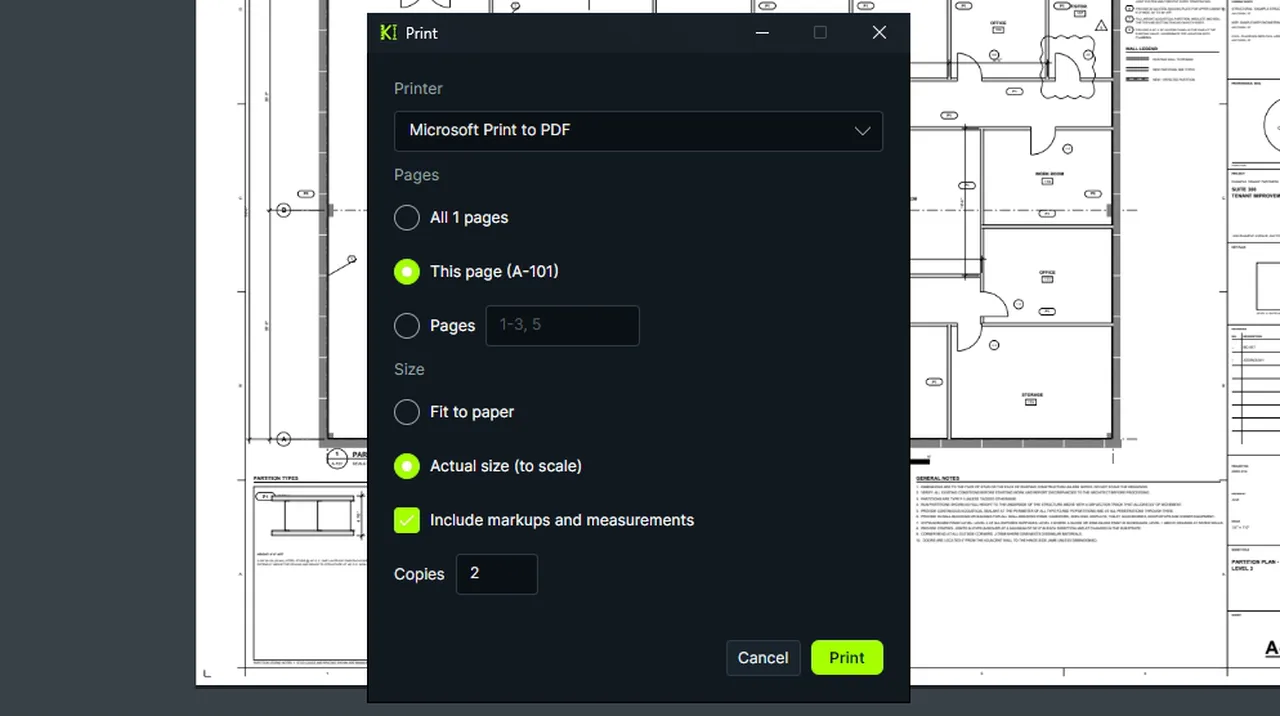
Print: pick the printer, this page or a range, fit to paper or actual size (to scale), markups and copies. Screen recording of Kisheet, October 2026. Where to find it. File > Print (Ctrl+P), or as a batch job (Tools > Batch Jobs). Choose the printer, all pages, this page or a range, and a Size: Fit to paper, Half size, Actual size (to scale), or Actual size tiled across sheets. Tiling prints a large sheet at true scale on letter or A4 paper: set the Overlap (1/2 in to start), and each piece is labelled with its row and column, a small map of the pieces and corner marks for taping them together. A half-size page says so in the margin, since its scale is half the drawing's. Include markups, and up to 99 copies.
File menu
Procurement releaseRelease materials to suppliers a part at a time: tick floors, spaces or phases and get their quantities and order quantities.Video
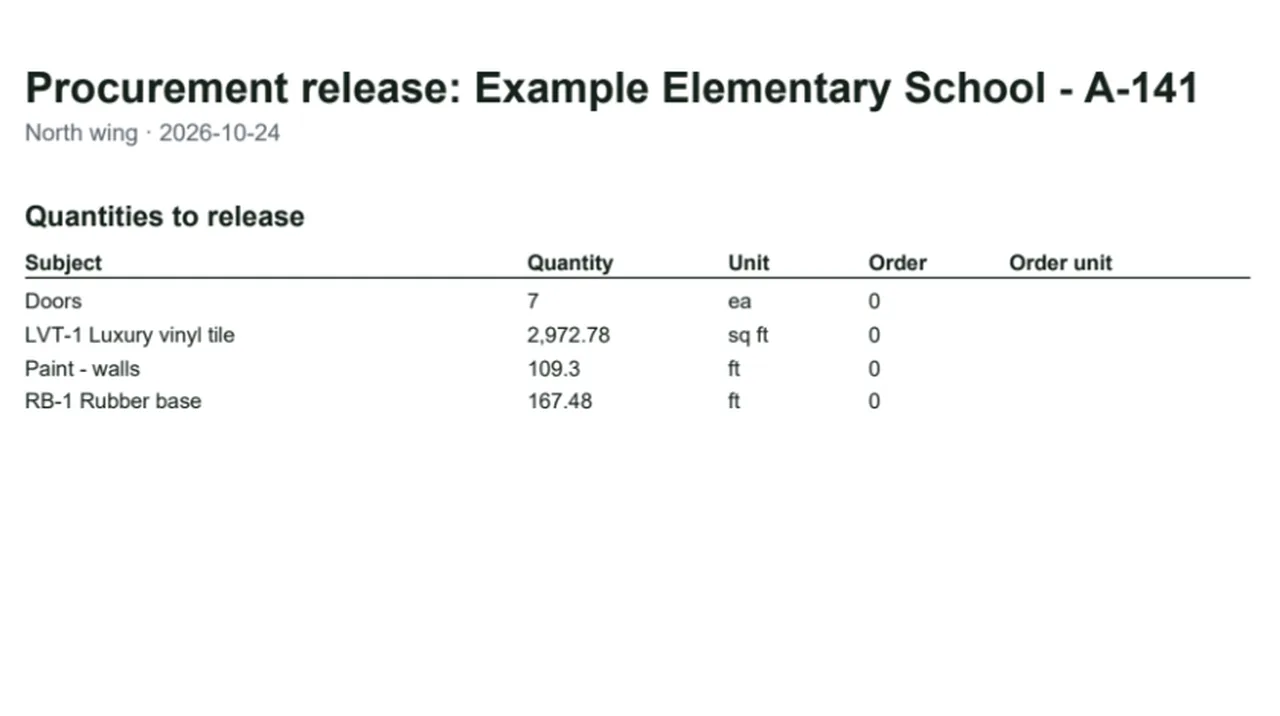
Procurement Release: tick the spaces to release, and get their quantities as Excel and PDF. Screen recording of Kisheet, October 2026. Where to find it. Bid > After Award > Procurement Release, tick the parts, then save; it writes Excel and PDF. Phases come from a custom column named Phase.
Bid menu
Properties panelEverything about the selected item in one place: subject, label, layer, status, look, caption, units, section width, depth, height (or a height per segment), slope, multiplier, bid, order quantities, rebar, flooring rolls, roof edges and replies.Video
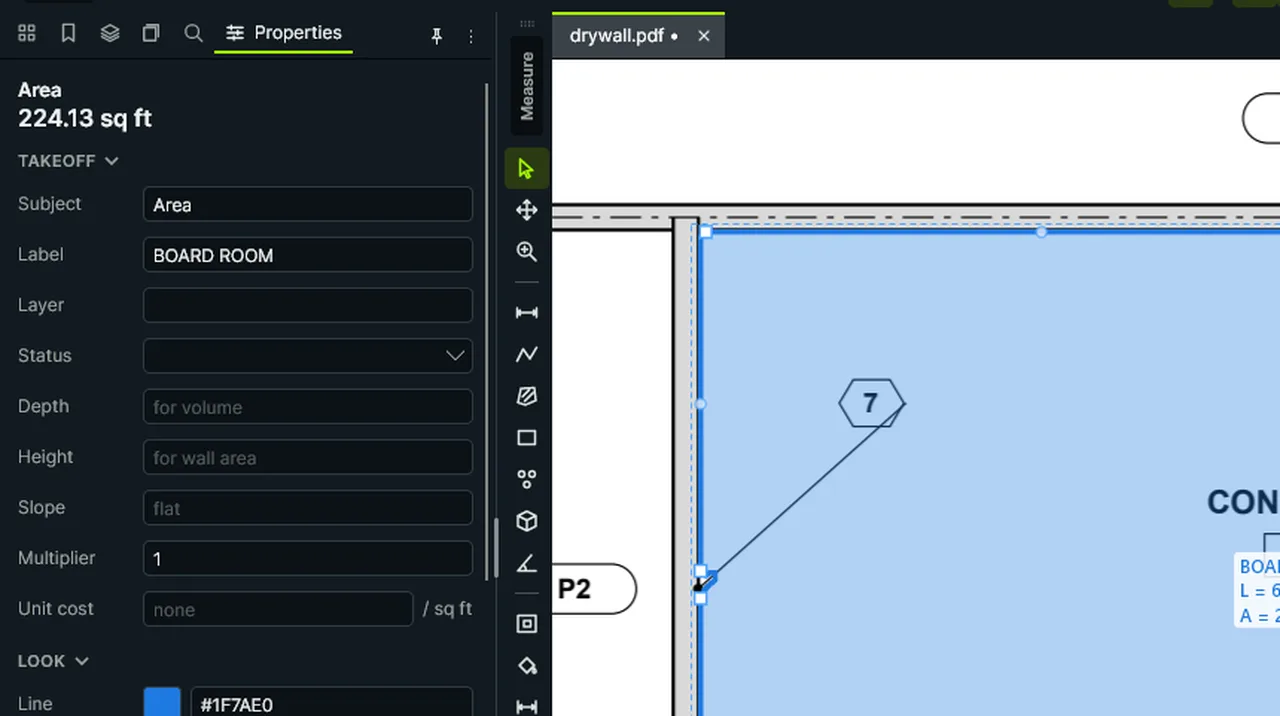
Properties: select a room, change its Label, and the drawing shows the new label. Screen recording of Kisheet, October 2026. Where to find it. Select an item on the page or in the table, change its fields and press Apply (one undo step). With a drawing tool picked, the panel shows that tool's settings for its next item instead (subject, layer, look, depth, height, slope, multiplier); Apply saves them for the tool. A run with a Width and a Depth (a footing, curb or trench) gets a volume. By segment gives a wall a height per segment, such as "9'; ; 9' to 14'" for a gable end. Slope also takes a civil side slope such as 2H:1V and shows every form. Order quantities work out sheets, rolls, squares, square yards, gallons by coverage and coats, studs, pieces at a spacing or per area, cubic yards with swell, tons by density, boxes or packs, with waste added and rounded up to whole units. Roof edges are typed eave, rake, ridge, valley or hip, and use the slope for true lengths. Changing the status adds a reply saying so.
Panels
Punch listPin punch items on the drawings, assign them, attach before and after photos at full quality, move them from Open to Done to Verified, and send each trade its own punch report.Video
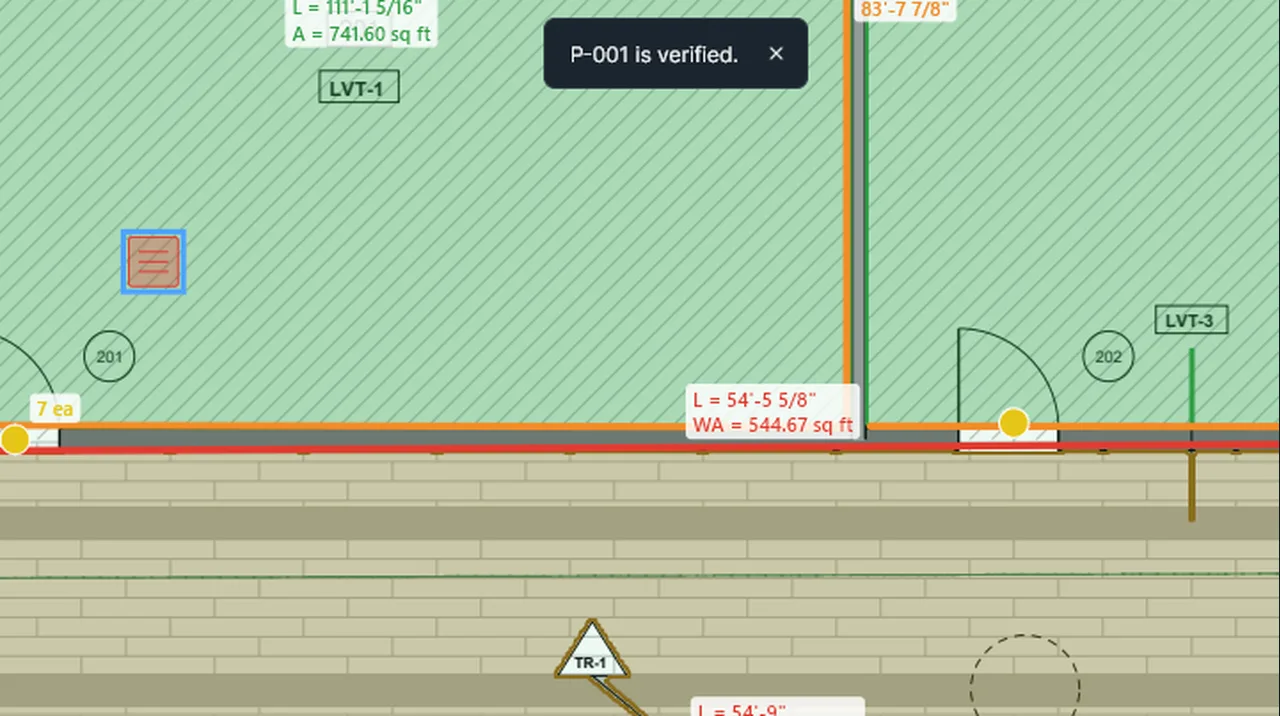
Punch Item: click where the problem is and type what's wrong; then mark it Done, and Verified once checked. Screen recording of Kisheet, October 2026. Where to find it. Bid > After Award > Punch List > New Punch Item, click where the problem is and type what's wrong. Select a pin, then Mark Punch Item Done, Verify Punch Item, Reopen Punch Item, Assign Punch Item, Take Before Photo or Take After Photo (the camera), or Add Before Photo or Add After Photo (a file). A long press or right-click on a pin starts its menu with the photo commands. Photos keep full quality and lose their GPS location. Punch List Reports by Trade writes one PDF per trade.
Bid menu
Qualifications, exclusions and assumptionsCollects markups with those subjects into numbered lists for the bid, as a PDF.Video
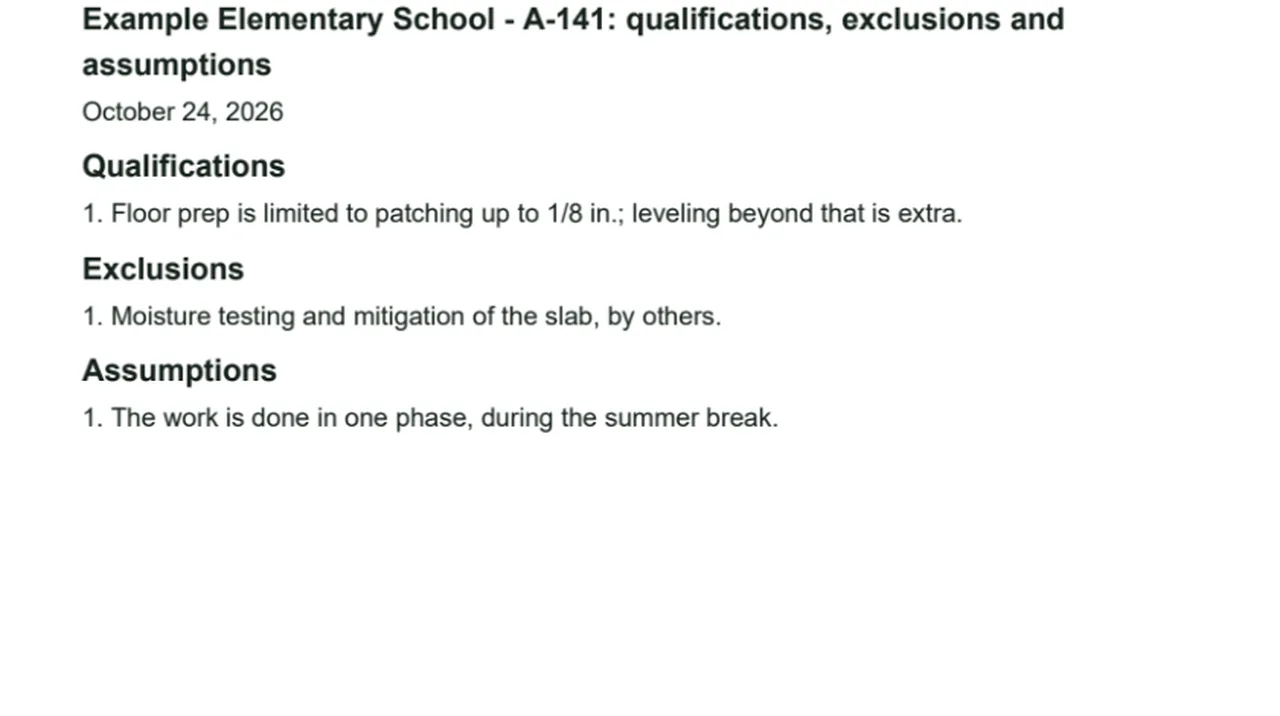
Qualifications, Exclusions and Assumptions: those markups collected into numbered lists, as a PDF. Screen recording of Kisheet, October 2026. Where to find it. Give text markups or notes the subject Qualification, Exclusion or Assumption, then Bid > Outputs > Qualifications, Exclusions and Assumptions.
Bid menu
Quantity changes since an addendumReports each quantity before an addendum and now, item by item and by subject ("W1: 35.6 → 40.0 LF").Video
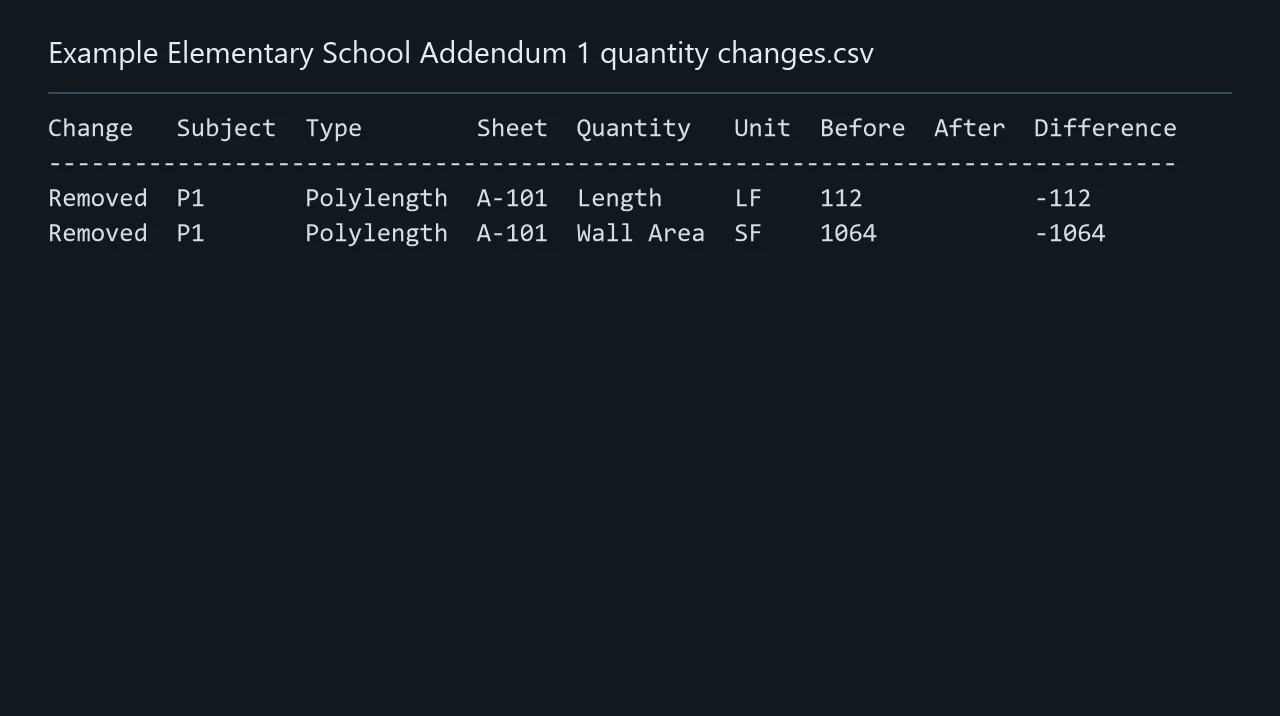
Export Quantity Changes Since Addendum: each item's quantity before the addendum and now, as a CSV. Screen recording of Kisheet, October 2026. Where to find it. Bid > Addenda > Export Quantity Changes Since Addendum, for the addendum picked in the Bid window or the latest. The CSV lists changed, added and removed items first, then the totals by subject.
Bid menu
Question logCollects every Question and Clarification markup into a numbered pre-bid RFI and clarification log, as Excel and PDF.Video
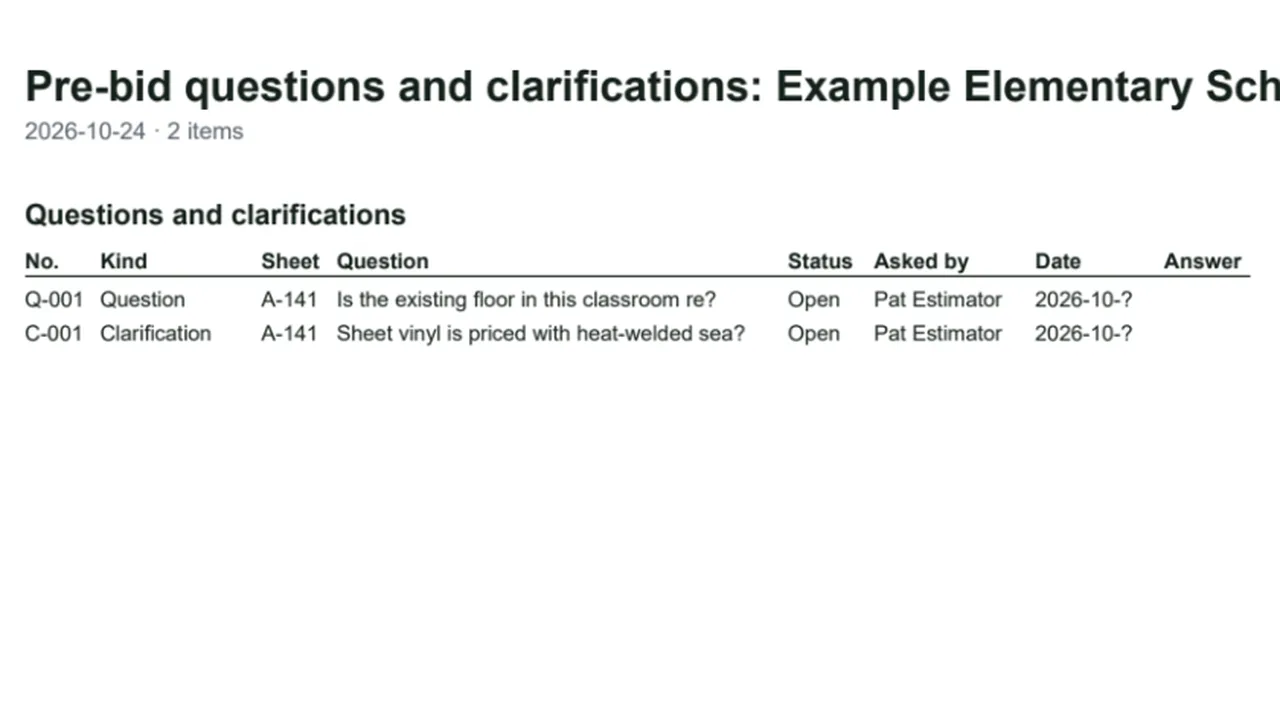
Question Log: every Question and Clarification markup, numbered, as a pre-bid log in Excel and PDF. Screen recording of Kisheet, October 2026. Where to find it. Give a note or callout the subject Question, Clarification or RFI, then Bid > Outputs > Question Log.
Bid menu
RebarReinforcing steel from a slab or footing measurement: number of bars, total length with laps, pieces cut from stock lengths, and weight.Video
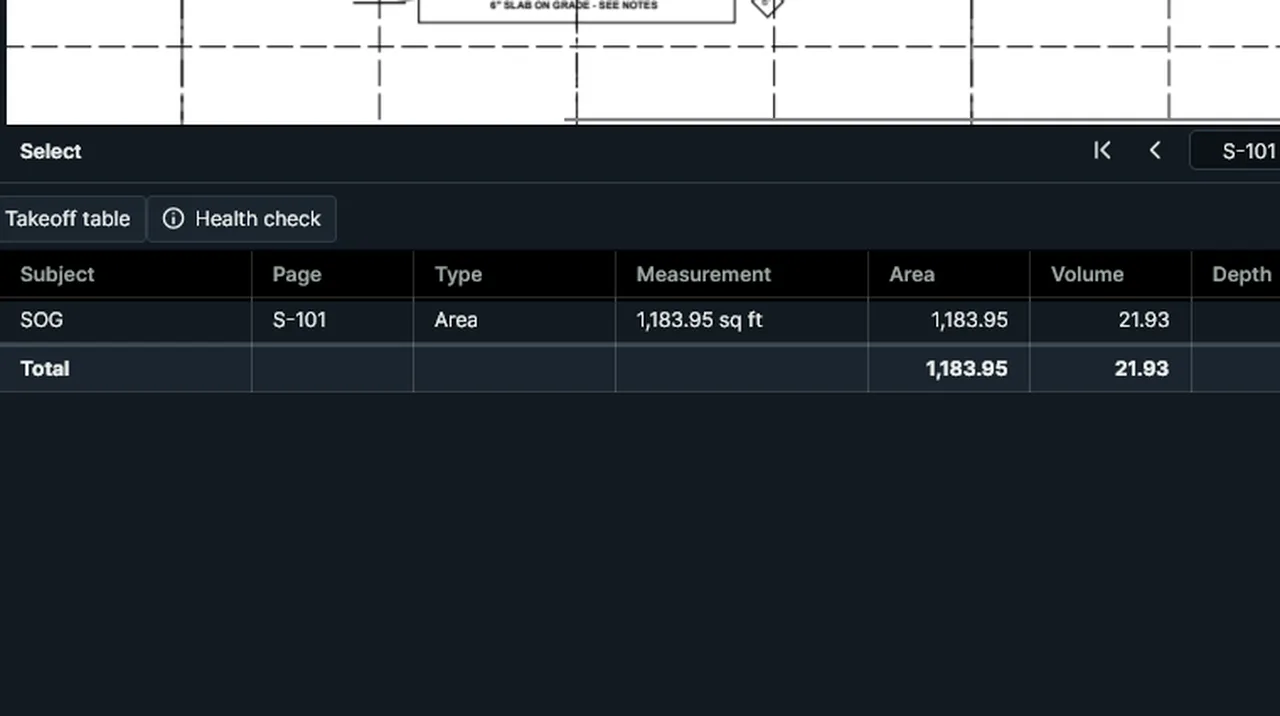
Rebar: give the slab a bar size and spacing each way, and the bars, length with laps and weight are worked out. Screen recording of Kisheet, October 2026. Where to find it. In Properties > Rebar: the bar size (US #3 to #11 or Canadian 10M to 35M); for an area, the spacing (one way or each way) and mats; for a length, the bars along it; then cover, stock length and lap in bar diameters. The results show in the table.
Panels
Recognize text (OCR)Makes scanned pages searchable and selectable by adding an invisible text layer, offline, with Windows' own OCR.Video
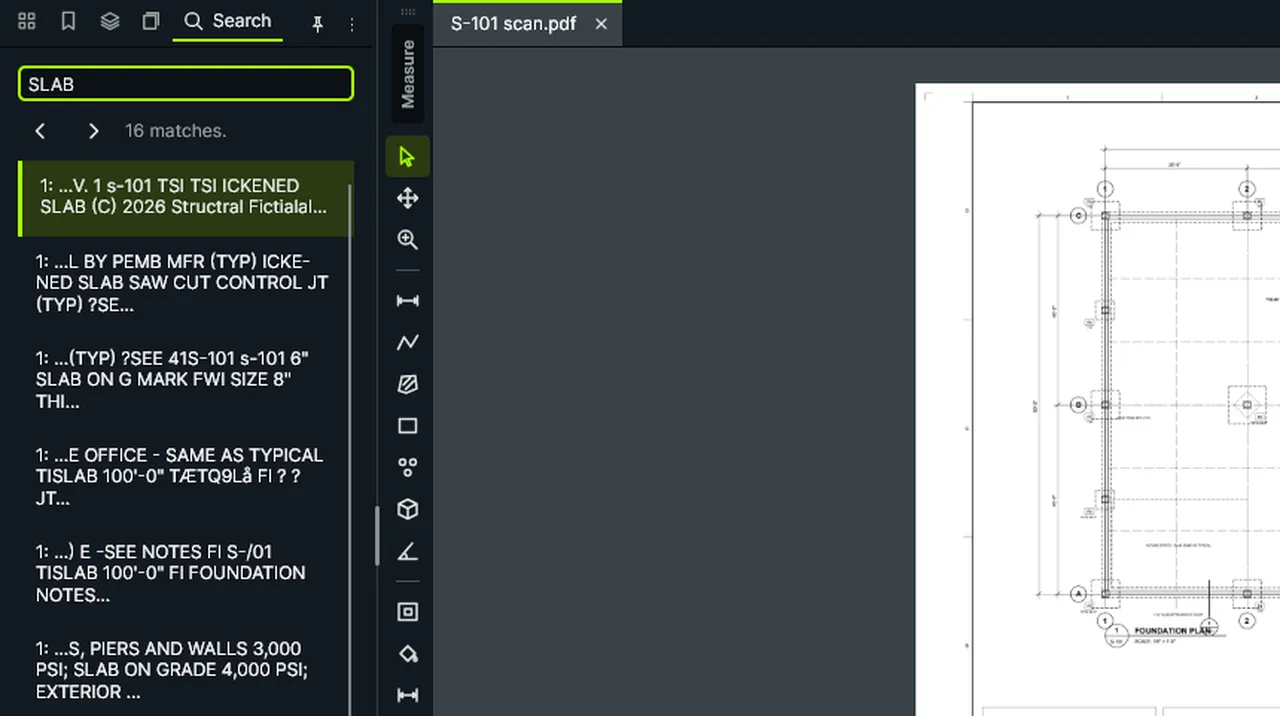
Recognize Text (OCR): a scanned sheet gets a hidden text layer, so its words can be searched and selected. Screen recording of Kisheet, October 2026. Where to find it. Document > Recognize Text (OCR), or as a batch job (Tools > Batch Jobs): this page, all pages or a range, skipping pages that already have text, in the language you pick.
Document menu
Rectangles, ellipses and polygonsBasic shapes with line, fill, hatch and dash styles.Video
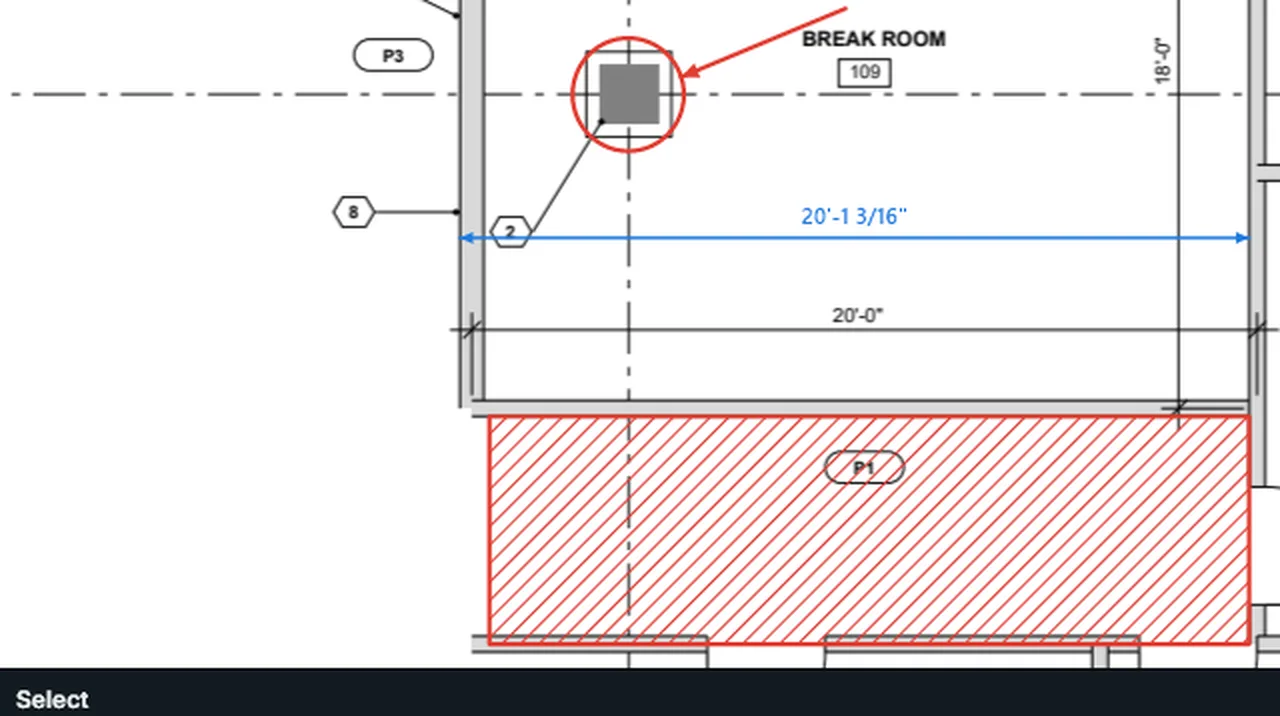
Shapes and dimensions: dimension a room to scale, hatch an area, circle and point at what matters. Screen recording of Kisheet, October 2026. Where to find it. Tools > Markup > Rectangle or Ellipse (drag a box), Polygon (click the corners; close by clicking the first, pressing Enter or double-clicking). Fill, hatch, opacity and dashes come from the Style toolbar or Properties.
Tools > Markup
Reopening as you left itThe next start reopens your documents, pages, zoom, panels, tool set, trade and table view as they were.
Where to find it. It's automatic; turn it off in Preferences > General (reopen the documents open last time).
Window menu
Replace a page (slip-sheet)Puts a newer revision of a sheet in place of the current page while keeping every markup, measurement and the scale.Video
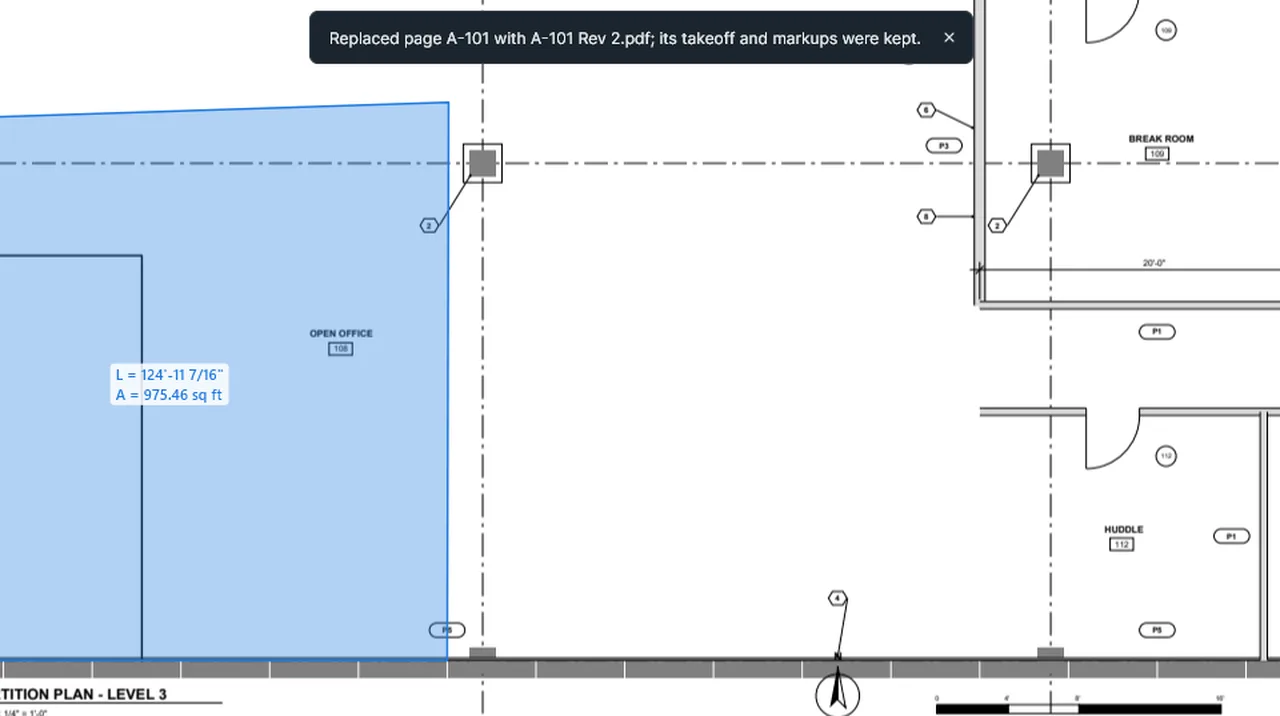
Replace Page (Slip-sheet): the newer revision goes in under the takeoff; the area and its value stay as they were. Screen recording of Kisheet, October 2026. Where to find it. Document > Pages > Replace This Page (Slip-sheet), then pick the new revision's PDF; its first page is used. If the drawing moved on the sheet, the markups don't move with it, so compare first.
Document menu
RepliesAdds a reply, with its author, date and text, to any markup or measurement, for review threads.Video
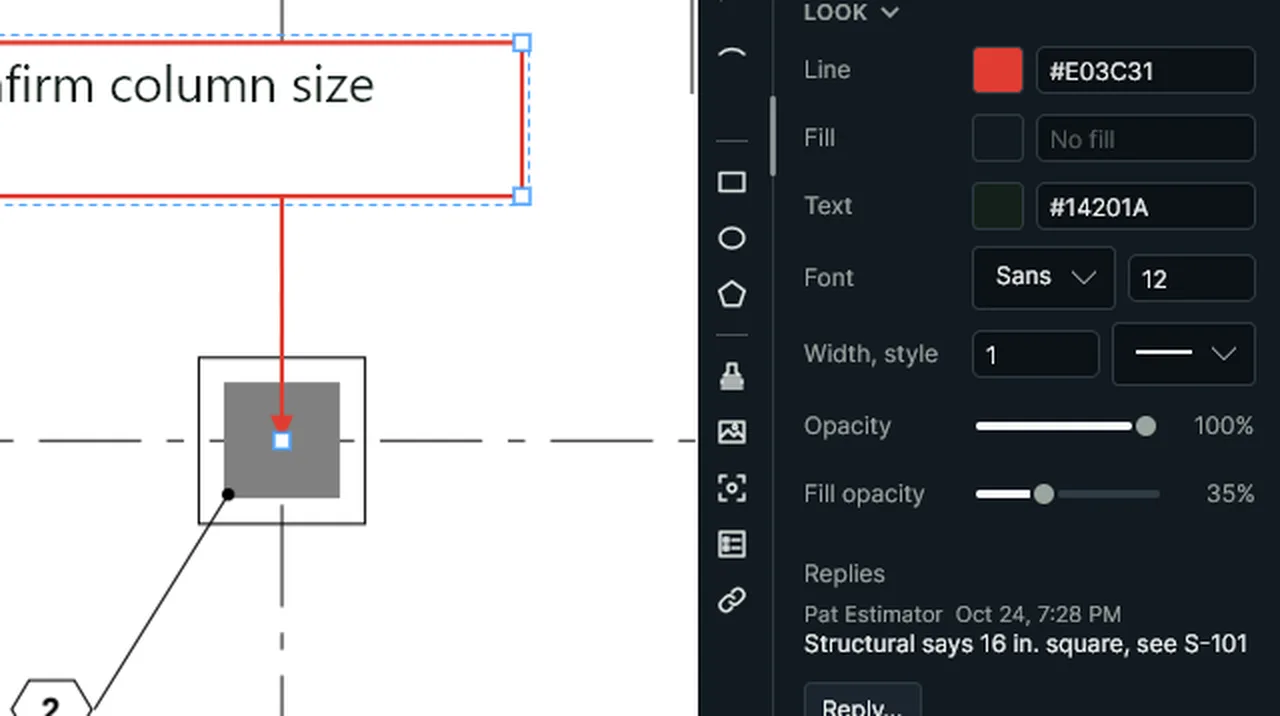
Reply: select a markup, choose Reply and type; the reply shows in Properties with who wrote it and when. Screen recording of Kisheet, October 2026. Where to find it. Select an item, then Edit > Reply. Replies show in the Properties panel. One undo step.
Edit menu
Reviewer passA second person steps through every measurement, marks each checked or queried with a note, and sends the estimator a summary.Video
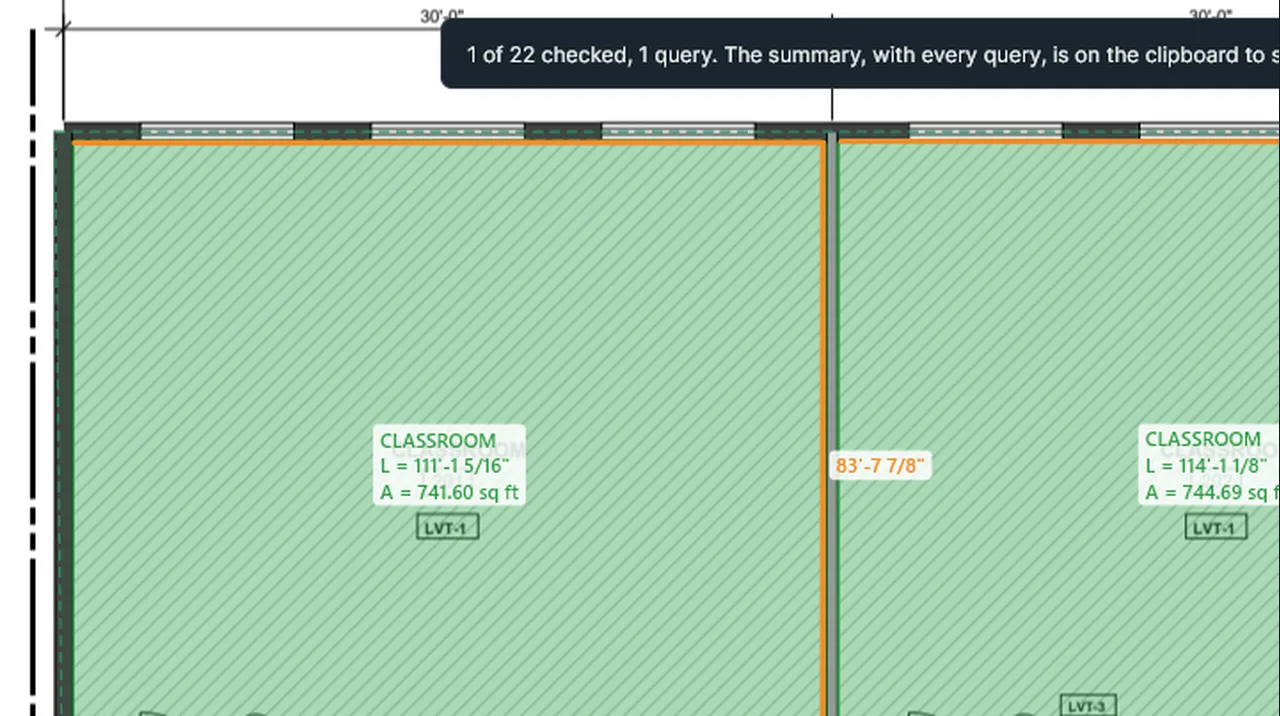
Reviewer pass: step through each measurement, mark it checked or query it with a note, then copy the Review Summary. Screen recording of Kisheet, October 2026. Where to find it. Bid > Review: Review the Next Item (Alt+N), Review the Previous Item (Alt+P), Mark Checked (Alt+K), Query (Alt+Q, asks what to look at), Clear the Review Mark and Review Summary, which copies the summary to the clipboard. Marking moves on to the next item.
Bid menu
Revisions and the drawing logA drawing log for each sheet: every issue's revision mark, date and note, exported as a spreadsheet.Video
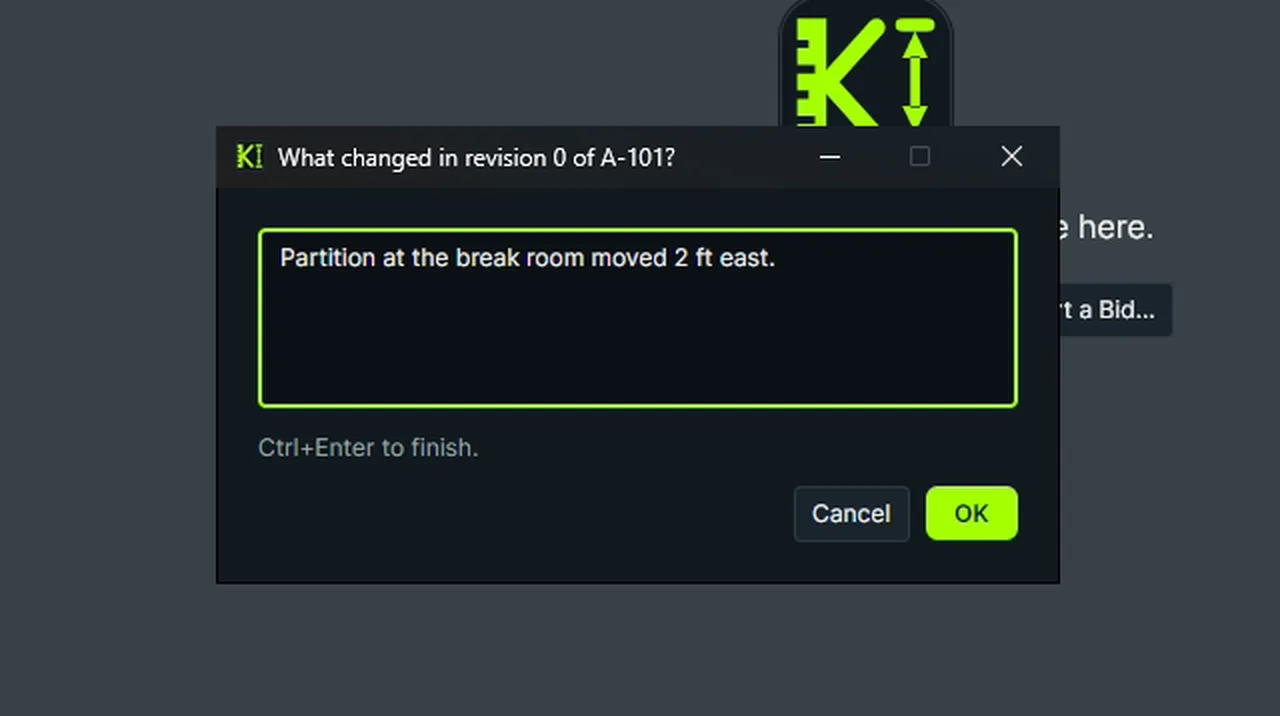
Issue Revision suggests the next mark and asks what changed; Export Drawing Log writes every issue to a CSV (shown). Screen recording of Kisheet, October 2026. Where to find it. File > Plan Set > Issue Revision for the picked sheet suggests the next mark (Rev 4 to Rev 5, B to C) and asks what changed. Export Drawing Log saves a CSV with one row per issue, marking the current one. Issuing a revision doesn't change the PDF; it's a log entry. The Revision stamp (Tools > Markup > Stamp) puts the sheet's current mark on the drawing, such as "REV 2" with the date.
File menu
Right-click menusRight-click menus for the drawing, thumbnails, toolbars, panel tabs, document tabs, and any button, menu item or palette tool.
Where to find it. On the drawing: cut, copy, group, format painter and properties for a selection, or paste and the common tools with nothing selected. Every button, menu item and palette tool has Favorite and Add Keybind. While drawing, a right-click finishes the item instead.
Toolbars, status bar and right-click menus
Rotate pagesTurns the current page a quarter turn in the file itself.Video
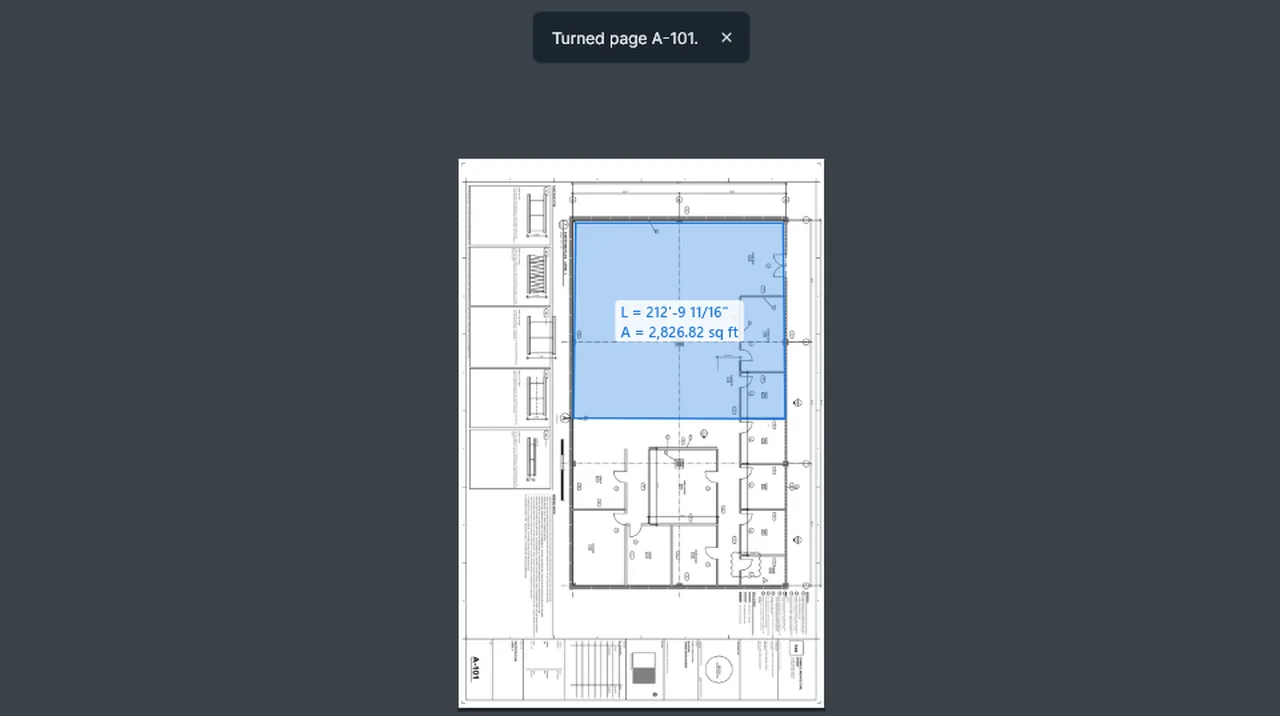
Rotate Page Clockwise: the sheet turns a quarter turn in the file, and its takeoff turns with it. Screen recording of Kisheet, October 2026. Where to find it. Document > Pages > Rotate Clockwise or Rotate Counter-clockwise. Unsaved work is saved and a backup copy taken first; the takeoff turns with the page. To turn only your view, use View > Rotate View.
Document menu
Rotate ViewTurns the view a quarter turn without changing the file.Video
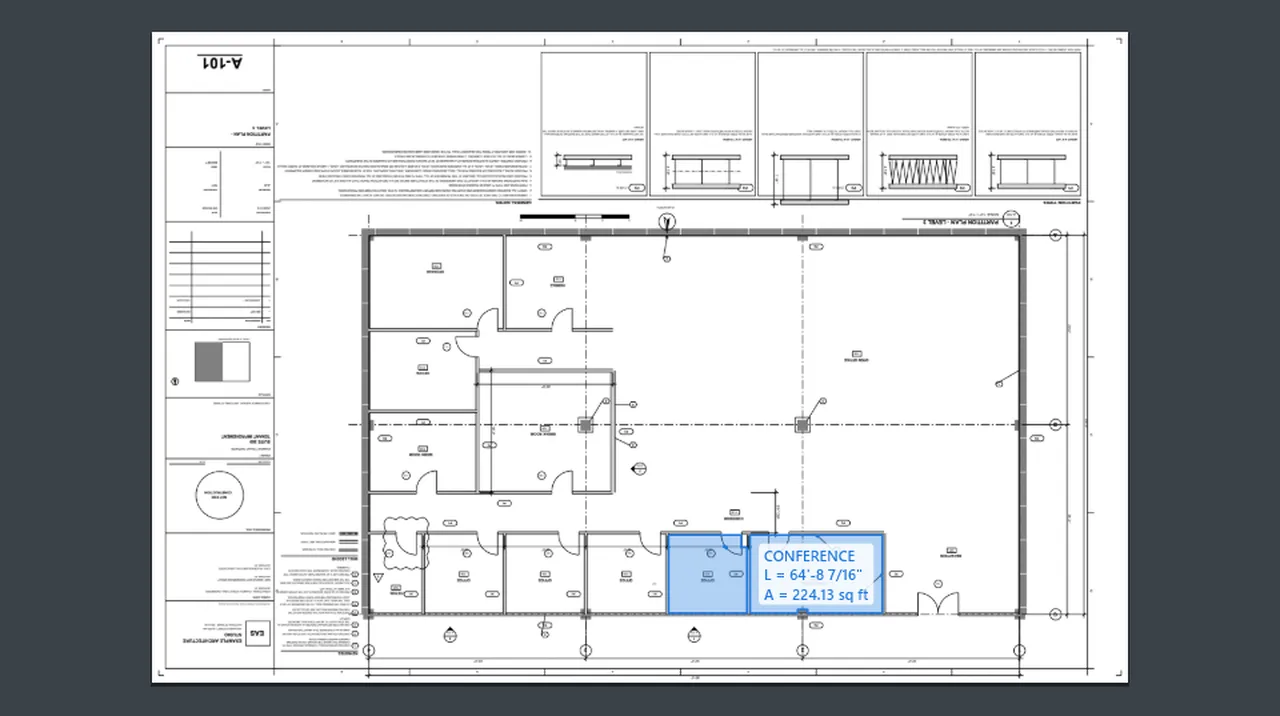
Rotate View turns the view a quarter turn clockwise, then a half turn; the measured rooms turn with the sheet. Screen recording of Kisheet, October 2026. Where to find it. View > Rotate View Clockwise (Ctrl+Shift+=) or Counter-clockwise (Ctrl+Shift+-), also on the View toolbar. Measuring and markups work as usual on a turned view. To turn the pages in the file itself, use Document > Pages > Rotate.
View menu
Rotate, align and distributeRotate the selection by 90 degrees or any angle, line items up by their edges or centers, and space three or more evenly.Video
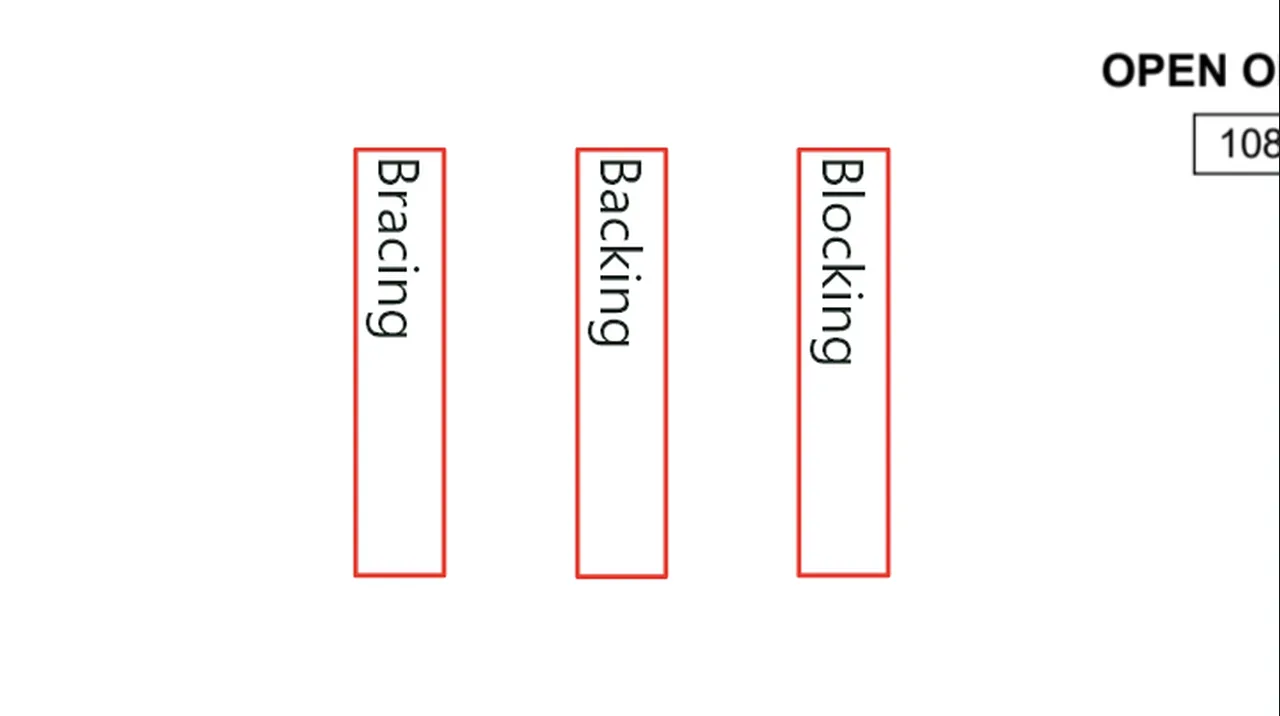
Arrange: Align Left lines the selection up, Distribute Vertically spaces it evenly, Rotate turns it. Screen recording of Kisheet, October 2026. Where to find it. Edit > Arrange: Rotate 90° Clockwise or Counter-clockwise, Rotate by Angle; Align Left, Centers, Right, Top, Middles or Bottom (two or more items); Distribute Horizontally or Vertically (three or more). Also on the Arrange toolbar.
Edit menu
Rulers, crosshair and gridRulers and a grid in real units once the sheet has a scale, and a full-window crosshair for lining things up.Video
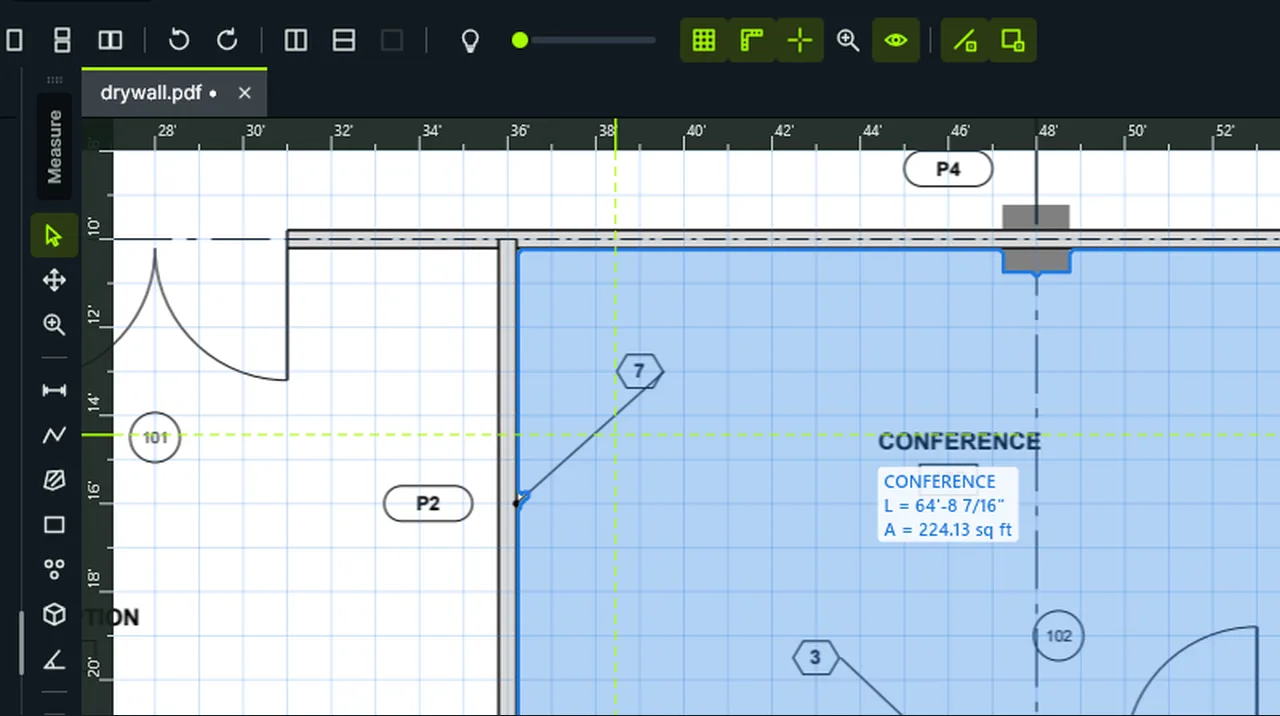
Rulers, Crosshair and Grid: turn each on from the View toolbar; they draw over the plan. Screen recording of Kisheet, October 2026. Where to find it. View > Rulers (Ctrl+R), Crosshair (Ctrl+Shift+X) and Grid (Ctrl+'), also on the View toolbar. The grid is a visual aid; nothing snaps to it.
View menu
Save and Save AllWrites the takeoff and markups into the PDF, keeping a backup copy first.Video
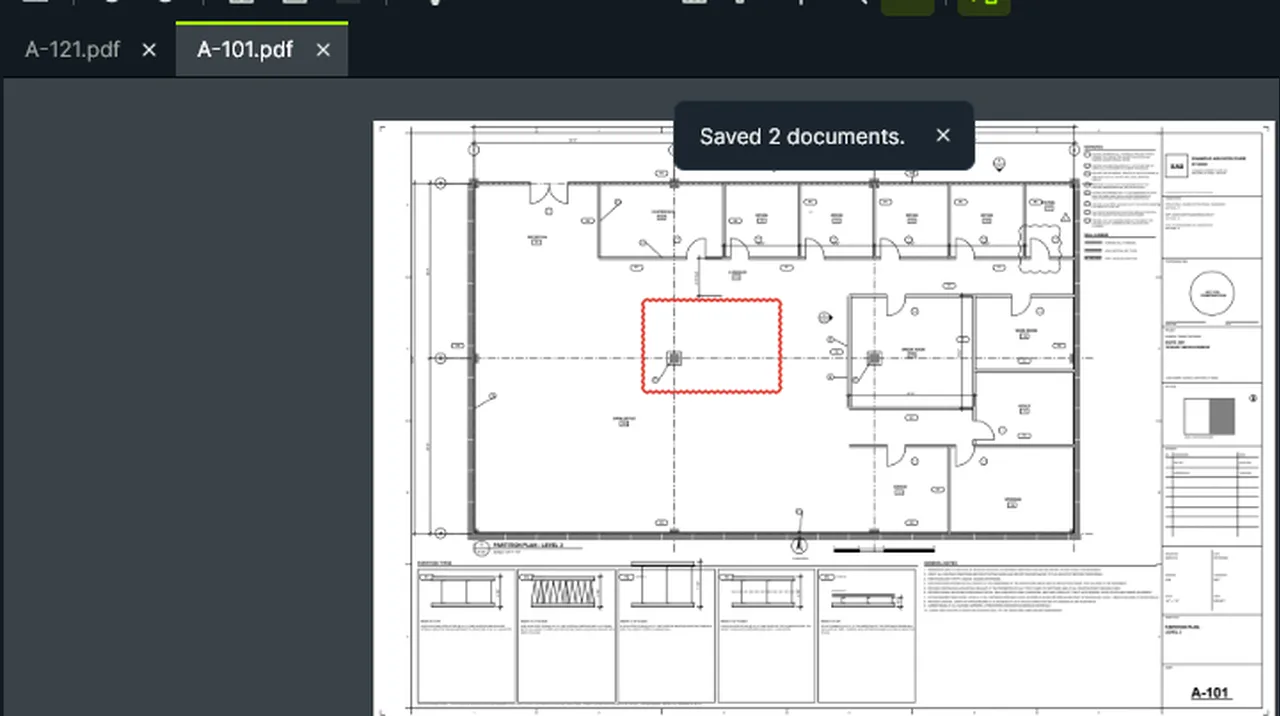
Save All: every PDF with unsaved changes is saved, a backup kept first; the unsaved dots on the tabs go. Screen recording of Kisheet, October 2026. Where to find it. File > Save (Ctrl+S); Save All (Shift+F2) saves every document with unsaved changes. A save is refused, with the person's name, if a sheet of the PDF is checked out to someone else in a shared plan set. If the PDF is linked to an Excel workbook, the workbook is updated too.
File menu
Save As and Revert to SavedSave a copy of the PDF, with your unsaved work, under a new name and carry on in it; or throw away everything since the last save.
Where to find it. File > Save As (Ctrl+Shift+S) leaves the file you opened as it was last saved, and the tab moves to the new file at the same page and zoom. File > Revert to Saved asks first, then shows the file as it is on disk. Neither can be undone, and the undo history starts again in the new or reverted file.
File menu
Scale check and detail viewportsChecks a sheet's scale against the dimensions and scale printed on the drawing itself, tells a wrong calibration from a print at another size, and adds viewports for details drawn at other scales.Video
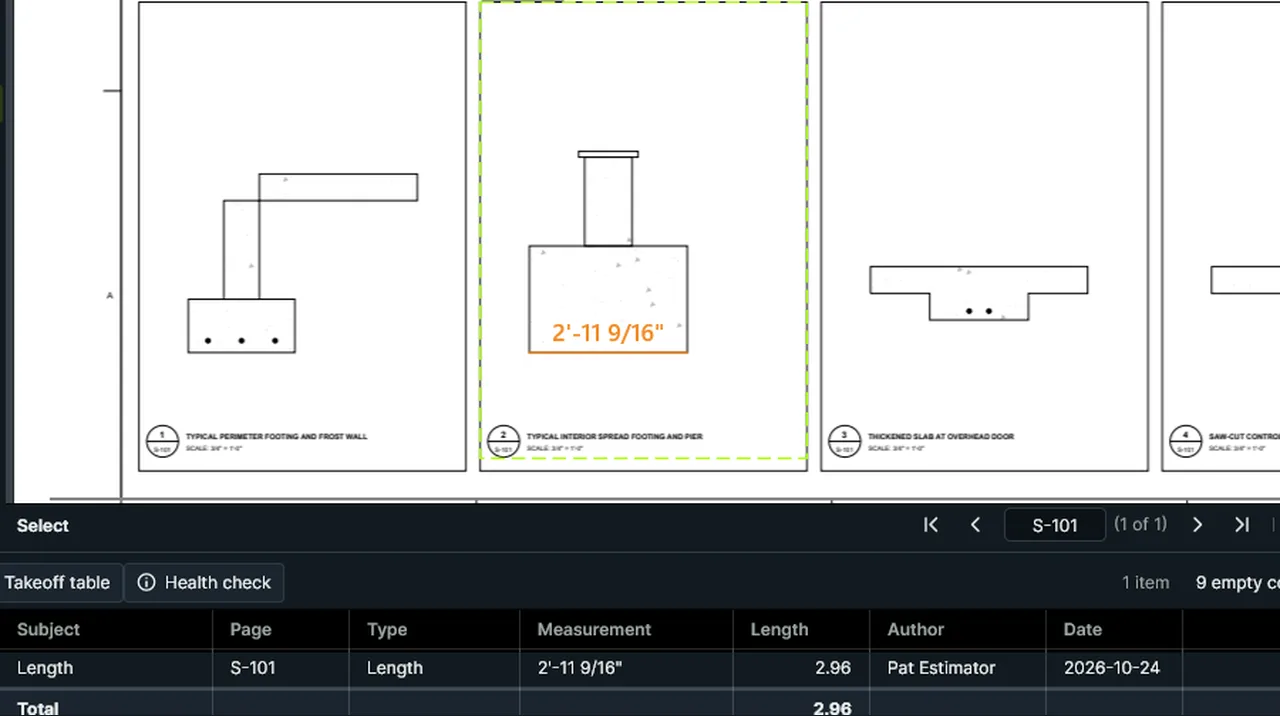
Viewport: drag a rectangle around the detail, type its scale, and a length inside it uses that scale. Screen recording of Kisheet, October 2026. Where to find it. Tools > Scale > Check Scale shows the result in the Scale panel. Use Printed Scale sets the scale printed on the page (or the one the dimensions fit); Add Detail Viewports adds a viewport for each detail drawn at its own scale; Keep This Scale stops the warnings for this page. Dimensions must be text with vector lines, so scans need OCR first.
Tools > Measure
Scale panelThe page's scale, the scale check, units, viewports, length display and snapping in one panel.Video
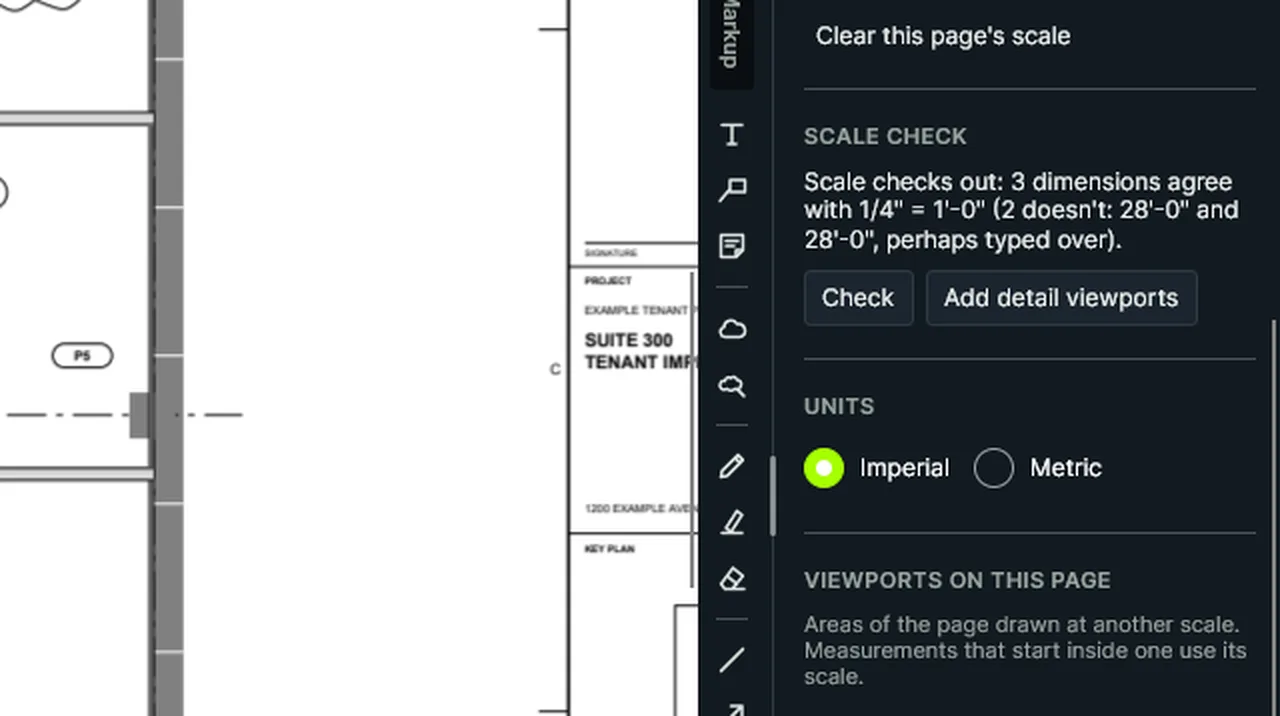
Measure panel: the page's scale and its check, then units, viewports, how lengths show and snapping. Screen recording of Kisheet, October 2026. Where to find it. Calibrate, Calibrate X and Y Separately, or pick a preset for this page or all pages. The scale check's sentence with Check, Use Printed Scale, Add Detail Viewports and Keep This Scale. Imperial or metric; the page's viewports; how lengths show (feet-inches to 1/64", decimal feet, inches, meters, millimeters or centimeters); snap to the drawing.
Panels
Scope sheets by tradeOne PDF per trade for subcontractors: its sheets with only its takeoff drawn in, a legend and its quantities.Video
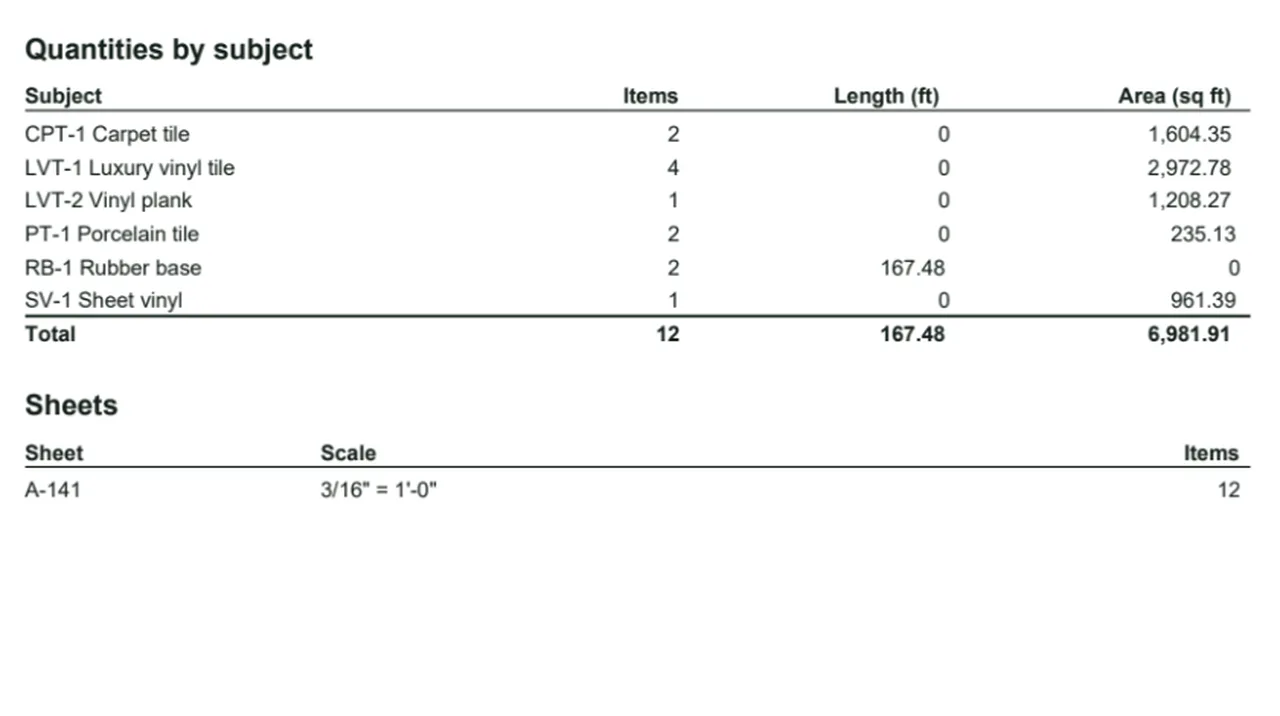
Scope Sheets by Trade: one PDF per trade, with only that trade's takeoff drawn in and its quantities. Screen recording of Kisheet, October 2026. Where to find it. Bid > Outputs > Scope Sheets by Trade, then pick a folder. Files are named "<job> - Scope - <trade>.pdf".
Bid menu
Scope wordsFinds the words that move scope or change the price ("by others", "NIC", "allowance", "match existing") across every drawing, spec and addendum of the bid, and highlights each one.Video
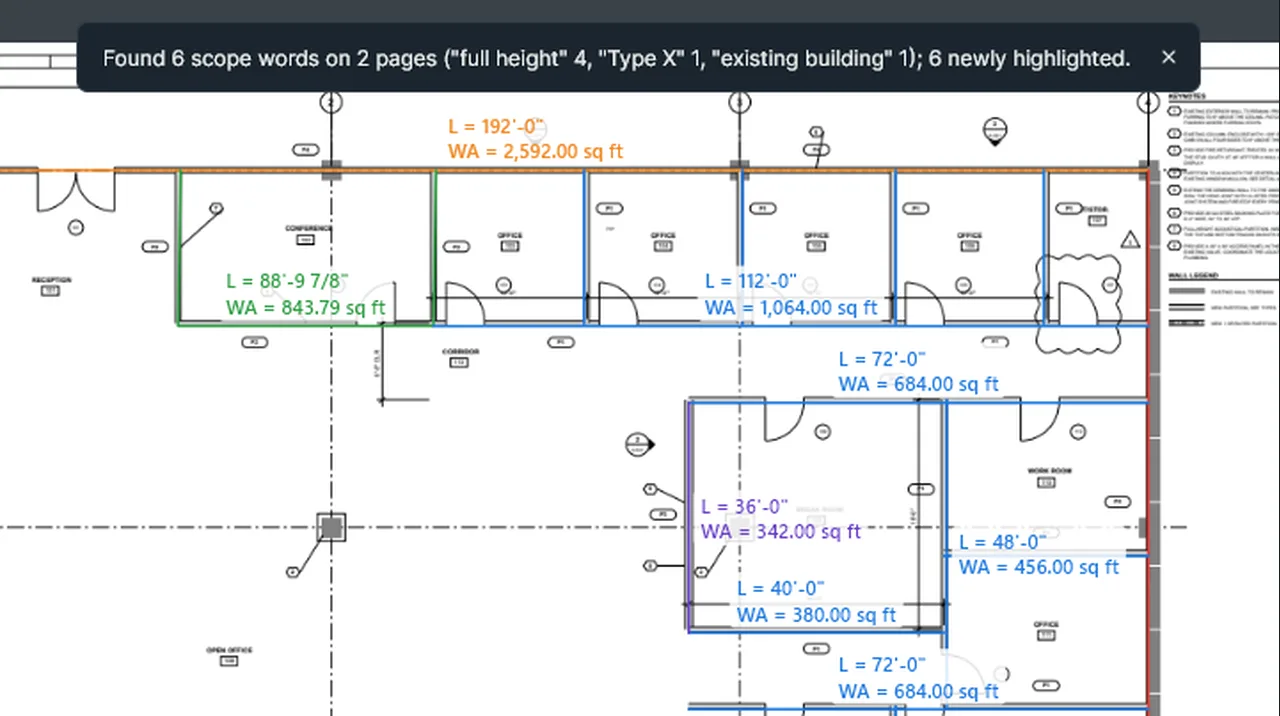
Scope Words: set your trade's phrases; Scan for Scope Words finds each one across the bid and lists it on the Scope tab. Screen recording of Kisheet, October 2026. Where to find it. Bid > Specifications > Scope Words sets the trade's phrases; Scan for Scope Words finds and highlights them, also in PDFs that aren't open. The Bid window's Scope tab lists each find with the words around it; click one to go there. Export Scope Word Finds saves them as a spreadsheet.
Bid menu
Script flowsChains batch steps into a saved flow with If branches ("if the sheet is 22 inches or larger, link sheet numbers; otherwise, if it has no text, OCR it") and runs it on many files.Video
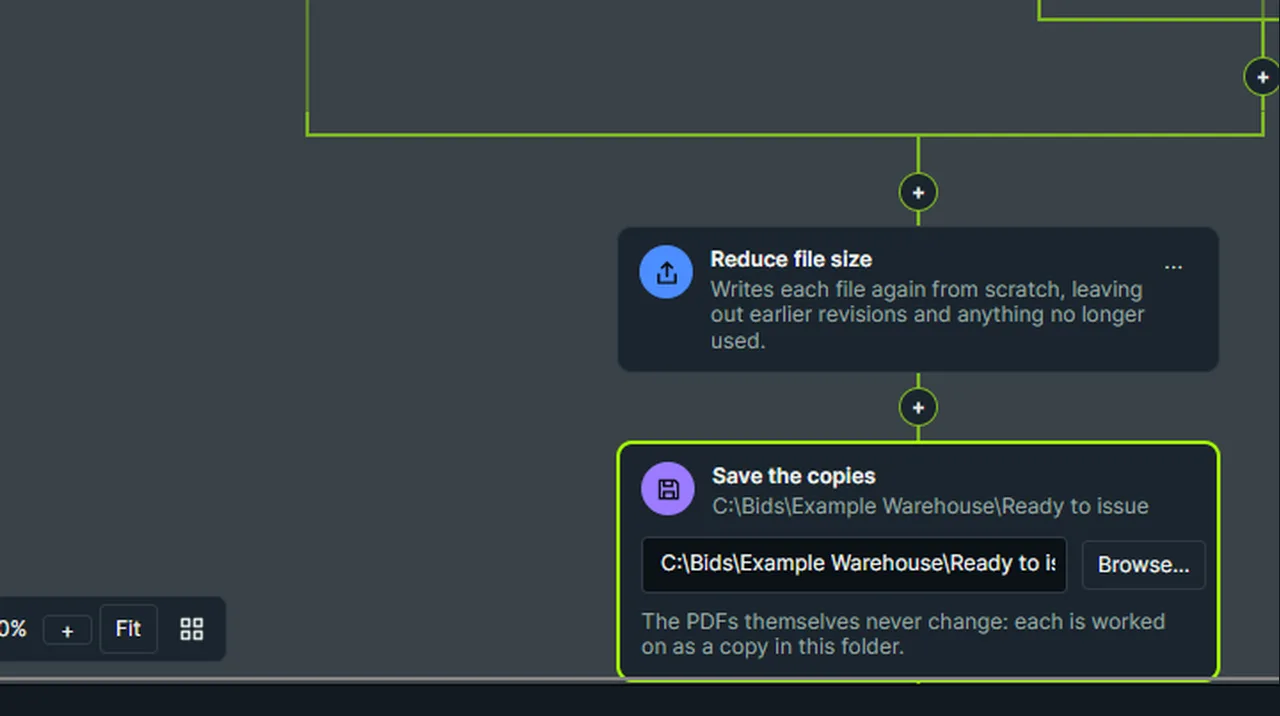
Script Flows: pick a template, read its steps and If branches, then set where the copies go. Screen recording of Kisheet, October 2026. Where to find it. Tools > Script Flows: 33 starter templates, grouped (bid documents, review and issue, revisions, takeoff, sending and security), and your own flows. Pick a template to see how it works, then copy it as your own. Add, move and delete steps and Ifs, set each step's options, save, import and export flows, then pick files and a results folder and Run. Results are listed for each file, step by step.
Batch menu
Search panelFinds text in the PDF, or in every sheet of the plan set, and lists every match with the words around it.Video
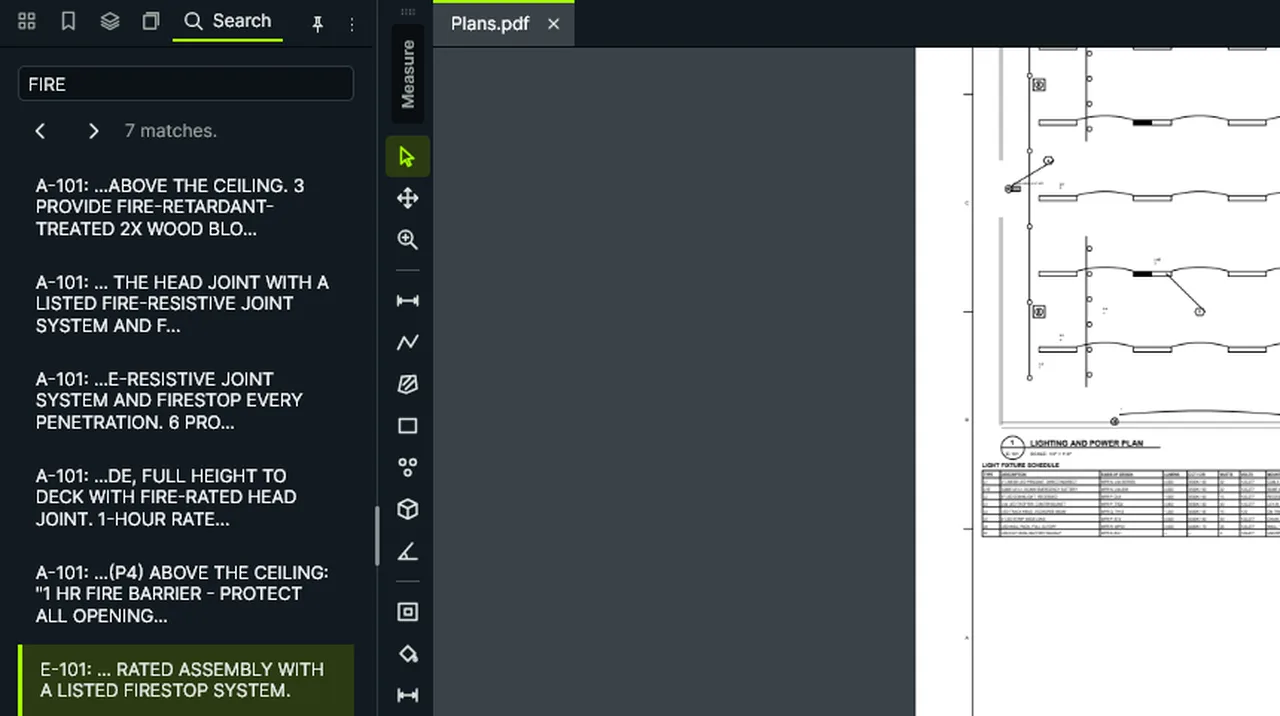
Search Text: type a word and press Enter; every match is listed with its words and sheet. Click one, or step to the next. Screen recording of Kisheet, October 2026. Where to find it. Ctrl+F, type and press Enter; click a result or step through them. Whole set searches every sheet of the open plan set, grouped by sheet; Whole word skips matches inside longer words.
Panels
Search the page textFinds words in the PDF's own text on every page, or on every sheet of the plan set, and steps through the matches.Video
Search Text: type a word and press Enter; every match is listed with its words and sheet. Click one, or step to the next. Screen recording of Kisheet, October 2026. Where to find it. Edit > Search Text (Ctrl+F) opens the Search panel. Type and press Enter: each match is listed with the words around it and its page; click one, or step with the next and previous buttons. With a plan set open, turn on Whole set to search every sheet at once: finds are listed by sheet as they arrive, Esc stops, and clicking a find opens that sheet with the words highlighted. Whole word finds only whole words, so "WC-1" doesn't find "WC-10". Scanned sheets need OCR first. To change words in markups, use Find and Replace.
Edit menu
Select and copy page textSelect the PDF's own text by dragging across it, and copy it.Video
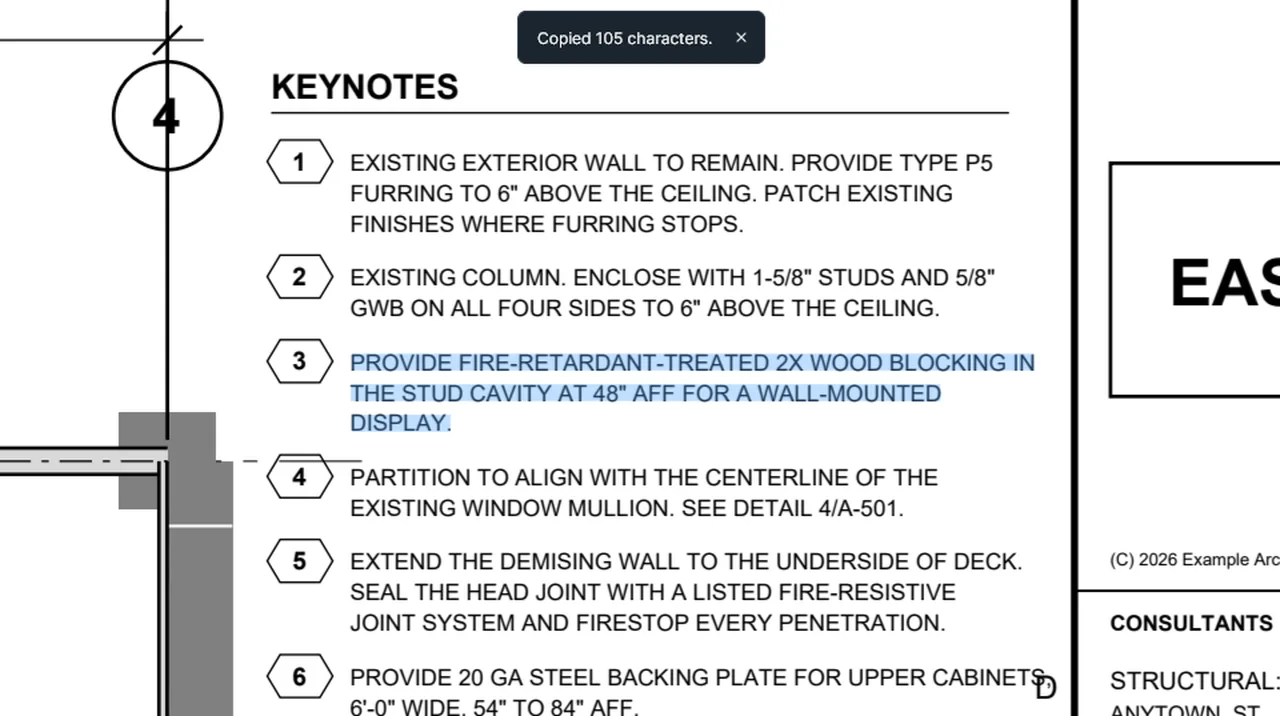
Select Text: drag across the drawing's own words to select them, then copy them. Screen recording of Kisheet, October 2026. Where to find it. Edit > Select Text (also on the Text Markup toolbar), drag across the words, then Ctrl+C. A scanned page has no text until it's been through Recognize Text (OCR).
Edit menu
Selecting and moving itemsSelect items by clicking, adding with Ctrl, dragging a box or a freehand lasso, or the whole page; move them together and nudge them with the arrow keys.Video
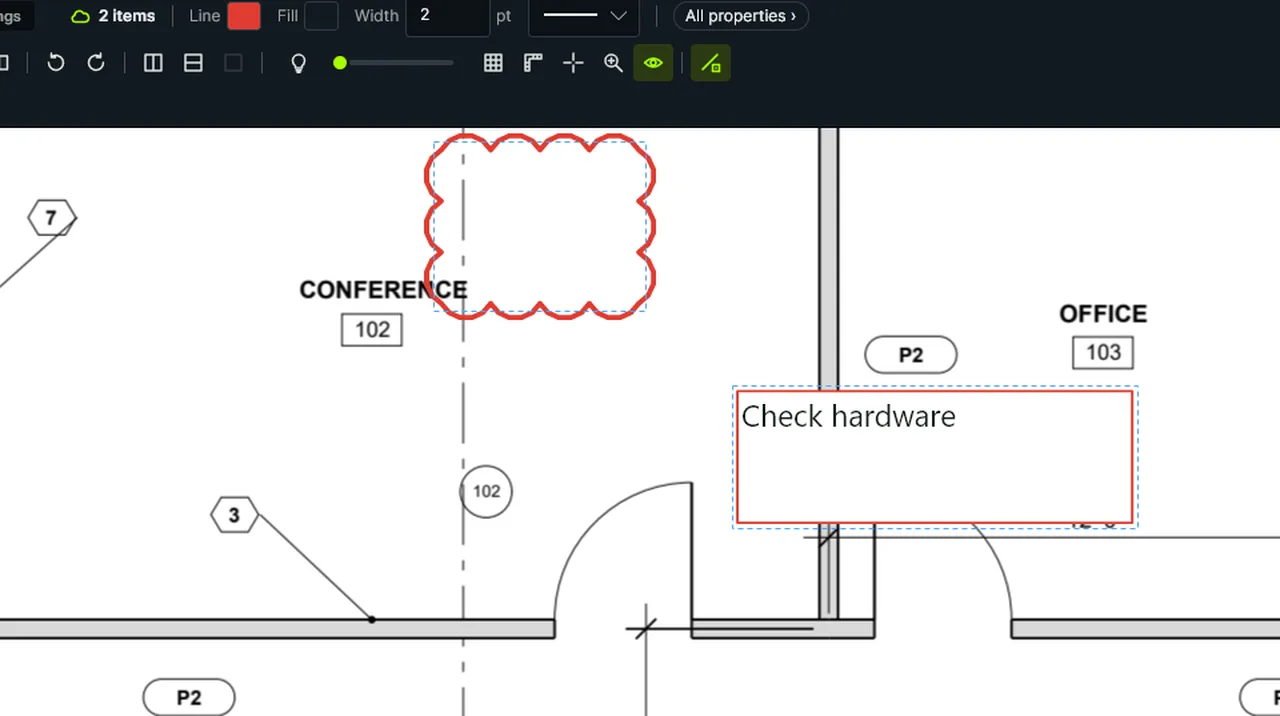
Select: click the note, Ctrl-click the cloud to add it, then drag both to a new place. Screen recording of Kisheet, October 2026. Where to find it. Tools > Select (V) picks the select tool and Pan (Shift+V) the hand. Click an item; Ctrl-click adds or removes one; drag on empty paper for a box; Alt-drag or Lasso Select for a lasso; Select All on Page (Ctrl+A). Drag any selected item to move them all (Shift keeps the move straight); the arrow keys nudge.
Edit menu
Send ReportsCrash reports (on unless turned off in Preferences) and usage counts (only if ticked on the welcome) go to Kisheet by email from your own mail app, and nothing is sent unless you press Send.Video
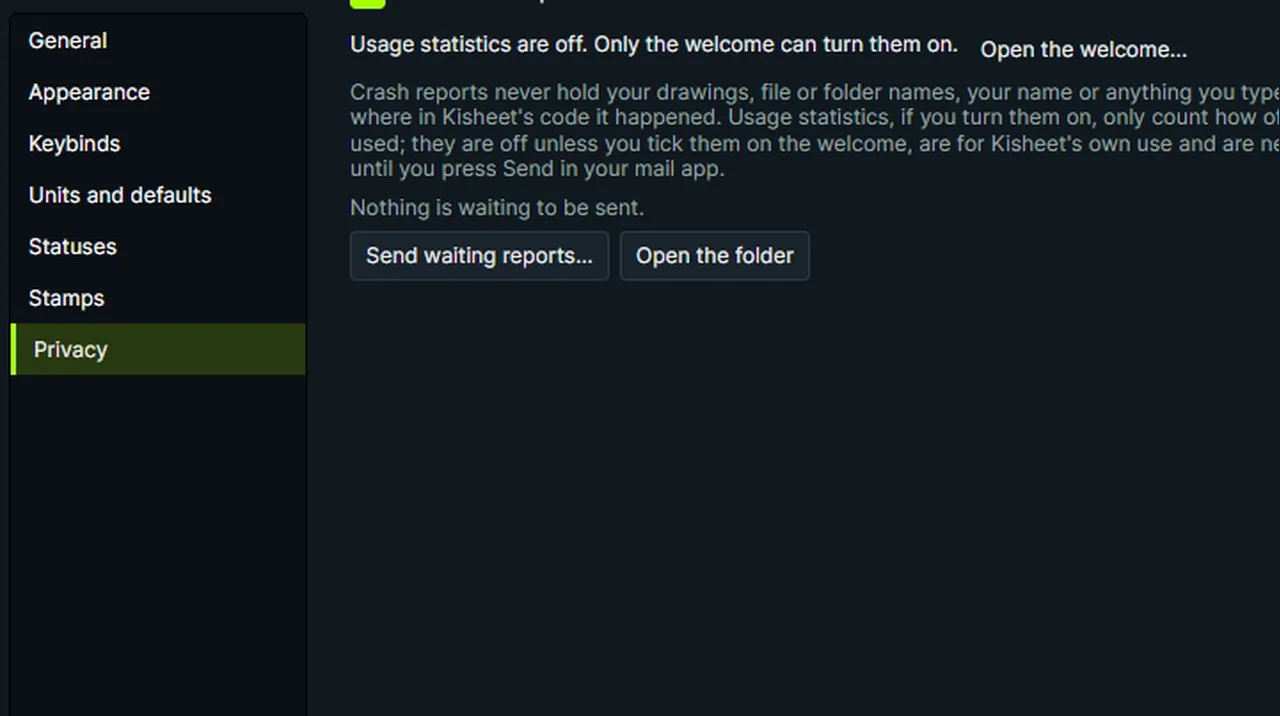
Send Reports: crash reports wait on your computer; Send waiting reports opens an email in your own mail app, and nothing is sent until you press Send. Screen recording of Kisheet, October 2026. Where to find it. Help > Send Reports (when reports are waiting), or Send Waiting Reports in Preferences > Privacy. Your mail app opens a message with the reports in its text; press Send there. After Kisheet closes unexpectedly, the next start asks once whether to send the crash report (Send Report opens the email); otherwise, when reports are waiting at start, the message bar says so. It needs a mail app set up in Windows.
Help menu
Send to DocumentsUpload the PDF you're working on to its bid in your company's Documents and move the bid on, in one step.
Where to find it. File > Send to Documents… or Ctrl+Shift+U. Keep Upload ticked to send a flattened copy (or the working file), pick the bid (picked for you when there's only one it can be), and pick the stage: the next one is picked for you up to Pricing. With See bid amounts, set our number and the estimated cost too. The button says what will happen; the status bar says when it's done. If someone moved the bid first, the file still goes and the stage doesn't.
Help menu
Set up a bid from a folder or plan-room zipTurns a folder or a plan-room zip of bid PDFs into an organized plan set in one step: one file per sheet named by number and title, bookmarks by discipline, spec books bookmarked by section, links between sheets and a check against the drawing index.Video
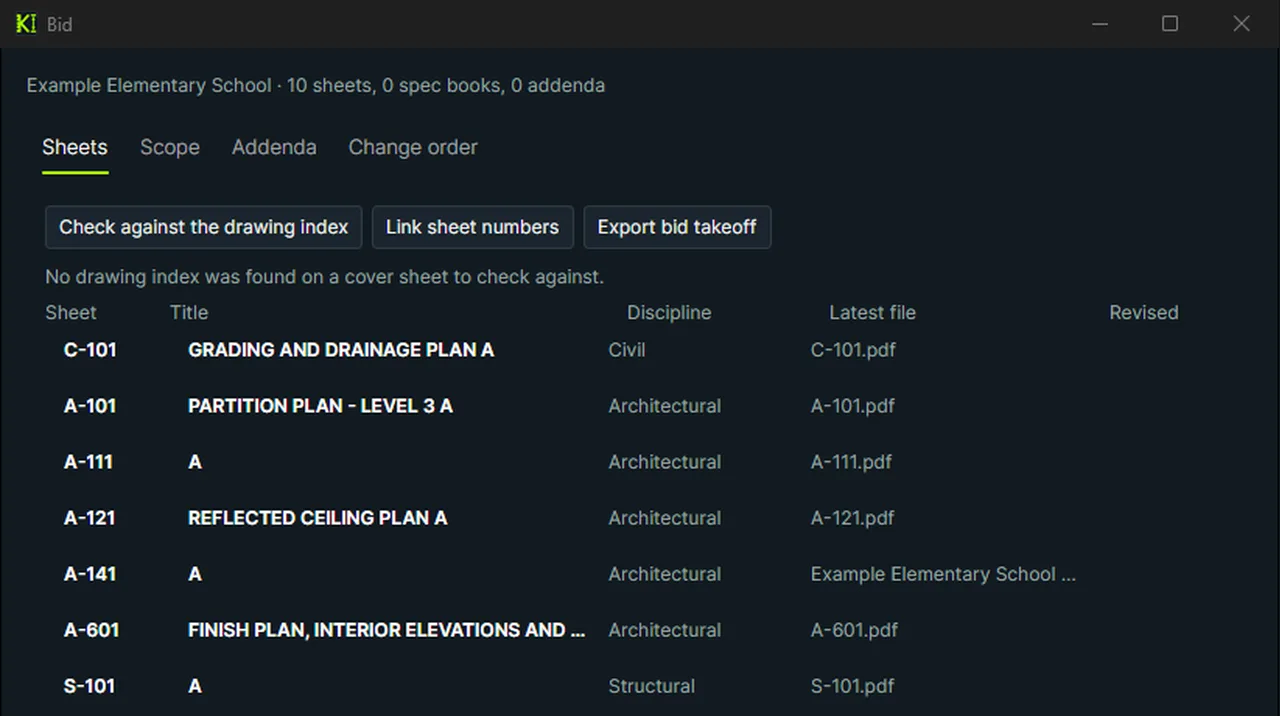
Set Up Bid from Folder: pick the folder, tick what Kisheet does, name the bid, and the PDFs become a plan set by sheet number. Screen recording of Kisheet, October 2026. Where to find it. Bid > Set Up Bid from Folder or Set Up Bid from Plan-room Zip, then a folder to set it up in. Tick what to do (split combined PDFs, bookmark, link sheet numbers) and name the bid. Sheet numbers come from page labels or, failing that, from the title block's bottom-right corner. Bid > Open Bid and Close Bid; Bid Window shows the sheet index, scope words, addenda and change order.
Bid menu
Sets panelThe plan set's sheets in binding order with titles, revisions, tags and check-outs; click any sheet to open it.Video
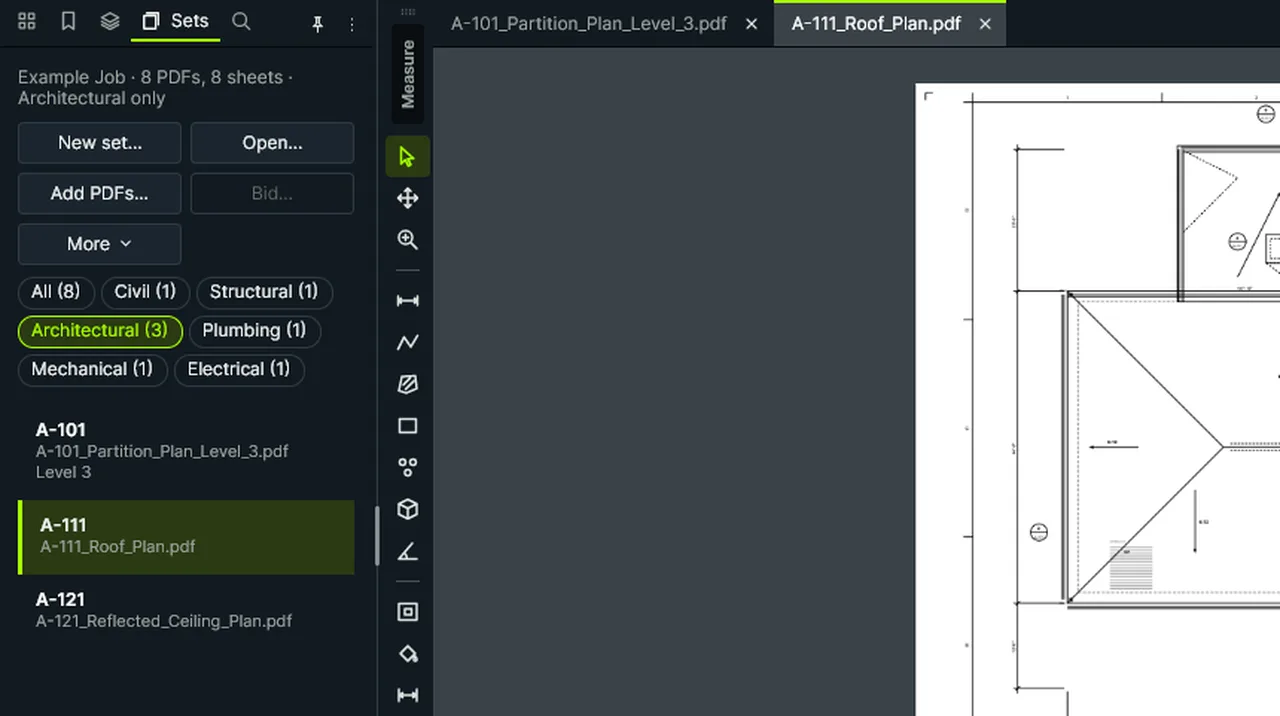
Sets panel: the set's sheets in binding order with revisions and tags; pick a discipline, click a sheet to open it. Screen recording of Kisheet, October 2026. Where to find it. Buttons: New Set, Open, Add PDFs and Bid (the Bid window). Everything else (editing sheet numbers, tags, revisions, the drawing log, check-out and check-in, addenda, closing the set) is under More. The discipline buttons above the list filter it.
Panels
Setting a sheet's scaleSets a sheet's scale from architectural, engineering or metric presets, or any scale you type.Video
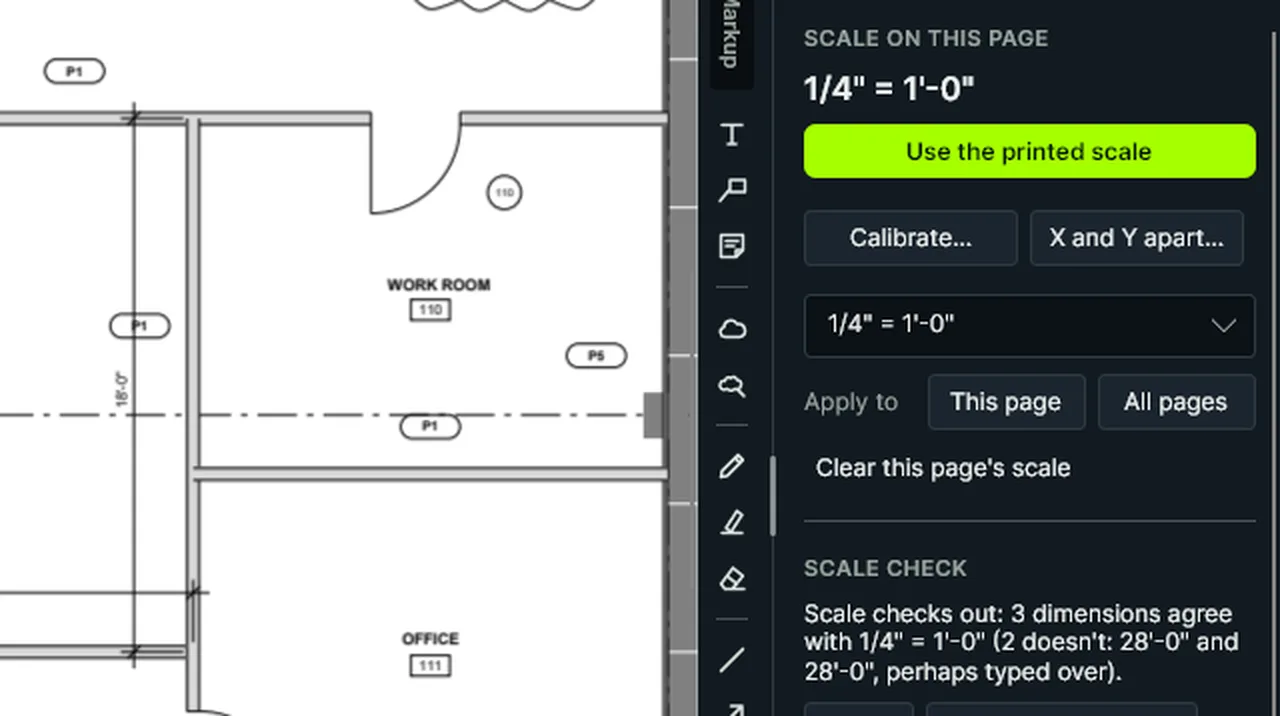
Set Scale: pick a standard scale such as 1/4" = 1'-0", apply it to this page, and it's checked straight away. Screen recording of Kisheet, October 2026. Where to find it. Tools > Scale > Set Scale (also on the Measure toolbar) opens the Scale panel on the current page: pick a preset such as 1/4" = 1'-0" or 1:100, or type one, and apply it to this page or all pages. Setting a scale checks it against the dimensions printed on the sheet straight away.
Tools > Measure
Shapes in the tool setsAbout 140 ready-made construction symbols in eleven color-coded sets, and your own shapes made from markups on the page.Video
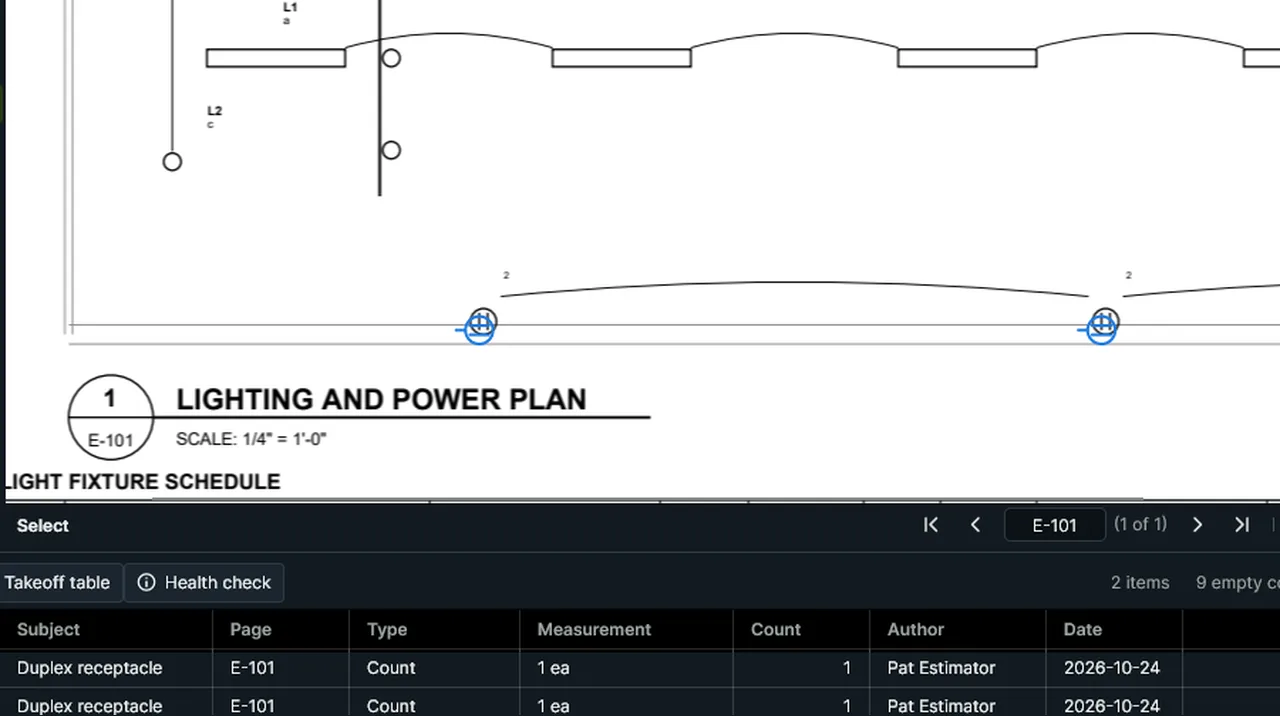
Shapes: find a symbol in the Shapes panel, click the page to place it, and each one is a counted row. Screen recording of Kisheet, October 2026. Where to find it. Each "Shapes" set in Tool sets shows as a grid of pictures. Pick one and click the page to place it at its usual size, or drag to set its width. To make your own, select the markups that draw it and choose Tools > Tool Sets > Add Selection as Shape, then name it and pick its color. Your shapes go into "My shapes", which exports and imports like any tool set. A placed shape is one count item drawn as the shape: one row in the takeoff table, counting as one.
Tools > Spaces, Trade Tools, Tool Sets, Custom Columns
Sheet check-off by tradeTick off each sheet for each trade (not started, in progress, done, no scope) and see the progress on the thumbnails.Video
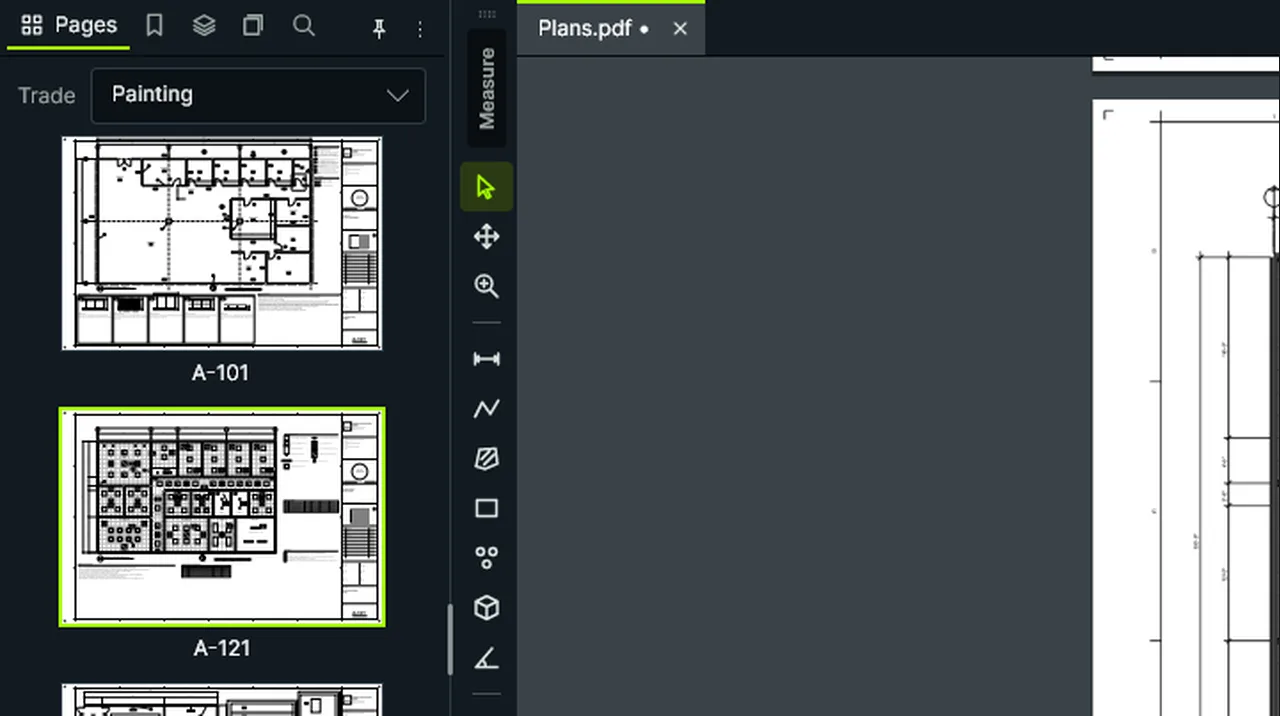
Sheet Check-off: mark each sheet Done or In Progress for a trade; the Pages panel shows it, trade by trade. Screen recording of Kisheet, October 2026. Where to find it. Document > Sheet > Not Started, In Progress, Done or No Scope for the current page. Trades lists the job's trades, one per line. The Pages panel picks which trade the thumbnails show. One undo step each.
Document menu
Sheet menu on thumbnailsCheck off a sheet, edit trades, show sheets with no takeoff, or make it a typical floor, from its thumbnail.Video
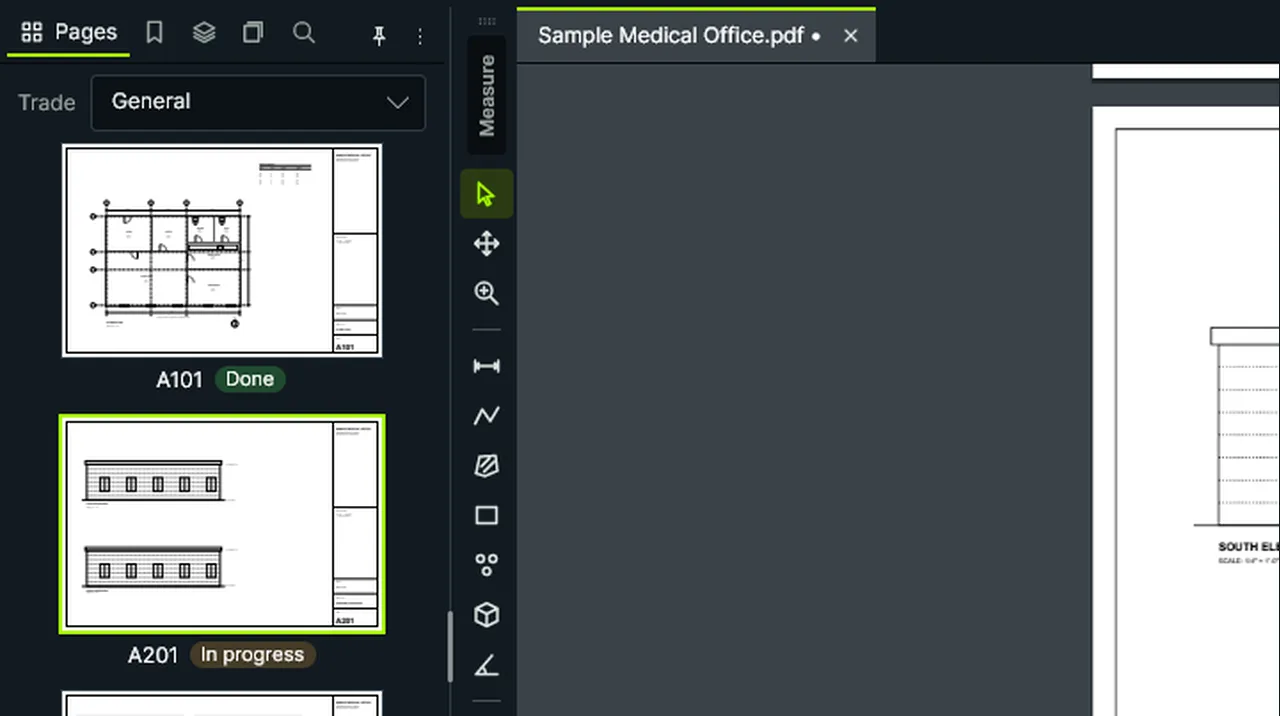
Right-click a sheet in the Pages panel to mark it done or in progress; the thumbnail shows its state. Screen recording of Kisheet, October 2026. Where to find it. Right-click a thumbnail in the Pages panel.
Toolbars, status bar and right-click menus
Sheet number linksPuts a clickable link on every sheet number mentioned in the drawings, so callouts like "SEE A501" jump to that sheet.Video
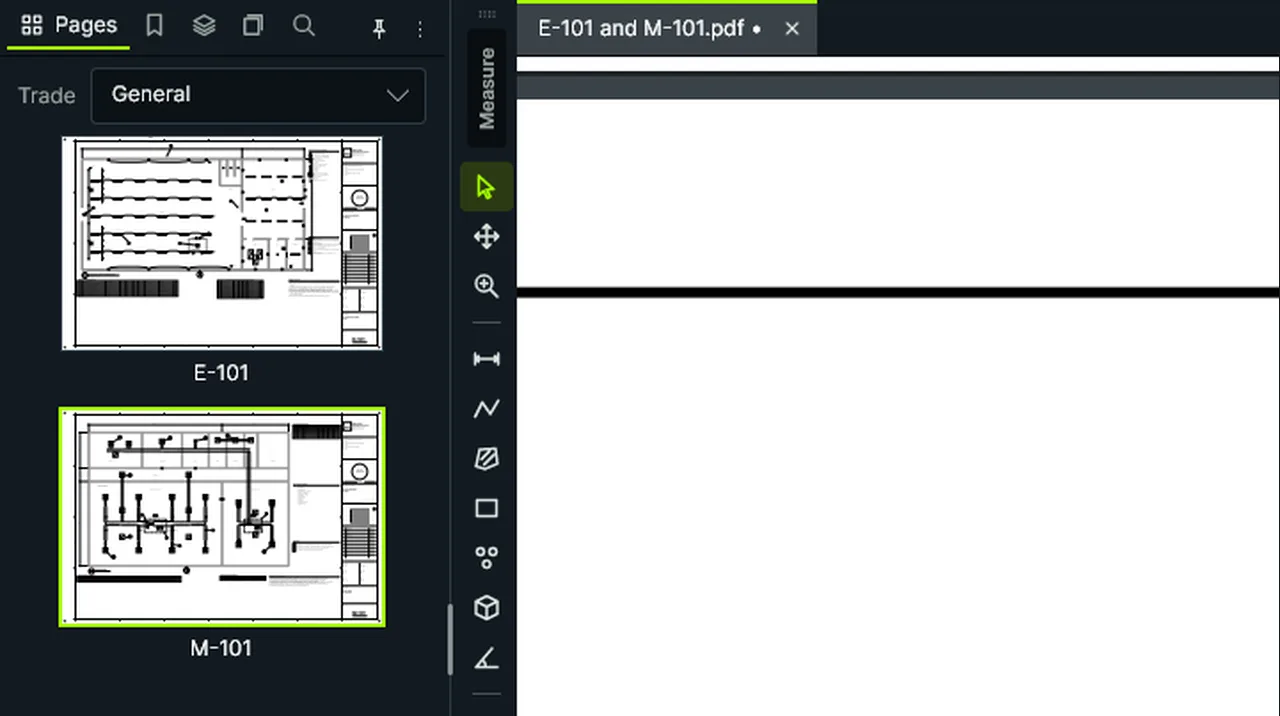
Link Sheet Numbers: every sheet number in the notes becomes a link; click one to jump to that sheet. Screen recording of Kisheet, October 2026. Where to find it. Document > Link Sheet Numbers in This PDF (or the Batch menu). Follow Link with a link selected, or click a link with the Pan tool. Links to web addresses or files open outside Kisheet.
Document menu
Sheet numbers and titles from file namesNames sheets from file names such as "A101 - Floor Plan.pdf", or by typing.Video
Fill Sheet Numbers from File Names: "A-101_Partition_Plan_Level_3.pdf" becomes sheet A-101, Partition Plan Level 3. Screen recording of Kisheet, October 2026. Where to find it. File > Plan Set > Fill Sheet Numbers from File Names reads the number and title from each one-page PDF's name ("A-101_Floor_Plan" becomes A101, Floor Plan). Edit Sheet Number and Title sets them for the sheet picked in the Sets panel.
File menu
Sheet tagsTag sheets ("Level 2", "Bid package B") and list only the sheets with a tag.Video
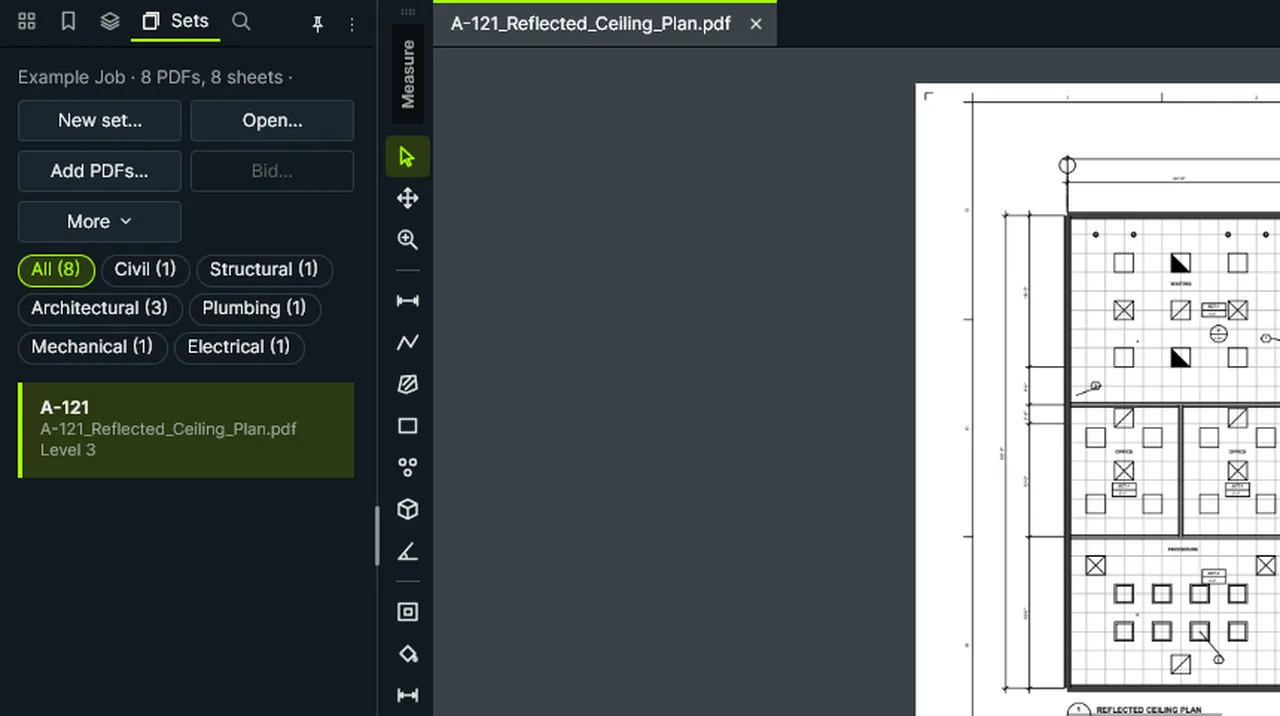
Tag Sheet, then Show Sheets with Tag: the Sets panel lists only the sheets tagged Level 3. Screen recording of Kisheet, October 2026. Where to find it. File > Plan Set > Tag Sheet (comma or semicolon separated); Show Sheets with Tag lists every tag in use, and empty shows all. While a filter is on, the Sets panel says what it's showing. Tags are yours to type; they're never read from the page.
File menu
Sheets with no takeoffMarks the thumbnails of sheets that have no measurements yet, so nothing is missed.Video
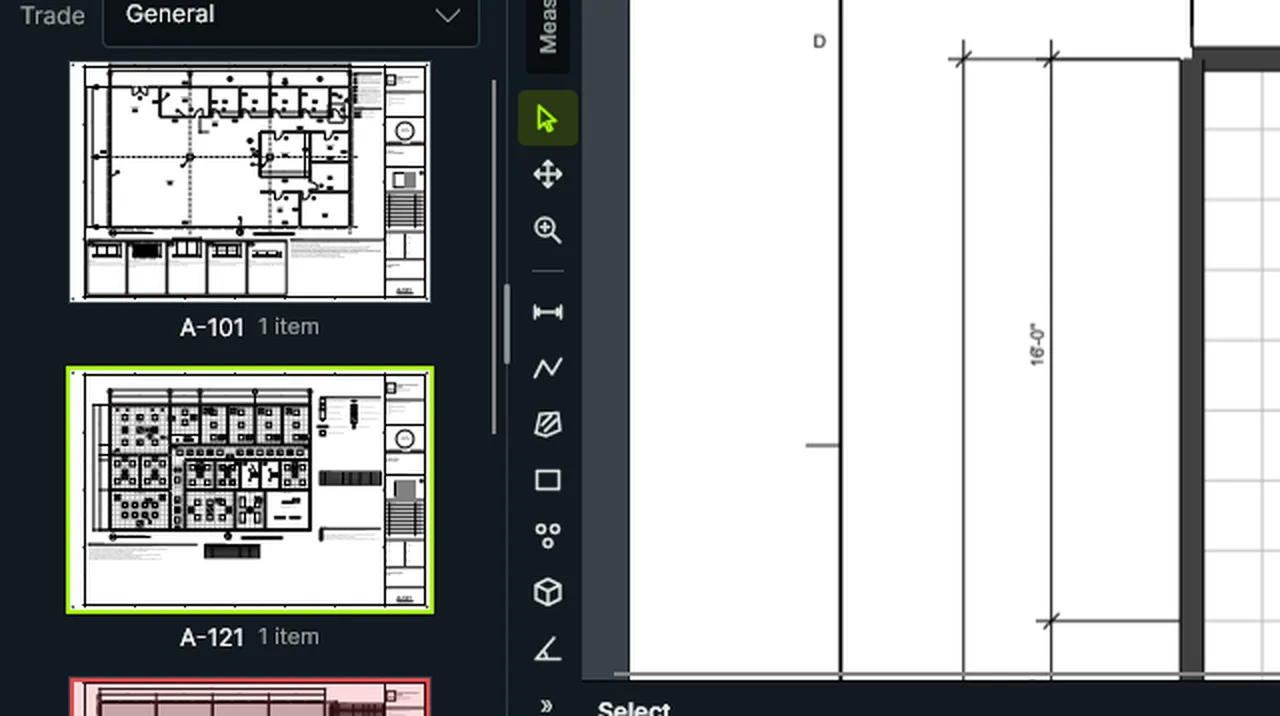
Show Sheets With No Takeoff marks each sheet with nothing measured yet; count on one and its mark goes. Screen recording of Kisheet, October 2026. Where to find it. View > Show Sheets with No Takeoff. The thumbnails also show the current trade's check-off.
View menu
Show MarkupsHides or shows every markup and measurement at once, to see the clean drawing.Video
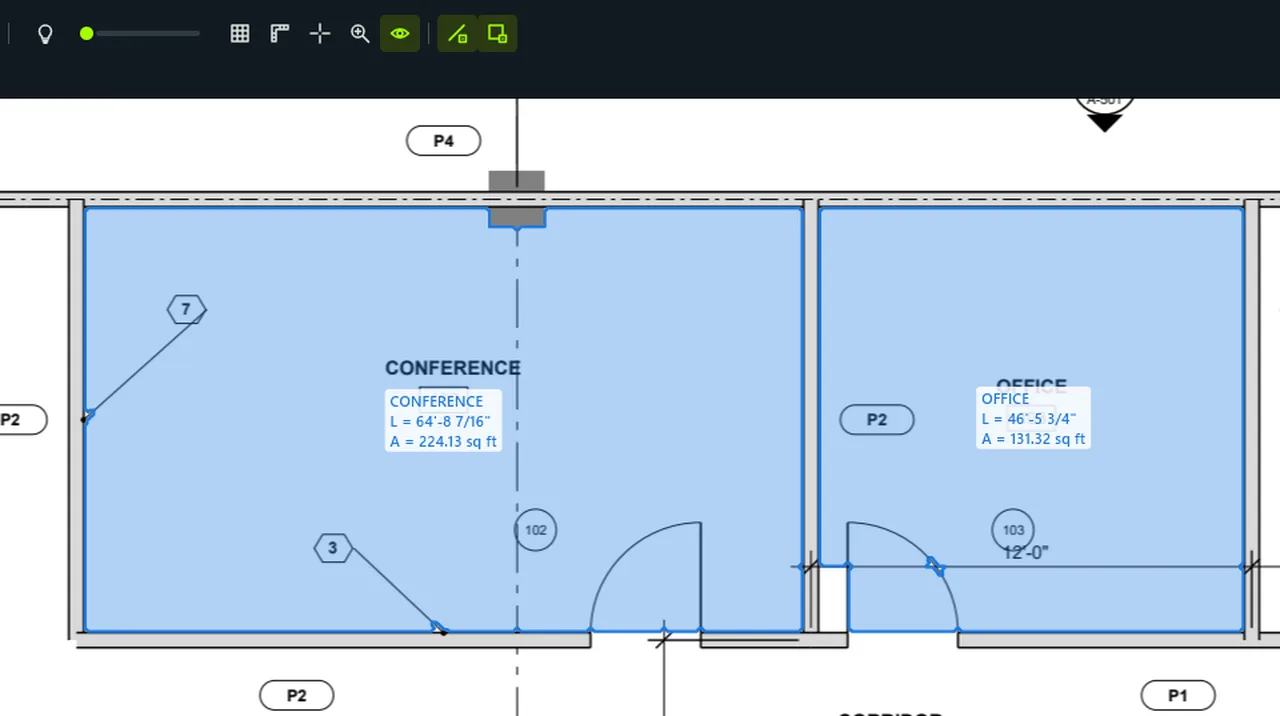
Show Markups hides every markup and measurement, then shows them again. Screen recording of Kisheet, October 2026. Where to find it. View > Show Markups, or the eye on the View toolbar and in the takeoff table's header.
View menu
Show one trade at a timeShows only one subject (or hides one) on the drawing, so you can check that trade is complete. The takeoff and its totals don't change.
Where to find it. Select an item, then right-click > Show Only This Subject or Hide This Subject (also in the View menu). Grouped by Subject, Layer or Bid, click the eye on a group's title row in the takeoff table. An amber chip in the status bar says how many subjects are shown; click it, or View > Show All Takeoff, to see everything again. Printing and exports always include all takeoff.
View menu
Sign and certifySigns or certifies PDFs with a standard digital signature that standard PDF readers can verify, shown on the page or not.Video
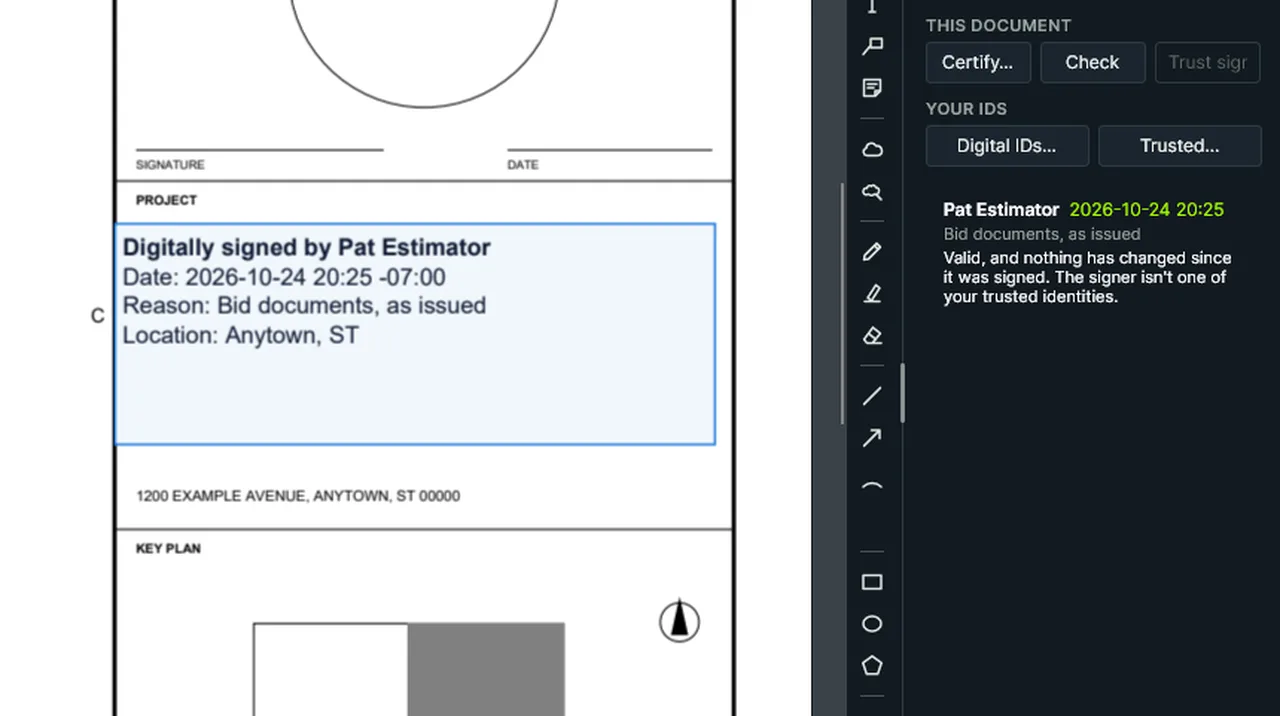
Sign: choose your Digital ID and the reason, drag a box on the sheet, enter the ID's password; the signature shows. Screen recording of Kisheet, October 2026. Where to find it. Document > Signatures > Sign or Certify: choose a Digital ID, the reason, location and contact, the level (sign only, or certify with no changes, form filling and signing, or also comments), and whether it shows on the page (drag a box or click). Unsaved work is saved first and a backup kept.
Document menu
Sign In (company account, optional)Sign in to your company's Kisheet account for company features such as the Bid Board and Documents. Kisheet works fully without it, offline too.
Where to find it. Click Sign In at the right of the title bar. Your browser opens the website's sign-in, then hands back to Kisheet; if it shows an 8-character code instead, click The Website Shows a Code? and type it. Signed in, the title bar shows your initials and company: click it for Open Dashboard in Browser, Signed-in Devices and Sign Out. The sign-in is kept encrypted on this computer and nothing goes online until a company feature is used.
Help menu
Signatures panelWho signed, when, and whether each signature holds.Video
Check Signatures: each signature is checked for who signed and whether it's intact, and you can trust the signer. Screen recording of Kisheet, October 2026. Where to find it. Buttons: Sign, Certify, Check, Trust Signer, Digital IDs and Trusted. The summary says when a signature isn't valid.
Panels
Snap to Drawing, Snap to Markups and the kind of snappingTurns snapping to the drawing's lines and snapping to your other markups on or off, and picks which kind of point to snap to.Video
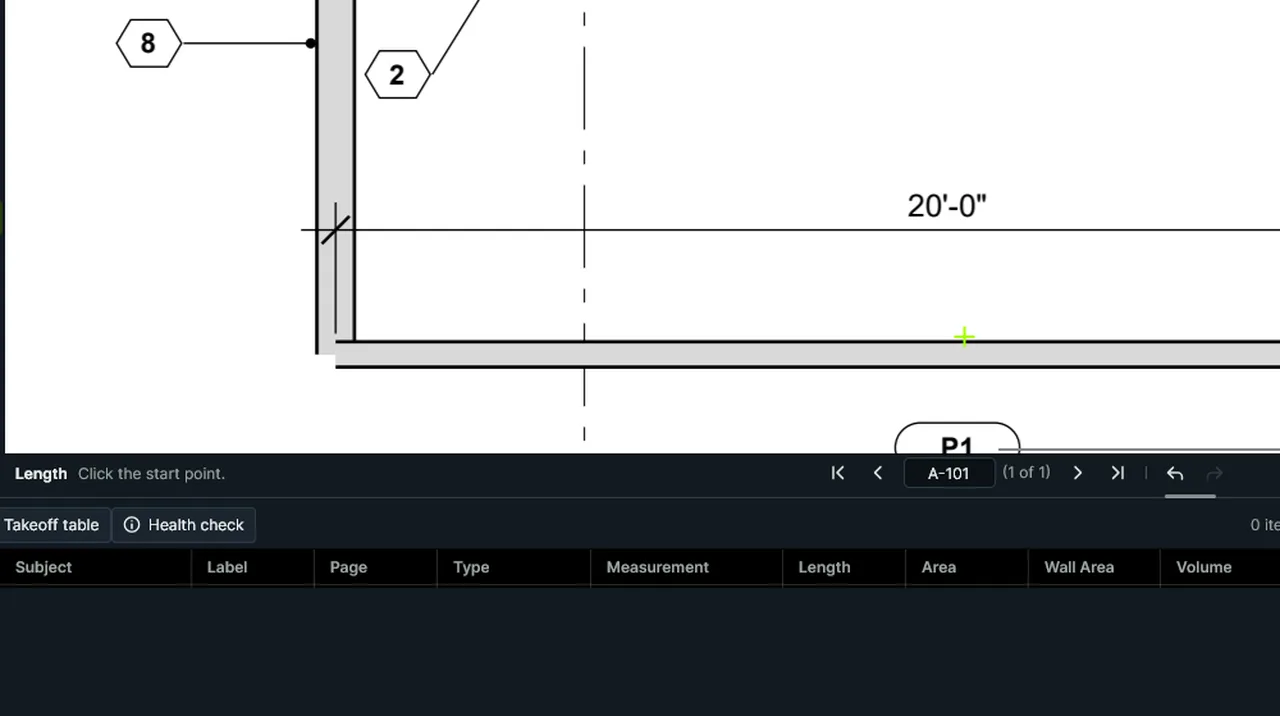
Snap to Drawing: the pointer snaps to ends, intersections and middles; Next Kind of Snapping picks one, or turn it off. Screen recording of Kisheet, October 2026. Where to find it. View > Snap to Drawing (F3) and View > Snap to Markups (Shift+F3), the last two buttons on the View toolbar, and Next Kind of Snapping (Tab while drawing). A notice at the top of the page view names the kind, and adds "markups only" or "the drawing only" when one switch is off.
View menu
Snapping to the drawingWhile you measure, mark up, reshape and move, the pointer snaps to line ends, intersections, midpoints and the nearest point on the drawing's lines and on your markups.Video
Snap to Drawing: the pointer snaps to ends, intersections and middles; Next Kind of Snapping picks one, or turn it off. Screen recording of Kisheet, October 2026. Where to find it. View > Snap to Drawing (F3) turns snapping to the drawing's lines on or off, and View > Snap to Markups (Shift+F3) snapping to your other markups; both are on by default. Dragging a selected item's grip snaps the grip, and moving an item or a selection snaps the grabbed point or the nearest corner, so markups fit together exactly; an item never snaps to itself. While drawing, Tab cycles which kinds snap: all, ends, intersections, middles or nearest. Hold Shift to turn snapping off for one point and keep the line to 45 degree steps. Snapping to the drawing works on PDFs drawn from CAD; a scanned page has no lines to snap to.
Foundations
SnapshotCopies part of the drawing, such as a detail or a schedule, to paste elsewhere as a crisp copy.Video
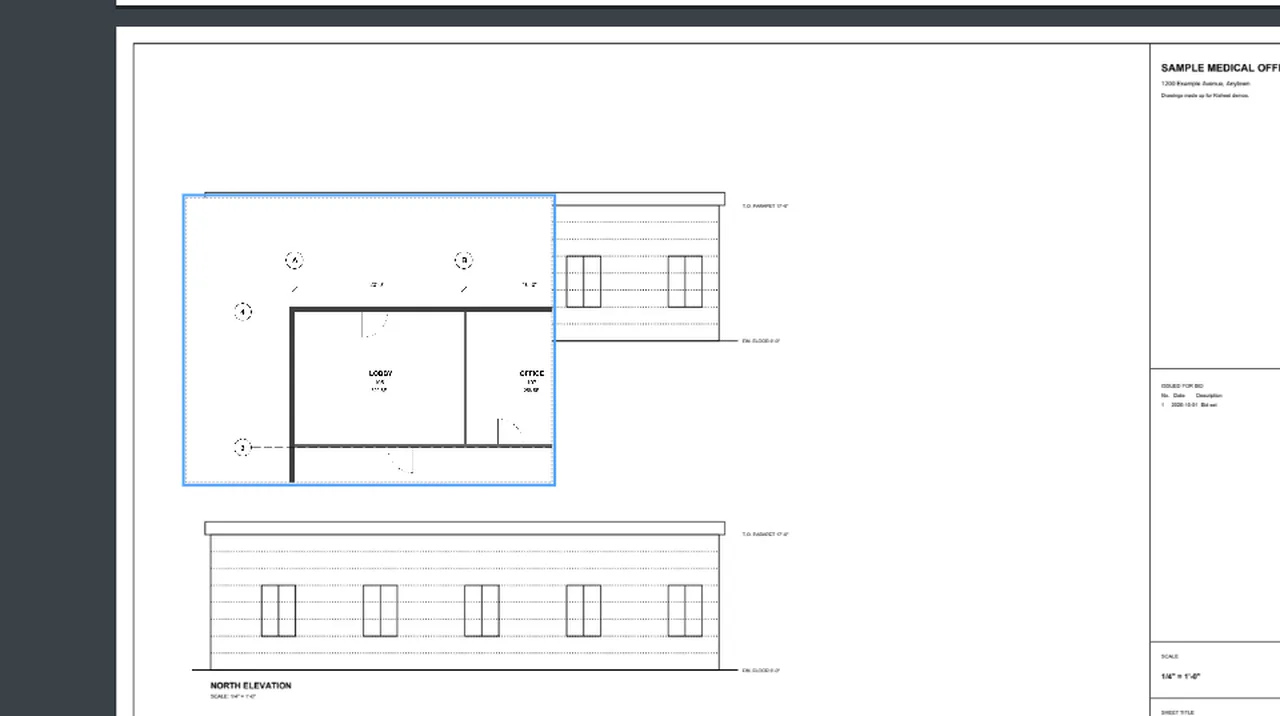
Snapshot: click two corners around part of the plan, go to another sheet, and Paste puts the picture there. Screen recording of Kisheet, October 2026. Where to find it. Edit > Snapshot (also on the Markup toolbar), drag around the area, then paste (Ctrl+V) on any page of this PDF or another.
Edit menu
SpacesName the rooms and zones of a sheet; every measurement inside one is reported under that space in the table, summaries and bid outputs.Video
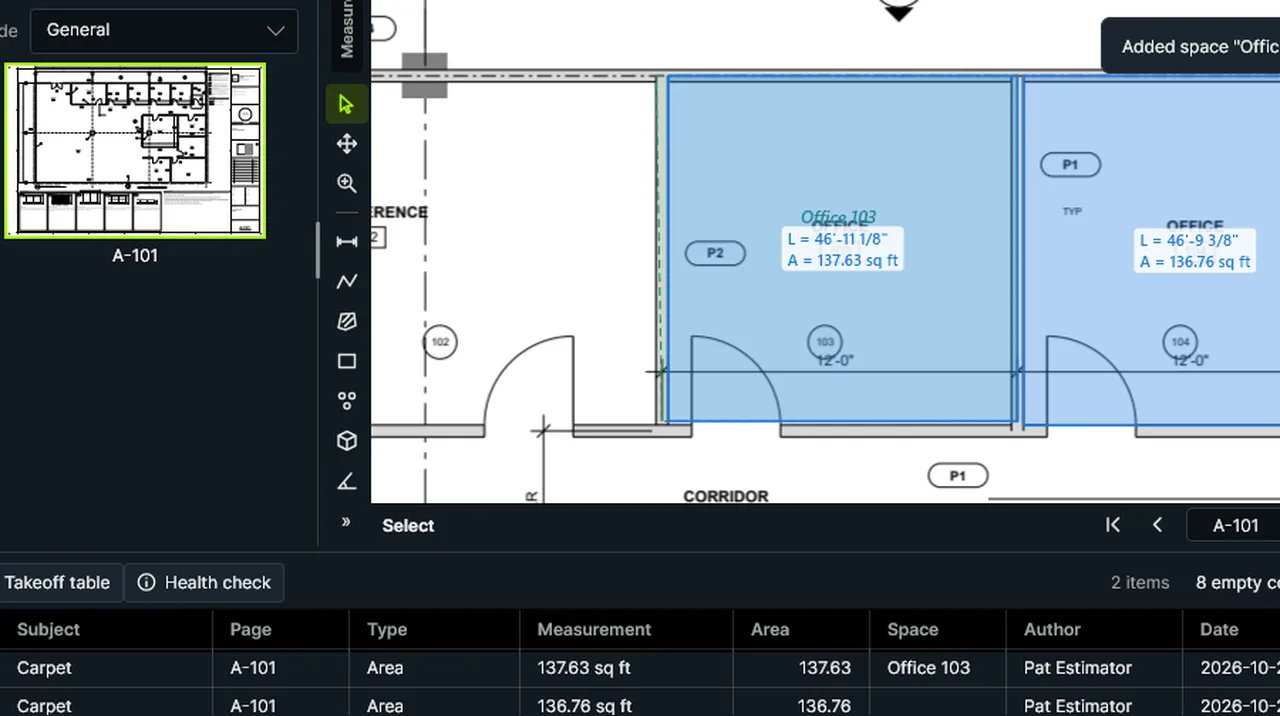
Space: click around the room and name it; the measurements inside are reported under that space. Screen recording of Kisheet, October 2026. Where to find it. Tools > Spaces > Space: draw the outline (click corners or drag a rectangle), then name it. The Spaces panel lists them; Rename Space, Select Items in Space, Typical Unit and Delete Space act on the one picked there. An item that crosses two spaces counts in the one holding most of it, and the health check lists it so you can split it if each space needs its share.
Tools > Spaces, Trade Tools, Tool Sets, Custom Columns
Spaces panelThe sheet's rooms and zones; group the table by Space to total them.Video
Space: click around the room and name it; the measurements inside are reported under that space. Screen recording of Kisheet, October 2026. Where to find it. Add Space, Rename, Select Items, Typical Unit and Delete. A space's typical-unit count shows beside it.
Panels
Spec booksBookmarks project manuals by division and section, and pulls one trade's sections, with Division 01 and the general notes sheets, into a single PDF.
Where to find it. Bid > Specifications > Add Spec Book, Bookmark Spec Books by Section, and Extract My Trade's Spec Sections (tick the sections). Sections are found where a page starts "SECTION 09 21 16" or similar, and bookmarks are grouped by MasterFormat division.
Bid menu
Speed keys for measuringSpace brings back the last tool, keys 1 to 9 pick the active tool set's tools, and a right-click finishes what you're drawing.Video
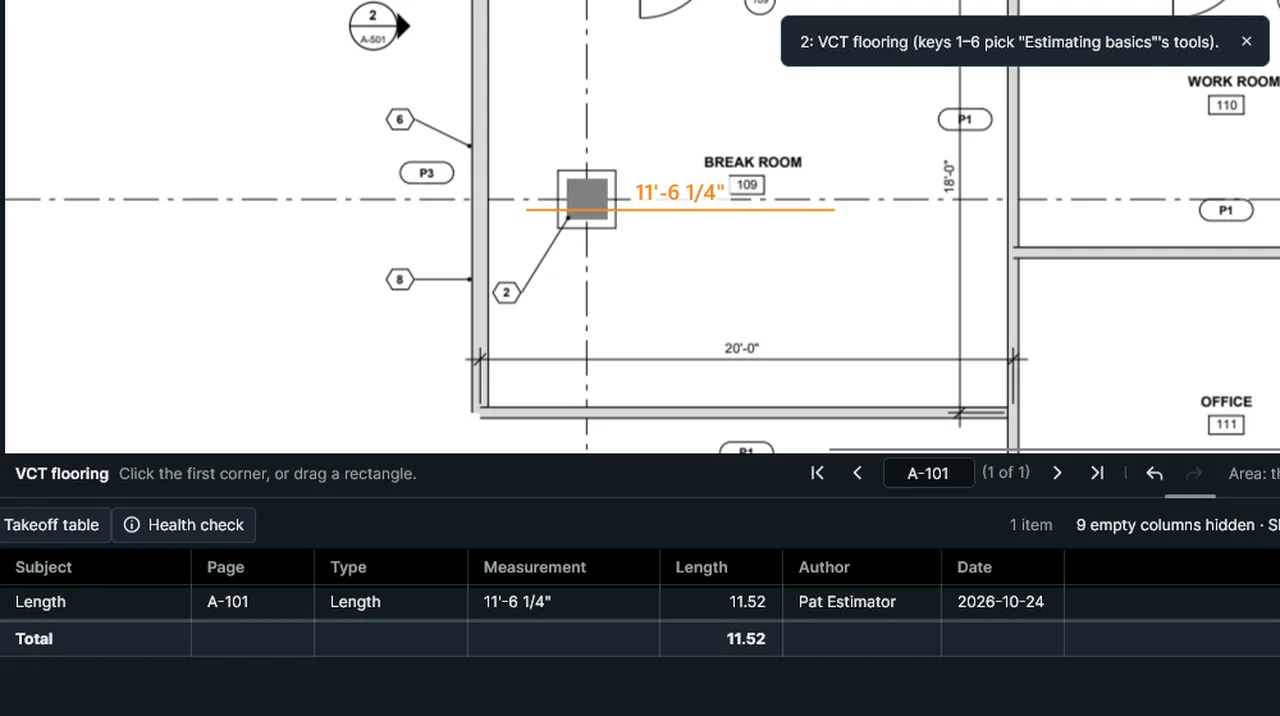
Speed keys: Space brings back the last tool, and the keys 1 to 9 pick the active tool set's tools. Screen recording of Kisheet, October 2026. Where to find it. Tap Space (or press Enter with no tool) to repeat the last tool (Tools > Repeat the Last Tool). Keys 1 to 9 pick the first nine tools of the active tool set. Right-click finishes the item being drawn.
Tools > Measure
Spell CheckChecks the spelling of every text markup and note with Windows' own spell checker.Video
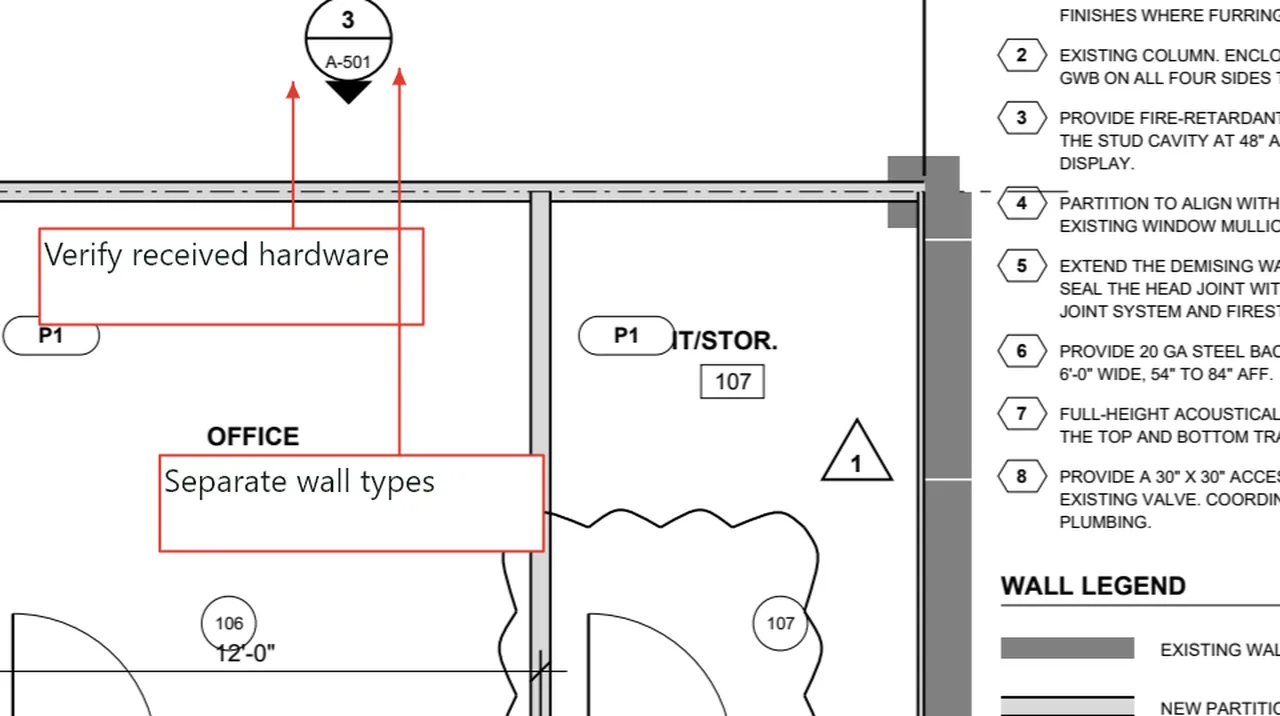
Spell Check: each misspelled word in your markups is shown with a suggestion; Change fixes it. Screen recording of Kisheet, October 2026. Where to find it. Edit > Spell Check (F7). For each word: Change, Change All, Ignore, Ignore All, Add to Dictionary or Close. All changes are one undo step. Labels and stamps aren't checked.
Edit menu
Split an area along a lineCuts an area into pieces along a line, each piece keeping everything about the original.Video
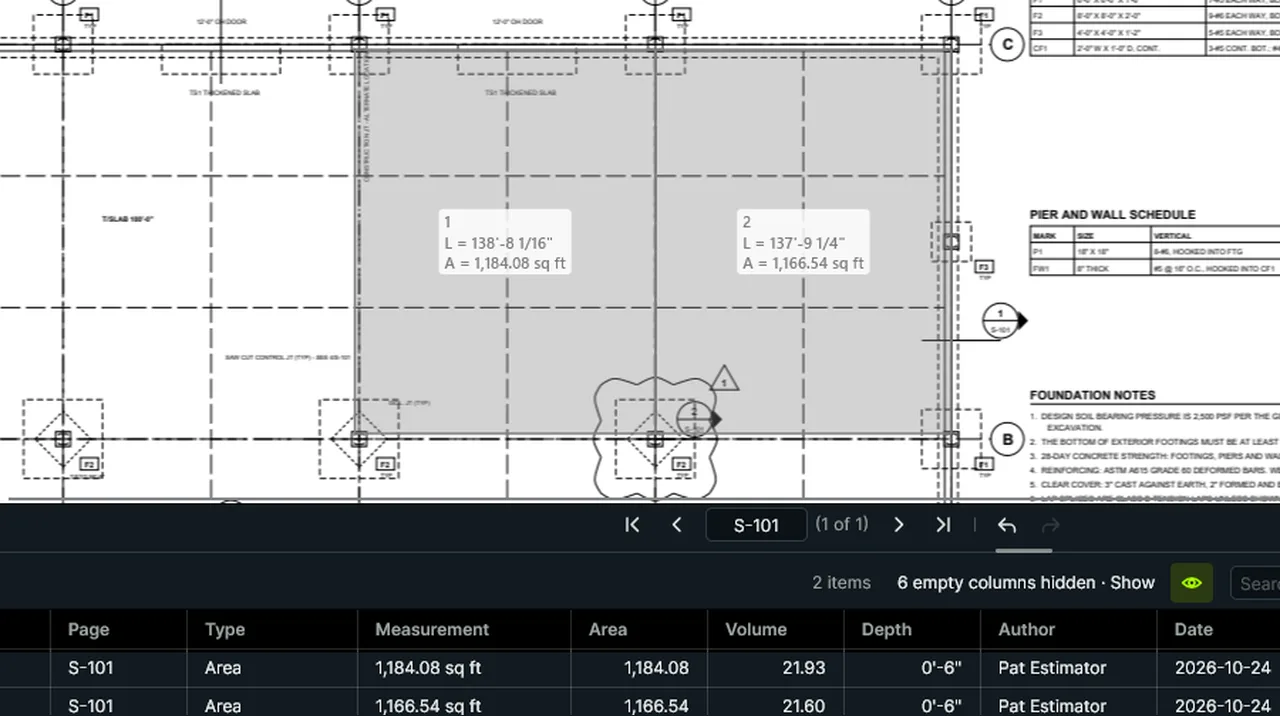
Split Area Along a Line: pick the slab, click two points across it, and it becomes two pours. Screen recording of Kisheet, October 2026. Where to find it. Select one area or volume, choose Tools > Measure > Split Area Along a Line, then click two points of the line. One undo step.
Tools > Measure
Split into filesBreaks a PDF into files of a set number of pages, or at its bookmarks.Video
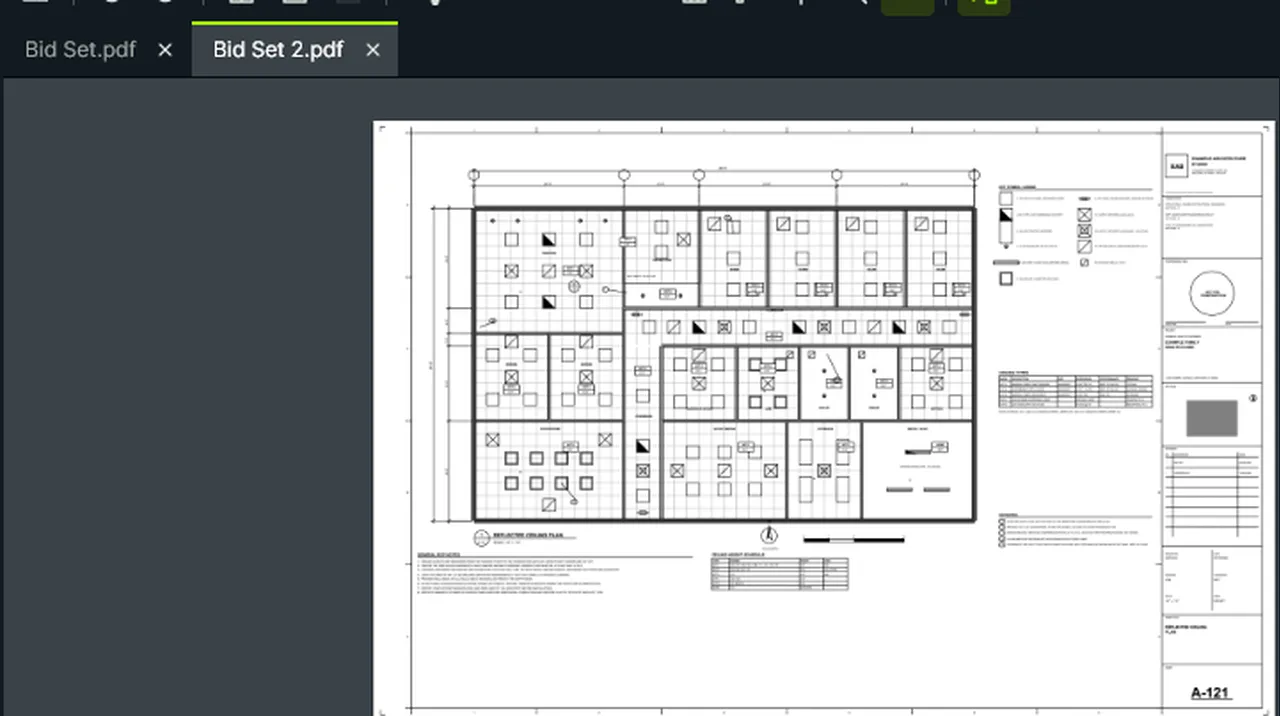
Split into Files: one page per file by default, saved next to the PDF; here the second one opened. Screen recording of Kisheet, October 2026. Where to find it. Document > Pages > Split into Files (pages per file, one by default) or Split at Bookmarks; also on the Batch menu. The files are saved next to the PDF.
Document menu
Split viewTwo panes: two places in the same drawing, or two documents, each with its own zoom and scroll.Video
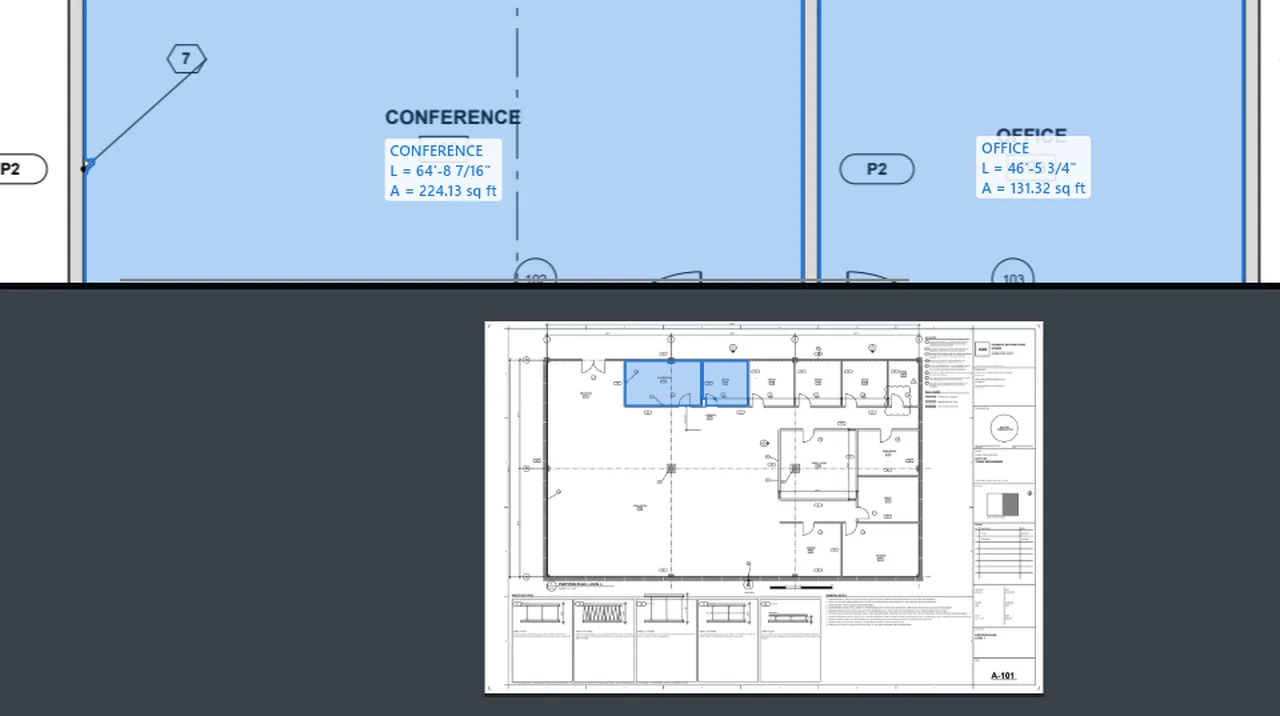
Split Side by Side shows the PDF twice, each pane at its own zoom; Split Top and Bottom stacks them. Screen recording of Kisheet, October 2026. Where to find it. View > Side by Side (Ctrl+2), Top and Bottom (Ctrl+Shift+2), Split with Another Document (again cycles through the open documents) and No Split; a dot marks the one in use. You can measure and mark up in either pane. Each pane scrolls on its own.
View menu
StampsApproval stamps with your name and the date filled in, built in or your own.Video
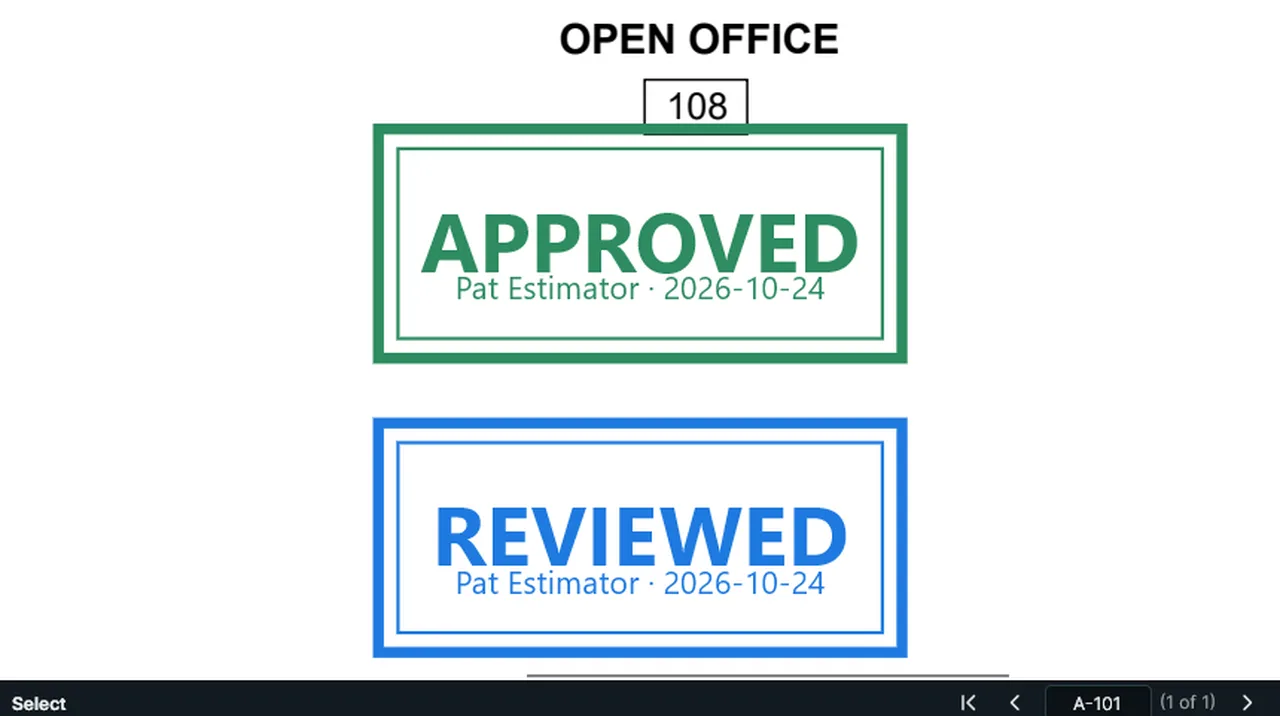
Stamp: drag to place Approved, then Reviewed; your name and the date are filled in. Screen recording of Kisheet, October 2026. Where to find it. Tools > Markup > Stamp, or pick one from the stamp picker on the Tool Settings bar, then click or drag. Built in: Approved, Reviewed, Rejected, Draft, Void and the review stamps, plus Revision, which shows the sheet's current revision from its plan set's drawing log ("REV 2" over the date) and asks for it on a sheet that was never issued. Make your own in Preferences > Stamps, with fields such as {date}, {user}, {page} and {rev}.
Tools > Markup
Standard formatsKisheet reads and writes standard formats: PDF with passwords, XFDF markups and form data, Excel .xlsx, CSV, HTML and XML reports, PNG and JPEG pages, CAD hatch patterns, Digital IDs and plan-room zips.Video
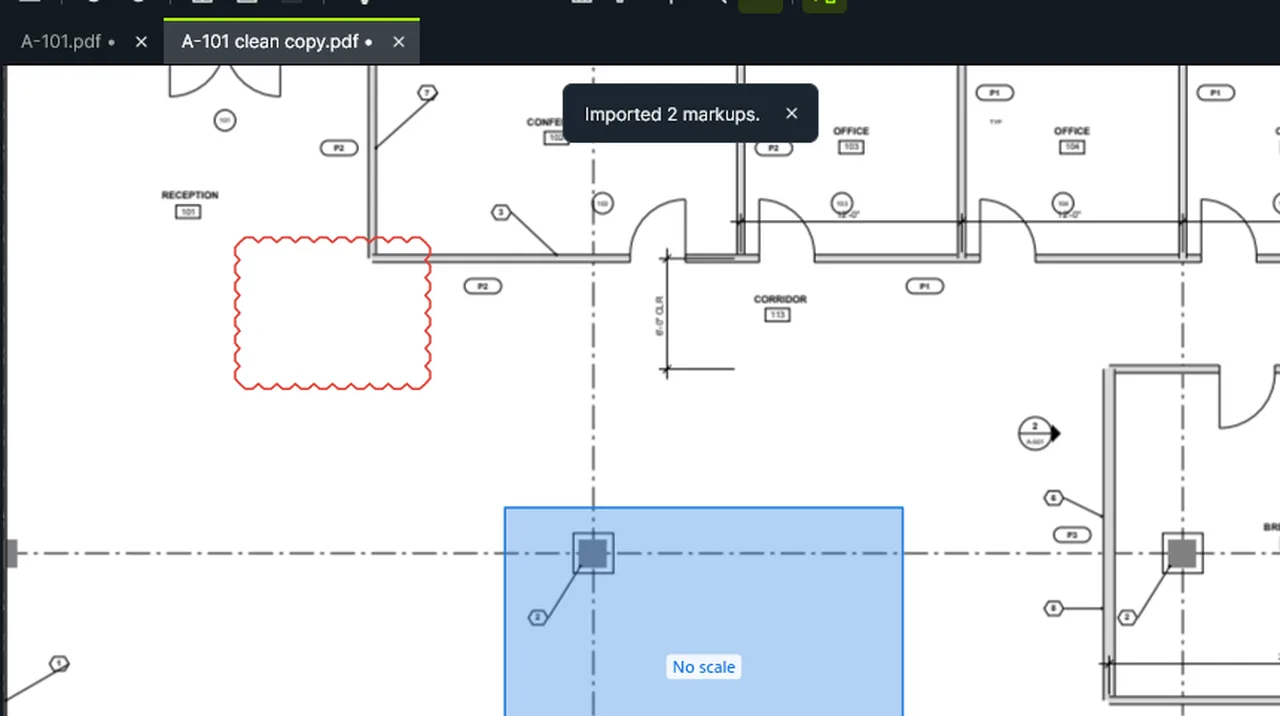
Standard formats: markups exported as XFDF, then imported into a clean copy of the sheet, come back as drawn. Screen recording of Kisheet, October 2026. Where to find it. Excel files are read and written by Kisheet itself, so Excel doesn't have to be installed.
File formats and what's saved where
Status barThe tool in use and what to do next, the page, the scale and units, the page size, the zoom, the pointer's position, the live measurement and the running total.Video
Status bar: click the units to step to decimal feet, type a page in the page box, and a zoom in the zoom box. Screen recording of Kisheet, October 2026. Where to find it. Type a page in the page box or a percentage in the zoom box and press Enter. Click the scale to set it ("No scale" is highlighted) and the units to step through them. While measuring, the running total shows what the tool has drawn on this sheet and in the whole job. Window > Status Bar (F8) hides it.
Toolbars, status bar and right-click menus
Sub bid leveling sheetA workbook with the job's scope down the side and each bidder across, to level subcontractor bids.Video
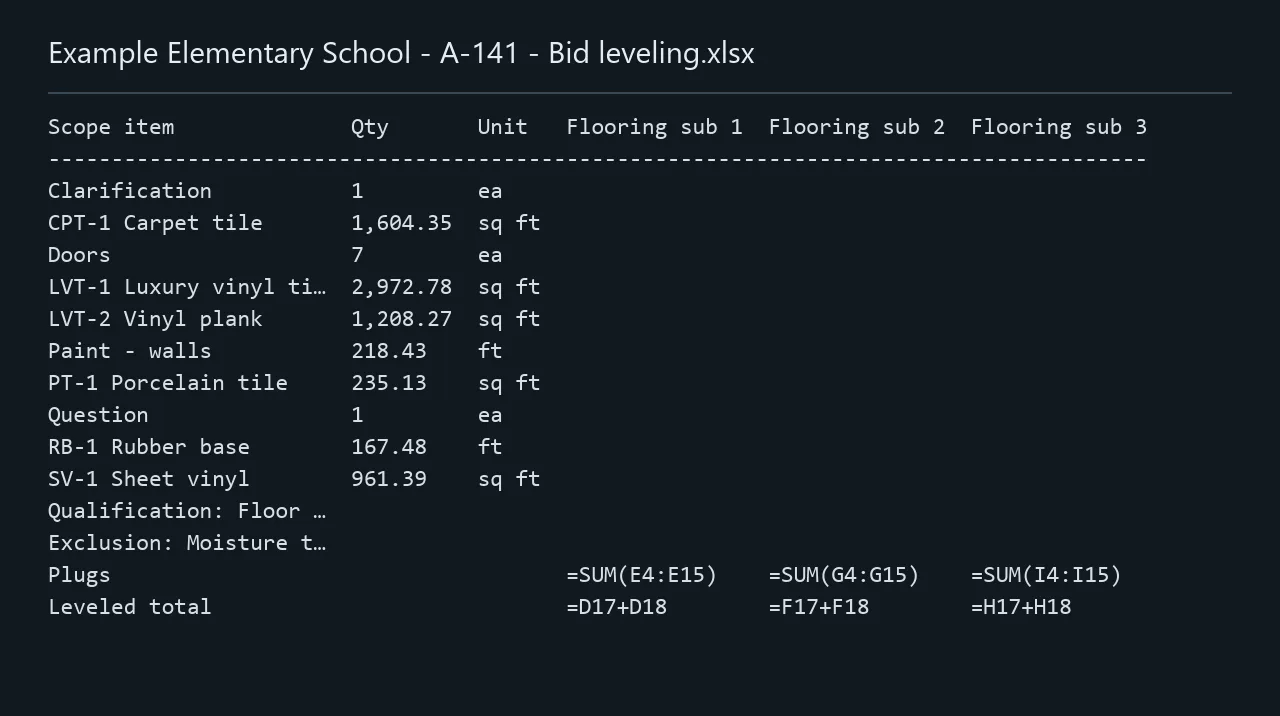
Sub Bid Leveling Sheet: type the bidders, and get a workbook with the job's scope down the side and each bidder across. Screen recording of Kisheet, October 2026. Where to find it. Bid > Outputs > Sub Bid Leveling Sheet, then type the bidders, one per line. Each bidder gets a status for each scope line (Included, Excluded, Not addressed or Qualified) and a plug amount, and the leveled totals are Excel formulas.
Bid menu
Submittal reviewReview a submittal in place: stamp it Approved, Approved as noted, Revise and resubmit or Rejected with the reviewer and date, send back a flattened copy, and keep a log.Video
Stamp Submittal: the page stamped Approved as noted with the reviewer and date, then the Submittal Log. Screen recording of Kisheet, October 2026. Where to find it. Bid > After Award > Submittals and pick the action for the page shown; Return Submittal (Flattened Copy); Submittal Log (Excel and PDF).
Bid menu
Summary reportsA one-click summary of the takeoff as PDF, HTML, CSV or XML: quantities by subject, typical floors, bids, order quantities, roof edges, custom-column totals and every item.Video
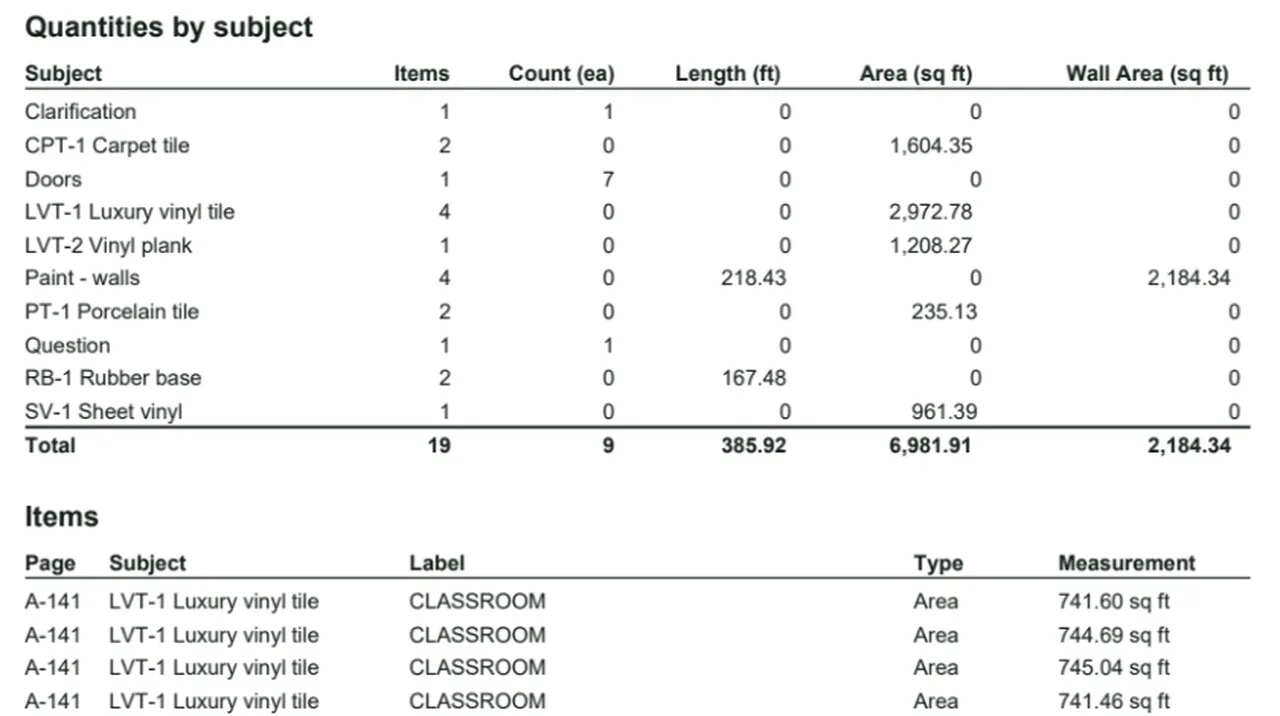
Summary Report: the takeoff's quantities by subject and every item, in one click, here as a PDF. Screen recording of Kisheet, October 2026. Where to find it. File > Export > Summary Report and pick the format; also on the table's export menu, Tools > Batch Jobs > Summary Report for many files at once, and Script Flows.
File menu
Takeoff Health CheckOne click checks for common takeoff mistakes (missing scales, stray clicks, duplicates, overlaps, outliers, rooms counted twice on overall and enlarged plans, wrong scales, unchecked sheets) and links each to its items.Video
Takeoff Health Check lists likely mistakes; click one to go to its sheet with its items selected. Screen recording of Kisheet, October 2026. Where to find it. Bid > Takeoff Health Check. The Health Check panel lists the findings as Problem, Check or Note; click one to go to its sheet with its items selected. It stays current while the panel is open, and it never changes anything.
Bid menu
Takeoff tableEvery measurement and markup as a row with its quantities, grouped, filtered, sorted and totaled, editable in place, for this page, this PDF or the whole plan set.Video
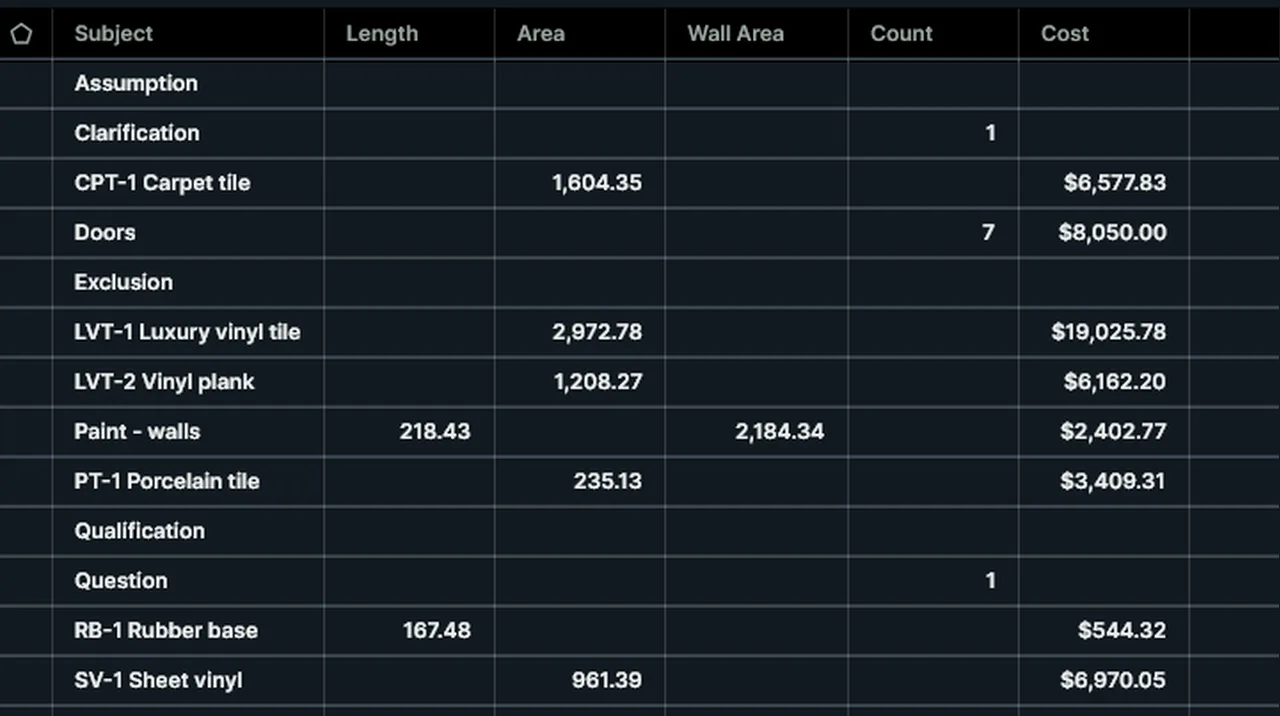
Takeoff table: every measurement as a row; group by Subject for subtotals, or fold it to Totals only. Screen recording of Kisheet, October 2026. Where to find it. Window > Panels > Takeoff Table (Alt+L), or in its own window. Search; This Page; Whole Set (with a Document column); group by Subject, Page, Type, Layer, Space, Scale, Bid or Typical with subtotals; filter types and subjects; Columns; the export menu. Click a header to sort, double-click a row to go to the item, and type in custom columns to edit them.
Panels
Taking over other apps' markupsMarkups another PDF app saved become Kisheet items you can select, edit and total; measured areas and lengths become takeoff at their own scale.
Where to find it. It happens when you open the PDF; the file changes only when you save. Document > Take Over Other Apps' Markups does the same for markups added since, every page at once, as one undo step. Subject, author, dates, label, colours, layer, groups and replies come along. Saving takes the originals off the page so nothing shows twice; Undo puts them back, even after a save. Stamps and attachments stay as they were. Kisheet's own markups are saved as standard annotations, so other PDF apps show its areas and lengths as measurements.
Document menu
Text boxes, callouts and typewriter textTyped notes on the drawing: a box of text, a callout with a leader pointing at something, or borderless typewriter text.Video
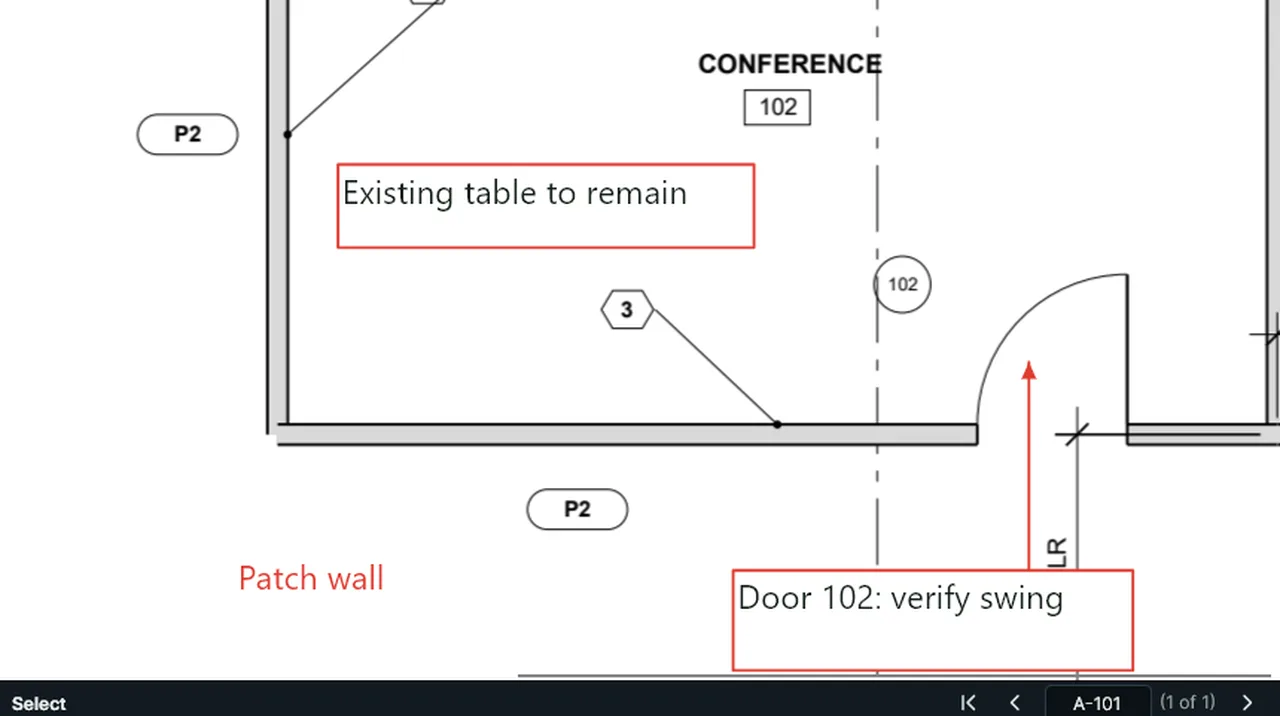
Text Box: drag a box and type. Callout: click the spot, then where the text goes. Typewriter: click and type. Screen recording of Kisheet, October 2026. Where to find it. Tools > Markup > Text Box (Shift+Alt+T), Callout or Typewriter, also on the Markup toolbar. For a text box or typewriter text, drag a box (or click for the usual size) and type on the page. For a callout, click the spot to point at, then where the text goes. The font, size, colors and border come from the Style toolbar and Properties.
Tools > Markup
The built-in toolbarsEight toolbars come with Kisheet (File, Style, Measure, Markup, Text Markup, View, Navigate and Arrange); each can be moved, floated, resized, labeled and customized.Video
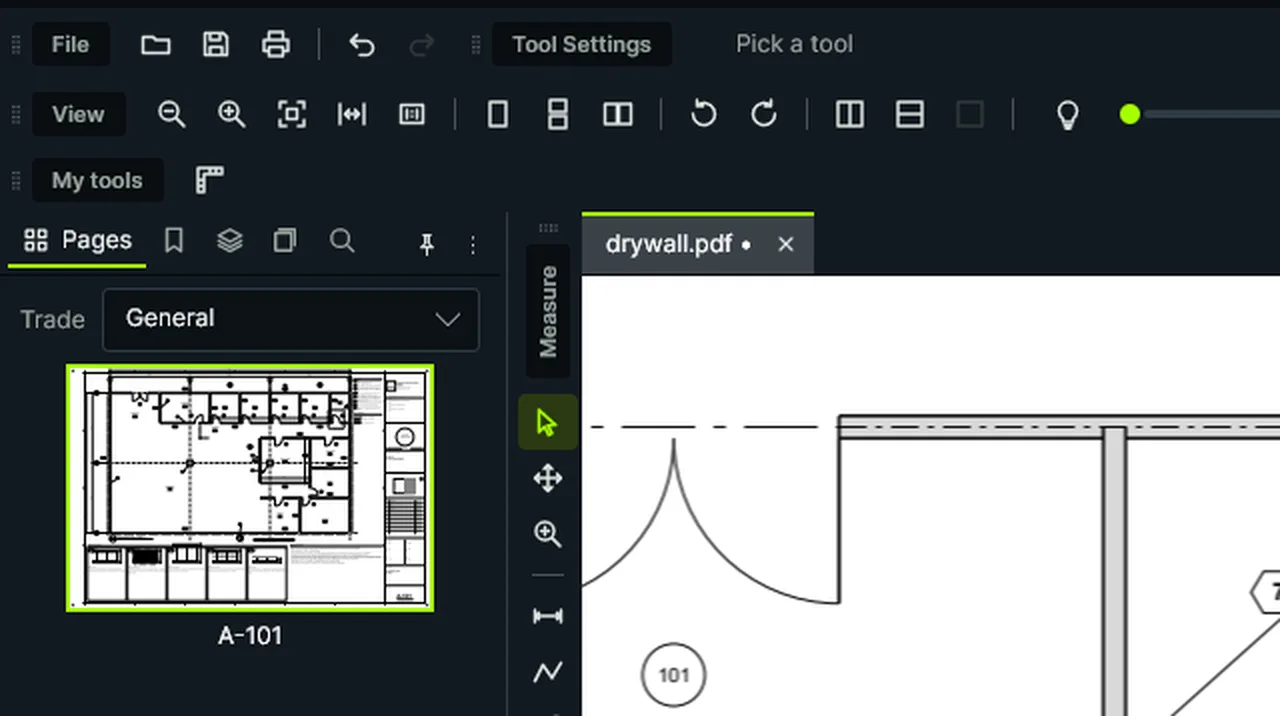
Right-click a toolbar for New Toolbar, find Rulers, Add it, and your toolbar shows its button. Screen recording of Kisheet, October 2026. Where to find it. Right-click a toolbar to customize it: add any command, choose the icon size, show labels, reset it. Tools that make the same kind of thing share one button, a tool group, marked with a small triangle in its corner: click it to use the tool it shows (the one used last), and click it again, click the triangle, right-click it or hold it down for the list of the group's other tools. Customize lists the groups under Tool groups, and Ungroup puts a group's tools back as buttons of their own. The Style toolbar edits the look of the selection or the next items drawn, and remembers each tool's look.
Toolbars, status bar and right-click menus
The menu barEight menus in the usual Windows order, every command in one of them, and every item reachable from the keyboard.
Where to find it. Press Alt and an underlined letter to open a menu, then the item's underlined letter to run it. Things that go together share a submenu (Document > Pages, Tools > Scale, Bid > After Award > Punch List). A dot marks the choice in use where only one can be (page layout, split, dimmer level); a check box marks a setting that's on. Shortcuts are written as they are on the keyboard, such as Ctrl++ and Ctrl+'. Window lists the open documents at its end.
Toolbars, status bar and right-click menus
The takeoff is saved inside the PDFYour takeoff and markups are saved in the PDF itself, as standard PDF annotations, so the PDF is the whole project and other PDF viewers can see and measure the markups.Video
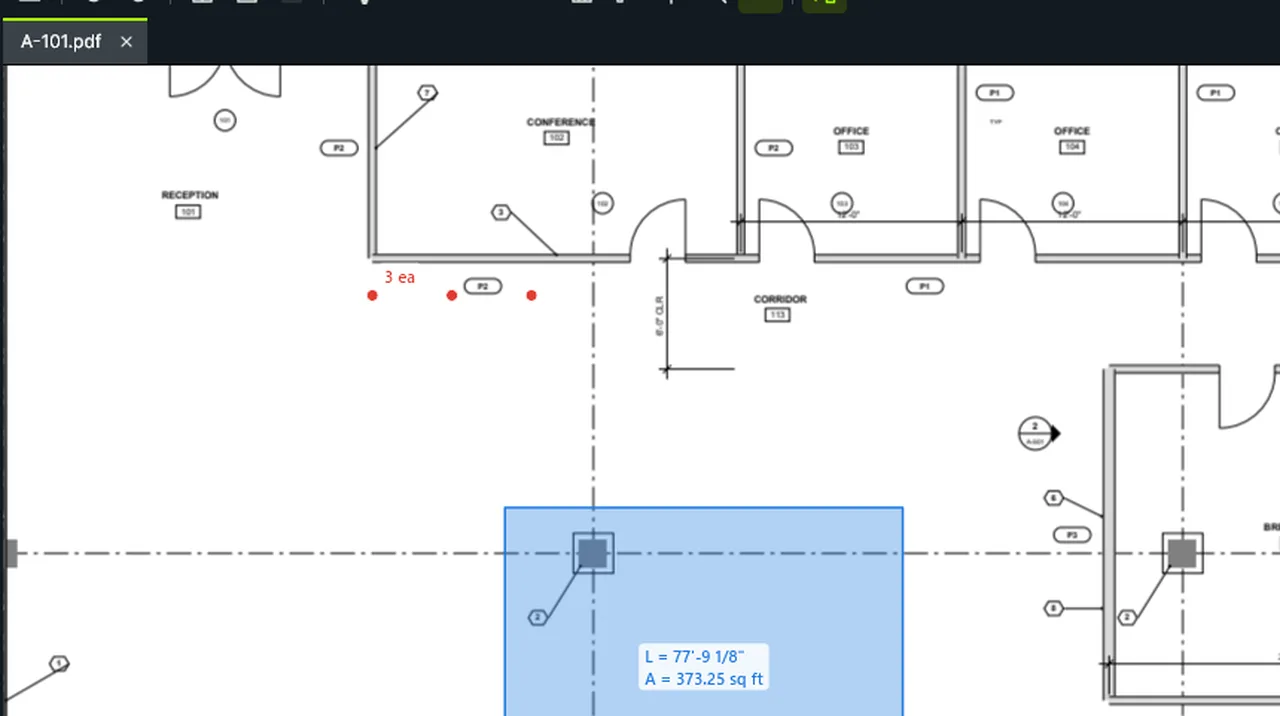
Saved in the PDF: the takeoff is saved into the PDF itself; close Kisheet, open the PDF again, and it's all there. Screen recording of Kisheet, October 2026. Where to find it. Save with File > Save (Ctrl+S) or Save All (Shift+F2). Each save is added to the end of the file, so earlier versions and any digital signatures stay intact. With backups on (Preferences > General, on by default) a copy is kept before each save, the newest five by default. A damaged PDF must be repaired first (Tools > Batch Jobs > Repair).
Foundations
The window at any sizeThe drawing keeps most of the window on any screen: the title bar gives way before the menus do, panel groups keep to their share, and panel tabs stay on one row.Video
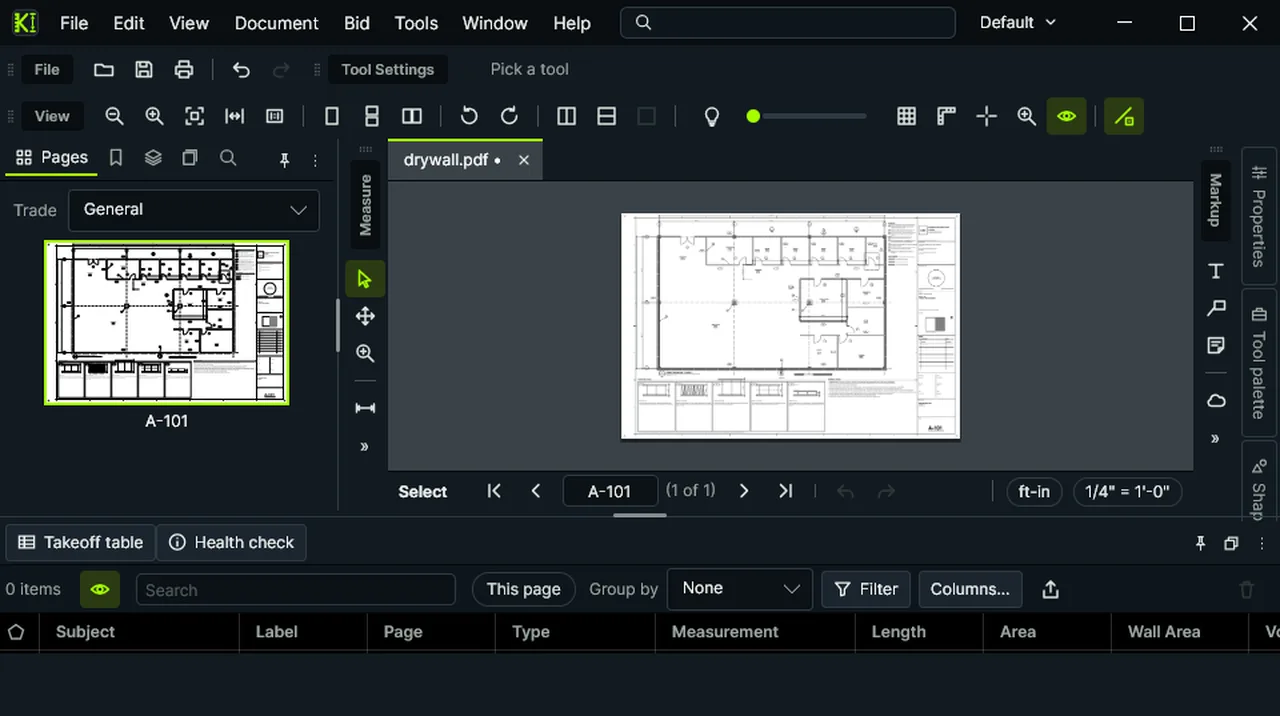
As the window narrows, the wordmark goes, then the search box's label and the word Workspace; every menu still fits. Screen recording of Kisheet, October 2026. Where to find it. On a narrow window, Find a Command shrinks to its icon and the word "Workspace" and the wordmark go, so every menu still fits. Side panels take at most about a quarter of the width and the bottom panel about a quarter of the height, and get their size back on a bigger window. Toolbars that don't fit fold into ».
Toolbars, status bar and right-click menus
ThemesDark and light themes plus your own: duplicate one, change any color with a live preview and a contrast check, and share it as a file.Video
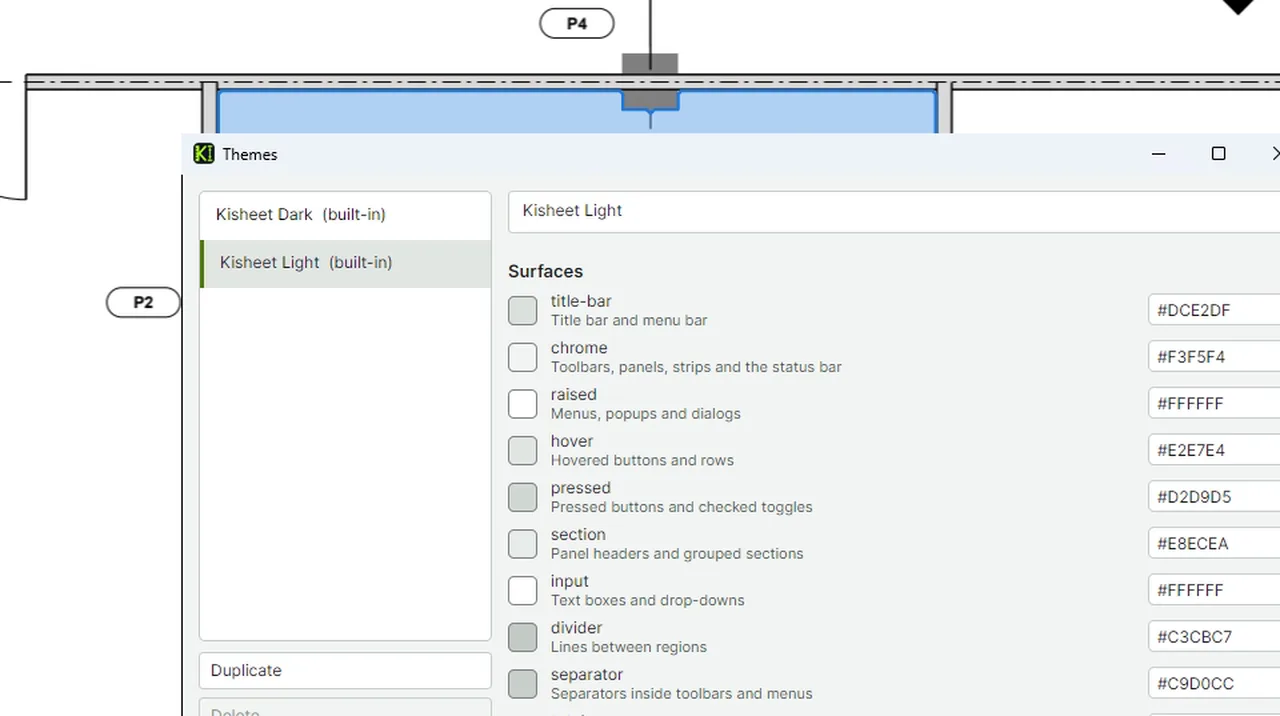
Themes: the theme manager lists the themes; pick Kisheet Light, Use this theme, and Kisheet repaints in light. Screen recording of Kisheet, October 2026. Where to find it. View > Theme lists the themes; View > Theme > Manage Themes opens the theme manager: Use This Theme, Duplicate, Save, Delete, Import and Export. The built-in themes can't be changed.
View menu
Time on this jobTracks how long you've actively worked on each job in Kisheet, saved with the takeoff.Video
Time on This Job: Kisheet counts the minutes you spend actively working on the drawing, and says how many. Screen recording of Kisheet, October 2026. Where to find it. Bid > Time on This Job shows the total and this session's time ("3 h 12 min on Plans.pdf so far, 40 min this session").
Batch menu
Tool setsSaved tools that draw with everything set (subject, look, depth, height, slope, multiplier, layer, custom values, and trade settings such as rebar, rolls, duct and order quantities), organized in sets, with a set for each of 18 trades, searchable, with your recent tools on top.Video
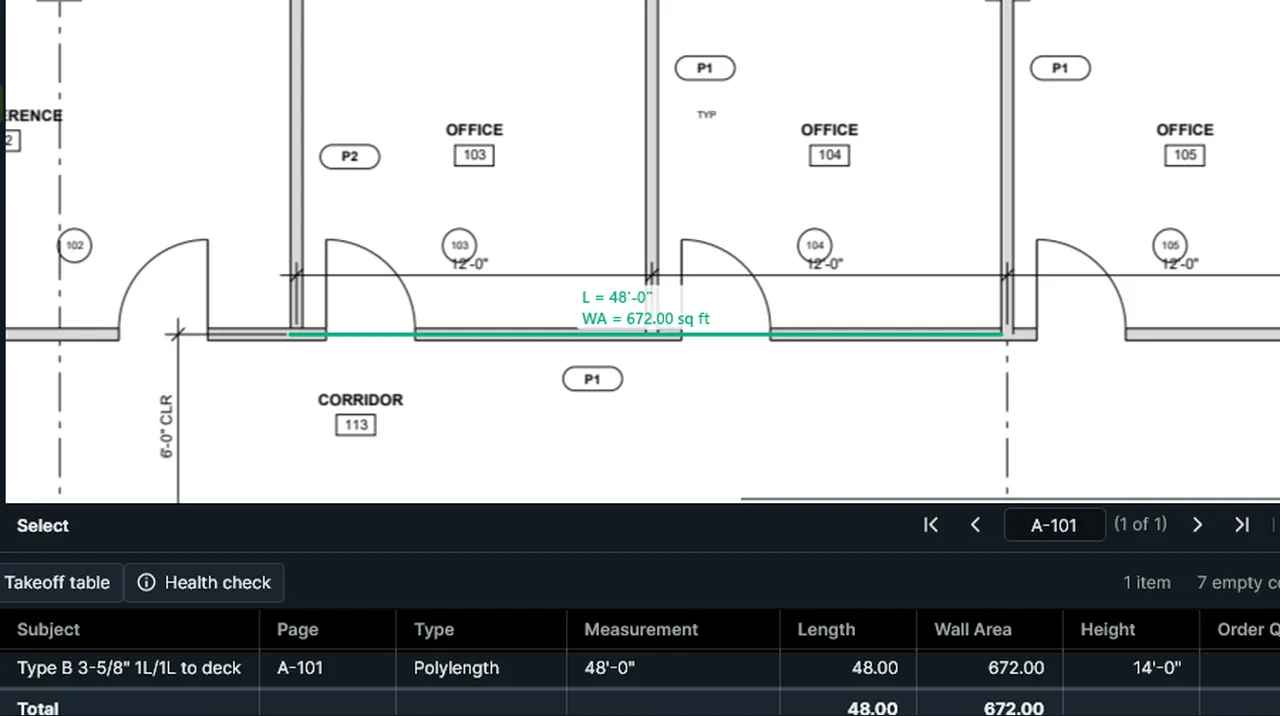
Tool palette: search the trade tool sets, pick a ready-made partition and draw; its height comes with it. Screen recording of Kisheet, October 2026. Where to find it. In the Tool sets panel, pick a tool and draw. The picker under the panel's heading shows all tools or one set, such as Concrete or Plumbing; each trade's set comes with typical presets, like a 4-inch slab with its rebar and yards to order. Type in its search box to filter; Recent shows the last six tools used; keys 1 to 9 pick the active set's first nine tools. Tools > Tool Sets > Manage Tool Sets renames, adds, copies, deletes, moves, imports and exports sets. Add Selection to Tool Sets makes a tool from the selected item; Remove Tool from Palette takes one off.
Tools > Spaces, Trade Tools, Tool Sets, Custom Columns
Tool sets from a spreadsheetBuilds a whole tool set from a spreadsheet, one row per tool, or fills an existing set's tools with prices and codes from one.Video
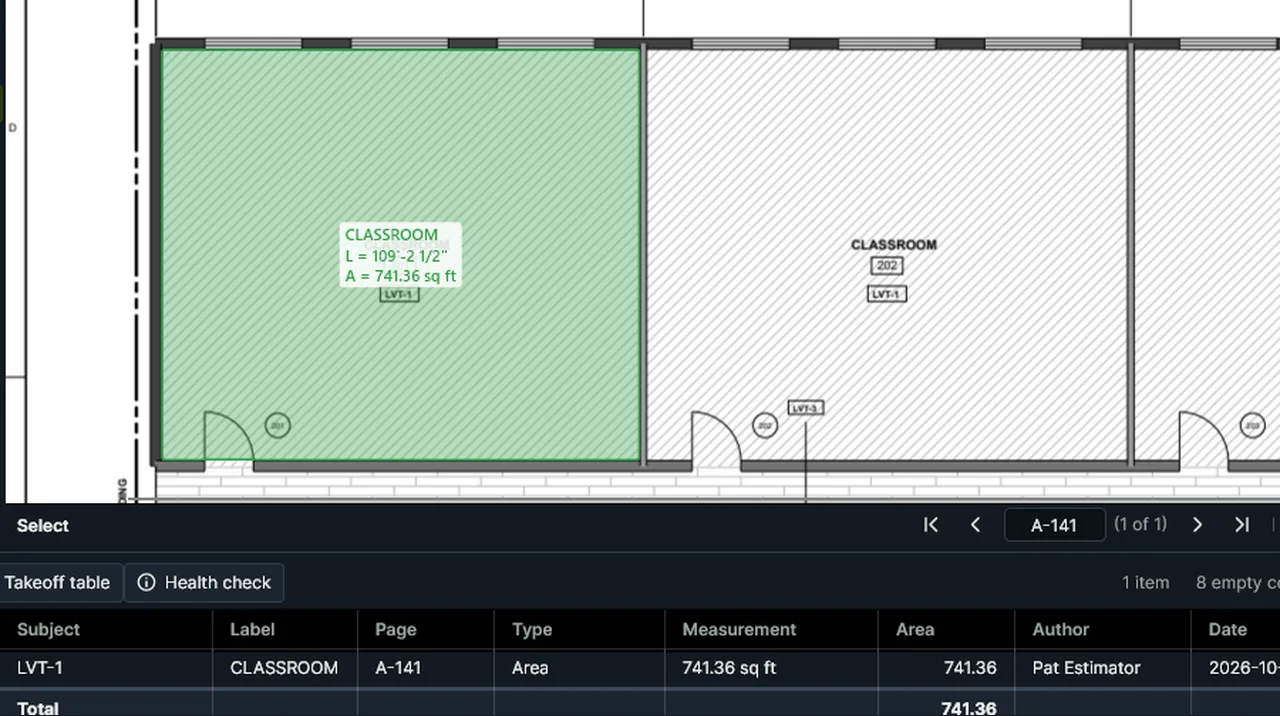
New Tool Set from Excel or CSV: each row of the list becomes a tool, ready to draw with. Screen recording of Kisheet, October 2026. Where to find it. Tools > Tool Sets > New Tool Set > From Excel or CSV makes a set named after the file. Fill Tool Values from Excel or CSV fills the set of the tool picked in the palette, matching tools by name. The message says what was added, updated and skipped, and why.
Tools > Spaces, Trade Tools, Tool Sets, Custom Columns
Tool sets panelYour saved tools, by set, with search and recent tools.Video
Tool palette: search the trade tool sets, pick a ready-made partition and draw; its height comes with it. Screen recording of Kisheet, October 2026. Where to find it. Pick a set, search, pick a tool and draw. Import and Export buttons share sets; right-click a tool for Favorite and Add Keybind.
Panels
ToolbarsEvery toolbar can be docked on any edge, in rows, or floated; customized with any command; and you can make new ones.Video
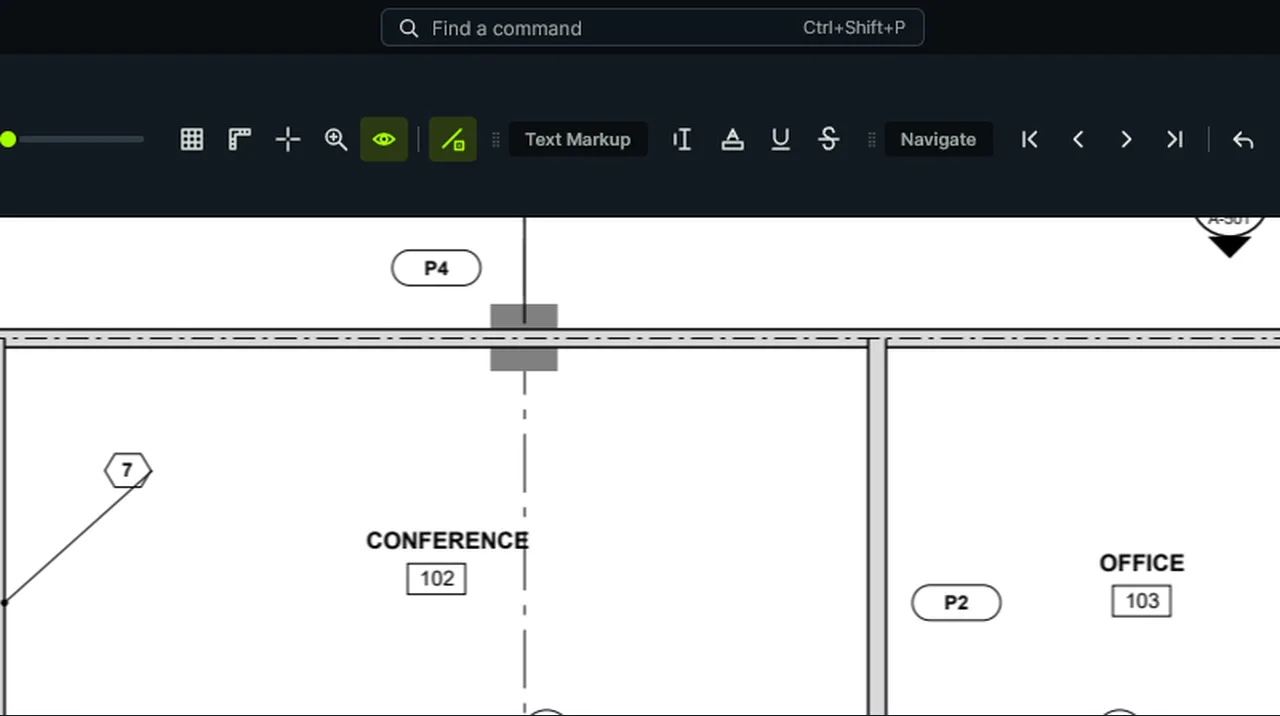
Toolbars: right-click a toolbar for the list of toolbars; show Text Markup, then Navigate, and each joins the toolbar rows. Screen recording of Kisheet, October 2026. Where to find it. Window > Toolbars ticks which show: File, Style, Measure, Markup, Text Markup, View, Navigate, Arrange and your own. Drag a toolbar by its grip to another edge or row, or off to float it; double-click the grip to float it or put it back. Lock Toolbars stops them moving; New Toolbar makes one; right-click a toolbar to customize it.
Window menu
TooltipsRest the pointer on anything you can click and a short tooltip says what it does; a command's tooltip also gives its shortcut and a sentence of its help.
Where to find it. Point at a button, menu item, check box, list, slider or box and wait a moment. Panel tabs say what each panel is for. For the full help on a command, press F1 with the pointer over its button.
Toolbars, status bar and right-click menus
Touch Mode, pen and fingersUse Kisheet on a Windows tablet: bigger buttons, two-finger pan and pinch zoom, a finger that aims under a magnifier, the pen for drawing, long press for the menu, and a Finish bar.
Where to find it. Turn on View > Touch Mode (Kisheet offers it the first time a finger touches a drawing). Two fingers pan and zoom. To place a point with a finger, touch, slide to aim under the magnifier, and lift. In Touch Mode a finger drag on empty paper pans and a tap selects. Once you use a pen, the pen draws and fingers pan; Preferences has Let fingers draw too. Hold a finger still for a moment for the right-click menu. While drawing with a finger or pen, the bar over the drawing has Undo Point, Cancel and Finish (Close Area for areas).
View menu
Trim linesDrag a fence across several lines to cut each back to the nearest lines it meets, like CAD's trim.Video
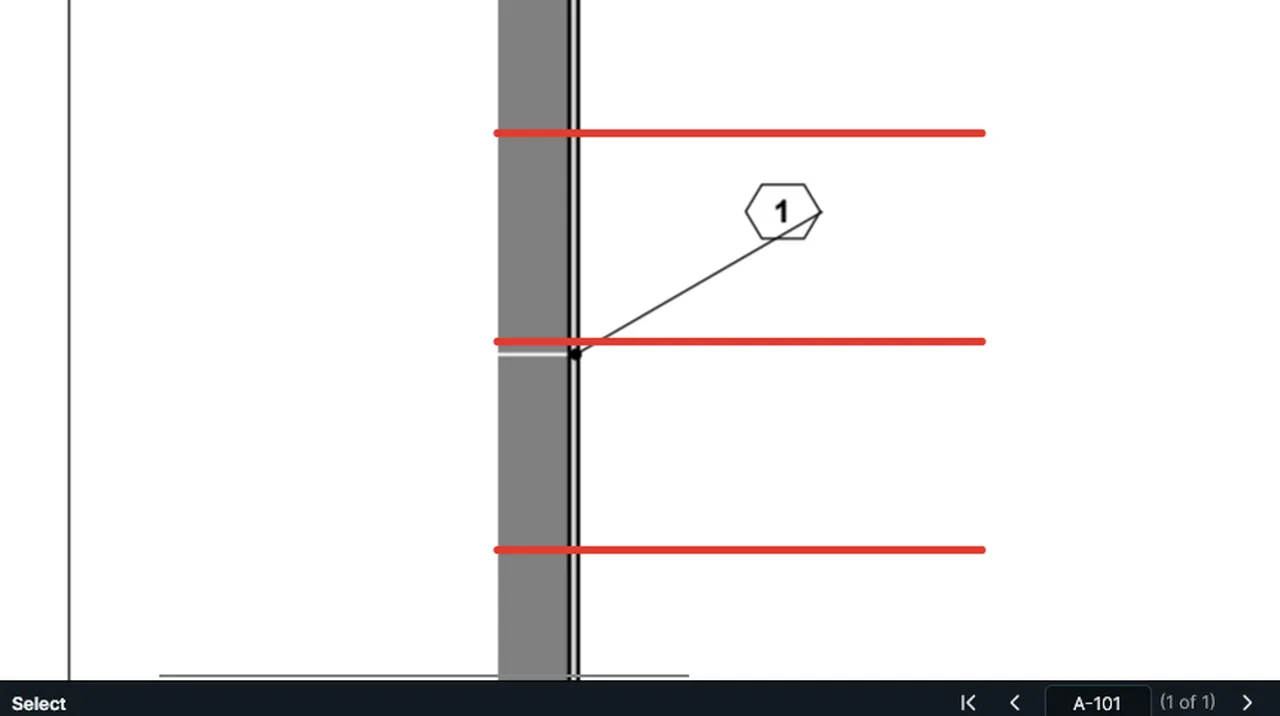
Trim Lines: draw a fence across the lines; each is cut back to the nearest line it meets, here the wall. Screen recording of Kisheet, October 2026. Where to find it. Tools > Markup > Trim Lines, then drag (or click two points) across the lines. One undo step. Kisheet's own lines are trimmed back to the nearest lines they meet: other markups and the drawing's own lines. The drawing itself is never changed.
Tools > Markup
Typical floors and typical unitsDraw a typical floor once and have it count for every floor it stands for ("Floors 2–8 ×7"), and the same for a typical unit drawn as a space ("Unit A ×24").Video
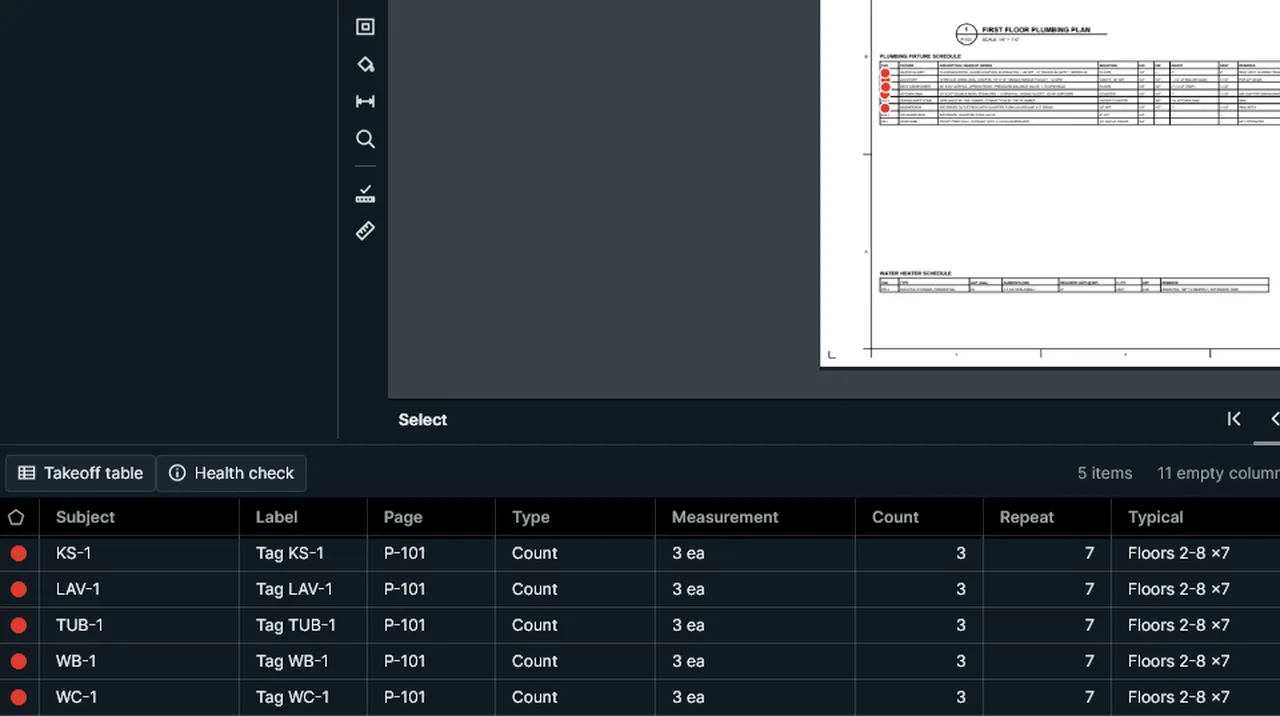
Typical Floor: take off one floor, say it stands for floors 2 to 8, and every total counts all seven. Screen recording of Kisheet, October 2026. Where to find it. Document > Sheet > Typical Floor for the current page; Tools > Spaces > Typical Unit for the selected space. Type "7", "x7", "Unit A x 24" or "Floors 2-8" (which counts 7); blank or 1 counts once. The table's Total columns, reports, bid summaries, the Excel link and change orders multiply by it; the plain quantity columns stay as drawn.
Document menu
Typing text on the pageWords are typed straight onto the page in text boxes, callouts, typewriter text, notes and flags, with no window covering the drawing.Video
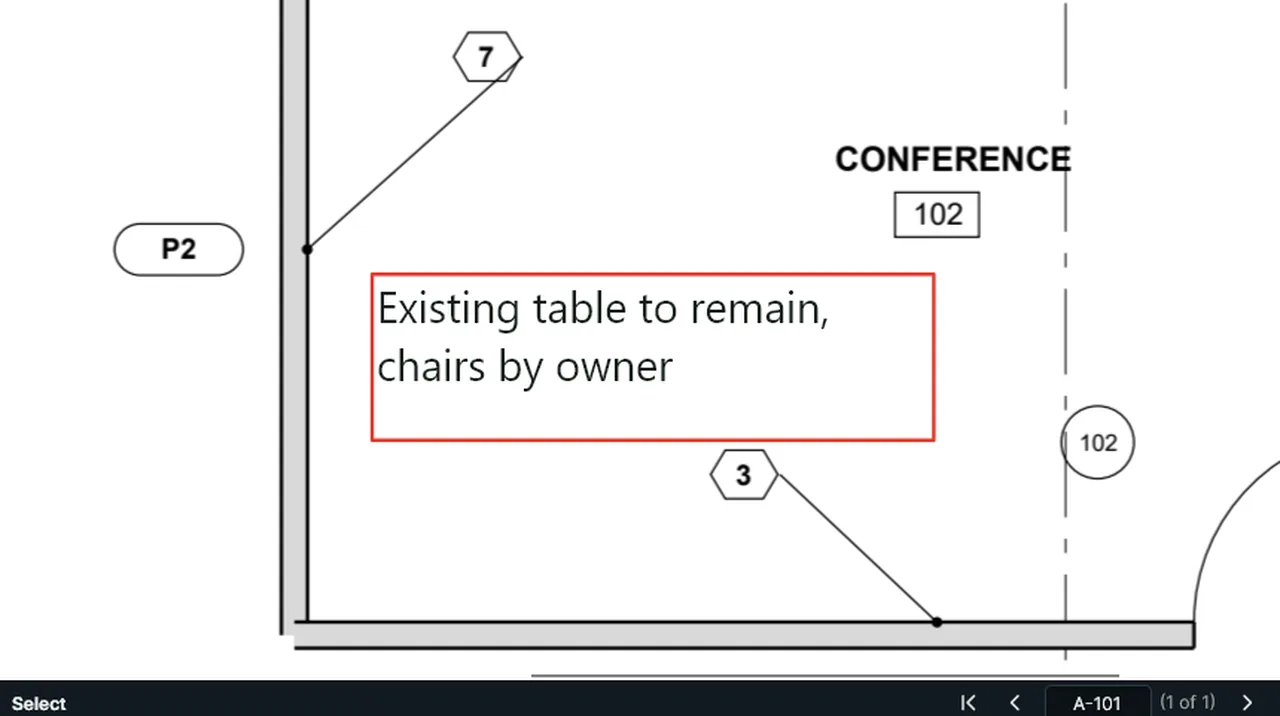
Double-click a text box to type straight on the page; a click elsewhere keeps the words. Screen recording of Kisheet, October 2026. Where to find it. Edit > Edit Text (F2) or double-click the item. Esc, Ctrl+Enter or a click elsewhere keeps the words. A new box left empty makes no markup.
Edit menu
Undo and redoEvery change to a takeoff can be undone and redone, up to 500 steps.Video
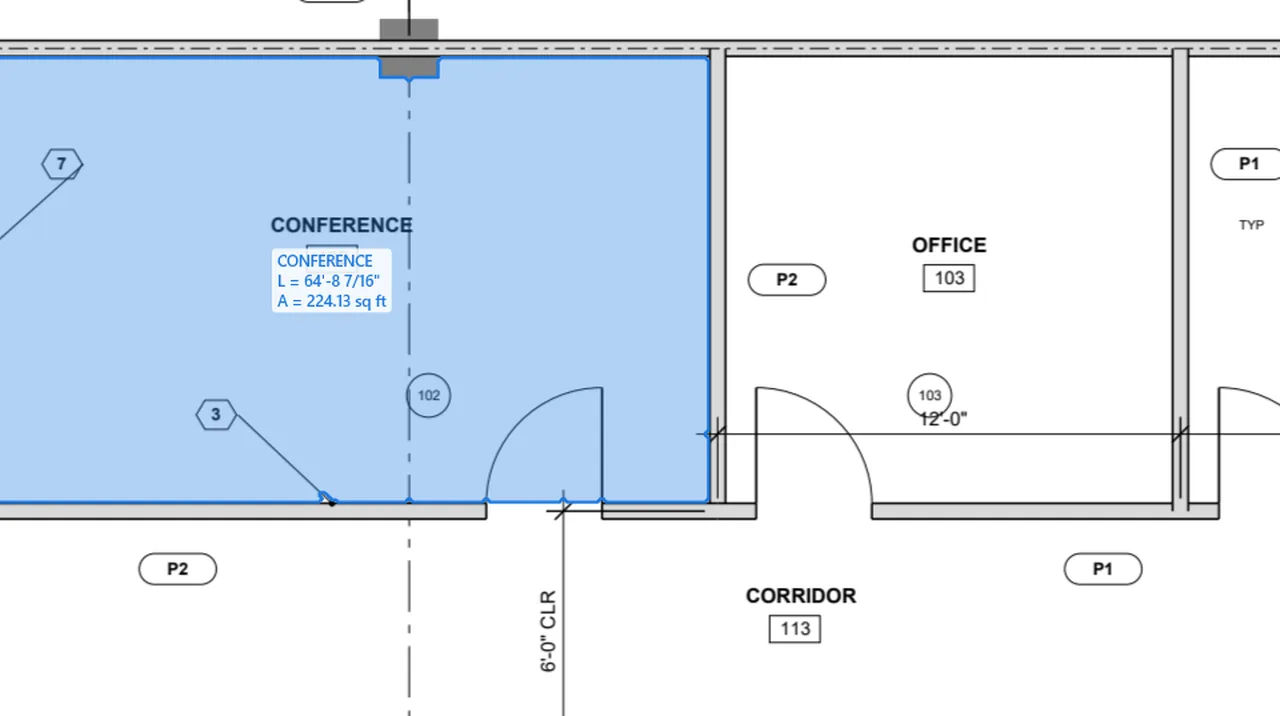
Undo takes back the office, then the conference room; Redo brings the conference room back. Screen recording of Kisheet, October 2026. Where to find it. Edit > Undo (Ctrl+Z) and Redo (Ctrl+Y). Changes made in one go, such as Replace All, an import, Multiply or a trim, undo in one step. The document's tab shows a dot while there are unsaved changes. A frozen bid can't be changed at all, so there's nothing to undo there.
Foundations
Undo and RedoEvery change to markups, measurements, columns, spaces and scales can be undone and redone.Video
Undo takes back the office, then the conference room; Redo brings the conference room back. Screen recording of Kisheet, October 2026. Where to find it. Edit > Undo (Ctrl+Z) and Redo (Ctrl+Y), also on the File toolbar. Up to 500 steps are kept.
Edit menu
Unit cost, cost and markupPrice the takeoff without setting anything up: give an item or a tool a unit cost and the Cost column prices it; a job markup adds the subtotal, the markup and the total with markup under the table.Video
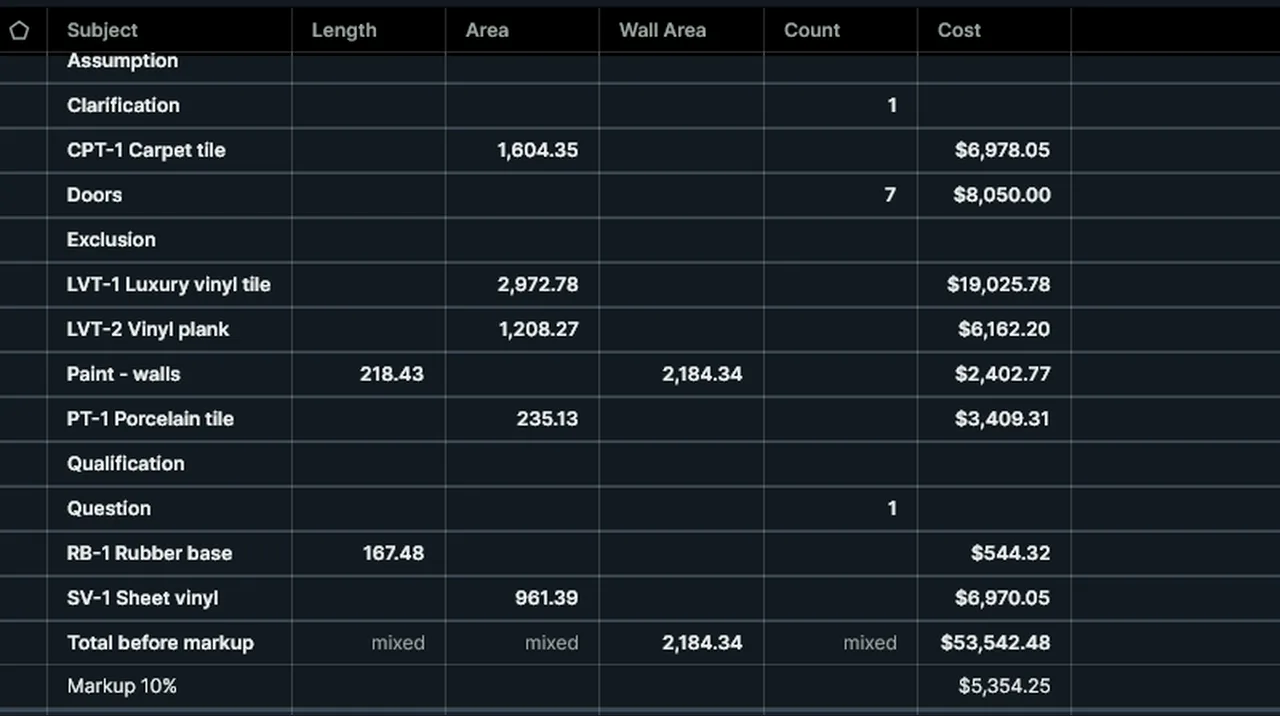
Unit cost: type it in Properties and the Cost column prices the item; Bid > Markup adds the markup under the table. Screen recording of Kisheet, October 2026. Where to find it. Type a Unit cost in Properties (after Multiplier); it is per the unit shown beside it: square foot, linear foot, cubic yard or each. A tool list's Unit Cost, Unit Price or Rate column prices each tool. Counts are priced each, lengths by length (or wall area when they have a height), areas by area (or volume with a depth), every typical floor and unit included. Switching the table to metric changes the rate shown, not the cost. Bid > Bid Markup (Overhead and Profit) sets the job's markup; the bid letter's price includes it.
Tools > Spaces, Trade Tools, Tool Sets, Custom Columns
Units and number formatsImperial or metric for each document, with a choice of how lengths show (feet-inches to 1/64", decimal feet, inches, meters, millimeters) and how area and volume units are written.Video
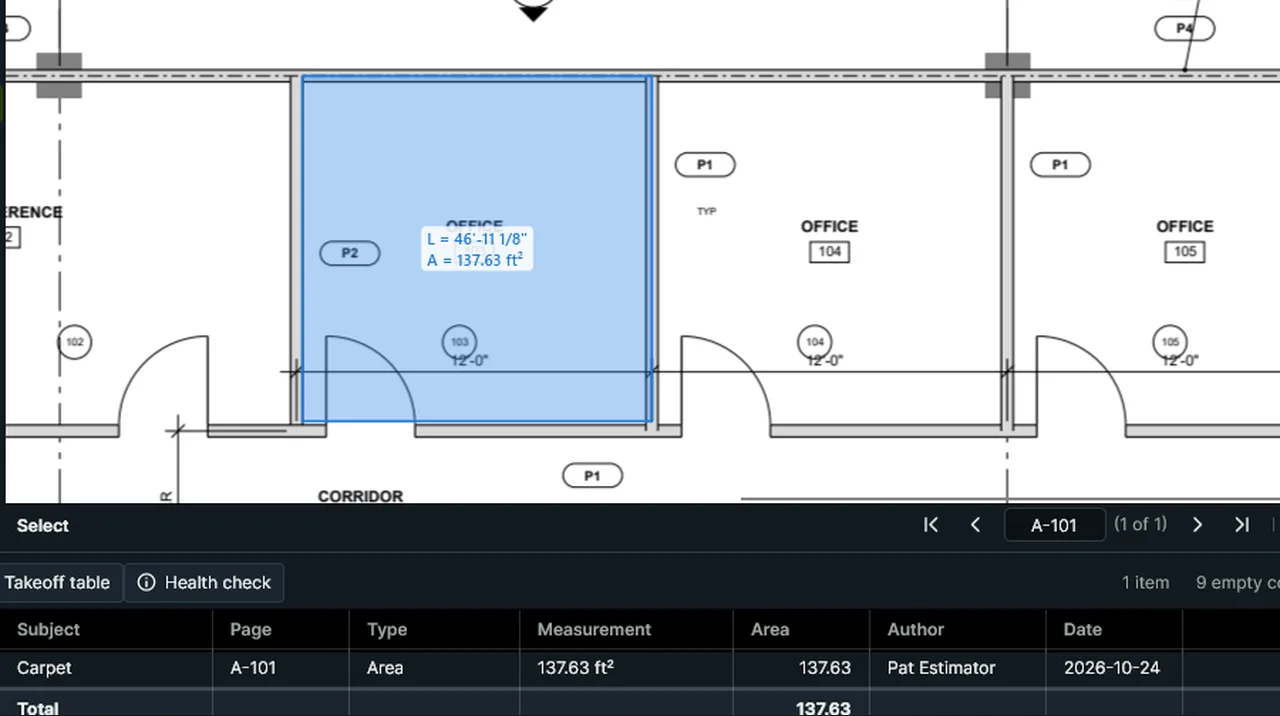
Preferences, Units and defaults: choose how area units are written, and sq ft becomes ft² on the page and in the table. Screen recording of Kisheet, October 2026. Where to find it. Imperial documents show feet, square feet and cubic yards; metric ones meters, square meters and cubic meters. Tools > Scale > Metric Units switches a document; Next Length Units steps through the length formats. Preferences > Units and defaults sets the units for new documents and whether areas show as sq ft, SF or ft².
Foundations
Version HistoryGo back to how a takeoff was earlier today, yesterday or last week: versions are kept automatically, and going back is one step you can undo.Video
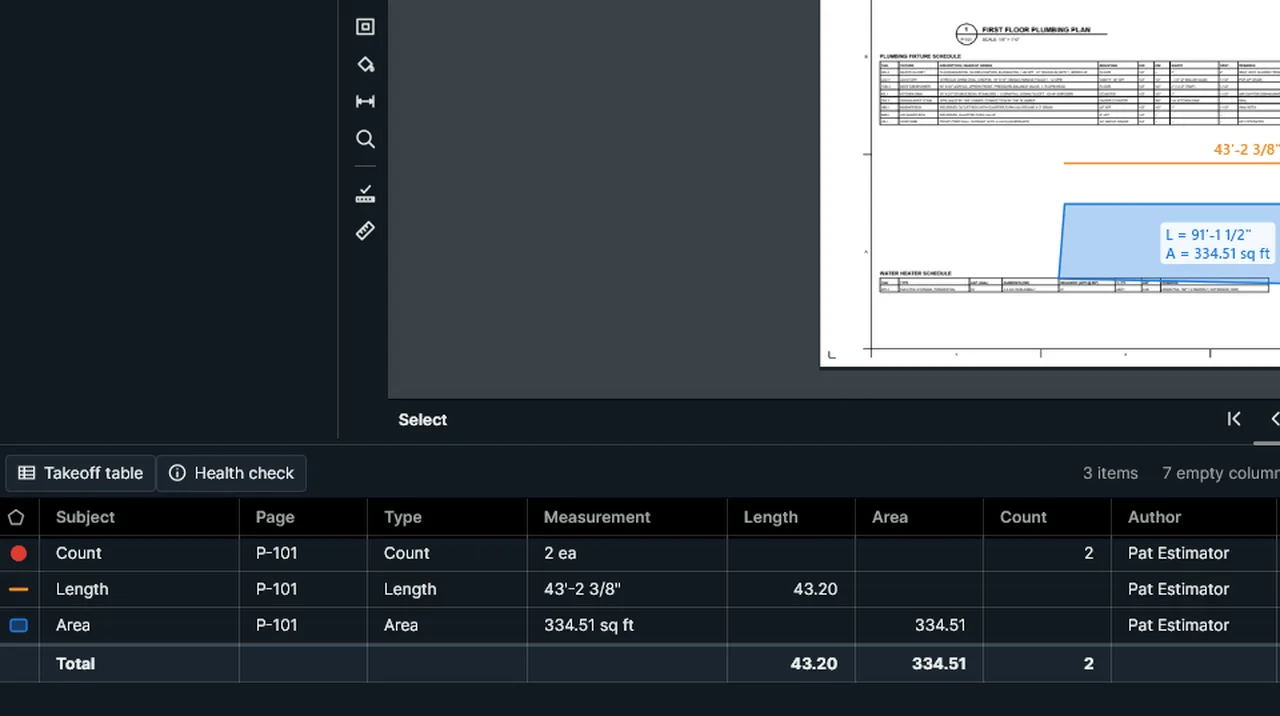
Version History: pick an earlier version to see what going back changes, go back, and Undo returns. Screen recording of Kisheet, October 2026. Where to find it. File > Version History lists the versions newest first. Pick one to see what going back would change ("2 items drawn since go, 1 item changes back"), then Go Back to This Version; Edit > Undo returns to the present. Versions are kept on this computer about every 10 minutes while you work: all from the last two hours, one an hour for two days and one a day for 30 days. Only the takeoff is versioned, not the PDF's pages.
File menu
ViewportsA rectangle on a sheet drawn at its own scale, for details at a different scale from the plan.Video
Viewport: drag a rectangle around the detail, type its scale, and a length inside it uses that scale. Screen recording of Kisheet, October 2026. Where to find it. Tools > Scale > Viewport: drag a rectangle around the detail, then type its scale (a preset such as 1/2" = 1'-0", or 1:50). Measurements that start inside it use its scale. Delete Viewport removes the one selected in the Scale panel.
Tools > Measure
Visual SearchDrag a box around one symbol and Kisheet finds every copy on the page or the whole set, turned copies too, then counts them or boxes them.Video
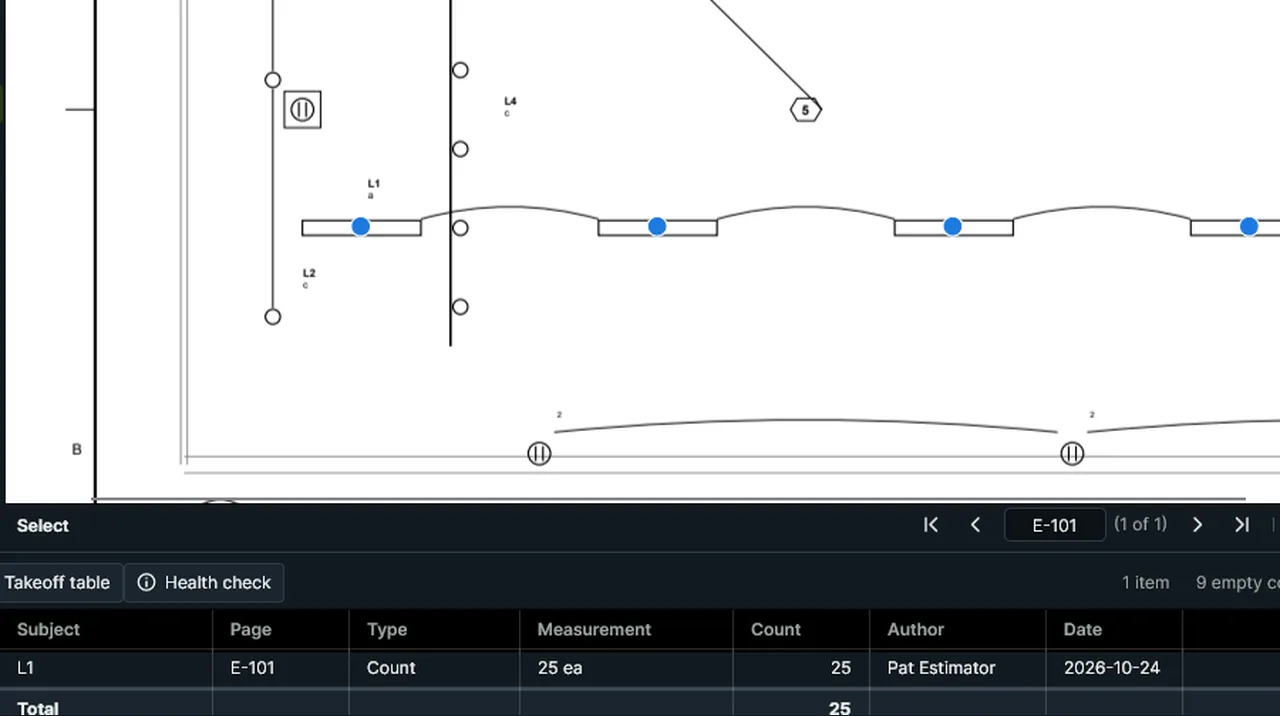
Visual Search: drag a box around one fixture, it finds the copies, and Count the Finds counts them all. Screen recording of Kisheet, October 2026. Where to find it. Tools > Visual Search (also on the Measure toolbar), then drag a box around the symbol. Options: Search Every Page and Include Turned Copies. Then Count the Finds, Box the Finds or Clear the Finds. Close matches show dashed with a "?", and Next Close Match to Check zooms to each. It finds symbols drawn at the same size, not mirrored copies.
Tools > Measure
WelcomeOn a new install, three quick choices and an opt-in: your work, the theme, a layout, and usage statistics (off unless ticked).Video
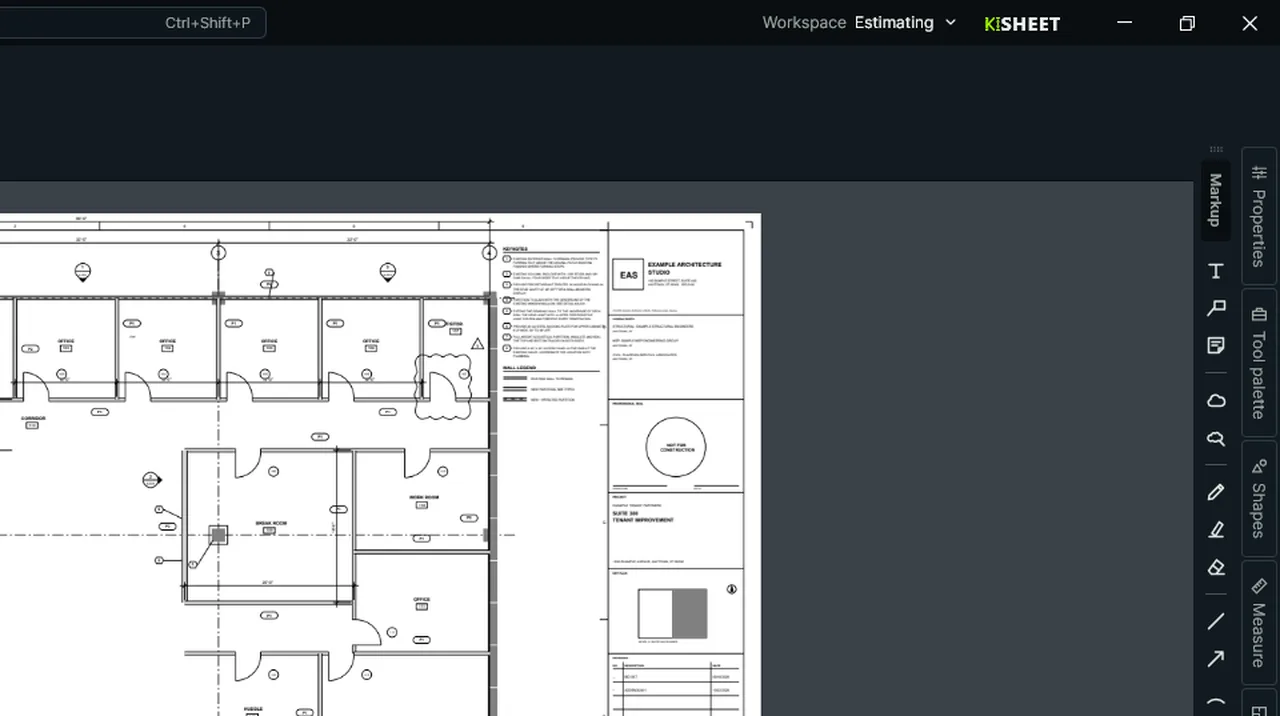
Welcome: pick your work and a layout, try Light and Dark, and Start applies them: PDFs now open in the Estimating workspace. Screen recording of Kisheet, October 2026. Where to find it. It comes up by itself the first time Kisheet starts. Your work picks a workspace (Estimating, Review, Viewing, In the field or Default); In the field also turns on Touch Mode, shows the Field toolbar and picks Light, which reads better in the sun. Dark or Light repaints as you click; the layout puts markup or measuring tools first; tick Help improve Kisheet to send counts of which commands you use. Start applies them; Skip keeps the defaults. Help > Welcome opens it again.
Kisheet menu
What Fill Area looks pastTells Fill Area what to ignore so rooms close properly (door swings, PDF layers, a color such as furniture or hatching, particular items), or draws a doorway line to close a gap.Video
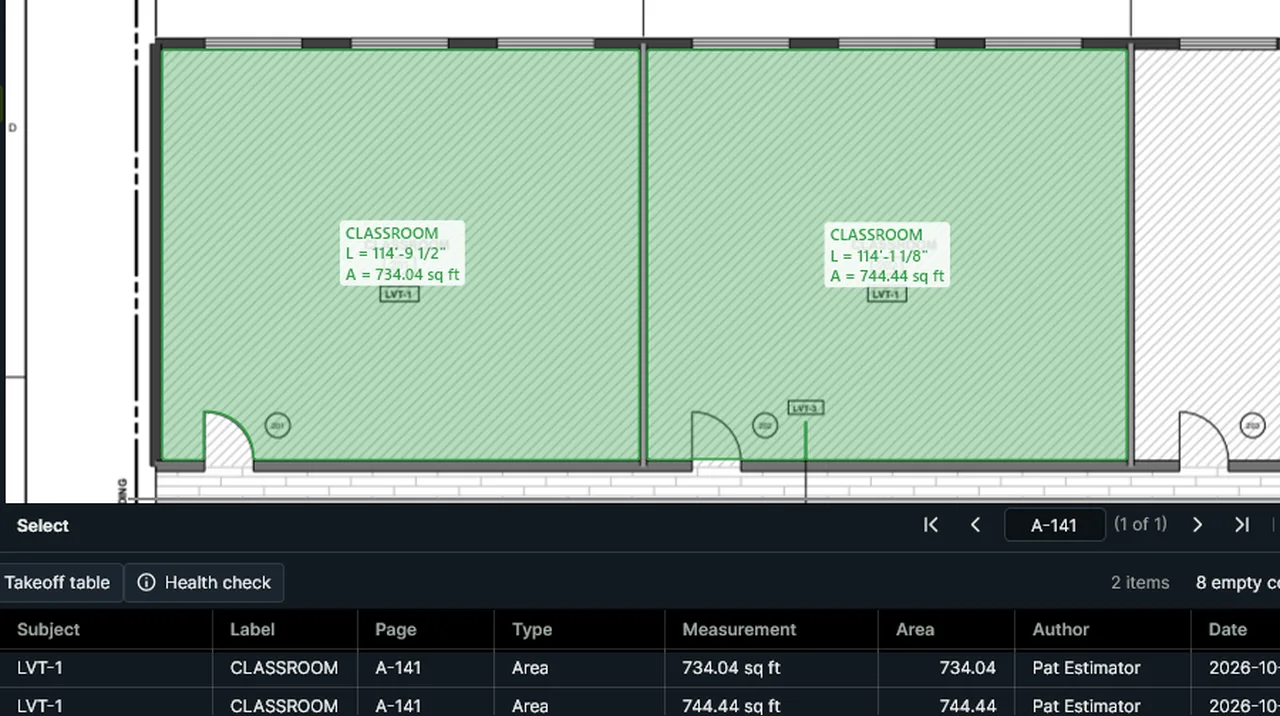
With Look Past Door Swings turned off, Fill Area stops at a door swing; turn it back on (the default) and the next room fills to its walls. Screen recording of Kisheet, October 2026. Where to find it. Tools > Measure > Fill Area Options: Look Past Door Swings; Look Past Layers; Look Past a Color (Pick It) with a color tolerance of 5, 15 or 30%; Pick an Item to Look Past; Draw a Doorway Line; Clear What Fill Area Looks Past. Save Fill Area to Tool Sets keeps the choices as a palette tool. Nothing is looked past unless you choose it.
Tools > Measure
What's saved inside the PDFEverything about a takeoff travels inside the PDF: items as standard annotations other viewers show and measure, plus Kisheet's exact data.Video
Saved in the PDF: the takeoff is saved into the PDF itself; close Kisheet, open the PDF again, and it's all there. Screen recording of Kisheet, October 2026. Where to find it. There's no separate project file to lose: send the PDF and the takeoff goes with it. Plan sets and bids keep their own small files beside the PDFs.
File formats and what's saved where
Where Kisheet keeps its settingsYour settings, themes, tool sets, workspaces, flows, Digital IDs, backups, recovery files and versions are kept in Kisheet's data folder on your computer.
Where to find it. The folder is %APPDATA%\Kisheet. Settings that can't be read fall back to their defaults.
File formats and what's saved where
WhiteoutCovers part of the drawing with an opaque white box.Video
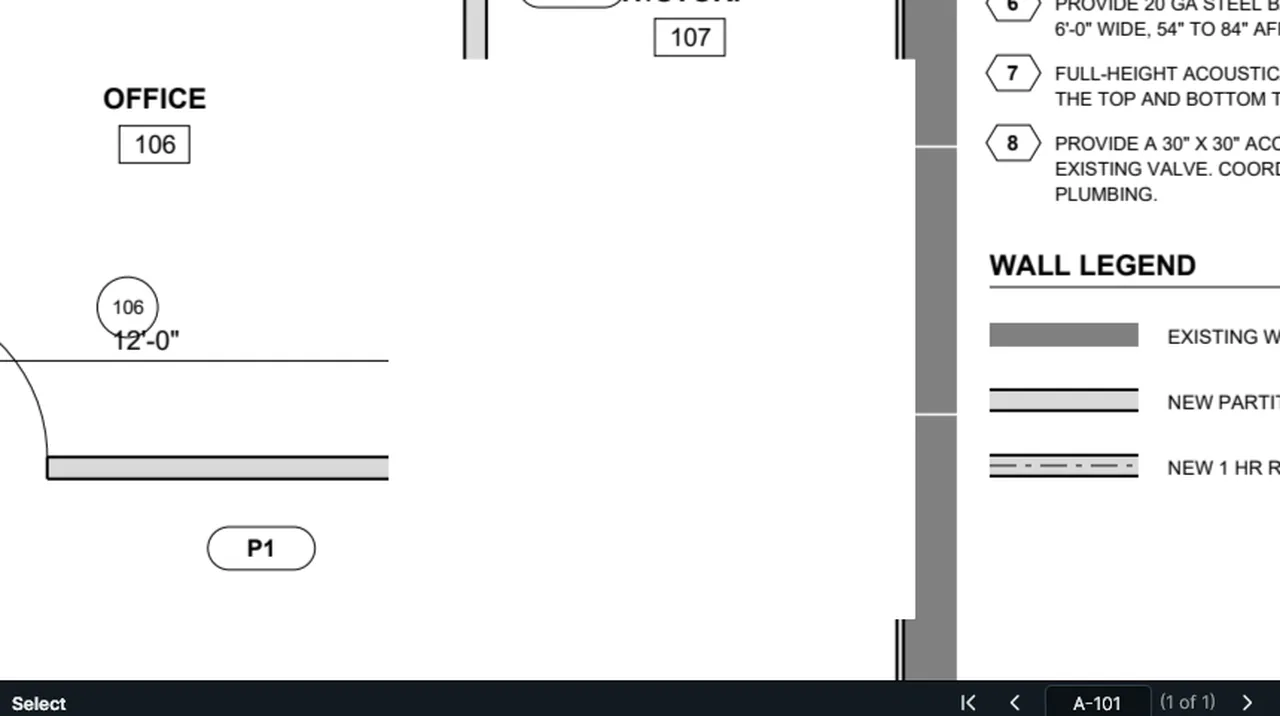
Whiteout: drag a box, or click two corners, to cover part of the drawing with white. Screen recording of Kisheet, October 2026. Where to find it. Tools > Markup > Whiteout, then drag a box. What's underneath is still in the file; to remove it for good, use Redaction.
Tools > Markup
WorkspacesSaved setups of the window (toolbars, panels, theme, units, table grouping and which tool sets show) for different jobs or people; four come with Kisheet.Video
Workspaces: open the Properties panel, Save Workspace As, and My takeoff joins the list as the current workspace. Screen recording of Kisheet, October 2026. Where to find it. Window > Workspaces: pick one (Default, Estimating, Review, Viewing or your own); Save Workspace, Save Workspace As, Lock Workspace (it can be used and copied but not changed), Import, Export and Delete. Reset Workspace puts the current one back as saved.
Window menu
Zooming and panningZoom from 1% to 6,400% with the keyboard, the mouse wheel, or by dragging a box around what you want to see.Video
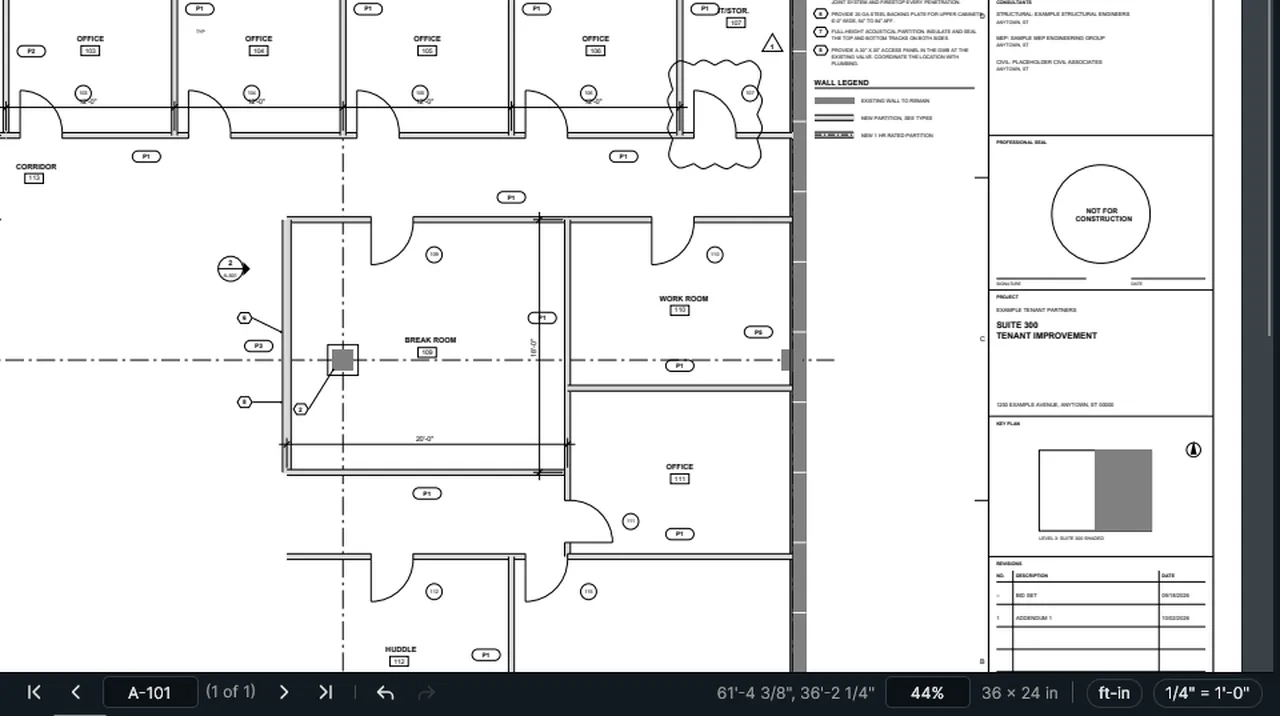
Fit Page shows the whole sheet, a box dragged with the Zoom tool goes straight to one room, and Fit Width fills the width. Screen recording of Kisheet, October 2026. Where to find it. View > Zoom In (Ctrl+=) and Zoom Out (Ctrl+-); Fit Page (Ctrl+9), Fit Width (Ctrl+0) and Actual Size (Ctrl+8). The mouse wheel zooms about the pointer; Shift+wheel pans sideways. The Zoom tool (Z) zooms in on a click, out on Alt-click or right-click, and to a box you drag. The middle mouse button, or holding Space, pans with any tool, and the arrow keys pan too.
View menu
No features match .
See the whole toolset on your own plans.
Every tool on this page, on a real plan set of yours.